

A post accordion lets you display latest blog posts in your WordPress website as collapsible sections that update automatically. Each panel header shows a post title; expanding it reveals the featured image, excerpt, date, and a read-more link. Because the accordion queries your posts dynamically, every new article you publish appears instantly — no manual updates required.
Every blog faces the same layout problem eventually: how do you showcase your growing archive without burying visitors in an endless feed? Standard “recent posts” widgets show five bare links. Full post grids, on the other hand, eat entire screens. However, there’s a middle path that gives you both compactness and rich previews — the post accordion.
In this guide, you’ll learn what a post accordion is, why it beats standard recent-post widgets, and how to set one up in minutes without touching code. Additionally, we’ll cover smart use cases, SEO implications, and design tips that turn a simple post list into a traffic-circulating machine. Let’s get started.
What Is a Post Accordion in WordPress?
A post accordion is a dynamic WordPress block that displays your blog posts as expandable, collapsible panels. Unlike a static list you build by hand, it pulls posts automatically from your database — filtered by category, tag, or recency — so the section always shows fresh content without any maintenance.
Think of it as a self-updating table of contents for your blog. Visitors scan the post titles in the collapsed headers, then expand only the articles that catch their interest to preview the featured image and excerpt. Consequently, one compact section can showcase ten or twenty posts in the space a traditional grid needs for three.
Modern accordion plugins ship this as a ready-made block. For instance, Easy Accordion‘s Post Accordion block queries your live posts inside the Gutenberg editor — you choose the source (latest, category, or hand-picked), set the count and order, toggle which elements appear, and publish. From that moment on, WordPress feeds the accordion forever.
Why Display Latest Blog Posts in Collapsible Sections?
Collapsible post sections solve three problems at once: they save space, they increase the number of posts a visitor actually sees, and they update themselves. Moreover, they keep readers exploring your site, which lifts pages per session — a signal that correlates with stronger engagement and better rankings.
Here’s the full case, benefit by benefit.
Show 3× More Posts in the Same Space
A typical three-column post grid displays three posts per screen. In contrast, an accordion lists ten or more titles in the same vertical space, because collapsed panels take one line each. Therefore, your best content earns visibility instead of hiding below the fold or behind pagination.
Set It Once, Update Never
Static “featured posts” sections rot silently — the moment you stop updating them, they showcase stale content. A post accordion, however, runs on a live query. Publish a new article, and it appears at the top of the accordion automatically. As a result, your homepage, sidebar, and hub pages stay perpetually fresh with zero maintenance.
Boost Internal Linking and Session Depth
Every expanded panel presents an excerpt and a read-more link — an internal link your visitors actually want to click. Internal links distribute page authority across your site and help crawlers discover new posts faster. Furthermore, readers who preview before clicking choose articles they genuinely want, so bounce rates on the destination posts improve too.
Give Readers Control (and Keep Them Longer)
Accordions embody progressive disclosure: show a little, reveal more on demand. Readers scan twenty titles in seconds, open two or three previews, and pick their next read — all without leaving the page. Consequently, the experience feels fast and respectful of attention, especially on mobile where screen space is precious.
Organize Content Hubs by Category
Building a topic hub or resource page? Stack multiple post accordions — one per category — under clear H2 headings. Each accordion auto-fills with that category’s latest articles. In other words, you build a living content hub once, and it curates itself from then on.
How to Auto-Display Latest Blog Posts in an Accordion (Step by Step)
To display your latest blog posts in collapsible sections, install a free accordion plugin with a post block, insert the Post Accordion block, choose your post source and count, toggle the elements each panel shows, style it, and publish. The whole setup takes about five minutes with no coding.
Here’s the exact walkthrough using Easy Accordion, whose free version includes the Post Accordion Gutenberg block.
Step 1: Install the Plugin
First, navigate to Plugins → Add New in your WordPress dashboard. Search for “Easy Accordion,” then install and activate it.
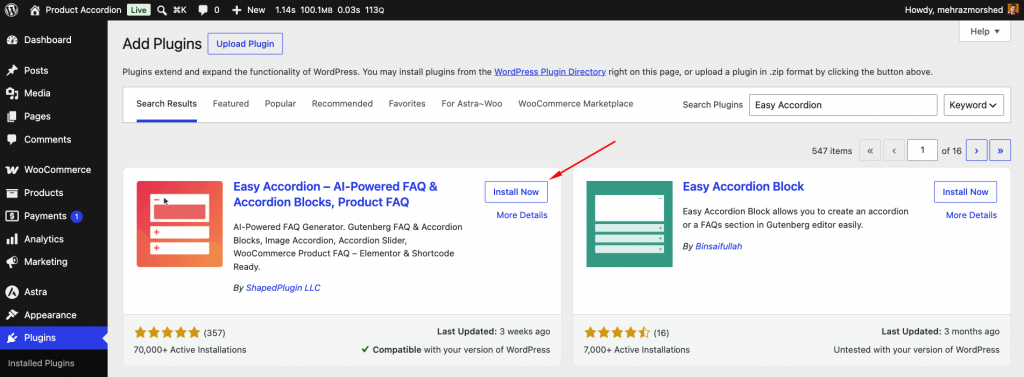
The plugin adds a dozen accordion blocks to your editor, including the dynamic Post Accordion.
Step 2: Insert the Post Accordion Block
Next, open the page or template where the post list belongs — your homepage, a sidebar via the widget editor, or a category hub page.
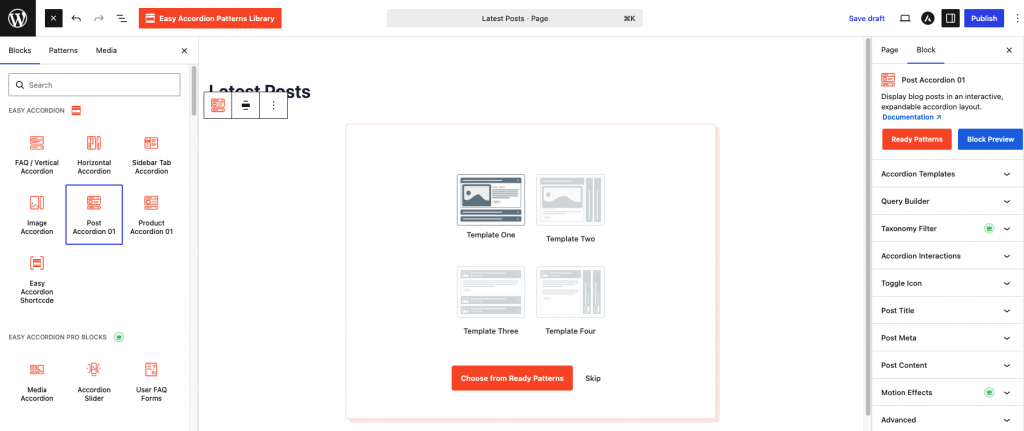
Click the block inserter, search for Post Accordion, and add it. Real posts from your site load into the preview immediately.
Step 3: Choose the Post Source and Order
Now, configure the query. Display the latest posts site-wide, filter by one or more categories, or select specific posts manually.
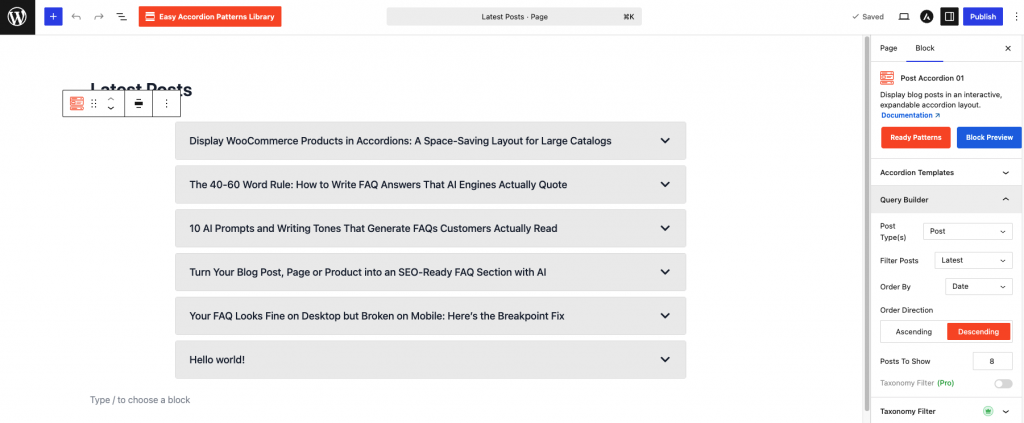
Then, set how many posts to show and the order — newest first, alphabetical, or most commented. For evergreen hubs, category filtering works best; for homepages, latest-first keeps things fresh.
Step 4: Toggle What Each Panel Shows
After that, decide what appears inside each expanded panel: featured image, excerpt, publish date, author, and the read-more button.
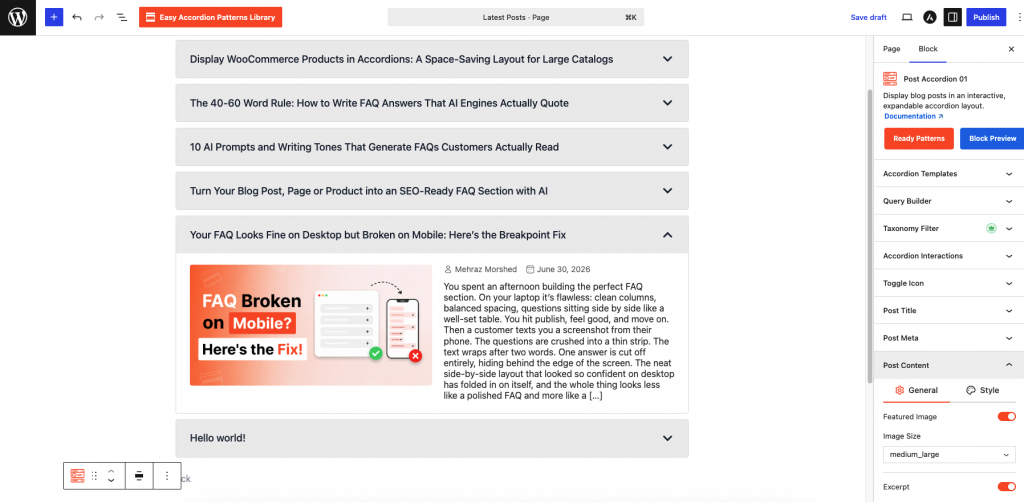
A proven combination for engagement is image + excerpt + read-more. Meanwhile, keep the collapsed header clean — the post title alone scans fastest.
Step 5: Style the Accordion
Then, match the design to your theme: expand/collapse icons, header background, typography, borders, and spacing.
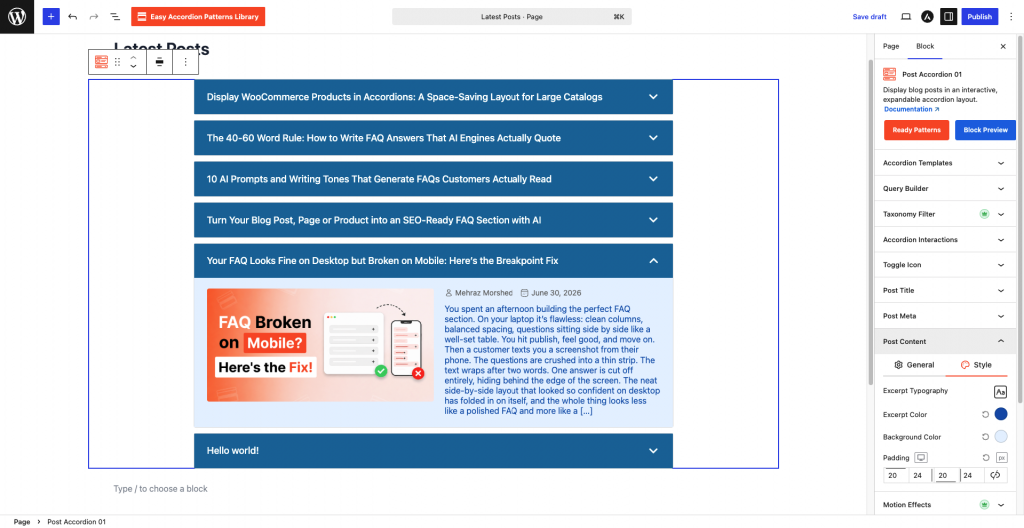
Consider opening the first panel by default so the section never looks empty, and choose a distinct hover state so visitors instantly recognize the headers as clickable.
Step 6: Publish and Verify Auto-Updates
Finally, publish the page. To confirm the dynamic behavior, publish a quick test post — it should appear in the accordion immediately. From here on, the section maintains itself: new posts flow in, the count stays constant, and the oldest entries rotate out automatically.
Does Putting Posts in Accordions Affect SEO?
No — content inside collapsed accordions is fully indexed by Google, provided it loads in the page’s initial HTML. Under mobile-first indexing, Google treats accordion and tab content as first-class, so your post titles, excerpts, and internal links all count.
In fact, the SEO effect is usually positive, for three reasons. First, every accordion panel adds a crawlable internal link to a recent post, which accelerates discovery and spreads link equity. Second, fresh post titles rotating through key pages send freshness signals on pages that would otherwise remain static. Third, the title-plus-excerpt structure creates clean, machine-readable content chunks — a format that AI answer engines parse easily when deciding what to cite.
One best practice, however: treat the accordion as a distribution layer, not a replacement for your blog archive. Keep your standard category and archive pages intact as primary crawl paths, and let the accordion amplify — not substitute — them.
Best Places to Use a Post Accordion
Placement determines impact. These spots deliver the most value:
Design Tips That Get More Posts Read
Small choices decide whether visitors expand panels or scroll past. Apply these:
Frequently Asked Questions
Does the post accordion update automatically when I publish?
Yes. The Post Accordion block runs a live query against your WordPress posts, so new articles appear the moment you publish them. The display count stays fixed, which means the newest post enters at the top while the oldest rotates out automatically.
Can I show posts from a specific category only?
Yes. Filter the accordion by one or multiple categories, tags, or a manual selection. This makes it ideal for topic hub pages — each accordion pulls only its own category’s latest posts, so every hub curates itself without manual updates.
Will the posts inside the accordion be indexed by Google?
Yes. Google fully indexes accordion content under mobile-first indexing, as long as it loads in the initial HTML — which block-based post accordions do. Additionally, every panel’s read-more link acts as a crawlable internal link that helps new posts get discovered faster.
Can I use the post accordion in my sidebar or footer?
Yes. Insert the block through the WordPress widget editor (Appearance → Widgets) or your theme’s template parts. A compact post accordion makes an excellent replacement for the default Recent Posts widget, because it adds image and excerpt previews in barely more space.
What’s the difference between a post accordion and a recent posts widget?
A recent posts widget shows plain title links only. A post accordion adds expandable previews — featured image, excerpt, date, and a read-more button — while occupying similar collapsed space. Consequently, visitors preview before clicking, which increases both click quality and pages per session.
Does it work with Elementor and other page builders?
Yes. Easy Accordion integrates with Elementor, Divi, Beaver Builder, Bricks, Oxygen, and WPBakery in addition to the native Gutenberg block. Therefore, you can drop the same auto-updating post accordion into any layout system your site already runs.
Let Your Blog Promote Itself
Your archive is full of articles that deserve a second life — the only thing missing is a layout that surfaces them automatically. A post accordion delivers exactly that: compact, rich, self-updating previews of your latest content, placed wherever readers make their “what next?” decision.
Here’s your action plan. Add a Post Accordion block to your homepage set to your ten latest posts, open the first panel by default, and include images with two-line excerpts. Then, build one category-filtered accordion on your most important hub page. Check your pages-per-session metric after two weeks — when readers can preview before they click, they click more, and they stay longer.
Ready to set it up? Install Easy Accordion for free, insert the Post Accordion block, and let your latest posts display themselves from today onward.


Leave a Reply
You must be logged in to post a comment.