

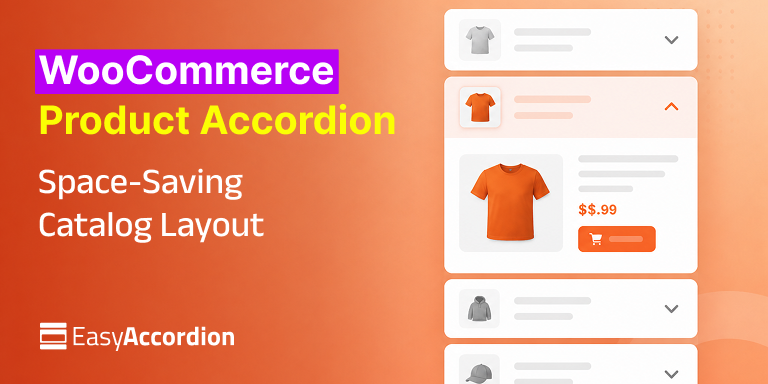
A WooCommerce product accordion displays your products inside collapsible panels — each panel opens to reveal the product image, price, description, and add-to-cart button. As a result, a catalog of 50, 100, or 500 products fits into a compact, scannable layout instead of an endless grid, which reduces scroll fatigue and helps shoppers find products faster.
Large catalogs create a painful paradox: the more products you add, the harder each one becomes to find. Standard WooCommerce grids force shoppers to scroll through row after row, most visitors have already left. However, there’s a smarter layout hiding in plain sight — the accordion.
In this guide, you’ll learn what a product accordion is, why it outperforms endless grids for large catalogs, and how to add one to your WooCommerce store in minutes without writing code. Furthermore, we’ll cover the SEO question everyone asks (“does collapsed content hurt rankings?”), the best use cases, and design tips that lift conversions. Let’s dive in.
What Is a WooCommerce Product Accordion?
A WooCommerce product accordion is a collapsible layout that lists products as expandable panels. Each panel header shows the product name (and optionally a thumbnail or price), while the expanded panel reveals the full details — image, description, price, and an add-to-cart button — without leaving the page.
In other words, it works like an interactive table of contents for your catalog. Shoppers scan the headers, expand only the products that interest them, and add items to the cart on the spot. Consequently, one screen of accordion panels can present the same inventory that would otherwise require ten screens of grid scrolling.
Modern accordion plugins pull products dynamically from WooCommerce. For example, Easy Accordion‘s Product Accordion block queries your live store — by category, latest, or custom selection — so prices, stock status, and images stay in sync automatically. You configure the layout once; WooCommerce feeds it forever.
Why Use Accordions for Large Product Catalogs?
Accordions solve the four biggest problems of large catalogs: endless scrolling, slow page perception, decision paralysis, and mobile clutter. Additionally, they keep shoppers on a single page, which preserves momentum toward the add-to-cart click.
Let’s look at each benefit in detail.
They Cut Scroll Depth Dramatically
A 100-product grid at four columns still forces 25 rows of scrolling. In contrast, a categorized accordion shows perhaps eight category panels on one screen. Shoppers reach any product in two clicks instead of twenty swipes. Less scrolling means less abandonment — especially on mobile, where over 60% of ecommerce traffic now lives.
They Reduce Decision Paralysis
Psychology research on choice overload is consistent: when people face too many visible options at once, they choose nothing. An accordion presents choices progressively — category first, then products — so each decision stays small. Therefore, the shopper moves forward instead of freezing at a wall of thumbnails.
They Improve Perceived Performance
A compact product accordion renders a lighter first screen than a massive image grid, and well-built accordion plugins lazy-load panel content. As a result, the page feels faster, Core Web Vitals improve, and shoppers on slow connections stay engaged instead of bouncing during load.
They Keep Shoppers on One Page
Every extra page load between “interested” and “purchased” leaks revenue. Because a product accordion includes the add-to-cart button inside each panel, shoppers browse, compare, and buy from a single URL. Moreover, fewer navigation hops mean cleaner analytics and simpler funnels.
They Organize Related Products Naturally
Product accordions mirror how customers think: “show me the coffee makers… now show me the grinders.” Grouping products under expandable category headers matches that mental model perfectly, whereas a flat grid forces the customer to do the sorting in their head.
How to Display WooCommerce Products in an Accordion (Step by Step)
To display product accordion, install a free accordion plugin with a product block, insert the Product Accordion block on any page, choose which products to pull (by category, latest, or manual selection), style the panels, and publish. The setup takes about five minutes and requires zero code.
Here’s the full walkthrough using Easy Accordion, whose free version includes a dedicated Product Accordion Gutenberg block.
Step 1: Install the Plugin
First, go to Plugins → Add New in your WordPress dashboard, search for “Easy Accordion,” then install and activate it.
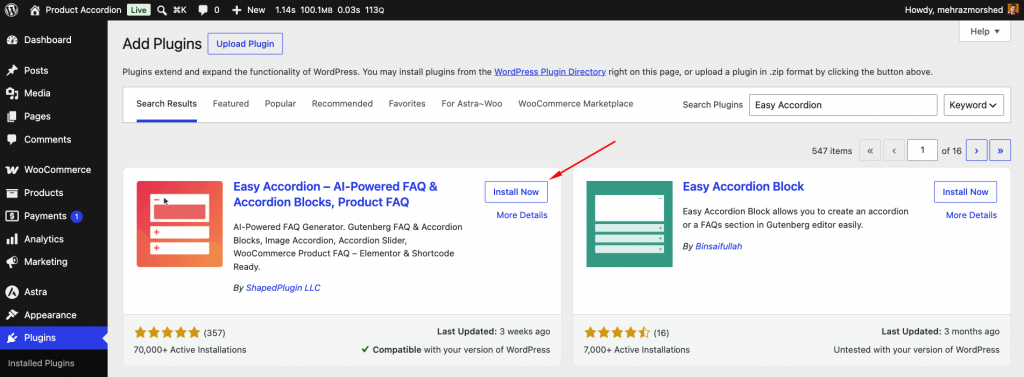
The plugin detects WooCommerce automatically, so the product-specific blocks appear in your block library right away.
Step 2: Insert the Product Accordion Block
Next, open the page where you want the catalog — a shop landing page, a category hub, or even your homepage. Click the block inserter, search for Product Accordion, and add it.
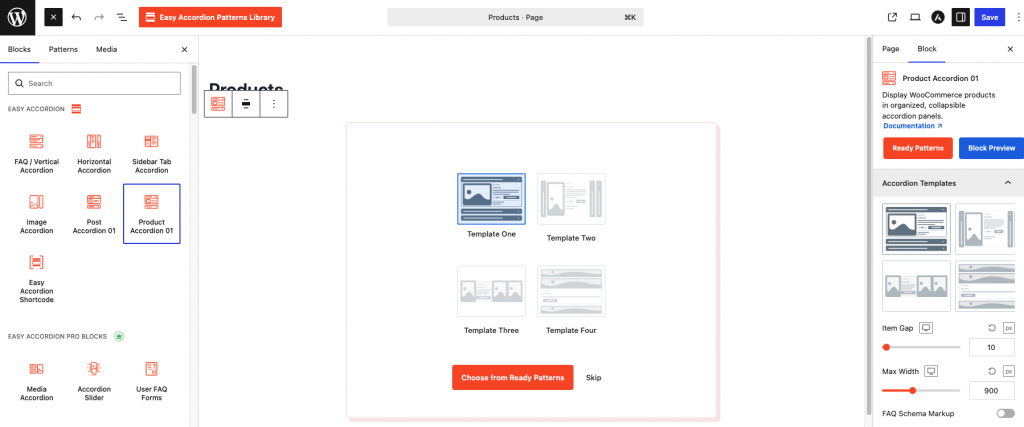
A live preview appears immediately inside the editor, so you see real products as you configure.
Step 3: Choose Your Product Source
Now, decide what the accordion pulls in. Query products by category (ideal for organizing a large catalog into collapsible sections), display the latest or featured products, or hand-pick specific items.
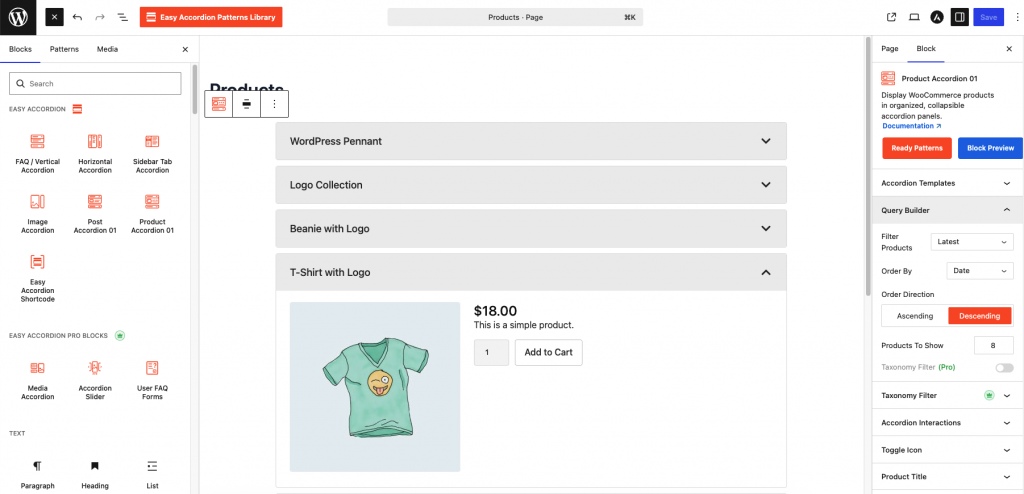
Additionally, set the product count and ordering — newest first, price, popularity, or menu order.
Step 4: Configure What Each Panel Shows
After that, toggle the elements inside each panel: product image, price, short description, and the add-to-cart button.
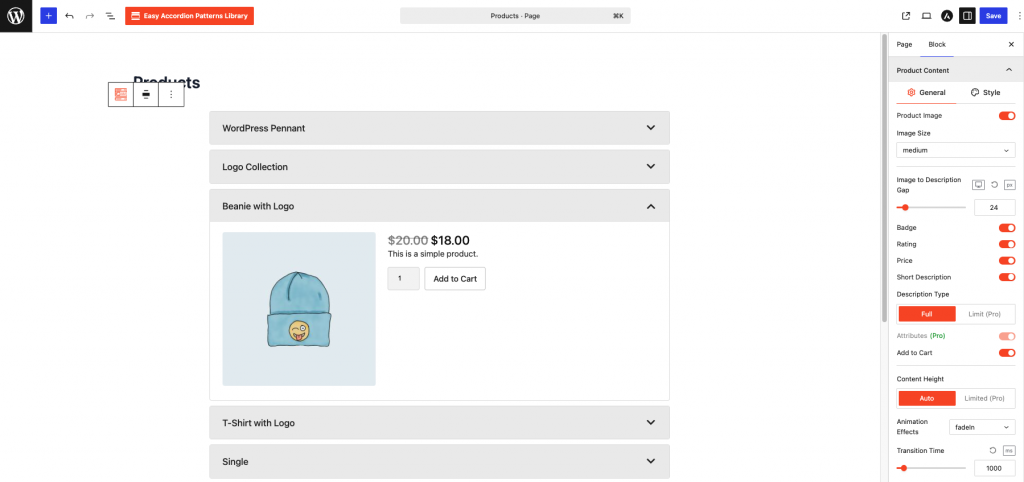
For large catalogs, a clean combination works best — thumbnail plus price in view, full description and buy button on expand. Consequently, headers stay scannable while panels stay persuasive.
Step 5: Style the Accordion
Then, adjust the look: expand/collapse icons, header colors, borders, spacing, and typography. Match your theme’s buttons so the add-to-cart CTA feels native.
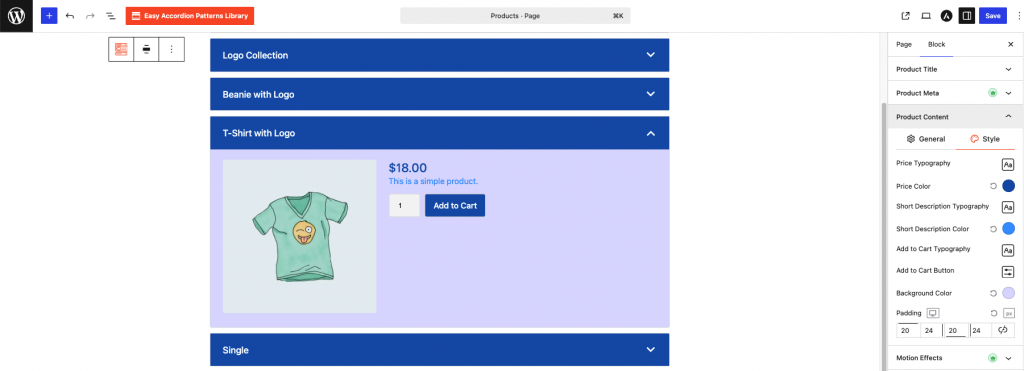
Prefer a different structure? Switch between one-column and multi-column layouts, or set the first panel to open by default so the section never looks empty.
Step 6: Publish and Test on Mobile
Finally, publish and open the page on your phone.

Check three things: headers are tappable with a thumb, panels expand smoothly, and the add-to-cart button sits above the fold inside each opened panel. Because most catalog browsing happens on mobile, this two-minute test protects the majority of your revenue.
Does Hiding Products in Accordions Hurt SEO?
No — Google fully indexes content inside collapsed accordions. Under mobile-first indexing, Google confirmed that content hidden for user experience (tabs, accordions, expandable sections) receives full weight, as long as the text loads in the page HTML rather than after a click.
That said, two implementation details matter. First, use an accordion that renders product content server-side or in the initial markup — not one that fetches panel content only when clicked, because crawlers may never trigger that fetch. Second, keep your standard WooCommerce category and product pages live; the accordion is a presentation layer for browsing, while individual product URLs remain your primary ranking assets.
There’s a bonus, too. Accordion layouts naturally structure content as headers and grouped details — a machine-friendly pattern that AI answer engines parse easily. Furthermore, if you pair product accordions with an FAQ accordion (with FAQ schema) on the same page, you cover both transactional queries and question-based queries that surface in People Also Ask and AI Overviews.
Best Use Cases for Product Accordions
Product accordions shine in specific scenarios. Prioritize these:
Design Tips That Lift Conversions
Layout alone doesn’t sell; details do. Apply these proven tweaks:
Frequently Asked Questions
Can I display WooCommerce products in an accordion without coding?
Yes. A free plugin like Easy Accordion adds a Product Accordion block to the WordPress editor. You insert the block, choose products by category or selection, toggle the image, price, and add-to-cart button, then publish — no PHP, shortcode building, or template edits required.
Does the accordion update automatically when products change?
Yes. The Product Accordion block queries WooCommerce dynamically, so prices, images, stock status, and new products sync automatically. Change a price in WooCommerce, and every accordion displaying that product updates instantly — you never maintain the layout manually.
Will collapsed products still be indexed by Google?
Yes. Google fully indexes content inside collapsed accordions under mobile-first indexing, provided the content loads in the initial HTML. Keep your regular product pages live as primary ranking URLs, and treat the accordion as a browsing layer that improves user experience.
Can shoppers add products to the cart from the accordion?
Yes. Each expanded panel can include a native add-to-cart button, so shoppers buy without leaving the page. Fewer page loads between discovery and purchase means less drop-off — particularly on mobile connections, where every extra load costs conversions.
Is an accordion better than a product grid?
It depends on catalog size and intent. Grids suit small, visual collections where images sell (fashion, art). Accordions win for large, categorized catalogs — menus, parts, wholesale lists — where shoppers scan by name or category first and view details second.
Does the product accordion work with Elementor and other page builders?
Yes. Easy Accordion integrates with Elementor, Divi, Beaver Builder, Bricks, Oxygen, and WPBakery, alongside the native Gutenberg block. Consequently, you can drop the same dynamic product accordion into any layout your site already uses.
Give Your Catalog Room to Breathe
A big catalog is an asset — until the layout turns it into a wall. Product accordions flip that equation: they compress hundreds of products into a scannable, categorized, one-page experience where shoppers expand exactly what interests them and buy on the spot.
Here’s your action plan. Pick your largest category page, install a free accordion plugin, and rebuild the page with a Product Accordion block grouped by subcategory. Then, open the first panel by default, show prices in the headers, and add an FAQ accordion with schema at the bottom. Finally, compare scroll depth and add-to-cart rates against the old grid after two weeks — the numbers will make the decision for you.
Ready to try it? Install Easy Accordion for free, insert the Product Accordion block, and turn your endless grid into a space-saving catalog today.


Leave a Reply
You must be logged in to post a comment.