

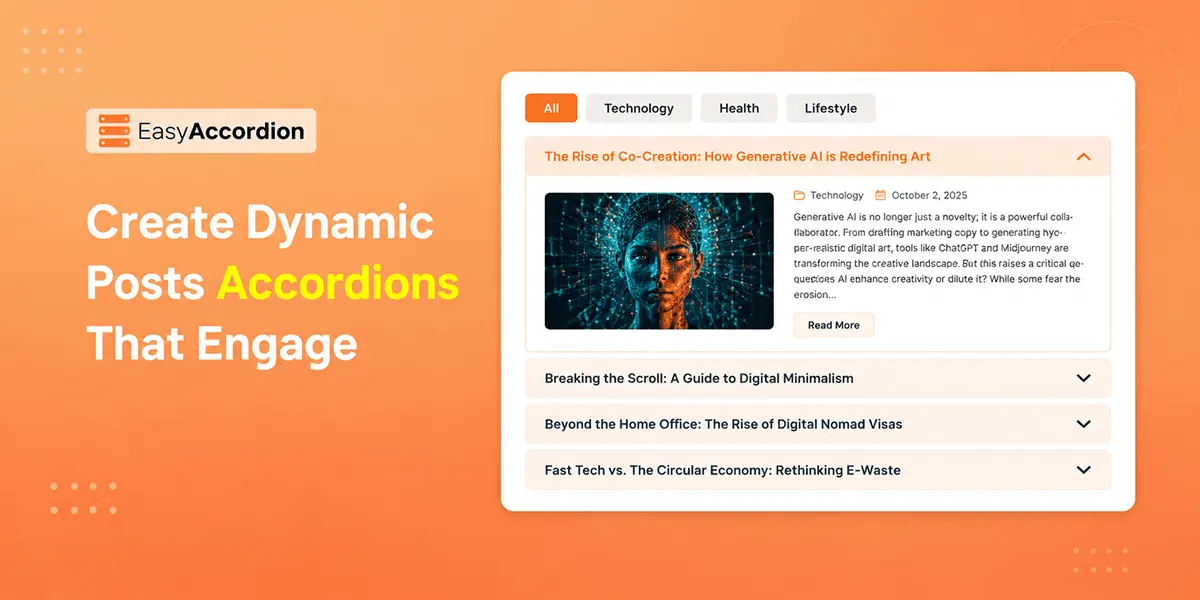
Do you want to display your blog posts, news updates, or custom post types in an interactive, collapsible layout on your WordPress site? A post-accordion makes it simple.
Traditional blog layouts, such as long lists and rigid grids, can overwhelm your visitors and reduce engagement. Creating a post accordion can be a great solution, which allows you to display & organize multiple posts while keeping your pages easy to navigate.
To create a post accordion, you need an accordion plugin like Easy Accordion. It lets you showcase your posts in dynamic horizontal and vertical accordion layouts, helping you attract readers’ attention to your content in a more structured and engaging way.
In this blog, I’ll show you 4 easy steps to create post accordions in WordPress — without coding.
What Is a Post Accordion in WordPress?
A post accordion is a dynamic WordPress layout that displays posts, pages, or custom post types in collapsible sections. It lets users expand each item to view key content such as titles, images, excerpts, and metadata while keeping the layout compact and easy to browse.
Unlike static layouts, it pulls content automatically from categories, tags, or custom queries, making it ideal for blogs, archives, news listings, portfolios, and resource pages.
Why You Need to Use Post Accordion?
Whether you run a portfolio site, magazine, or news site, displaying your posts in an accordion is a modern addition. It brings your business various benefits, including:
- Save Space Without Hiding Valuable Content: Instead of forcing visitors to scroll endlessly, a post accordion compresses multiple posts into an organized, expandable layout.
- Improve User Experience: Displaying posts in accordions allows visitors to scan titles and open only the content they care about, making navigation faster and more intuitive.
- Fetch Post Dynamically with Query Builder: The powerful post query builder makes it easy for you to pull posts by category, tag, author, or date — reducing manual updates.
- Work for Multiple Content Types: From blog posts to portfolios and custom post types, using post accordions, you can showcase multiple post types as needed.
- Keep Your Site Modern and Interactive: Expandable layouts create a more engaging browsing experience compared to static lists or archives.
4 Easy Steps to Add Posts Accordion in WordPress
As you want to display your WordPress posts or pages in Accordions, you need a plugin like Easy Accordion, which allows you to build stylish and fully customizable post accordions with its dedicated Post 01 & 02 accordion blocks. Simply follow the steps below, and start creating the dynamic posts accordion in minutes.
Step 1: Get Easy Accordion
Easy Accordion is a leading WordPress FAQ and accordion builder plugin trusted by over 100,000+ users. It lets you create interactive accordions in multiple styles, including horizontal and vertical layouts, image, slider, post, product, media, and multi-level accordions.
With a 70+ Ready Patterns library, pre-built templates, icons, animations, schema markup, and easy customization options, it allows you to build comprehensive FAQs and accordions without coding.
To get started, install and activate Easy Accordion on your WordPress site. If you’re new, follow the quick setup guide to begin in minutes.
Step 2: Create Your Post Accordion
Before creating a post accordion, you need to check if the post accordion is disabled. Once enabled, just follow the steps below.
- Open the page or post where you want to display your posts.
- Click the (+) button and search for Post Accordion 01 or 02 under the Easy Accordion category, or choose Post Patterns from the Ready Patterns Library.
- Import or insert the block and customize as needed.
- Choose horizontal or vertical template style, set gap & width as needed.
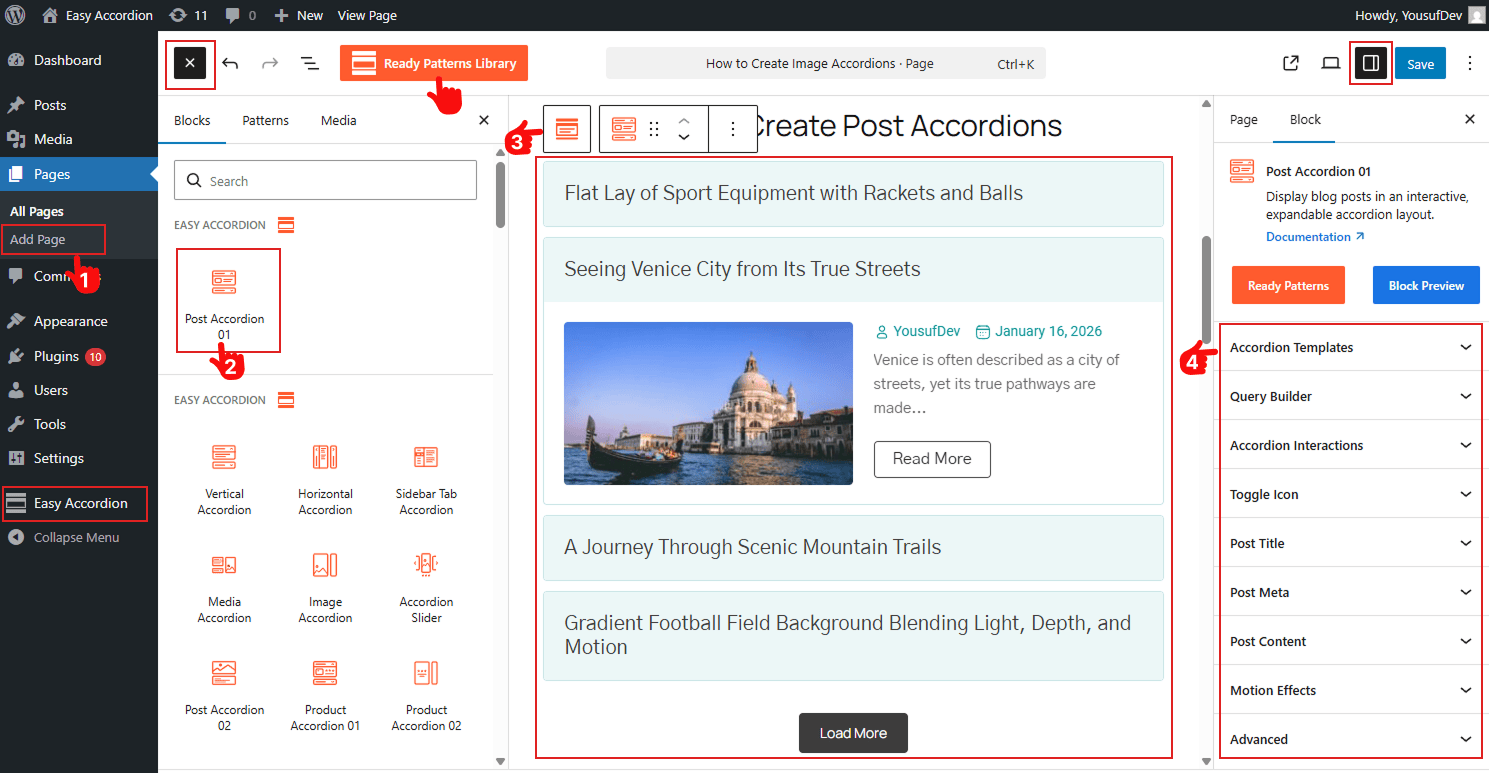
Note: You can also enable Advanced utilities like FAQ Search, Ajax Pagination, Toggle All Button, Schema Markup, and Preloader to enhance usability and SEO visibility.
Step 3: Filter Posts, Customize Title, Image & Meta
Filter Posts: After choosing the template, it’s time to decide which posts you want to display by using the Powerful Query Builder. It will allow setting post types, filter posts by Latest, Taxonomy, or Specific ones, and adding Live Filtering with Taxonomy Filter.
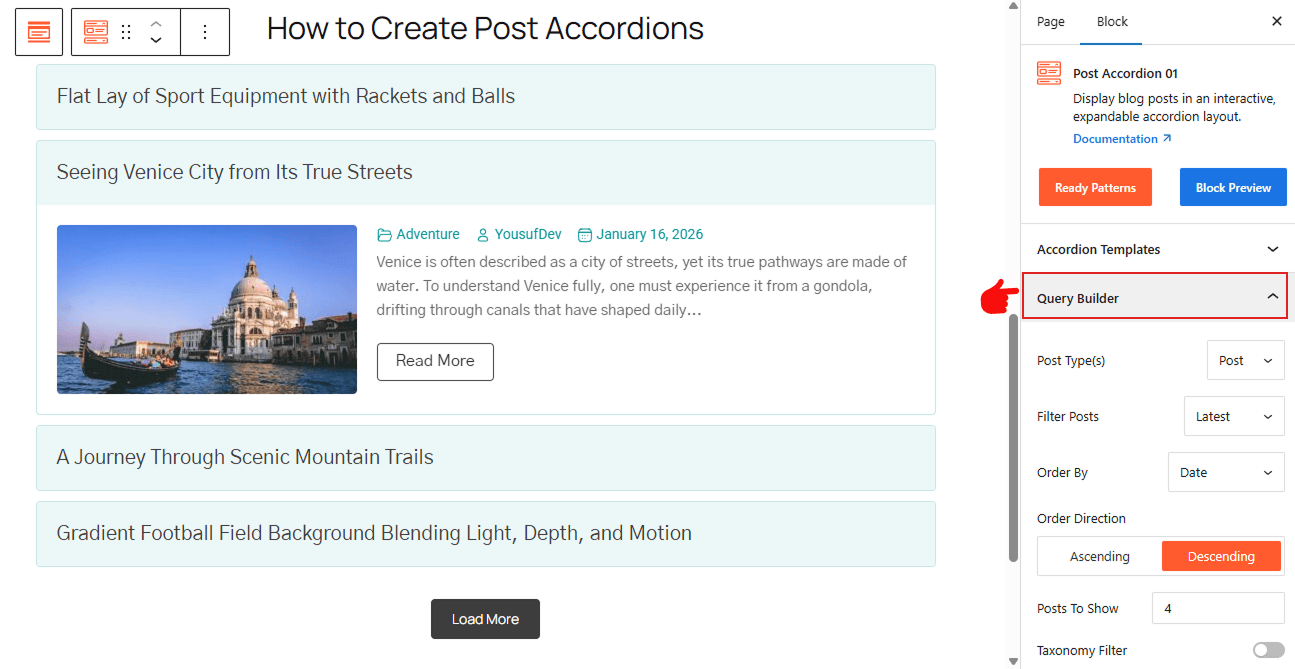
For details, visit here.
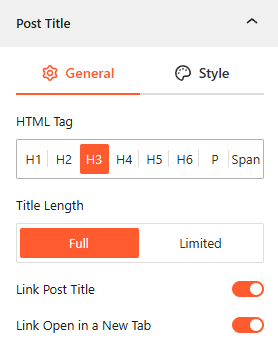
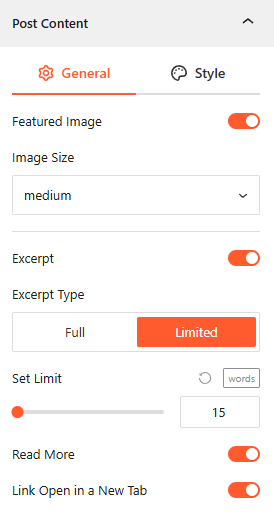
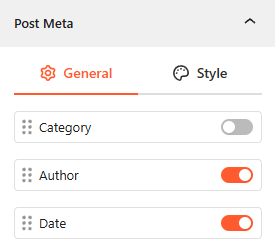
Customize Post Title, Image & Meta: You will find a dedicated panel to customize your Post Title, Featured Image & Meta, including Post Excerpt & Read More Button. To know how to customize them in detail, please visit here.
Step 4: Stylize with Interactions, Animations, and Publish
- You can add accordion interaction triggers, such as: Click, Hover & AutoPlay.
- Configure the Adjustable Post Content height with animations.
- Enable Accordion Close Button.
- Enable Motion Effects to make it visually engaging.
- Customize the Typography, colors, and set device-specific visibility, background, and add custom CSS with the advanced settings as needed.
- Once all are finished, click Publish or Update.
Congratulations. Let’s see a live demo of how post accordions will display on your WordPress site.
Final Thoughts
Creating an accordion is one of the most effective ways to organize WordPress content.
Instead of overwhelming visitors with endless lists, post accordion lets you create a cleaner, more interactive experience that keeps content accessible and engaging.
So, if you want a smarter way to showcase blog posts, archives, or custom content, download Easy Accordion today and display your posts dynamically in minutes that engage, convert, and boost conversions.


Leave a Reply
You must be logged in to post a comment.