

Do you want to increase visibility on SERP & AI, grow conversion rate, and cut off support costs with SEO/ GEO-ready, comprehensive FAQs?
In this blog, I’ll show you how to add FAQ in WordPress– the best and easiest ways to write and add high-converting FAQs in minutes with no code.
Let’s get in.
TL;DR/ By the End of This Blog, You will Learn:
- What is FAQ? – It’s the list of frequently asked questions and their answers.
- How to Write FAQs: Collect the most asked questions from your support team and write clearly and shortly.
- How to add FAQ in WordPress without plugin: Use the Accordion or the Details block of WordPress block editor or you can code.
- How to add FAQ in WordPress with plugins: Install the best FAQ plugin, Choose a layout, add content, customize and publish.
- What is the best FAQ plugin: Easy Accordion is the best FAQ plugin with the highest active installations (100,000+), reviews (354+), and ratings (4.9 ⭐⭐⭐⭐⭐)
- How to add FAQ in WordPress block editor, Gutenberg: Use Easy Accordion, Choose ready pattern, customize visually, and publish your FAQ in minutes:
- How to Add FAQ Schema in WordPress: Switch on the Easy Accordion Built-in FAQ Schema toggle or add the code snippet.
- How to add FAQ in Elimentor & popular page builders: Create templates with ready patterns of Easy Accordion and use the shortcode in Elementor or any popular page builders.
- Why You Should Add FAQs: FAQs increase visibility on Search Engines & AI, grow conversion rate, and cut support costs.
What Is an FAQ?
FAQ stands for Frequently Asked Questions.
It’s a simple list of common questions your visitors ask about your service or product, paired with clear, helpful answers.
Think of it as a self-service support desk that’s always available on your site, 24/7.
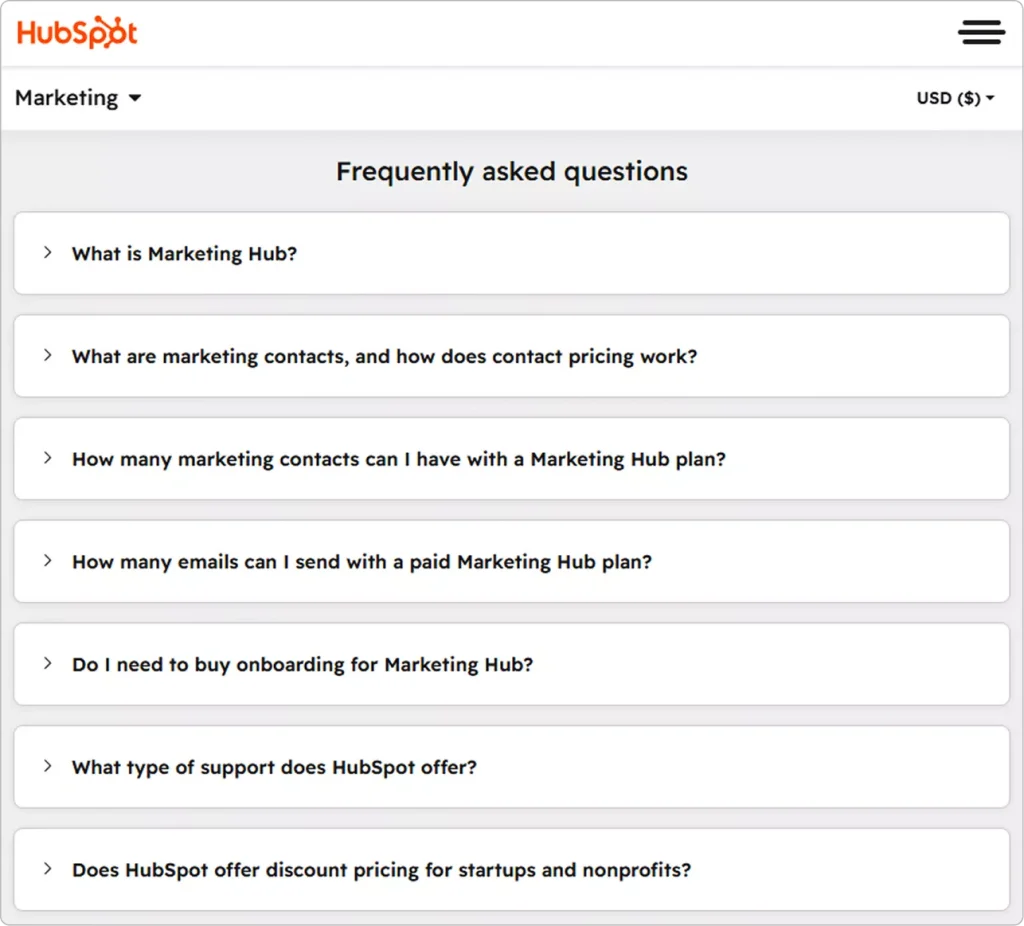
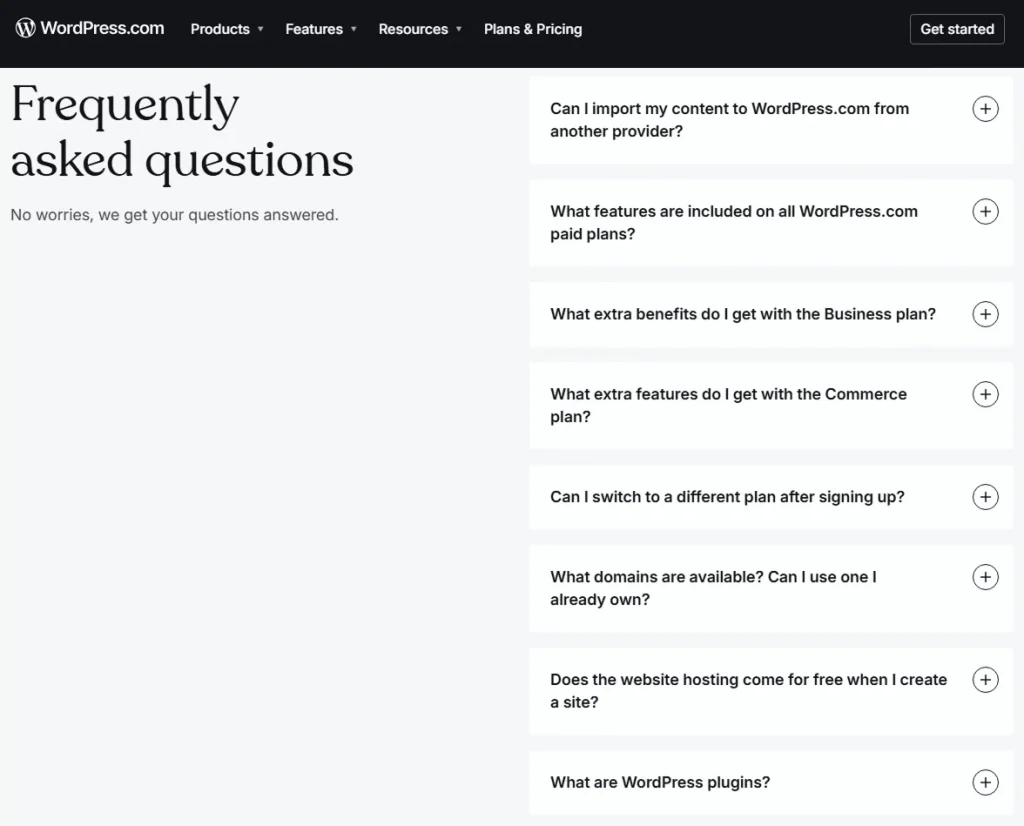
See some examples below.
How to Write FAQs?
Writing great FAQs isn’t complicated. But many WordPress site owners still get it wrong.
Here’s how to do it right.
Collect Real Questions
Don’t guess what your visitors want to know. Collect real questions from:
- Your Support Inbox
- Live Chat Logs
- Product Page Comments
- Product Reviews
- Socials and Communities
What to Do If You Have No Question List Yet?
If you are new in the market or you have no frequently asked question list, what to do?
It’s very usual that most of the customers leave your sites with questions in their mind. They have no time or no mind to ask you the question. Finally, you are losing customers.
What to do? In this cases, check:
- Your competitors’ FAQs
- Your competitors’ product reviews
- tools like AnswerThePublic or Reddit
- Google’s “People Also Ask” box
Pro Tip: If your service or product is totally new in the market, customers must have more questions. You yourself have to research and build a question list initially.
Best Practices for FAQs
Keep answers short and scannable.
Nobody wants to read a wall of text inside an FAQ. Aim for 2 to 4 sentences per answer. If it needs more, link out to a full blog post or documentation page.
Use natural, conversational language.
Write the way your customer talks, not the way a lawyer writes. Simple words build trust faster than technical jargon.
Organize by topic.
Group related questions together. For example, a WooCommerce store might have separate groups for Shipping, Returns, and Payment. This saves visitors time and reduces frustration.
Watch Analytics and Update your FAQs regularly.
New product launch? Policy change? Update your FAQs right away. Outdated answers erode trust quickly.
Add an FAQ form or Support Link Below Your FAQs
Don’t limit your FAQs. Divers visitors can have some questions you never guessed or listed. So, add and FAQ form or support link at the bottom of your FAQ section.
Pro tip: Use an accordion-style FAQ layout. It lets visitors scan questions fast and open only what’s relevant to them. More on that below.
Learn more about how to write high-converting FAQs.
How to Add FAQ in WordPress Without a Plugin
You don’t always need a plugin to add FAQs in WordPress.
If you’re using the Gutenberg block editor, WordPress has a built-in option to get started quickly.
Step 1: Open the post or page where you want to add your FAQ section.
Step 2: Click the + (Add Block) button in the editor.
Step 3: Search for the Accordion or Details block and add it.
Step 4: Type your question in the summary field and your answer in the body.
Step 5: Repeat the block for each FAQ item.
That’s it. No plugin needed.
However, this method has real limitations. The Details block offers almost zero styling control. There’s no accordion animation, no toggle icons, and most importantly, no FAQ schema markup.
Without schema, your FAQs won’t qualify for Google rich snippets. And that’s a missed SEO opportunity you can’t afford.
So, when should you use this method? Only for a quick, one-off FAQ on a low-priority page. For anything else, a dedicated plugin is the smarter move.
How to Add FAQ in WordPress with Plugins
Using a plugin is the easiest and most powerful way to add FAQs in WordPress.
A good FAQ plugin gives you beautiful accordion layouts, FAQ schema for SEO, and full design control, all without touching a single line of code.
The first step is to find the best FAQ plugin.
What Is the Best FAQ Plugin for WordPress?
There are dozens of FAQ plugins in the WordPress repository. But not all of them are worth your time.
I found Easy Accordion the best WordPress FAQ builder plugin.
Why Easy Accordion is the Best FAQ Plugin
Easy Accordion is the #1 FAQ and accordion plugin for WordPress with the highest user rating, reviews, and active installations.
Rating on WordPress Plugin Repository: 4.9 /5.00
User Reviews: 354+
Active installations 100,000+ (free and pro)
It lets you:
- Choose from a rich pattern library, customize visually, and publish in minutes
- Generate FAQs instantly with integrated AI
- Manage a lot of FAQs in Categories
- Turn on the FAQ schema markup for SEO and AI-search visibility
- Works with Gutenberg, Elementor, Divi, WPBakery, and more
- Supports WooCommerce product FAQs to reduce cart abandonment
- Enjoy total freedom in customizing your FAQ
- Control custom responsive breakpoints for every screen size
Let’s get Easy Accordion→
How to add FAQ in WordPress Block Editor
After you install the best FAQ builder plugin– Easy Accordion, follow the simple steps to add high-converting FAQs.
Step 1: Choose a Ready FAQ Pattern
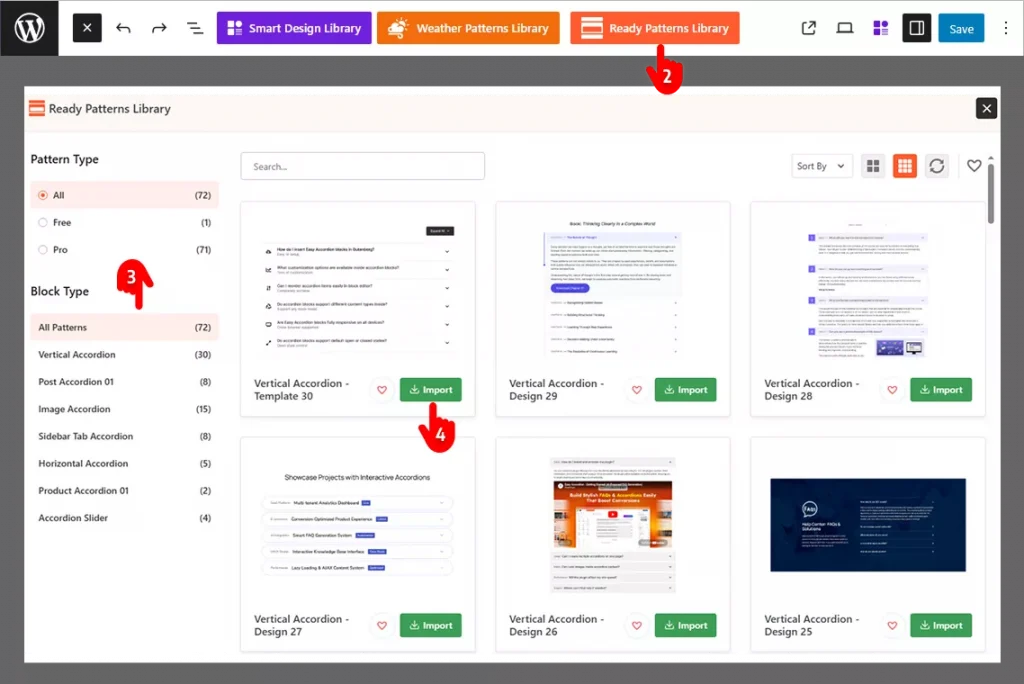
- First go to the page or post you want to add FAQs
- Click the Easy Accordion Library
- Find the best pattern for your needs and preferences
- Import the pattern
Step 2: Add your Original Content
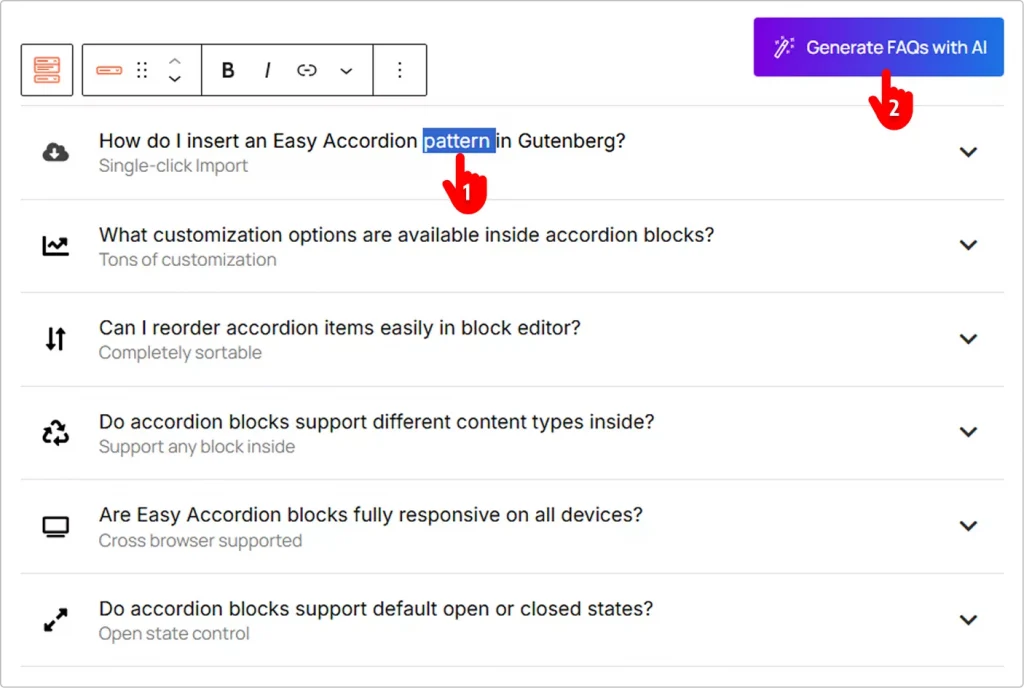
1st Way: Add Manually (Best for a few ready questions)
Replace the demo content with your original FAQs and answers as you do it in Google docs.
2nd Way: Generate FAQs with AI (Best option if you have no question ready)
Click the Create the FAQs with AI button and generate FAQs with AI. It’s intuitive and simple. That’s said, you need to set your API key. Go to the Integration tab from Easy Accordion’s Getting Started and click the Settings Icon on your preferred AI assistant. Do it following the intuitive instructions.
Step 3: Customize Your FAQ and Publish
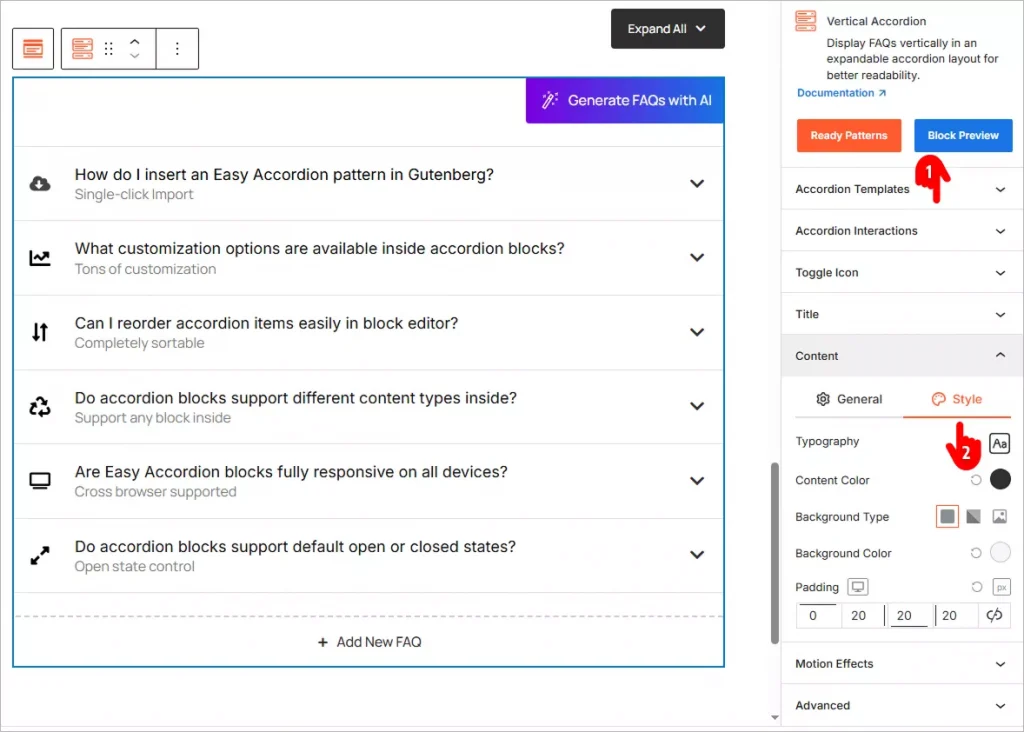
- Navigate through the panels, explore the available features, and apply them as needed.
- Many panels have a Style tab. Go and add styles to your FAQ to match your brand.
- Once you’re done, click the Publish or Save button in the top-right corner.
How to Add FAQ Schema in WordPress (For SEO & GEO)
What Is FAQ Schema?
FAQ Schema is a type of structured data that helps search engines and AI systems understand your FAQ content. It enables your FAQs to appear as rich results on search engines and improves visibility in AI-driven answers.
Why FAQ Schema Matters for SEO & GEO
- Increases chances of rich snippets on SERP
- Improves visibility in AI search and answer engines (GEO)
- Enhances click-through rate (CTR)
- Makes content easier for search engines to interpret
Method 1: Use Easy Accordion and Turn on the FAQ Schema Markup Toggle
Easy Accordion is the simplest way to add FAQ schema in WordPress.
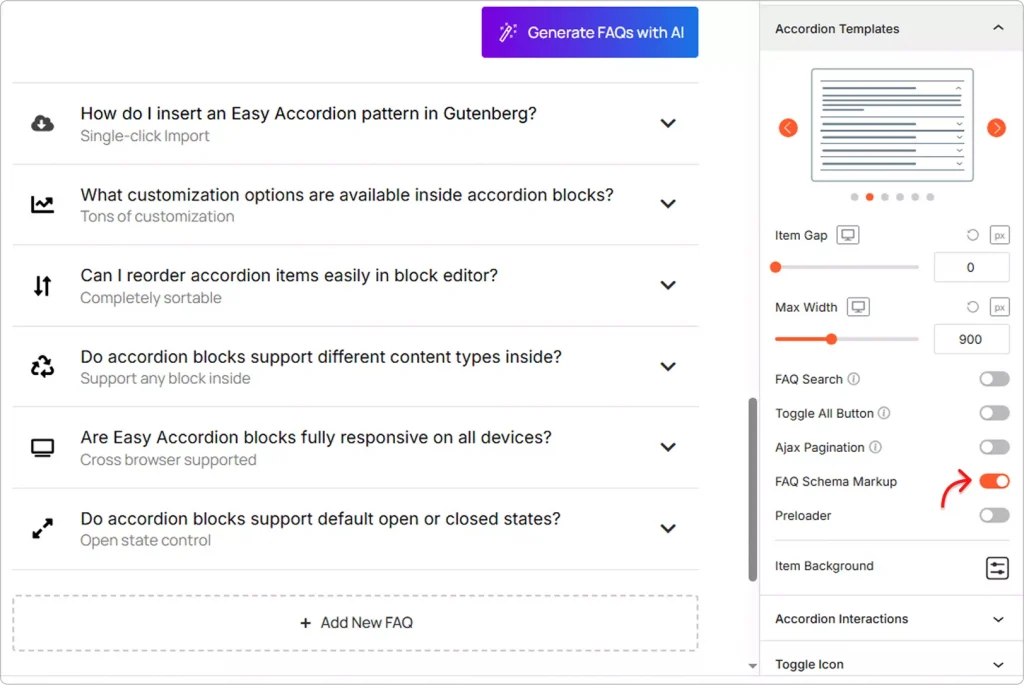
Once you install the plugin and build your FAQ, turning on schema markup takes just one click. No coding. No manual JSON-LD. No third-party SEO plugin required.
Method 2: Add FAQ Schema Manually with the Help of AI
AI will suggest you add the following JSON-LD code inside your page, post, or site header and replace the sample content with your own FAQs:
<script type="application/ld+json">
{
  "@context": "https://schema.org",
  "@type": "FAQPage",
  "mainEntity": [
    {
      "@type": "Question",
      "name": "Your Question Here",
      "acceptedAnswer": {
        "@type": "Answer",
        "text": "Your answer here."
      }
    },
    {
      "@type": "Question",
      "name": "Your Second Question Here",
      "acceptedAnswer": {
        "@type": "Answer",
        "text": "Your second answer here."
      }
    }
  ]
}
</script>
However, it takes more time. Moreover, if you are not a coder, you need to hire a coder to review the code generated by AI. A vague prompt or a simple CSS conflict can disrupt your site.
How to add FAQ in Elimentor & Popular Page Builders
Elementor accordion widget and some addons allows you to add a generic FAQ section with basic customizations.
Easy Accordion lets you use your professionally designed, advanced FAQs and accordions in Elementor and other popular page builders.
Here’s how:
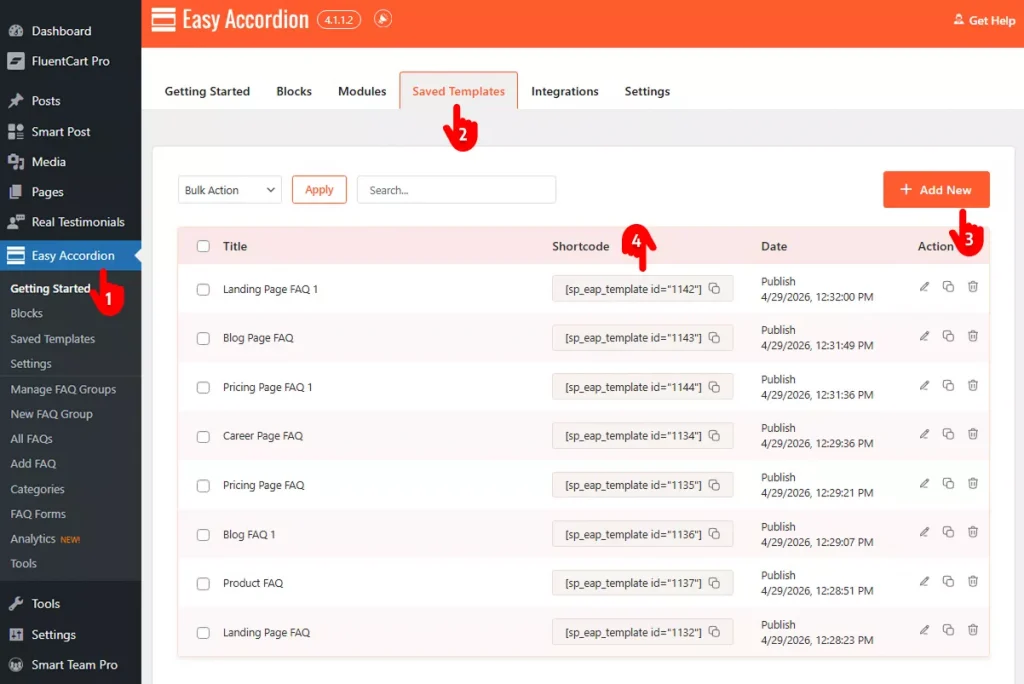
- Go to your WordPress dashboard and click Easy Accordion in the admin sidebar.
- Navigate to the Saved Templates tab.
- Click the Add New button and design your FAQ sections or page and publish. Don’t forget to name your section or the page.
- Get back to the Saved Templates tab, copy the shortcode and go in Elementor or the page builder you use and paste it. It will work flawlessly.
Key benefits of Adding FAQ
Most WordPress site owners treat FAQs as an afterthought.
Big mistake.
A well-built FAQ section is one of the highest-ROI additions you can make to any WordPress or WooCommerce site. Here’s exactly why.
Boost Your SEO Rankings
Google loves structured FAQ content.
When you add FAQ schema markup, your content becomes eligible for rich snippets in search results. That means your site can show up in the “People Also Ask” section, taking up more real estate on page one.
More visibility leads to more clicks, without spending a cent on ads.
Get Featured by AI Search Engines
This one is new, but it’s growing fast.
AI assistants like ChatGPT, Gemini, and Claude now pull answers directly from structured web content. A properly marked-up FAQ gives your site a real shot at being cited as a source in AI-generated responses.
That’s free traffic from the future of search.
Reduce Support Tickets Dramatically
Every unanswered question on your site is a potential support ticket, or worse, a lost customer.
FAQs answer common objections before they become problems. The result? Fewer emails, fewer support requests, and more time back in your day.
Increase Conversions and Sales
Shoppers abandon carts when they have doubts.
Adding FAQs directly on your WooCommerce product pages removes buying hesitation at the most critical moment. Answer questions about shipping, returns, sizing, or compatibility right there on the page. Watch your conversions go up.
Build Trust Instantly
Visitors trust sites that answer their questions upfront.
A clear, well-organized FAQ signals that you understand your customers. It shows confidence in your product or service. And trust, as every marketer knows, is the foundation of every sale.
Improve User Experience
Nobody likes hunting for answers.
An accordion-style FAQ lets visitors scan questions fast and open only what’s relevant. It keeps your pages clean and organized, while making information easy to find. Better UX means longer time on site and lower bounce rates.
Works Around the Clock
Your FAQ section never sleeps.
While you’re offline, it’s out there answering customer questions, handling objections, and guiding purchase decisions. It’s like having a support agent working 24/7 at zero cost.
Bottom Line
FAQs are not just a nice-to-have feature. They drive SEO, build trust, reduce support load, and increase sales, all at the same time.
The smartest move? Add them now, and use a plugin like Easy Accordion to make them schema-ready, visually engaging, and fully optimized for conversion.


Leave a Reply
You must be logged in to post a comment.