
Expand/Collapse All
Expand and Collapse All Button Default
How do I track my order?
Once shipped, you’ll get a confirmation email that includes a tracking number and additional information regarding tracking your order. Justo commodo mauris dui curabitur nibh diam vehicula, fusce maecenas dis ullamcorper odio nec ante curae, lobortis hac magnis parturient in netus.
Iaculis fringilla viverra a nulla tempus aliquam varius vulputate dictumst, sollicitudin nisl accumsan curabitur nam sociis bibendum congue, aliquet porta placerat dui penatibus fermentum ad est.
What’s your return policy?
We allow the return of all items within 30 days of your original order’s date. If you’re interested in returning your items, send us an email with your order number and we’ll ship a return label.
Lorem ipsum dolor sit amet consectetur adipiscing elit hendrerit nisi tortor, cubilia purus lobortis litora nunc proin nulla ad convallis montes, torquent lectus morbi est curabitur massa nisl a mollis.
How do I make changes to an existing order?
What shipping options do you have?
Do you ship internationally?
We offer the option to purchase a gift card in our store. Contact us via email to learn about the different available options. Lectus tristique sed primis ac accumsan odio praesent enim, velit himenaeos quis in nibh conubia natoque rhoncus dictum, ultricies consequat lacinia class dui taciti aenean.
What payment methods do you accept?
How to Create Image Accordions in WordPress
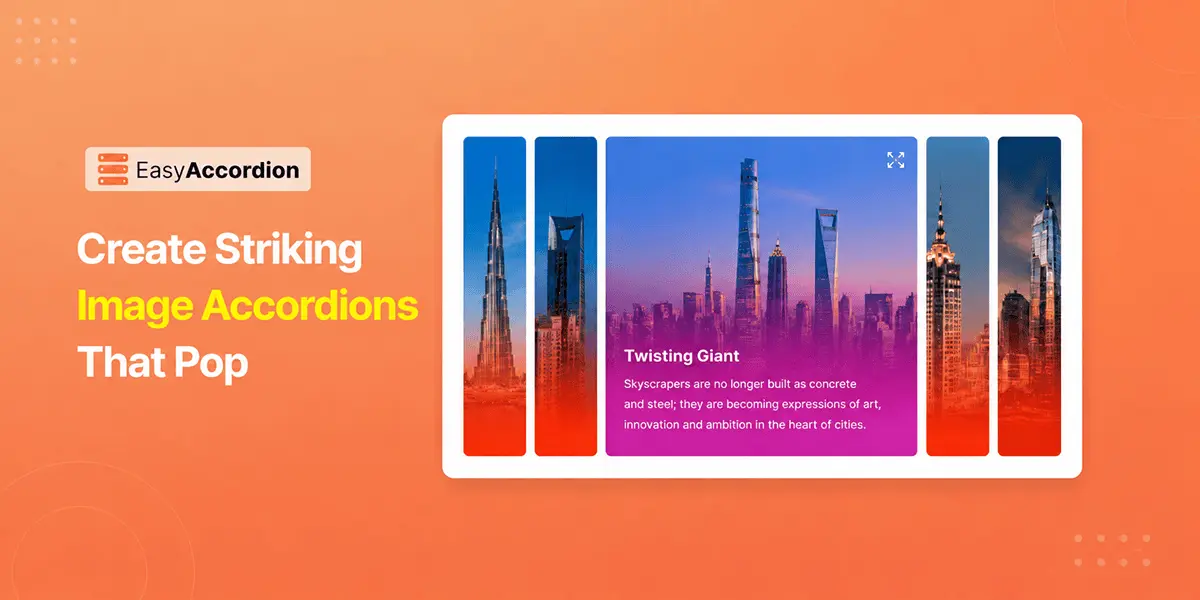
Do you want to showcase your images, portfolio, services, or online courses in an interactive accordion in WordPress? An image accordion makes it simple.
Traditional galleries often take up too much space and fail to attract user attention. To stay ahead of the competition, you need a dynamic way to present your gallery, portfolio, or products. And, it’s none but creating an image accordion.
To create image accordions, you need an accordion plugin like Easy Accordion. It lets you add & display multiple images in a compact layout where each item expands on interaction — helping you highlight key content while increasing engagement.
In this post, you’ll learn 4 easy steps to create image accordions in WordPress. No coding, no complex setup — just add your images, customize the layout, and publish.
What are Image Accordions in WordPress?
At its core, an accordion is a musical instrument that produces sound by expanding and compressing the bellows while pressing keys. Similarly, in web design, the term “accordion” refers to a UI component in which content sections expand and collapse on user interaction in a compact, structured way.
An image accordion applies the same concept to visuals instead of text. It presents multiple images in a single layout, where each image expands on interaction, allowing users to focus on one visual at a time while keeping others minimized.
In WordPress, image accordions are typically used to create modern, interactive visual sections for showcasing portfolios, products, or galleries in a clean and space-efficient format.
Benefits of using Image Accordion in WordPress
Using an image accordion in WordPress offers more than a stylish design element—it provides a smarter way to organize and present visual content. By combining interactivity with structured layouts, image accordions help improve user engagement, optimize space, and create a more polished browsing experience.
Save Space with Collapsible Layout
Image accordions let you display multiple images in a compact, expandable layout instead of stacking them in long galleries. By using them, you can keep your page clean and organized while still showcasing all your visuals effectively, especially for mobile-friendly designs.
Create an Interactive Visual Experience
Compared to static galleries, image accordions allow users to interact with content by hovering or clicking to expand it. This dynamic interaction encourages visitors to explore your content rather than just scroll past it, creating a more engaging browsing experience.
Showcase Images in a Clear and Structured Way
In Image accordions, the visuals are presented in a structured format, preventing visual overload, where users can scan and select what they want to view. Moreover, it makes large sets of visuals easier to navigate and understand.
Increase User Interaction & Boost Conversion
Since only one item expands at a time, this interactive behavior draws user attention & encourages them to explore more content rather than passively scrolling, which leads to longer time spent on the page.
Adapt Easily to Different Use Cases
From gallery displays to business portfolio showcases, image accordions act as a complete solution. They are widely useful for creating modern portfolios, product showcases, service sections, and collapsible galleries for dynamic content needs.
4 Easy Steps to Create an Image Accordion in WordPress
Step 1: Get Easy Accordion
Easy Accordion is the No #1 WordPress FAQs builder & Accordion plugin with the highest active users, reviews, and ratings. It is designed to allow you to create multi-styled interactive FAQs & Accordions, including Horizontal & Vertical, Image & Slider, Post & Product, Woo Product FAQ, Media, Sidebar Tab, Menu, Category, Multi-Level, Nested Accordions, and more.
More than 100,000 users love this FAQ builder for its intuitive features, including the Ready Patterns Library, Stunning Templates, Extensive Icons, Animation Effects, Schema Markup, easy customizations, and quick support.
So, why wait? Let’s install Easy Accordion and Activate. If you’re new to this plugin, read this guide to download it in minutes.
Step 2: Create an Image Accordion for a Page or Post
Before creating an image accordion, you need to check if the image accordion is disabled.
- Go to the Easy Accordion → Blocks from your dashboard.
- Locate the Image Accordion Block and toggle it on to enable it.
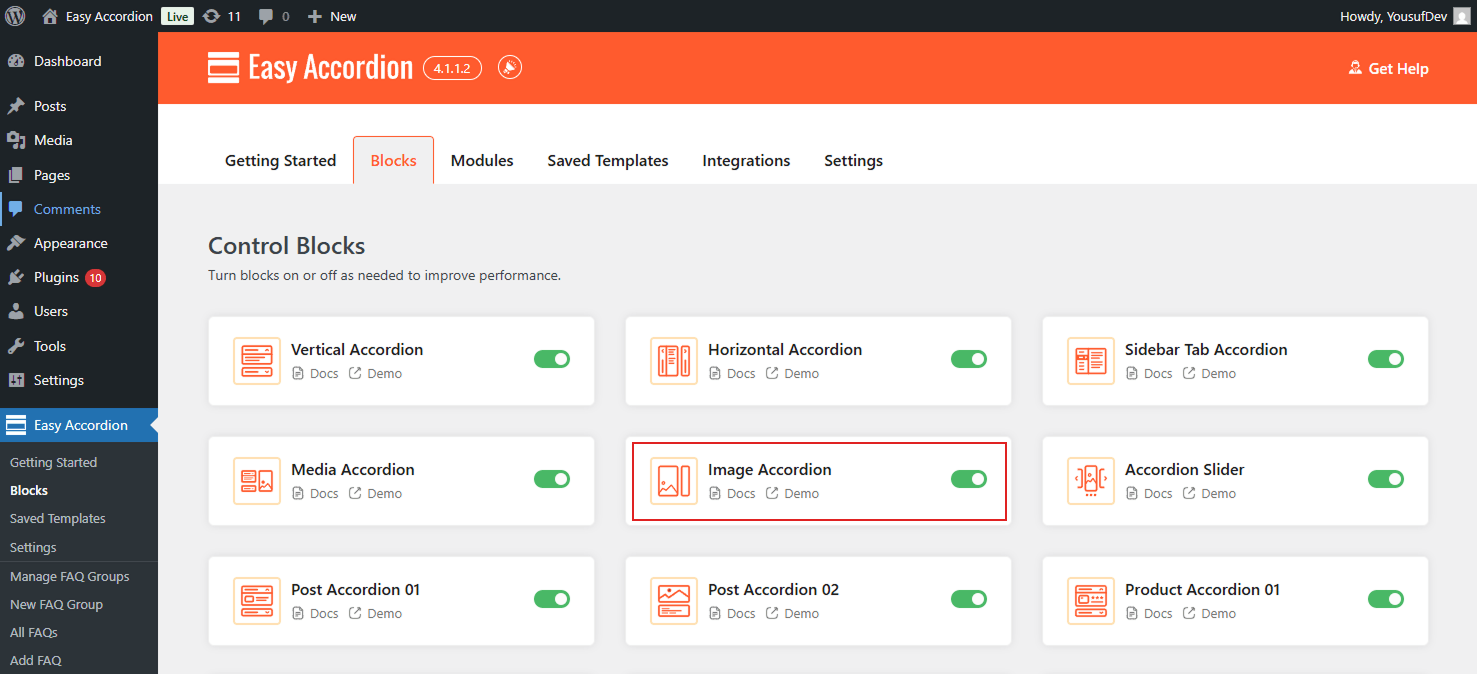
After enabling this block, it’s time to create an image accordion.
- Open any page or post you want to add an accordion, and click the (+) button or Ready Patterns Library, and search for “Image Accordion.”
- Then, click Import or Insert the block in your post or page.
- Customize as needed with interactions, image effects, animations, and more.
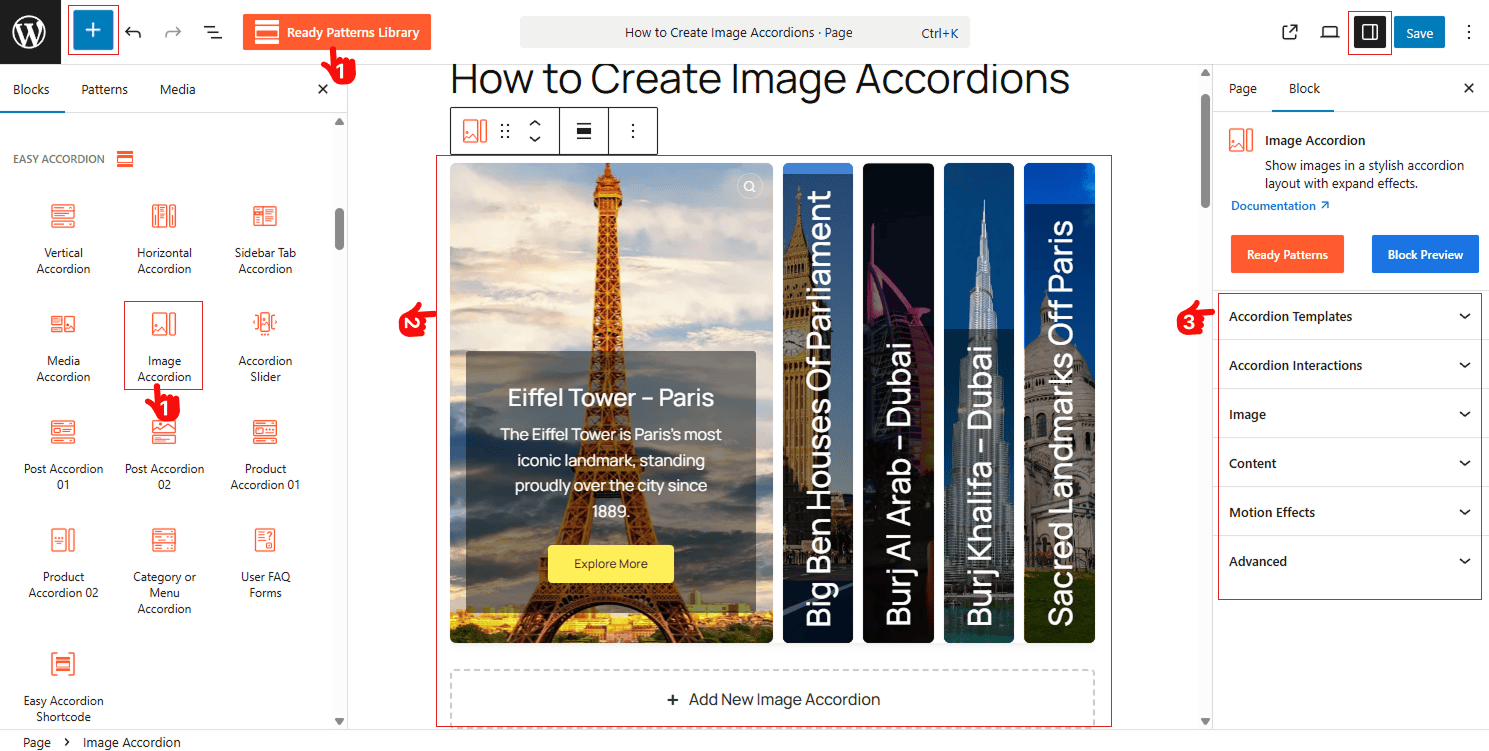
Now, let’s upload your image from the Media Library.
Step 3: Upload Images with Lightbox & Add Interactions
After inserting the block, you’re ready to add accordion images, add effects, and interactions.
- Upload or select Images from the Media Library inside the block
- Choose your desired layouts & orientations: Horizontal & Vertical
- Go to the Image panel to enable Image Effects, Lightbox with style
- Adjust Item Gap, Height & Expanded Items Width
- Enable FAQ Schema & Preloader
- Set Accordion Activator Interactions: OnClick, On Hover, or AutoPlay
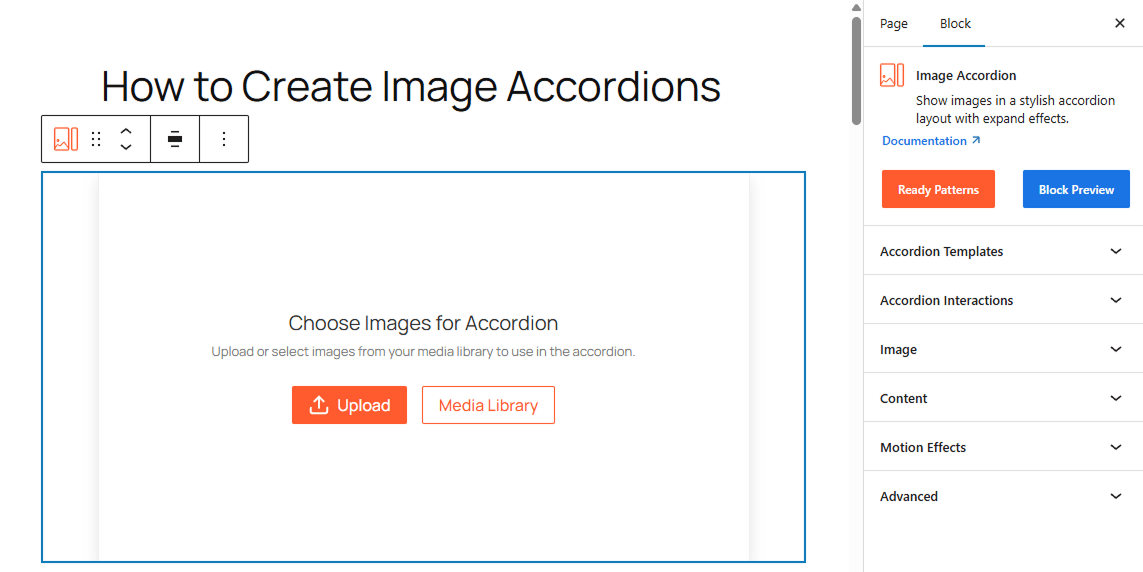
Note: You can add Anchor Links for each accordion Item
Step 4: Customize with Advanced Styling & Publish
- Navigate to the Content panel, Toggle on to Show or Hide the Icons, Titles, descriptions, or Button for each accordion.
- Toggle on to Show or Hide Icons & Titles on Collapsed Item.
- Set Content Position & Alignment as you wish.
- Add animation and motion effects to the content as you prefer.
- Configure the global stylings, accordion visibility & add custom design.
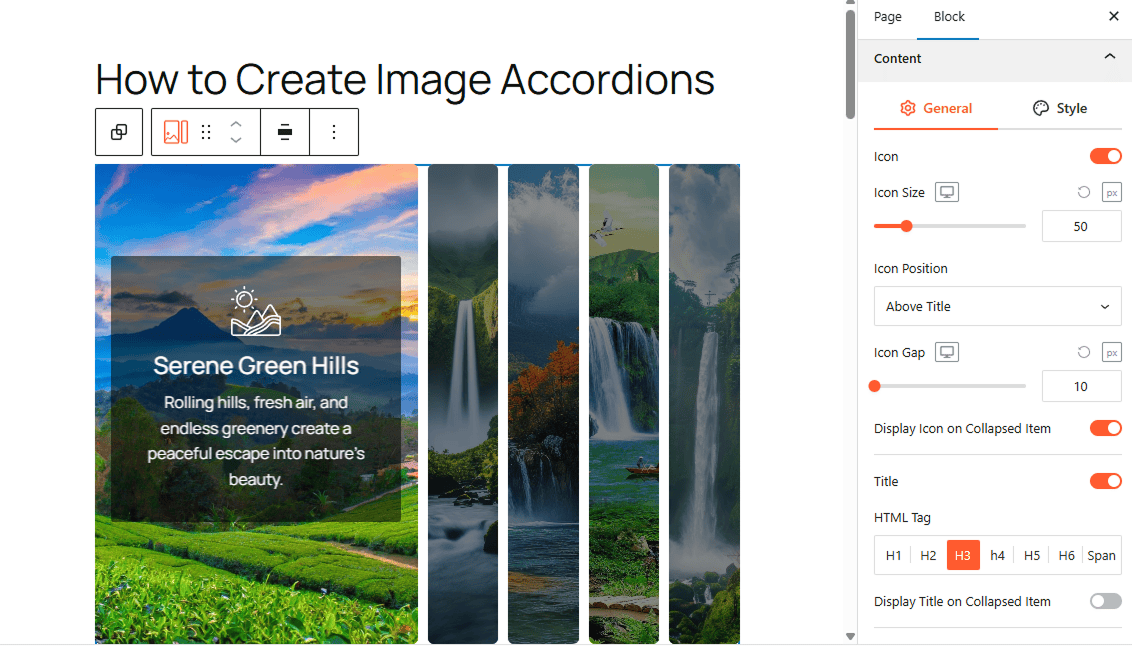
Once all customization is finished, click Publish or Update.
Congratulations. Let’s see a live demo of how image accordions will display on your WordPress site.
Final Words:
Stop showcasing galleries with static sections; they often get ignored as users scroll long pages, causing important visuals to lose impact and visibility.
Stay ahead of the competition with dynamic Image accordions. Organize your images into expandable sections, allowing users to view one visual at a time in a structured layout.
Why wait? Download Easy Accordion today, and start creating image accordions to transform static visuals into structured, interactive experiences.
How to Add FAQ in WordPress to Grow Conversion
Do you want to increase visibility on SERP & AI, grow conversion rate, and cut off support costs with SEO/ GEO-ready, comprehensive FAQs?
In this blog, I’ll show you how to add FAQ in WordPress– the best and easiest ways to write and add high-converting FAQs in minutes with no code.
Let’s get in.
TL;DR/ By the End of This Blog, You will Learn:
- What is FAQ? – It’s the list of frequently asked questions and their answers.
- How to Write FAQs: Collect the most asked questions from your support team and write clearly and shortly.
- How to add FAQ in WordPress without plugin: Use the Accordion or the Details block of WordPress block editor or you can code.
- How to add FAQ in WordPress with plugins: Install the best FAQ plugin, Choose a layout, add content, customize and publish.
- What is the best FAQ plugin: Easy Accordion is the best FAQ plugin with the highest active installations (100,000+), reviews (354+), and ratings (4.9 ⭐⭐⭐⭐⭐)
- How to add FAQ in WordPress block editor, Gutenberg: Use Easy Accordion, Choose ready pattern, customize visually, and publish your FAQ in minutes:
- How to Add FAQ Schema in WordPress: Switch on the Easy Accordion Built-in FAQ Schema toggle or add the code snippet.
- How to add FAQ in Elimentor & popular page builders: Create templates with ready patterns of Easy Accordion and use the shortcode in Elementor or any popular page builders.
- Why You Should Add FAQs: FAQs increase visibility on Search Engines & AI, grow conversion rate, and cut support costs.
What Is an FAQ?
FAQ stands for Frequently Asked Questions.
It’s a simple list of common questions your visitors ask about your service or product, paired with clear, helpful answers.
Think of it as a self-service support desk that’s always available on your site, 24/7.
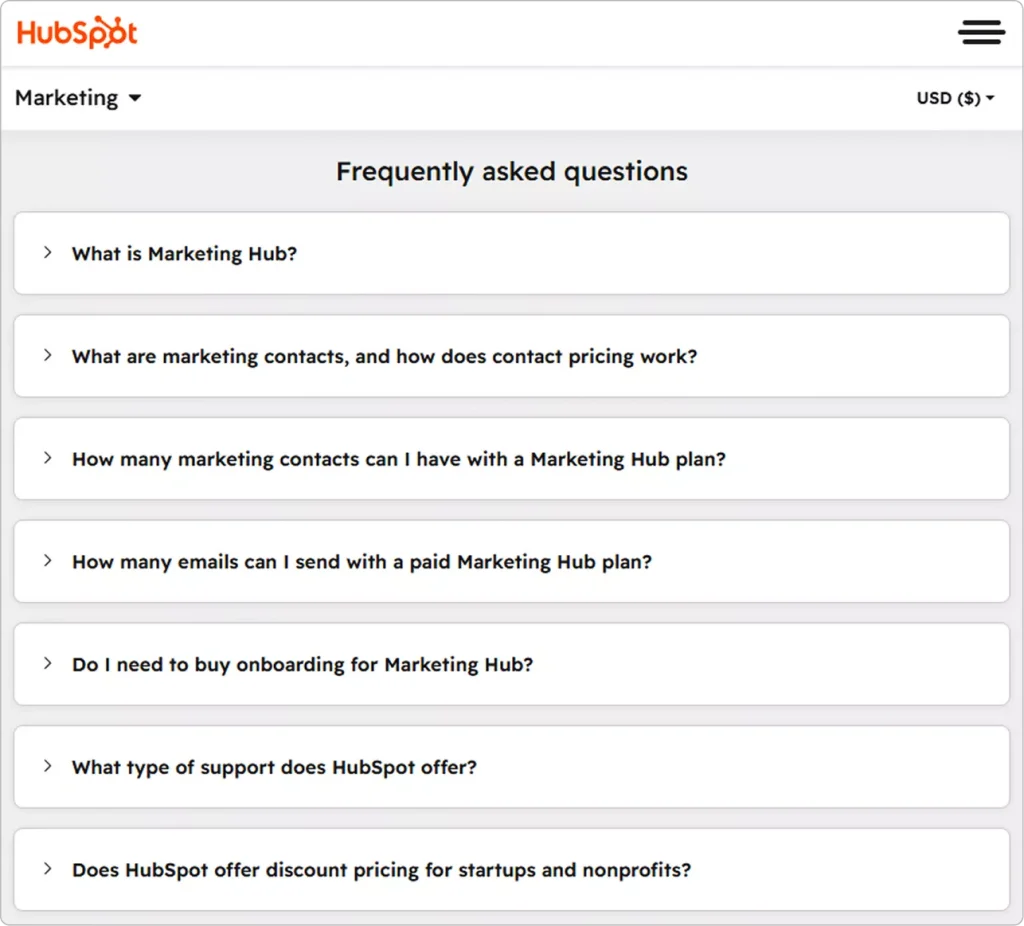
See some examples below.
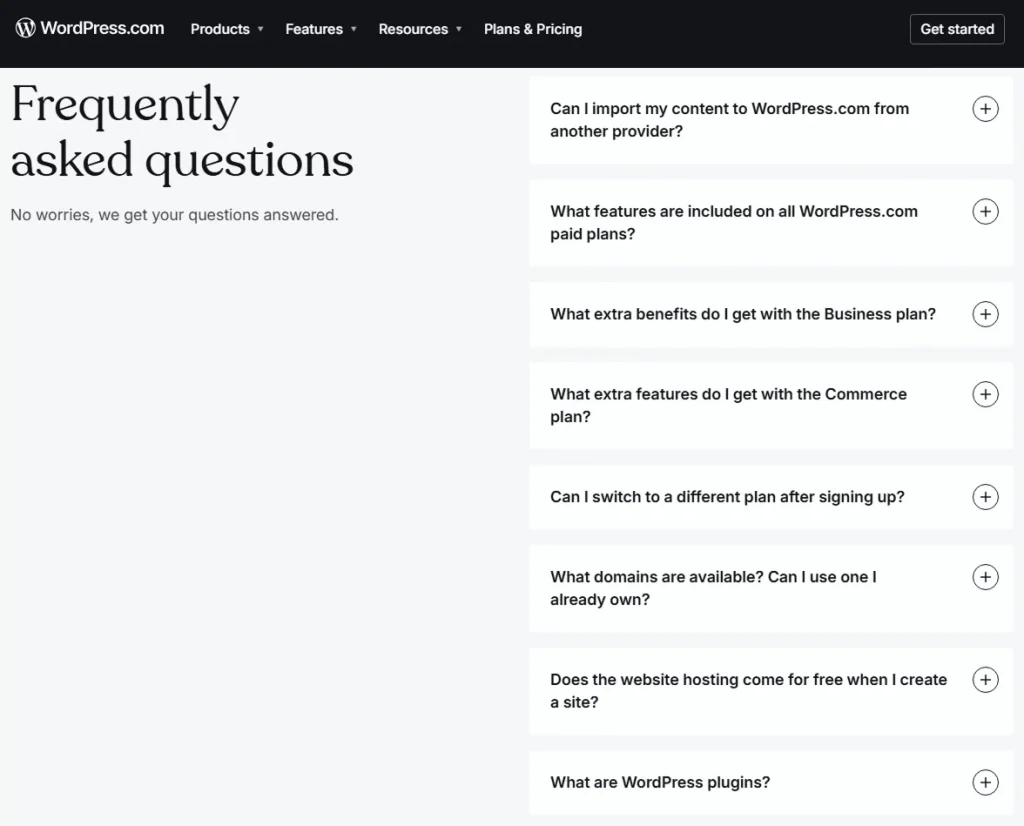
How to Write FAQs?
Writing great FAQs isn’t complicated. But many WordPress site owners still get it wrong.
Here’s how to do it right.
Collect Real Questions
Don’t guess what your visitors want to know. Collect real questions from:
- Your Support Inbox
- Live Chat Logs
- Product Page Comments
- Product Reviews
- Socials and Communities
What to Do If You Have No Question List Yet?
If you are new in the market or you have no frequently asked question list, what to do?
It’s very usual that most of the customers leave your sites with questions in their mind. They have no time or no mind to ask you the question. Finally, you are losing customers.
What to do? In this cases, check:
- Your competitors’ FAQs
- Your competitors’ product reviews
- tools like AnswerThePublic or Reddit
- Google’s “People Also Ask” box
Pro Tip: If your service or product is totally new in the market, customers must have more questions. You yourself have to research and build a question list initially.
Best Practices for FAQs
Keep answers short and scannable.
Nobody wants to read a wall of text inside an FAQ. Aim for 2 to 4 sentences per answer. If it needs more, link out to a full blog post or documentation page.
Use natural, conversational language.
Write the way your customer talks, not the way a lawyer writes. Simple words build trust faster than technical jargon.
Organize by topic.
Group related questions together. For example, a WooCommerce store might have separate groups for Shipping, Returns, and Payment. This saves visitors time and reduces frustration.
Watch Analytics and Update your FAQs regularly.
New product launch? Policy change? Update your FAQs right away. Outdated answers erode trust quickly.
Add an FAQ form or Support Link Below Your FAQs
Don’t limit your FAQs. Divers visitors can have some questions you never guessed or listed. So, add and FAQ form or support link at the bottom of your FAQ section.
Pro tip: Use an accordion-style FAQ layout. It lets visitors scan questions fast and open only what’s relevant to them. More on that below.
Learn more about how to write high-converting FAQs.
How to Add FAQ in WordPress Without a Plugin
You don’t always need a plugin to add FAQs in WordPress.
If you’re using the Gutenberg block editor, WordPress has a built-in option to get started quickly.
Step 1: Open the post or page where you want to add your FAQ section.
Step 2: Click the + (Add Block) button in the editor.
Step 3: Search for the Accordion or Details block and add it.
Step 4: Type your question in the summary field and your answer in the body.
Step 5: Repeat the block for each FAQ item.
That’s it. No plugin needed.
However, this method has real limitations. The Details block offers almost zero styling control. There’s no accordion animation, no toggle icons, and most importantly, no FAQ schema markup.
Without schema, your FAQs won’t qualify for Google rich snippets. And that’s a missed SEO opportunity you can’t afford.
So, when should you use this method? Only for a quick, one-off FAQ on a low-priority page. For anything else, a dedicated plugin is the smarter move.
How to Add FAQ in WordPress with Plugins
Using a plugin is the easiest and most powerful way to add FAQs in WordPress.
A good FAQ plugin gives you beautiful accordion layouts, FAQ schema for SEO, and full design control, all without touching a single line of code.
The first step is to find the best FAQ plugin.
What Is the Best FAQ Plugin for WordPress?
There are dozens of FAQ plugins in the WordPress repository. But not all of them are worth your time.
I found Easy Accordion the best WordPress FAQ builder plugin.
Why Easy Accordion is the Best FAQ Plugin
Easy Accordion is the #1 FAQ and accordion plugin for WordPress with the highest user rating, reviews, and active installations.
Rating on WordPress Plugin Repository: 4.9 /5.00
User Reviews: 354+
Active installations 100,000+ (free and pro)
It lets you:
- Choose from a rich pattern library, customize visually, and publish in minutes
- Generate FAQs instantly with integrated AI
- Manage a lot of FAQs in Categories
- Turn on the FAQ schema markup for SEO and AI-search visibility
- Works with Gutenberg, Elementor, Divi, WPBakery, and more
- Supports WooCommerce product FAQs to reduce cart abandonment
- Enjoy total freedom in customizing your FAQ
- Control custom responsive breakpoints for every screen size
Let’s get Easy Accordion→
How to add FAQ in WordPress Block Editor
After you install the best FAQ builder plugin– Easy Accordion, follow the simple steps to add high-converting FAQs.
Step 1: Choose a Ready FAQ Pattern
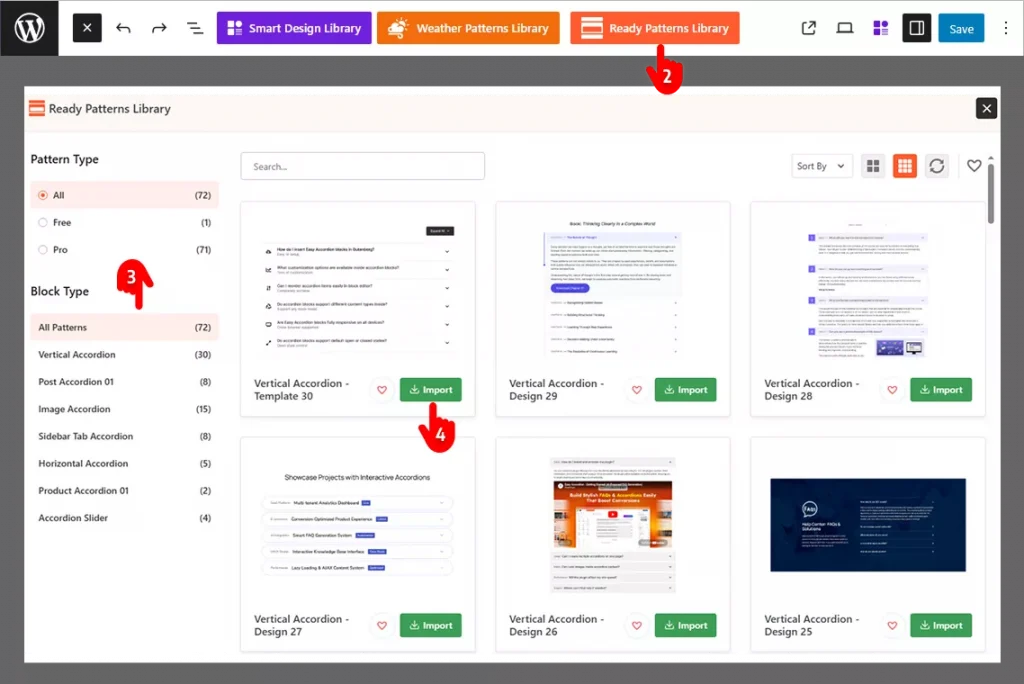
- First go to the page or post you want to add FAQs
- Click the Easy Accordion Library
- Find the best pattern for your needs and preferences
- Import the pattern
Step 2: Add your Original Content
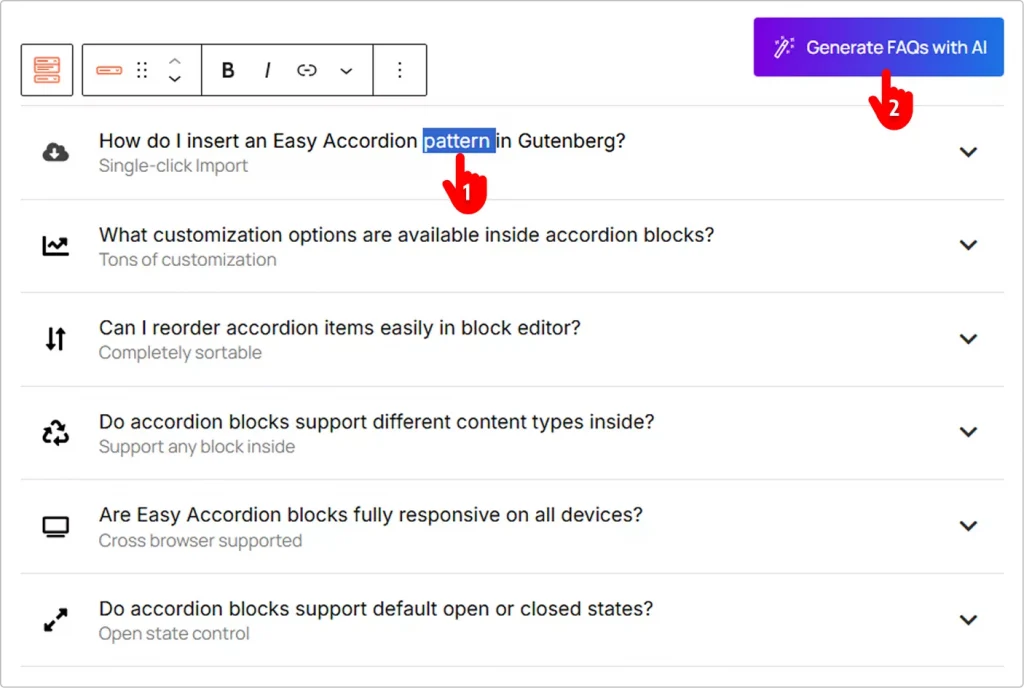
1st Way: Add Manually (Best for a few ready questions)
Replace the demo content with your original FAQs and answers as you do it in Google docs.
2nd Way: Generate FAQs with AI (Best option if you have no question ready)
Click the Create the FAQs with AI button and generate FAQs with AI. It’s intuitive and simple. That’s said, you need to set your API key. Go to the Integration tab from Easy Accordion’s Getting Started and click the Settings Icon on your preferred AI assistant. Do it following the intuitive instructions.
Step 3: Customize Your FAQ and Publish
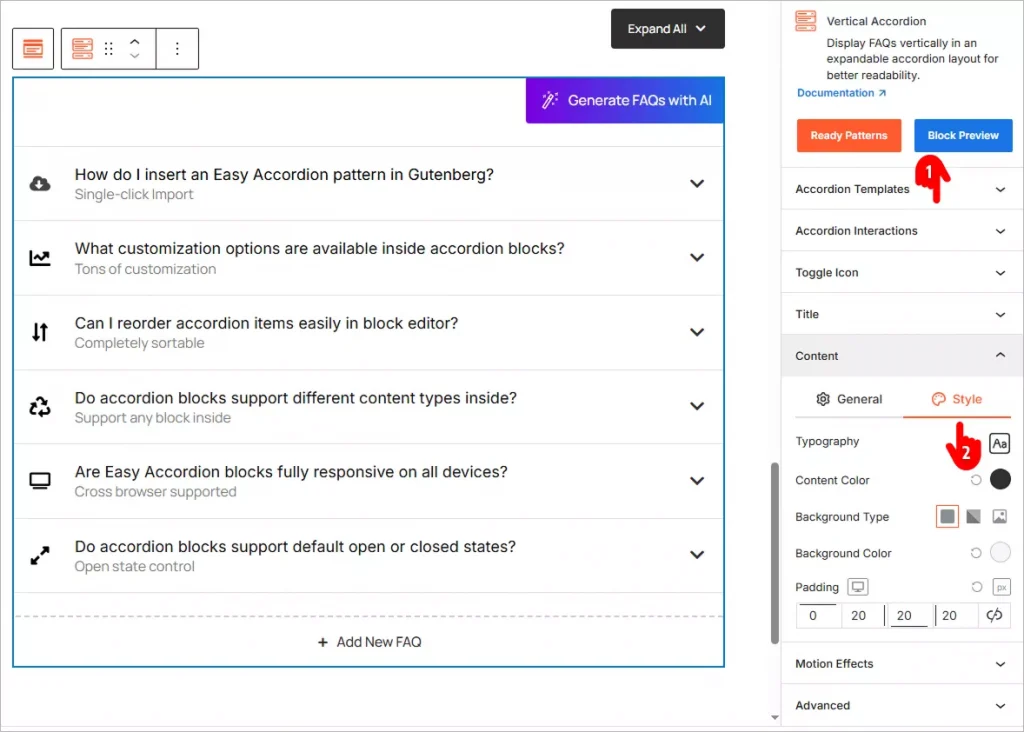
- Navigate through the panels, explore the available features, and apply them as needed.
- Many panels have a Style tab. Go and add styles to your FAQ to match your brand.
- Once you’re done, click the Publish or Save button in the top-right corner.
How to Add FAQ Schema in WordPress (For SEO & GEO)
What Is FAQ Schema?
FAQ Schema is a type of structured data that helps search engines and AI systems understand your FAQ content. It enables your FAQs to appear as rich results on search engines and improves visibility in AI-driven answers.
Why FAQ Schema Matters for SEO & GEO
- Increases chances of rich snippets on SERP
- Improves visibility in AI search and answer engines (GEO)
- Enhances click-through rate (CTR)
- Makes content easier for search engines to interpret
Method 1: Use Easy Accordion and Turn on the FAQ Schema Markup Toggle
Easy Accordion is the simplest way to add FAQ schema in WordPress.
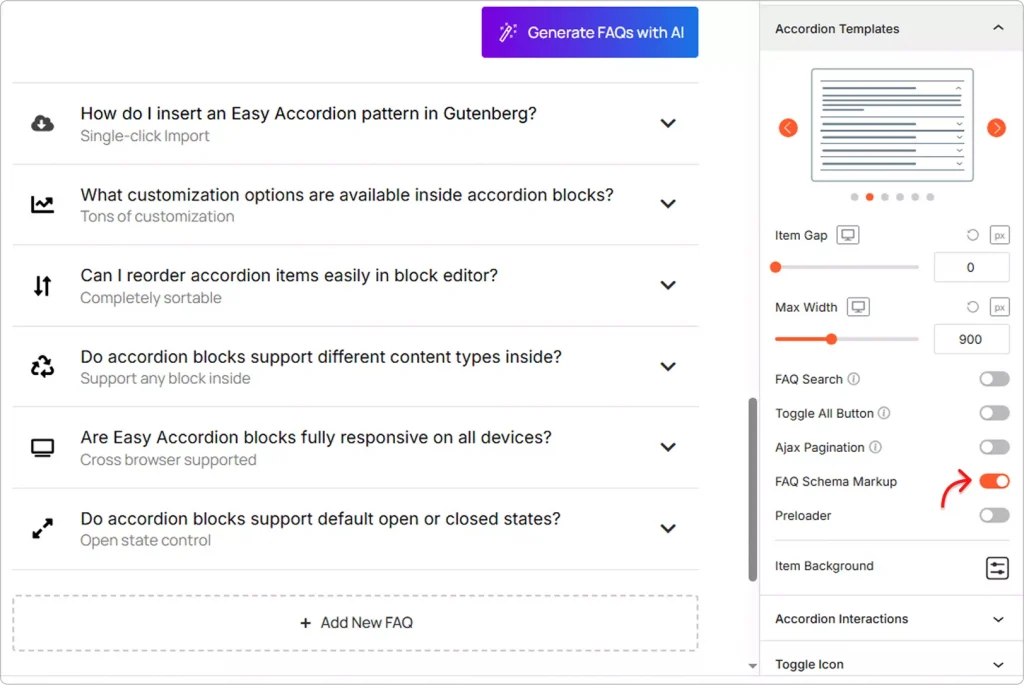
Once you install the plugin and build your FAQ, turning on schema markup takes just one click. No coding. No manual JSON-LD. No third-party SEO plugin required.
Method 2: Add FAQ Schema Manually with the Help of AI
AI will suggest you add the following JSON-LD code inside your page, post, or site header and replace the sample content with your own FAQs:
<script type="application/ld+json">
{
  "@context": "https://schema.org",
  "@type": "FAQPage",
  "mainEntity": [
    {
      "@type": "Question",
      "name": "Your Question Here",
      "acceptedAnswer": {
        "@type": "Answer",
        "text": "Your answer here."
      }
    },
    {
      "@type": "Question",
      "name": "Your Second Question Here",
      "acceptedAnswer": {
        "@type": "Answer",
        "text": "Your second answer here."
      }
    }
  ]
}
</script>
However, it takes more time. Moreover, if you are not a coder, you need to hire a coder to review the code generated by AI. A vague prompt or a simple CSS conflict can disrupt your site.
How to add FAQ in Elimentor & Popular Page Builders
Elementor accordion widget and some addons allows you to add a generic FAQ section with basic customizations.
Easy Accordion lets you use your professionally designed, advanced FAQs and accordions in Elementor and other popular page builders.
Here’s how:
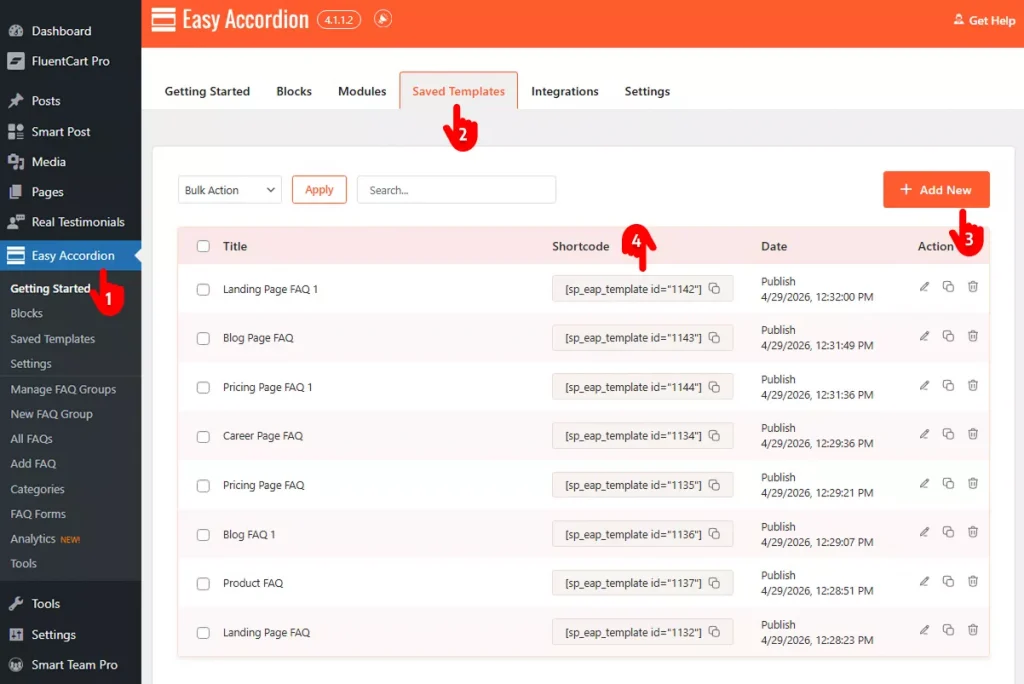
- Go to your WordPress dashboard and click Easy Accordion in the admin sidebar.
- Navigate to the Saved Templates tab.
- Click the Add New button and design your FAQ sections or page and publish. Don’t forget to name your section or the page.
- Get back to the Saved Templates tab, copy the shortcode and go in Elementor or the page builder you use and paste it. It will work flawlessly.
Key benefits of Adding FAQ
Most WordPress site owners treat FAQs as an afterthought.
Big mistake.
A well-built FAQ section is one of the highest-ROI additions you can make to any WordPress or WooCommerce site. Here’s exactly why.
Boost Your SEO Rankings
Google loves structured FAQ content.
When you add FAQ schema markup, your content becomes eligible for rich snippets in search results. That means your site can show up in the “People Also Ask” section, taking up more real estate on page one.
More visibility leads to more clicks, without spending a cent on ads.
Get Featured by AI Search Engines
This one is new, but it’s growing fast.
AI assistants like ChatGPT, Gemini, and Claude now pull answers directly from structured web content. A properly marked-up FAQ gives your site a real shot at being cited as a source in AI-generated responses.
That’s free traffic from the future of search.
Reduce Support Tickets Dramatically
Every unanswered question on your site is a potential support ticket, or worse, a lost customer.
FAQs answer common objections before they become problems. The result? Fewer emails, fewer support requests, and more time back in your day.
Increase Conversions and Sales
Shoppers abandon carts when they have doubts.
Adding FAQs directly on your WooCommerce product pages removes buying hesitation at the most critical moment. Answer questions about shipping, returns, sizing, or compatibility right there on the page. Watch your conversions go up.
Build Trust Instantly
Visitors trust sites that answer their questions upfront.
A clear, well-organized FAQ signals that you understand your customers. It shows confidence in your product or service. And trust, as every marketer knows, is the foundation of every sale.
Improve User Experience
Nobody likes hunting for answers.
An accordion-style FAQ lets visitors scan questions fast and open only what’s relevant. It keeps your pages clean and organized, while making information easy to find. Better UX means longer time on site and lower bounce rates.
Works Around the Clock
Your FAQ section never sleeps.
While you’re offline, it’s out there answering customer questions, handling objections, and guiding purchase decisions. It’s like having a support agent working 24/7 at zero cost.
Bottom Line
FAQs are not just a nice-to-have feature. They drive SEO, build trust, reduce support load, and increase sales, all at the same time.
The smartest move? Add them now, and use a plugin like Easy Accordion to make them schema-ready, visually engaging, and fully optimized for conversion.
How to Create Post Accordion in WordPress (Easy Guide)
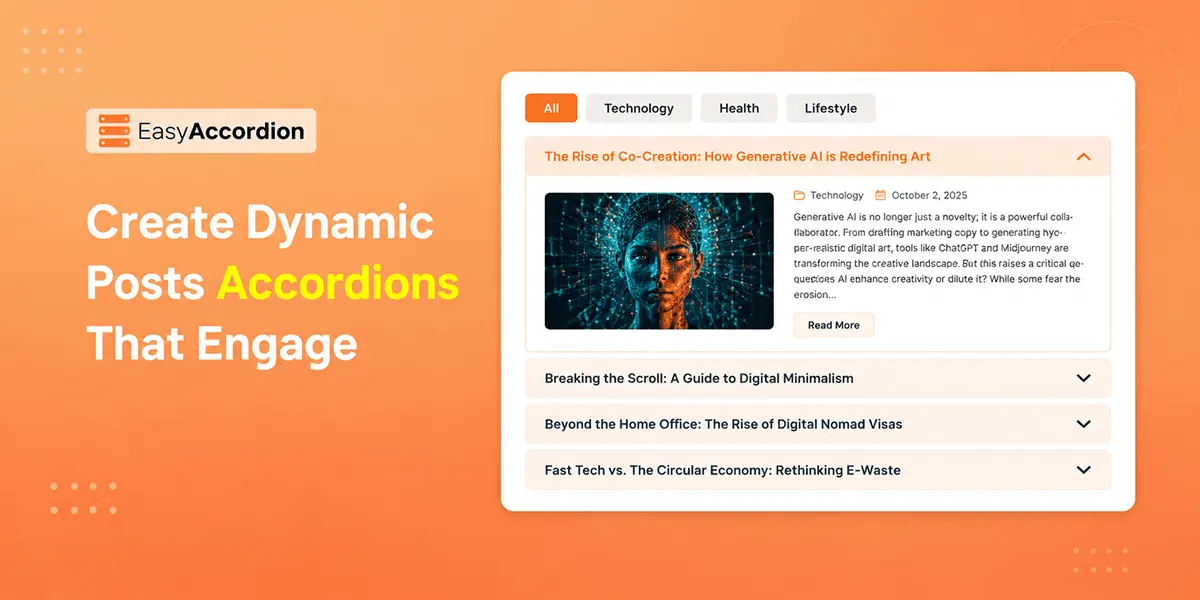
Do you want to display your blog posts, news updates, or custom post types in an interactive, collapsible layout on your WordPress site? A post-accordion makes it simple.
Traditional blog layouts, such as long lists and rigid grids, can overwhelm your visitors and reduce engagement. Creating a post accordion can be a great solution, which allows you to display & organize multiple posts while keeping your pages easy to navigate.
To create a post accordion, you need an accordion plugin like Easy Accordion. It lets you showcase your posts in dynamic horizontal and vertical accordion layouts, helping you attract readers’ attention to your content in a more structured and engaging way.
In this blog, I’ll show you 4 easy steps to create post accordions in WordPress — without coding.
What Is a Post Accordion in WordPress?
A post accordion is a dynamic WordPress layout that displays posts, pages, or custom post types in collapsible sections. It lets users expand each item to view key content such as titles, images, excerpts, and metadata while keeping the layout compact and easy to browse.
Unlike static layouts, it pulls content automatically from categories, tags, or custom queries, making it ideal for blogs, archives, news listings, portfolios, and resource pages.
Why You Need to Use Post Accordion?
Whether you run a portfolio site, magazine, or news site, displaying your posts in an accordion is a modern addition. It brings your business various benefits, including:
- Save Space Without Hiding Valuable Content: Instead of forcing visitors to scroll endlessly, a post accordion compresses multiple posts into an organized, expandable layout.
- Improve User Experience: Displaying posts in accordions allows visitors to scan titles and open only the content they care about, making navigation faster and more intuitive.
- Fetch Post Dynamically with Query Builder: The powerful post query builder makes it easy for you to pull posts by category, tag, author, or date — reducing manual updates.
- Work for Multiple Content Types: From blog posts to portfolios and custom post types, using post accordions, you can showcase multiple post types as needed.
- Keep Your Site Modern and Interactive: Expandable layouts create a more engaging browsing experience compared to static lists or archives.
4 Easy Steps to Add Posts Accordion in WordPress
As you want to display your WordPress posts or pages in Accordions, you need a plugin like Easy Accordion, which allows you to build stylish and fully customizable post accordions with its dedicated Post 01 & 02 accordion blocks. Simply follow the steps below, and start creating the dynamic posts accordion in minutes.
Step 1: Get Easy Accordion
Easy Accordion is a leading WordPress FAQ and accordion builder plugin trusted by over 100,000+ users. It lets you create interactive accordions in multiple styles, including horizontal and vertical layouts, image, slider, post, product, media, and multi-level accordions.
With a 70+ Ready Patterns library, pre-built templates, icons, animations, schema markup, and easy customization options, it allows you to build comprehensive FAQs and accordions without coding.
To get started, install and activate Easy Accordion on your WordPress site. If you’re new, follow the quick setup guide to begin in minutes.
Step 2: Create Your Post Accordion
Before creating a post accordion, you need to check if the post accordion is disabled. Once enabled, just follow the steps below.
- Open the page or post where you want to display your posts.
- Click the (+) button and search for Post Accordion 01 or 02 under the Easy Accordion category, or choose Post Patterns from the Ready Patterns Library.
- Import or insert the block and customize as needed.
- Choose horizontal or vertical template style, set gap & width as needed.
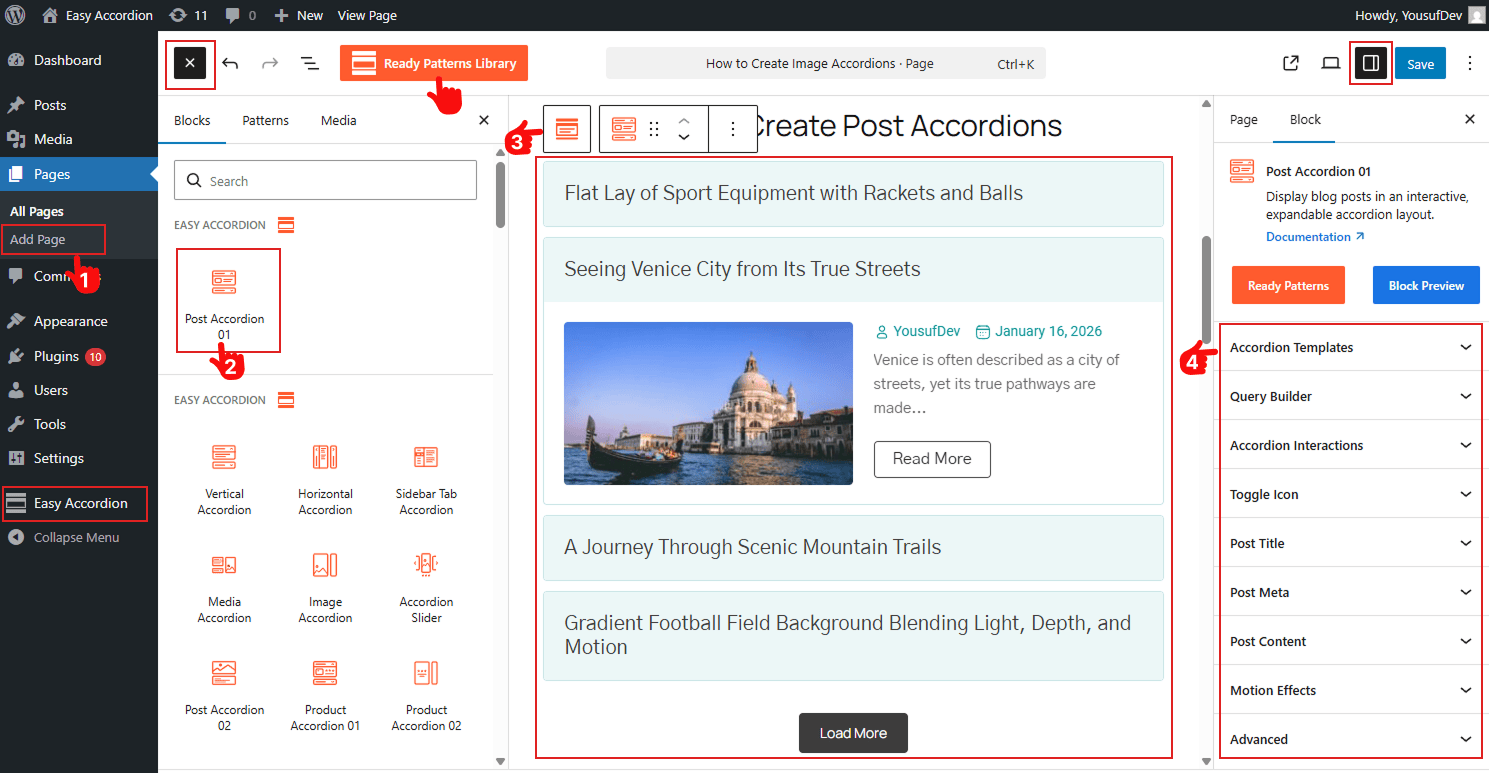
Note: You can also enable Advanced utilities like FAQ Search, Ajax Pagination, Toggle All Button, Schema Markup, and Preloader to enhance usability and SEO visibility.
Step 3: Filter Posts, Customize Title, Image & Meta
Filter Posts: After choosing the template, it’s time to decide which posts you want to display by using the Powerful Query Builder. It will allow setting post types, filter posts by Latest, Taxonomy, or Specific ones, and adding Live Filtering with Taxonomy Filter.
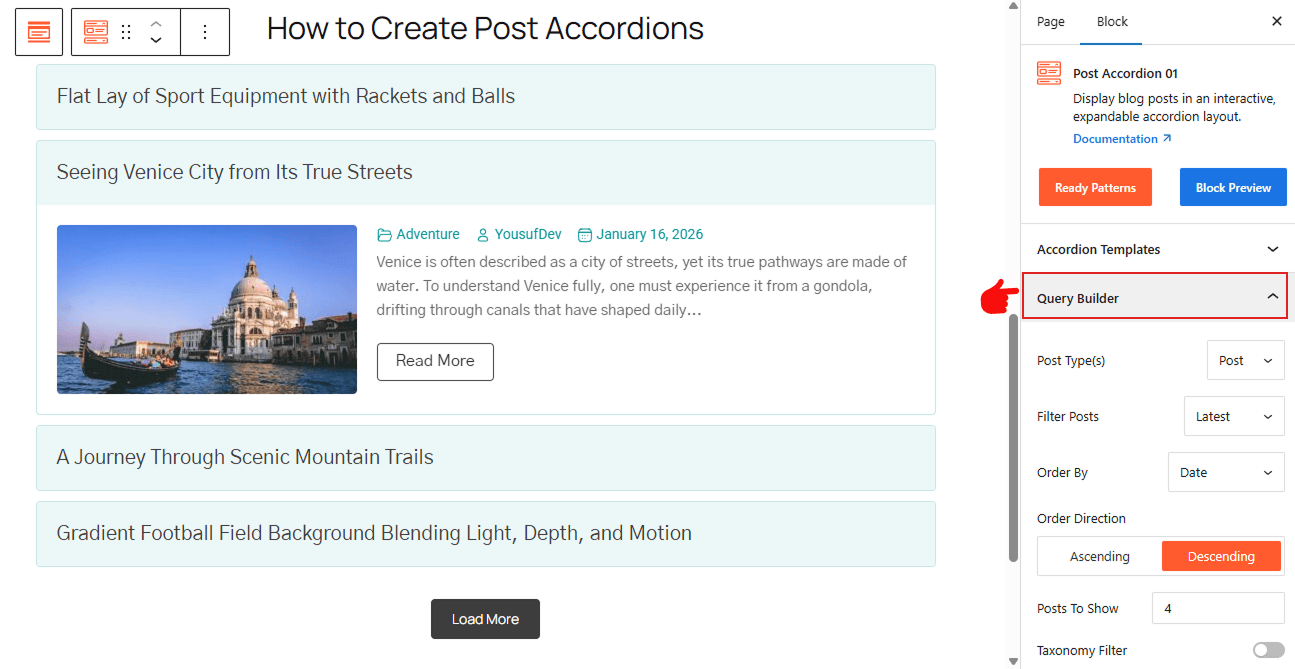
For details, visit here.
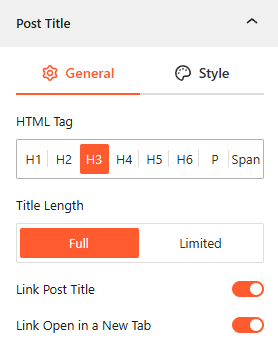
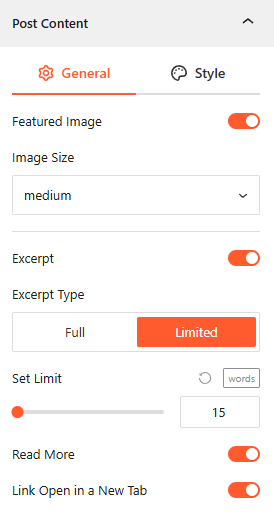
Customize Post Title, Image & Meta: You will find a dedicated panel to customize your Post Title, Featured Image & Meta, including Post Excerpt & Read More Button. To know how to customize them in detail, please visit here.
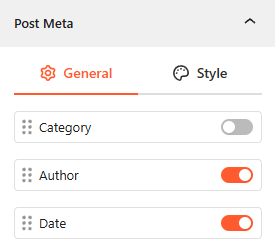
Step 4: Stylize with Interactions, Animations, and Publish
- You can add accordion interaction triggers, such as: Click, Hover & AutoPlay.
- Configure the Adjustable Post Content height with animations.
- Enable Accordion Close Button.
- Enable Motion Effects to make it visually engaging.
- Customize the Typography, colors, and set device-specific visibility, background, and add custom CSS with the advanced settings as needed.
- Once all are finished, click Publish or Update.
Congratulations. Let’s see a live demo of how post accordions will display on your WordPress site.
Final Thoughts
Creating an accordion is one of the most effective ways to organize WordPress content.
Instead of overwhelming visitors with endless lists, post accordion lets you create a cleaner, more interactive experience that keeps content accessible and engaging.
So, if you want a smarter way to showcase blog posts, archives, or custom content, download Easy Accordion today and display your posts dynamically in minutes that engage, convert, and boost conversions.
How to Write FAQs: 8 Best Practices with Examples
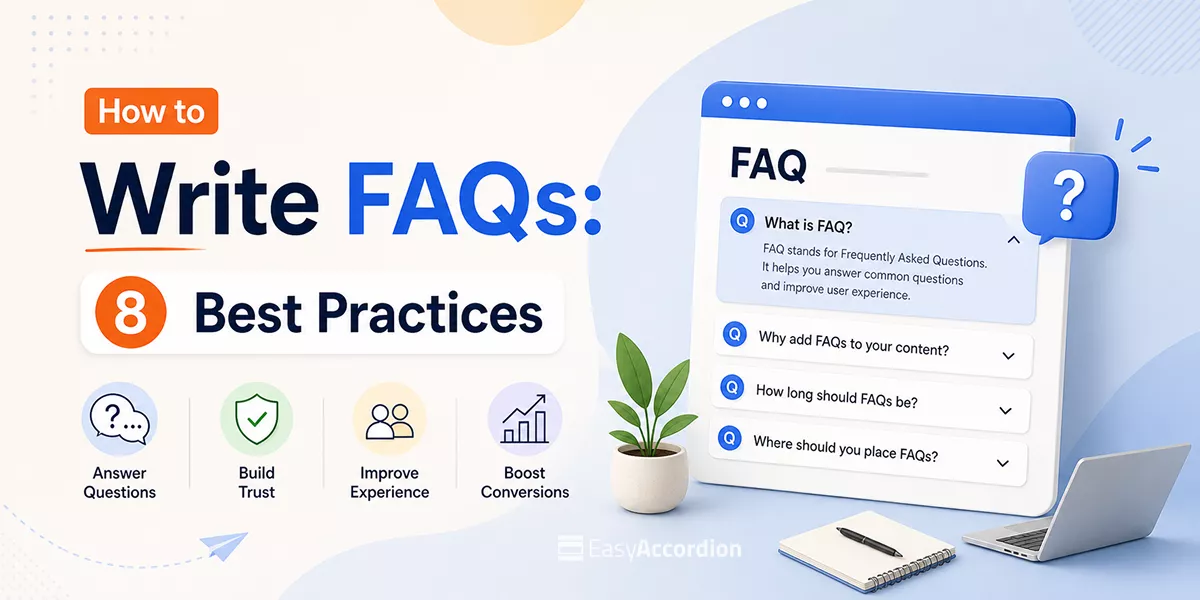
Are you fed up with your confused visitors, high bounce rates, repetitive customer queries? Do you want to learn how to write FAQs that really increase visibility on search engines and AI, reduce support costs, and grow conversion rates?
In this blog, I’ll share 8 effective strategies to write high-converting FAQs and the best examples.
By the end of this blog, you will be able to write the most impactful FAQs and turn your confused visitors into regular customers.
Let’s get in.
TL;DR/ Key Takeaways
- What is FAQ: A FAQ is a structured list of real customer questions paired with clear, direct answers that build trust and drive action.
- Best Tips to Write High-converting FAQs: Use real customer questions, keep answers short and conversational, optimize for SEO and GEO, and use an accordion layout for better UX.
- Common Mistakes in FAQ Writing: Avoid writing assumed questions, burying answers, skipping schema markup, and leaving your FAQ section without a next step or CTA.
- Explore Ready FAQ Template Library: Get a rich FAQ template library. Choose a pattern, customize visually, and publish in minutes.
What is FAQ?
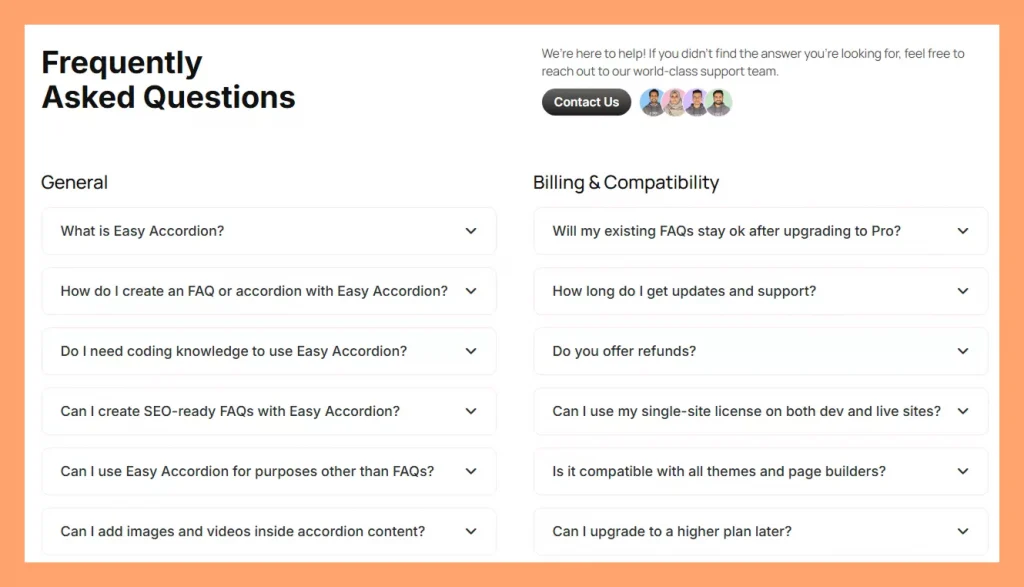
FAQ stands for “Frequently Asked Questions”. It’s a structured list of real customer questions paired with clear, helpful answers.
- Real questions — phrased the way your customer would type or speak it
- Direct answers — leading with the most important information
- Supporting detail — a short explanation, stat, or example that builds confidence
- Accordion Layout — Expand & collapse layout to make FAQs scannable & interactive.
- A next step — a subtle CTA, link, or reassurance that moves the reader forward
Why FAQs are So Important
FAQs are one of the most underrated assets on any WordPress or WooCommerce site. Here is why they deserve serious attention.
Increase Visibility on AI (GEO Advantage)
AI tools like Claude, ChatGPT, Gemini, and Google’s AI Overviews favor structured question-and-answer content. When your FAQs include schema markup, these tools cite your site in AI-generated responses and put your content in front of users who never type a traditional search query.
Win featured snippets and “People Also Ask” spots (SEO advantage)
Google pulls FAQ content into featured snippets and “People Also Ask” boxes, which sit above regular organic results. With proper schema markup, your site can appear twice on the same results page and capture high-intent shoppers right at the moment they are closest to buying.
Reduce Confusion
Confused visitors do not buy. They simply leave. A clear FAQ removes the friction between “I’m interested” and “I’m buying.” It answers doubts before they turn into objections. It also fills the gaps your product page might miss.
Grow Conversion
Addressing buyer questions at the point of decision increases conversion rates. Product page FAQs, in particular, reduce cart abandonment by eliminating unanswered doubts right before checkout. That directly impacts your WooCommerce revenue.
Cut Support Cost
Every question your FAQ answers is a support ticket you never receive. For WooCommerce stores with high order volumes, this adds up quickly. A strong FAQ can reduce repetitive support queries by 30 to 50 percent.
Improve On-Page Engagement Signals
When visitors find answers on your page, they stay longer. They scroll further and click more. These engagement signals tell search engines your content is valuable, which then improves your rankings over time.
Where You Actually Need an FAQ Section
Not every page needs a FAQ. But these locations almost always benefit from one:
Homepage — Address the top general queries you have collected.
Product pages — Answer shipping, compatibility, returns, and feature questions
Pricing page — Eliminate hesitation around billing, plans, and refunds
Landing pages — Handle objections right before the CTA
Support/contact page — Deflect common queries before users submit tickets
Blog posts — Add topical FAQs to capture “People Also Ask” traffic
Documentation — Answer setup and usage questions inline
If a page needs to address users’ concern and a conversion goal, a FAQ belongs on it.
8 Best Practices for Writing FAQs That Convert
1. Collect Real Customer Questions
The biggest FAQ mistake is writing questions you think people ask. Instead, collect questions people actually ask.
Start with these sources:
- Your Support Inbox
- Sales call notes
- Product Page Comments
- Product Reviews
- Socials and Communities
- Heatmaps: Microsoft Clarity/ Hotjar
Prioritize questions that appear more than once. Those are your most important FAQ items.
What to Do If You Have No Question List Yet?
If you are fresher in the market or you have no question in your channels, what to do?
It’s a common scenario that most of the customers leave your sites with questions in their mind. They are too busy to ask you the question. Finally, you are losing customers.
What to do? In this cases, check:
- Your competitors’ FAQs
- Your competitors’ product reviews
- tools like AnswerThePublic or Reddit
- Google’s “People Also Ask” box
- Keyword Research
- Ask multiple AIs
Pro Tip: If your service or product is completely new in the market, customers must have more questions. You yourself have to research and ideate a question list initially.
2. Keep Answers Short and Scannable
Nobody reads FAQ answers like a novel. Visitors scan, search, and want the answer fast. So your answer structure should follow a simple three-part pattern.
Lead with the direct answer in the very first sentence. No preamble, no “great question.” Add one supporting sentence if needed for clarity. Then close with a link or CTA if any action is required.
Here is a bad example: “That’s a great question! Our plugin is compatible with most themes, but it really depends on the theme you’re using and how it’s coded. If your theme follows WordPress coding standards, you should be fine, but there might be some issues with custom CSS.”
Here is a good example: “Yes. Easy Accordion works with all standard WordPress themes, including Astra, Avada, and OceanWP. Test on a staging site first if your theme uses heavy custom CSS.”
Short answers also display far better inside accordion layouts, which we cover in practice number seven.
3. Use Natural, Conversational Language
Write FAQs the way your customer talks, not the way a legal document reads.
Use “you” and “we” instead of “the user” or “the company.” Avoid jargon unless your audience is technical, and even then define it once. Match the vocabulary your customer actually uses. If they say “plugin,” do not say “extension.” And finally, read your answer out loud. If it sounds robotic, rewrite it.
For WooCommerce stores, this is especially important. Shoppers make emotional decisions, so warm and human language builds trust faster than corporate copy.
4. Optimize Your FAQ for SEO and GEO (FAQ Schema)
A well-structured FAQ does double duty: it helps visitors AND search engines.
For SEO:
- Include your target keyword naturally in the question
- Use H2 or H3 tags for questions (not just bold text)
- Add FAQ schema markup — structured data that tells Google your content is a FAQ
For GEO (AI search visibility):
- Write answers that are complete on their own — AI engines pull self-contained answers
- Aim for 40–60 word answers for complex questions — long enough to be useful, short enough to extract
- Structure answers as “yes/no + explanation” when possible — AI models prefer direct starts
- Use FAQ schema– AI bots love structured data.
Tools like Easy Accordion add FAQ schema markup automatically. This means your FAQs become eligible for Google rich snippets and AI answer features without any technical setup.
5. Add Search and Filters for a Lot of Questions
If you have more than 10 FAQ items, navigation becomes a problem. Visitors do not scroll through 30 questions to find the one they need.
The solution: add search and filtering.
- FAQ search lets users type a keyword and see matching answers instantly
- Category filters let users browse by topic (Shipping, Returns, Compatibility, etc.)
For WooCommerce stores, this is especially valuable. A product with 20+ FAQs becomes unusable without filters. With them, it becomes a powerful self-service tool.
Easy Accordion’s Pro version includes AJAX live search and smart frontend filters — so visitors find answers in seconds, not minutes.
6. Add an FAQ Form or Support Link Below Your FAQs
Even the best FAQ misses some questions. So always give visitors a path forward.
Two options work well:
Option A: FAQ submission form — Let visitors submit questions they cannot find answers to. This also builds your FAQ over time. Easy Accordion includes a User FAQ Form block for exactly this purpose.
Option B: Support link or CTA — A simple “Still have questions? [Contact us]” line at the bottom of your FAQ section catches anyone who did not find their answer.
Never leave a FAQ section as a dead end. Always offer the next step.
7. Use the Accordion Layout for Your FAQ
A plain list of questions and answers is hard to read. Everything is visible at once. It is visually noisy and visitors struggle to find what they need.
The accordion layout solves this neatly. Each question is a collapsed row. Visitors click to expand only what they need. The result is a cleaner UI with less visual clutter, faster scanning since users find the question before reading the answer, a better mobile experience, and stronger engagement because interactive elements keep users on the page longer.
For WordPress and WooCommerce, Easy Accordion is the go-to plugin for this. It offers 15+ accordion block types — including vertical, horizontal, image, post, and product accordions — with full Gutenberg, Elementor, and classic editor support.
You can set it up in three steps: pick a template, add your content (or generate it with AI), and publish.
8. Watch Analytics and Update Your FAQs Regularly
FAQs are not a “set it and forget it” asset. Customer questions change. Products evolve. New objections emerge.
Track a few key signals regularly. Check your support ticket volume to see if the same questions still come in after publishing your FAQ. Review your FAQ analytics every week. If you are a WordPress user, Easy Accordion’s built-in FAQ analytics is the best choice for you.
A good rule: review your FAQ every quarter. Add two or three new items. Remove anything outdated. This keeps your content fresh for both users and search engines.
Common FAQ Mistakes That Kill Engagement
Never make these common FAQ mistakes.
- Writing from company perspective, not user perspective: Focuses on what you want to say instead of what users actually need, reducing relevance and clarity.
- Overloading with too many questions: Too many FAQs overwhelm users, making it harder to find quick, helpful answers.
- Outdated or irrelevant info: Old or unnecessary information breaks trust and confuses users.
- No clear next step (missing CTA): Without a clear action, users leave without converting or moving forward.
Ready FAQ Template Library (Plug-and-Play)
Easy Accordion, a WordPress FAQ & accordion plugin, includes a full library of pre-designed, ready-to-use FAQ and accordion templates. You do not need to start from scratch or hire a designer if you are a WordPress user. Even non-WordPress users can get modern, high-impact FAQ design ideas.
Final Words
A great FAQ does more than answer questions. It builds trust, reduces friction, drives conversions, and improves your visibility in both traditional and AI search.
The difference between a FAQ that helps and one that converts is intention. Use real questions. Write short, direct answers. Add schema markup. Use an accordion layout. Keep it updated.
Start with five strong questions today. Add more as you learn what your customers actually need.
If you are using WordPress or WooCommerce, Easy Accordion makes the whole process faster — from AI-generated content to built-in schema markup to analytics. It powers 100,000+ sites and is rated 4.9 stars for a reason.
Easy Accordion 4.2.0: Smarter AI, New Blocks & Patterns for FAQ & Accordion
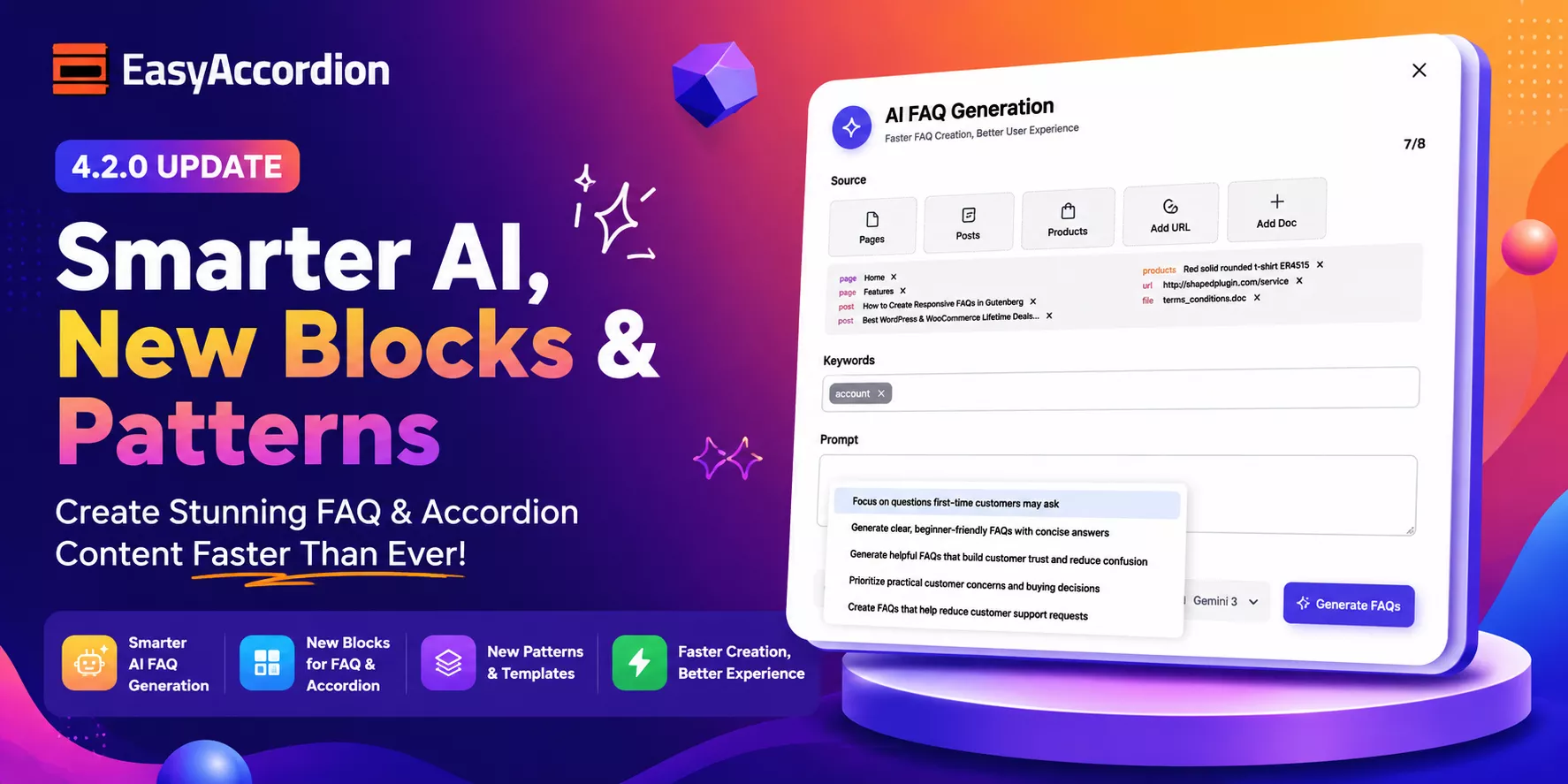
Hey, WordPress and WooCommerce users! We have some exciting news for you.
Easy Accordion Pro 4.2.0 has officially landed– and it is packed with many new features. This release brings powerful AI tools, four new accordion block types, six page builder integrations, motion animations, a 200+ template library, and much more.
Whether you run a blog, a WooCommerce store, or a business site, this update has something game-changing for your FAQs and group content display. So, let’s dive in and explore everything new in version 4.2.0!
What’s New in Easy Accordion Pro 4.2.0?
Here is a quick overview of everything included in this release:
- Four new accordion block types
- AI-powered FAQ generation
- Five new Pro modules
- Six page builder integrations
- Google reCAPTCHA spam protection
- 200+ ready-made patterns and templates
Let’s break each one down.
New Accordion Blocks
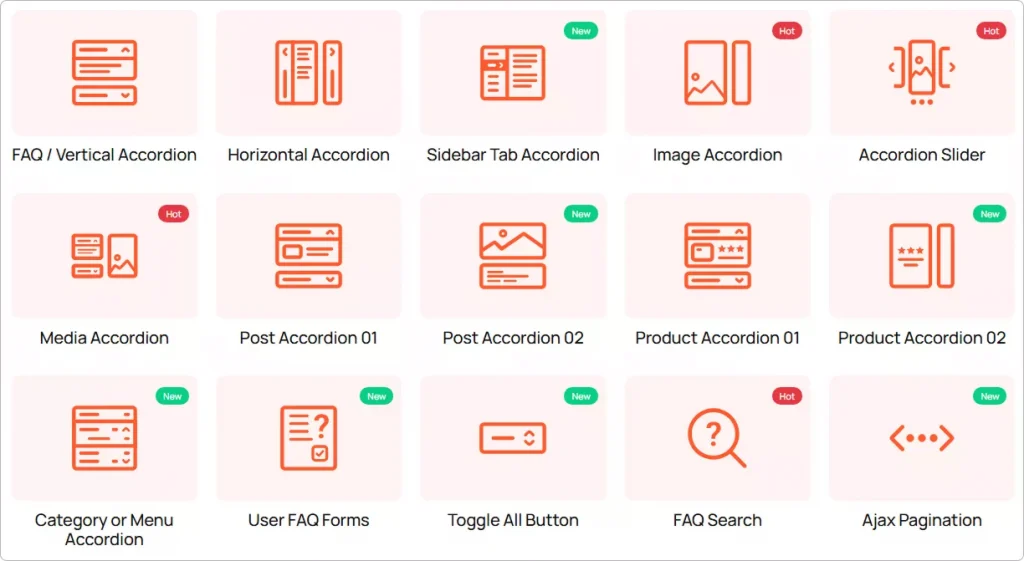
1. Post Accordion 02 Block
Do you want to turn your WordPress blog posts into interactive, expandable accordions? Now you can. The new Post Accordion 02 block lets you display your posts in a collapsible accordion layout. It is perfect for FAQs, knowledge bases, how-to guides, and content-rich blog archives.
This block keeps your pages clean and organized. Visitors expand only the content they want. That means less scrolling and more engagement.
2. Product Accordion 02 Block
Running a WooCommerce store? This one is for you. The Product Accordion 02 block lets you display your WooCommerce products in a beautiful collapsible accordion layout. It works great for showcasing product specs, bundles, pricing tiers, or product FAQs — all without overwhelming your visitors.
The result? A cleaner product page that converts better.
3. Media Accordion Block
Rich media content deserves a rich display. The new Media Accordion block is designed specifically for media-heavy content. You can now embed images, videos, audio, and galleries directly inside expandable accordion panels. It is ideal for portfolio sites, tutorial pages, and multimedia-heavy product descriptions.
4. Category / Menu Accordion Block
Got a large site with complex navigation or deep taxonomies? The Category / Menu Accordion block helps you streamline menus and taxonomies into a clean, collapsible format. This block is especially useful for WooCommerce category pages and content-heavy membership sites.
Generate FAQs Automatically with AI
This is one of the most exciting additions to Easy Accordion Pro. Version 4.2.0 introduces the Generate FAQ with AI module. It lets you create ready-to-publish FAQ content automatically — in seconds.
Just enter a topic, choose your AI provider, and let the plugin do the heavy lifting. No more writing FAQs from scratch. No more blank screens.
Now Supports Google Gemini
Along with existing AI compatibility, version 4.2.0 adds Google Gemini as a supported AI provider. You can now choose between AI engines to match your workflow, budget, and output style preferences.
This feature is a massive time-saver for agencies, bloggers, and store owners who manage large sites with dozens of FAQ pages.
New User FAQ Forms Block
Give your visitors a voice. The new User FAQ Forms block lets visitors submit their own questions directly from your site’s frontend — without needing to contact you via email or chat.
It is an excellent way to crowdsource real questions from real users. Plus, it helps you discover content gaps and build a more relevant FAQ database over time.
Google reCAPTCHA Integration
To keep spam out of your FAQ forms, version 4.2.0 adds Google reCAPTCHA integration. This integration automatically blocks spam submissions and bot abuse, so your FAQ inbox stays clean.
New Pro Modules
FAQ Analytics Module
Want to know which FAQs your visitors actually click on? The FAQ Analytics module tracks clicks and user engagement metrics across your accordion and FAQ content. Use this data to refine your content strategy, remove low-performing FAQs, and expand the ones that drive the most interaction.
FAQ Forms Module
The FAQ Forms module lets you build fully functional frontend FAQ submission forms. Visitors can submit questions directly from any page. You review and publish them as FAQs — it is a simple and powerful content loop that keeps your FAQ section fresh and relevant.
Motion Effects and Animations Module
Static accordions are a thing of the past. The new Motion Effects and Animations module adds beautiful scroll-triggered animations to your accordions. No CSS knowledge required. Just pick an animation style, set the timing, and publish. Your content will feel alive and engaging from the moment visitors land on your page.
Export / Import FAQs Module
Managing FAQs across multiple sites just got a lot easier. The Export / Import FAQs module lets you back up your entire FAQ library and restore it with a single click. It is perfect for agencies managing client sites or developers working across staging and production environments.
Ready Patterns Library Module
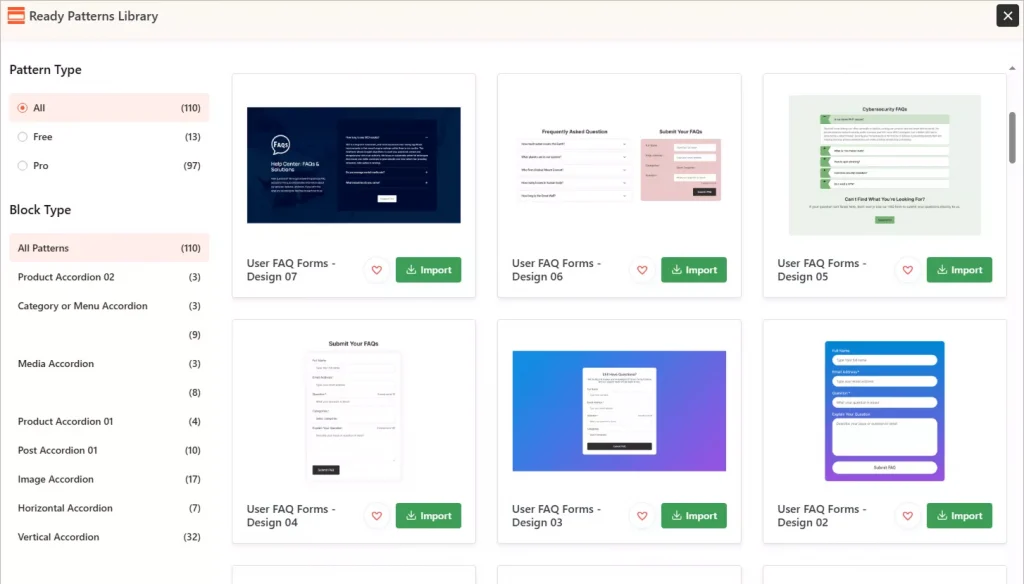
Starting from scratch is now optional. The Ready Patterns Library module gives you access to 200+ pre-designed FAQ and accordion templates. Browse the library, pick a layout you love, import it with one click, and customize it to match your brand. You can launch a beautiful, professional FAQ section in minutes — not hours.
Six New Page Builder Add-ons
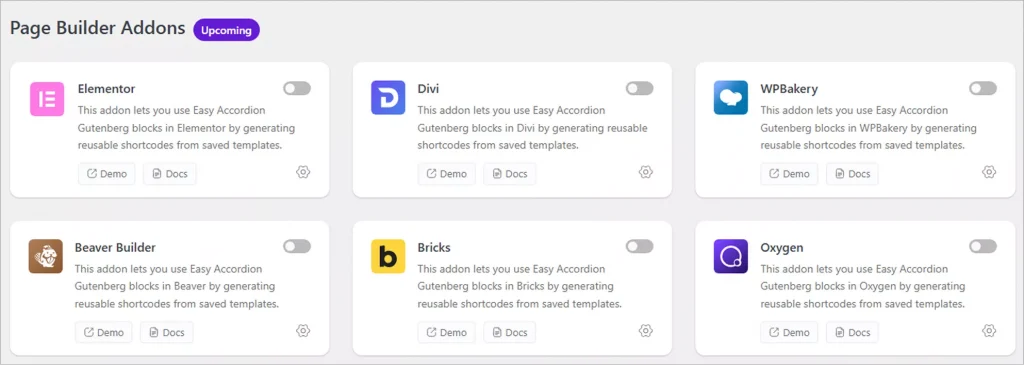
Easy Accordion Pro now works seamlessly with every major WordPress page builder. Version 4.2.0 introduces Saved Templates rendering support for:
- Elementor
- Divi
- WPBakery
- Oxygen Builder
- Beaver Builder
- Bricks Builder
No matter which builder you use, your saved accordion templates will drop right in — no shortcodes, no workarounds, no conflicts. This is a huge win for agencies and freelancers who build with multiple tools across different client projects.
Why Upgrade to Easy Accordion Pro?
Here is a quick summary of what you unlock with the Pro version:
- AI FAQ generation (with Google Gemini support)
- FAQ Analytics to track real user engagement
- Frontend FAQ submission forms with reCAPTCHA protection
- Motion Effects and scroll animations
- Export / Import FAQ library
- 200+ ready-made patterns and templates
- All four new accordion block types
- Six page builder integrations
If you are still on the free version, now is the perfect time to upgrade. Easy Accordion Pro gives you everything you need to build, manage, and optimize FAQs and accordions on your WordPress site — without writing a single line of code.
Get Started with Easy Accordion Pro 4.2.0
Version 4.2.0 is available now. If you are already a Pro user, simply update from your WordPress dashboard. All your existing content, FAQs, and settings will remain completely intact.
New to Easy Accordion Pro?
Easy Accordion Pro is developed by ShapedPlugin LLC — a team with over a decade of experience building high-quality WordPress and WooCommerce plugins used by 360,000+ websites in 180+ countries.
Have questions about the new features? Drop them in the comments below — we would love to hear from you and reply!
How to Add Stylish Horizontal Accordions in WordPress
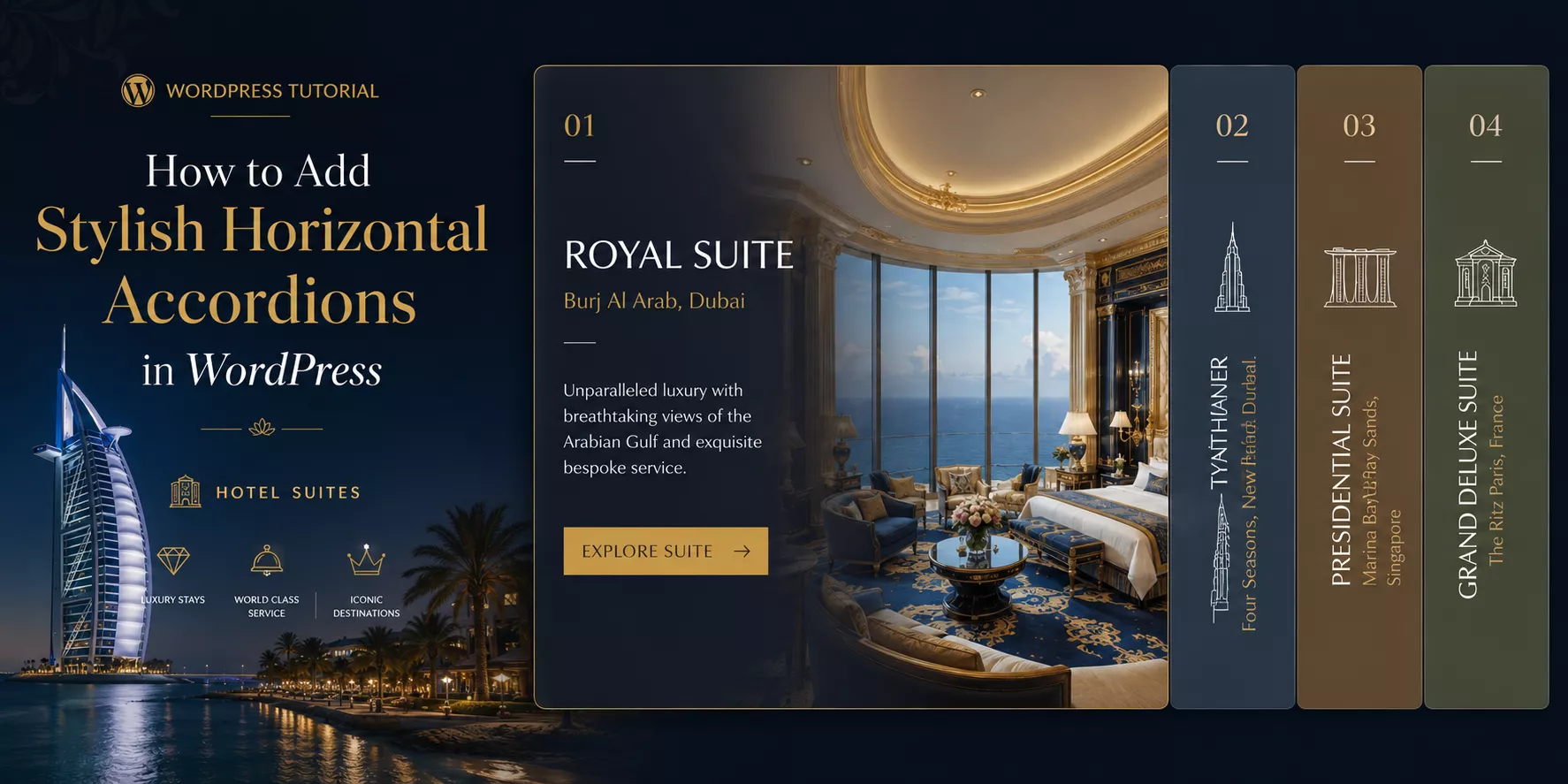
In this blog, I’ll show you the easiest method to add stylish horizontal accordions in WordPress in minutes. No code or complex prompt is needed.
Most WordPress users know accordions. But horizontal accordions? That is a different story.
A vertical accordion stacks content top to bottom. A horizontal accordion expands content side by side. It is a subtle difference that creates a dramatically different user experience.
This guide covers everything you need to know. You will learn what horizontal accordions are, the best use cases, the easiest way to build them in WordPress, and actionable design tips to make yours stand out.
TL;DR / Key Takeaways
- Horizontal accordions expand content side by side, not top to bottom.
- Horizontal accordions work best for visual story telling, booking steps, featured news/article/project/portfolio showcase, events showcase, speakers & performers showcase, etc. Want to learn more? read the details below.
- Easy Accordion is the easiest no-code way to add horizontal accordions in WordPress and WooCommerce. Only 3 simple steps– Choose a ready pattern, add your content, customize visually and publish in minutes.
- Good design, perfect contrast, and smooth animations make the biggest difference.
- Avoid overloading panels with text. Keep content concise and scannable.
- Besides Gutenberg, you can create accordions for Elementor, Divi, and all popular page builders with Easy Accordion.
What is a Horizontal Accordion?
A horizontal accordion is an interactive UI element. It displays a row of panels side by side. Each panel expands or collapses when a user clicks or hovers over it.
Think of it like a folder system laid flat. Instead of opening drawers one on top of another, you open them left to right.
Here is a simple breakdown:
- Vertical accordion: panels stack top to bottom (the traditional FAQ layout).
- Horizontal accordion: panels expand left to right (a modern, visual-first layout).
Horizontal accordions can display text, images, icons, or mixed media inside each panel. They are fully interactive and responsive when built with the right tool.
What are Key Use Cases of Horizontal Accordions
Horizontal accordions are not just pretty. They solve real layout problems. Here are the best scenarios to use them.
- Project Showcases
- Portfolio Showcases
- Image Galleries or Visual Storytelling
- Hotel Suite Categories Showcase
- Booking Steps Display
- Sequential Travel Destinations Display
- Event or Schedule Layouts
- Speakers & Performers Showcase
- News, Content, Service, & Product Highlights
- Product Features Showcase
- Team Members Showcase
- Portfolio Display
- Project Display
- Service Showcase
- Step-by-Step Processes Showcase
- Class & Categories Showcase
- Service or Offering Breakdown Showcase
- Product/Service Offerings or Features
- Timelines & Schedules
Best Method to Create Horizontal Accordions in WordPress
There are several ways to add horizontal accordions in WordPress. Let’s look at the key options.
Option 1: Custom CSS and JavaScript with AI (Advanced)
You can build a horizontal accordion from scratch with HTML, CSS, and JS using AI. This gives you full control.
However, it requires prompt engineering skill, coding knowledge to review, ongoing maintenance, and hours of work. A vague prompt or small CSS conflict can break the layout across your entire site.
Not ideal for most WordPress users.
Option 2: Easy Accordion Plugin (Best Method)
Easy Accordion is the most popular and beginner-friendly solution. It is a dedicated WordPress FAQ and accordion plugin trusted by 100,000+ WordPress sites.
It includes multiple Horizontal Accordion blocks and thoughtfully designed patterns by UX/ UI professionals.
Plus, it’s fully compatible with Elementor, Divi, WP Bakery, and all major page builders.
Here is why Easy Accordion stands out for horizontal accordions:
- Rich pattern library to import, customize, and publish in minutes
- No coding required to configure or style
- Visual customizer to control colors, dimensions, icons, and animations
- No matter your editor or builder, works for all
- Responsive design with custom breakpoints for every device
- Auto layout switch from horizontal to vertical on mobile (Pro)
- Works with WooCommerce for product-focused horizontal displays
- Accordion Slider for more content.
- Supports content types text, images, videos, product, and custom posts.
Easy Accordion holds a 4.9-star rating and has been trusted by WordPress users since 2015. It is the most reliable choice for building horizontal accordions without touching code.
Let’s Install Easy Accordion and choose ready patterns from a rich library to add stunning horizontal accordion effortlessly.
3 Simple Steps to Add a Horizontal Accordion
After installing the best wordpress accordion plugin, follow the 3 easy steps below to add an outstanding horizontal accordion in WordPress block editor.
Step 1: Choose a Ready Horizontal Accordion Pattern
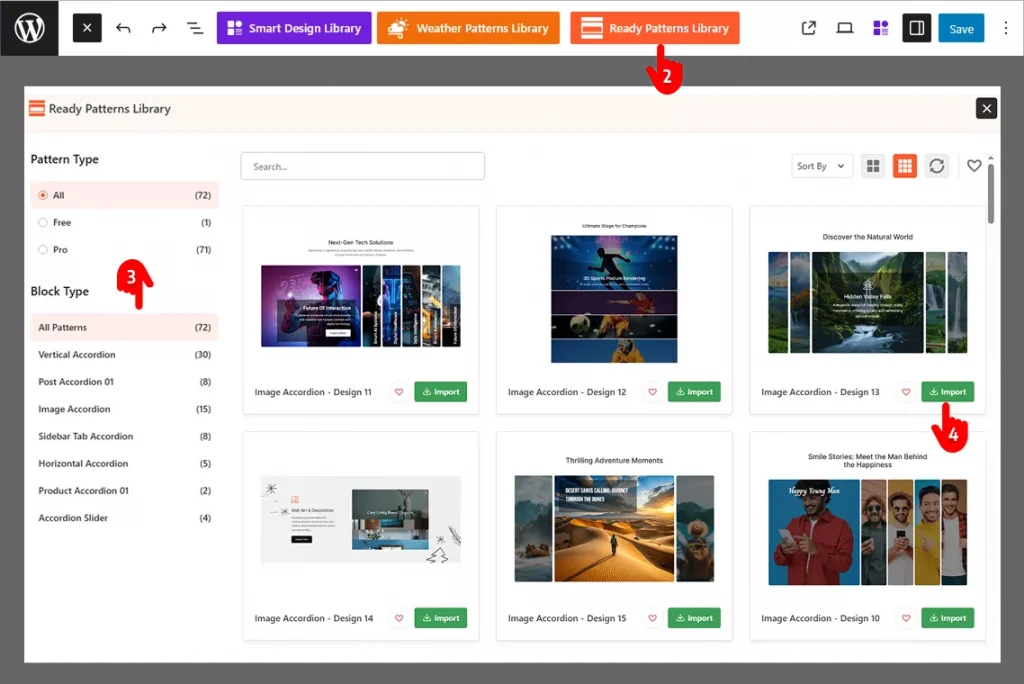
- Go to the page or post where you want to add the accordion.
- Click the Easy Accordion Library icon at the top of block editor.
- Find a horizontal accordion pattern that fits your needs.
- Click Import and it drops straight into your page.
Step 2: Add Your Image & Content
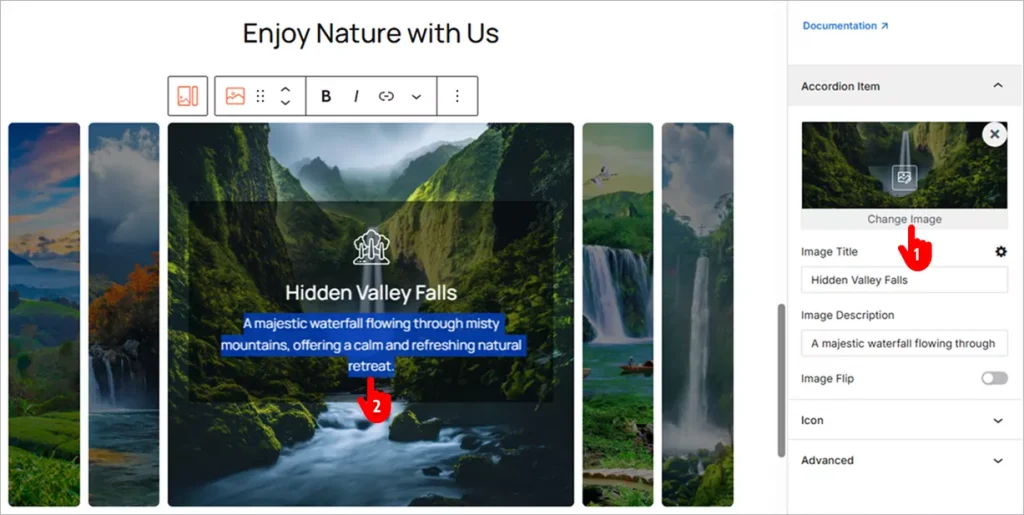
- Click “Change Image” in the right-side panel to upload your own image.
- Add your content just like you would in a Google Doc.
Step 3: Customize Visually and Publish Your Accordion
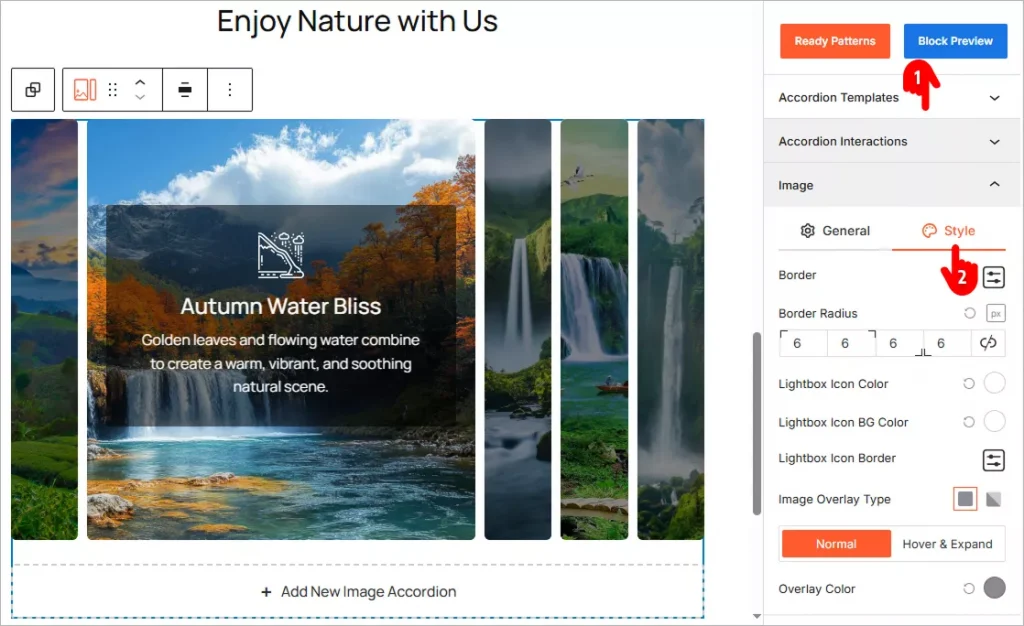
- Browse through the panels and explore all available features. Apply them based on your needs.
- Most panels include a Style tab. Use it to customize your Horizontal Accordion and match your brand’s look and feel.
- When you’re happy with your changes, click the Publish or Save button in the top-right corner.
Design Tips to Make Your Horizontal Accordions Stand Out
A horizontal accordion is only as good as its design. Follow these tips to create one that looks professional and performs well.
Use Strong Visual Contrast Between Panels
Each collapsed panel should look distinct from its neighbors. Use alternating background colors or clear border lines. Strong contrast helps users understand where one panel ends and another begins.
Keep Panel Labels Short and Descriptive
The collapsed state shows only the visual and panel label. Make it count. Use action words or clear topics. For example, use “Step 1: Plan” instead of “Planning Phase Overview.” Short labels scan faster and invite clicks.
What to do if your titles are not short anyway? use vertical orientation for the titles in collapsed mode.
Add Hover Animations for Interactivity Cues
Users need to know a panel is clickable. A subtle hover effect, like a color shift or slight scale, signals interactivity. Easy Accordion includes animation options you can enable without writing CSS.
Balance Panel Width with Content Length
Each panel should hold a manageable amount of content. If one panel has 500 words and another has 20, the layout feels off. Aim for roughly equal content depth across all panels.
Use High-Quality Images Inside Panels
For image-heavy accordions like portfolios or product showcases, image quality matters more than anywhere else. Blurry or low-resolution images kill credibility. Use crisp visuals sized correctly for the expanded panel width.
Set a Clear Expanded State
The open panel should look noticeably different from the closed ones. Use a stronger background color, bolder title text, or a shadow. Users should always know which panel is active.
Test on Mobile Before Publishing
Horizontal accordions can become cramped on small screens. Easy Accordion Pro includes an auto layout switch that converts horizontal accordions to vertical on mobile devices. Always preview your accordion on a phone before going live.
Match Your Brand Colors and Fonts
An accordion that clashes with your site design looks out of place. Use your brand color palette and match font choices to your theme. Easy Accordion’s visual editor makes this easy with direct color and typography controls.
Common Mistakes to Avoid
Even great ideas can fall flat with the wrong execution. Here are the most common horizontal accordion mistakes and how to sidestep them.
Mistake 1: Overloading Panels with Text
A horizontal accordion is a visual element. Stuffing each panel with paragraphs of text defeats the purpose. Keep content tight. Use bullet points, short sentences, and visuals instead of long-form copy.
Mistake 2: Using Too Many Panels
More than five or six panels starts to feel cramped on desktop and unusable on mobile. Limit yourself to four or five panels for the cleanest result. Group related content if needed.
Mistake 3: Skipping the Mobile Test
A horizontal layout that looks stunning on a 1440px monitor can break completely on a 375px phone screen. Always test responsiveness before publishing. Use a plugin that handles mobile adaptation automatically.
Mistake 4: Ignoring Load Speed
Animations and large images inside accordion panels can slow your page down. Easy Accordion is optimized for speed and performance. Still, compress your images and keep media file sizes in check.
Mistake 5: No Clear Call to Action Inside Panels
If a panel showcases a product, service, or feature, give the user somewhere to go next. Add a button or link inside the expanded panel. An accordion without a CTA is a missed conversion opportunity.
Mistake 6: Inconsistent Styling Across Panels
Every panel should follow the same visual rules. Mixing fonts, icon styles, or spacing between panels looks unprofessional. Set your styles once in Easy Accordion’s editor and apply them globally.
Mistake 7: Not Using Schema Markup
If your horizontal accordion contains FAQ content, missing schema markup means missing out on Google rich snippets and AI-generated answers. Easy Accordion automatically adds FAQ Schema Markup to help your content appear in search results and AI assistant responses.
Key Benefits of Using Horizontal Accordions
Here are the concrete benefits horizontal accordions deliver.
- Quick Content Scannability: Accordions, including horizontal ones, improve content scannability. Visitors can watch everything at a glance and scan the themes quickly.
- Stronger Visual Impact: A horizontal layout immediately looks different from a standard page. It grabs attention and keeps users engaged longer.
- Better Use of Screen Real Estate: Horizontal layouts use wide screens efficiently. They spread content across the full width instead of leaving whitespace on the sides.
- Improved User Experience: Interactive elements invite exploration. Users who interact with your content spend more time on your page and convert at higher rates.
- Reduced Page Length: Instead of scrolling through long sections, users access all content within one compact horizontal block. Less scrolling means faster decisions.
- Higher Conversion Rate: Horizontal accordions are highly interactive and playful with effects and animations that connect visitors and convert them more.
Final Words
Horizontal accordions are unique, stylish, interactive, and highly converting.
They look better. They work smarter. They convert your visitors.
The easiest way to get started is with Easy Accordion. It includes multiple dedicated Horizontal Accordion blocks and ready patterns, visual customizations, mobile-responsive design, and built-in Schema for SEO & GEO. No code required.
Let’s add a stunning horizontal accordion to your site and grow conversion.
10+ Best FAQ Plugins for WordPress (Free & Paid)
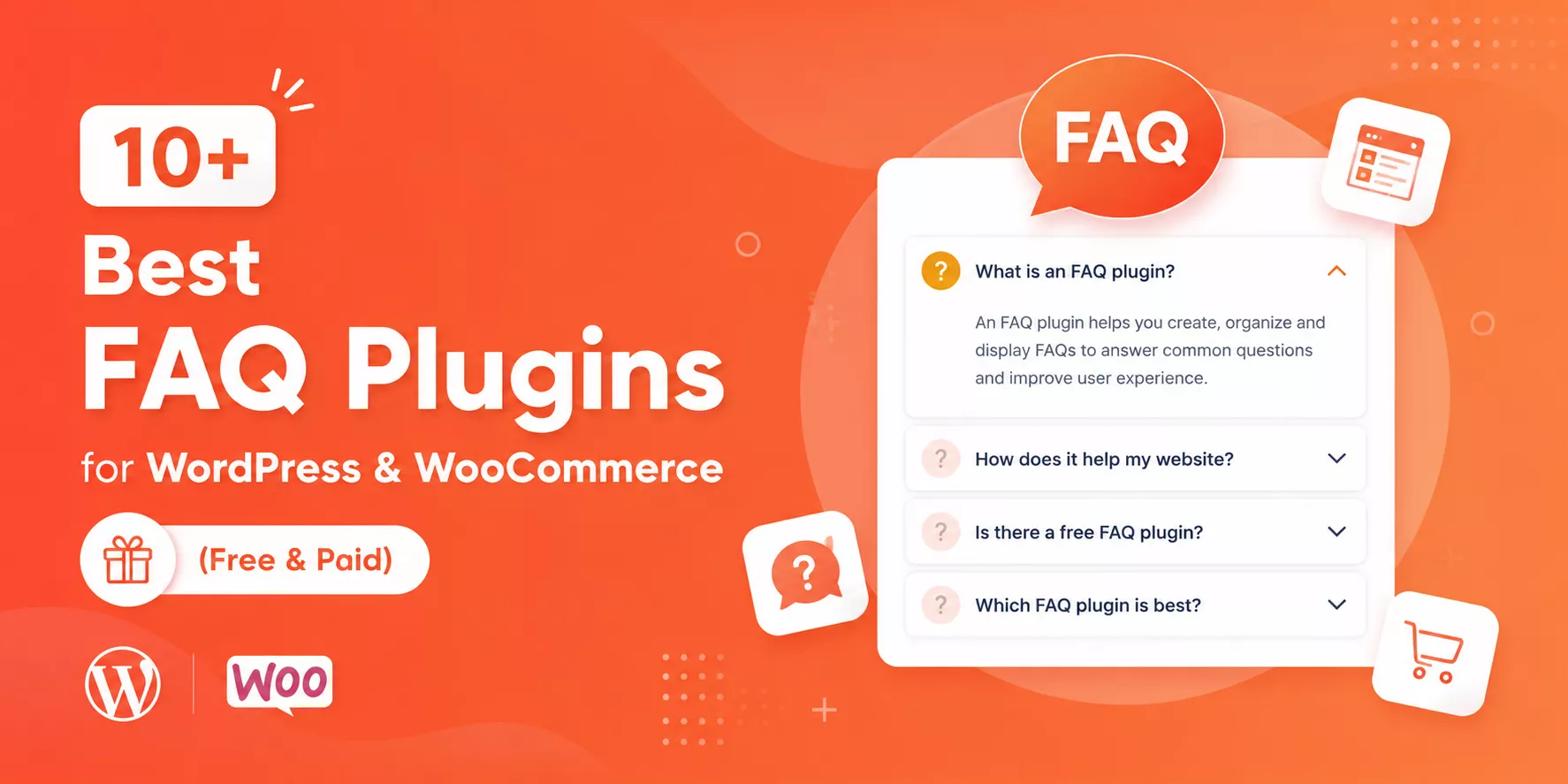
Are you looking for the best FAQ plugins for WordPress and WooCommerce to add comprehensive FAQs effortlessly and grow conversions? In addition, FAQs increase visibility in AI answers & SERPs and drive more traffic to your site.
In this blog, I’ll discuss more than 10 best FAQ WordPress plugins along with their pros and cons. By the end of this blog, you will be able to choose the best Q&A plugin for your specific needs.
An FAQ section is no longer optional for WordPress websites. Whether you run a blog, a service business, or a WooCommerce store, your visitors always have questions. How you answer those questions directly affects your bounce rate, your support workload, and your conversion rate.
The right FAQ plugin makes the process simple. It helps you organize questions, display them in an attractive accordion layout, add schema markup for search engines, and keep your site running fast. This list covers the 10 best FAQ plugins for WordPress and WooCommerce to help you find the right fit.
What to Look for in the Best FAQ & Accordion Plugin
Before picking a plugin, consider these key criteria:
- Design flexibility: Can you customize colors, fonts, icons, and layouts without writing code?
- Display options: Does it support accordion, toggle, list, horizontal, and image layouts?
- Page builder compatibility: Does it work with Gutenberg, Elementor, Divi, or your preferred builder?
- FAQ Schema Markup: Does it automatically add structured data for Google rich snippets and AI visibility?
- WooCommerce support: Can you add product-specific FAQs directly on product pages?
- Search functionality: Can visitors search through FAQs quickly?
- AI content generation: Can the plugin help you write FAQ content automatically?
- Performance: Is it lightweight and optimized to avoid slowing down your site?
List of the Best FAQ WordPress Plugins
| Plugins | Active Users | Ratings | Price |
|---|---|---|---|
| Easy Accordion | 80,000+ | 4.9 | Free / $29 |
| Ultimate FAQ Accordion | 30,000+ | 4.6 | Free / $67 |
| Accordion FAQ | 30,000+ | 4.6 | Free / $59 |
| Quick and Easy FAQs | 10,000+ | 4.6 | Free |
| Helpie FAQ | 9,000+ | 4.6 | Free / $39 |
| Arconix FAQ | 6,000+ | 4.7 | Free |
| SFN Easy FAQ Manager | 2,000+ | 4.4 | Free |
| Advanced FAQ Manager | 2,000+ | 3.8 | Free / $39 |
| Happy WooCommerce FAQs | 1,000+ | 4.8 | Free / $30 |
| FAQly – Ultimate FAQ | 1,000+ | 3.8 | Free / $15 |
1. Easy Accordion
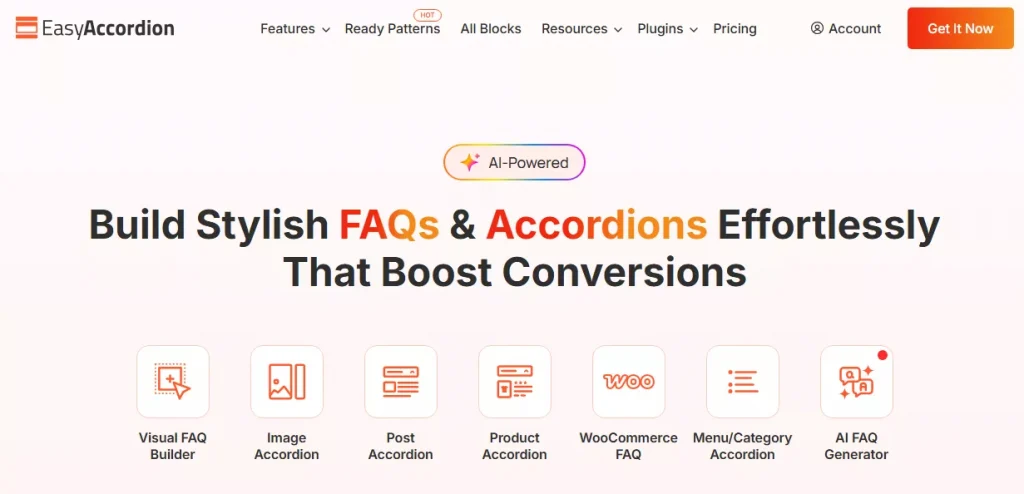
Easy Accordion is the most feature-rich FAQ and accordion plugin available, trusted by 100,000+ WordPress and WooCommerce sites since 2015 with a 4.9-star rating. It is the only plugin on this list offering horizontal, image, post, product, and category accordions alongside standard FAQ layouts.
The Pro version adds AI-powered FAQ generation, AJAX live search, FAQ analytics, anchor links, nested accordions, and an accordion slider. It works seamlessly with Gutenberg, Elementor, Divi, WP Bakery, and every major page builder.
Key Features
- 15+ specialized Gutenberg blocks for FAQs and accordions
- Hundreds of ready FAQ & Accordion patterns to use
- Built-in FAQ Schema Markup for SEO and AI visibility
- AI-powered FAQ generation to create content in seconds
- Visual FAQ builder with reusable custom templates
- Elementor and popular page builders add-ons
- Dedicated WooCommerce product FAQ and category accordion blocks
- Responsive design with custom breakpoints for every device
Pros:
- Most complete feature set with vertical, horizontal, image, post, product, and category accordions in one plugin
- FAQ Schema Markup and AI generation help you rank in Google rich snippets and AI-chats
- Fully compatible with Gutenberg, Elementor, Divi, WP Bakery, and all WooCommerce setups
Cons:
- Advanced features like AJAX search, accordion slider, and analytics require the premium version
- The large number of options can feel overwhelming for users who just need a basic FAQ list
Best For: WordPress and WooCommerce sites that need a full-featured, visually rich FAQ and accordion builder with SEO benefits
2. Accordion FAQ
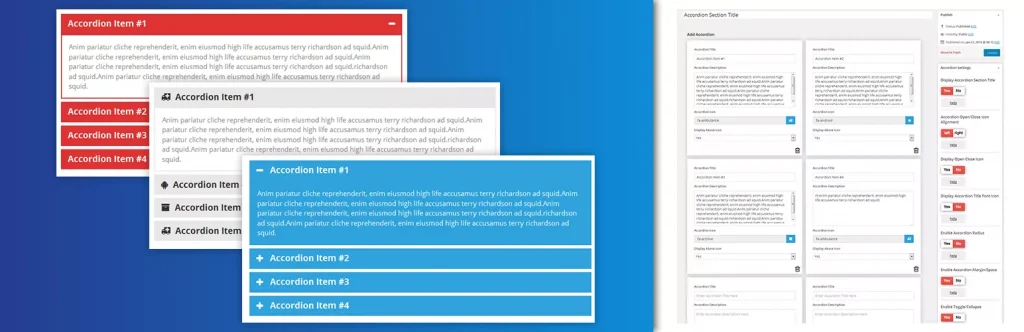
Accordion FAQ by WPShopmart is a Bootstrap-based responsive accordion builder with a drag-and-drop backend interface. It supports unlimited accordion groups, unlimited color options, Font Awesome icons, and two built-in display styles.
The free version handles basic needs well, while the Pro version adds 8 design templates, 500+ Google Fonts, 30+ animations, and hover activation. It uses shortcodes for display and works with both Elementor and Gutenberg.
Key Features
- Drag-and-drop accordion item sorting from the backend
- Unlimited color options for full visual control
- Font Awesome icon picker integrated in the editor
- Two display styles with hide/show all on page load
- Bootstrap framework for reliable cross-browser performance
- Pro: 8 design templates and 30+ content animations
Pros:
- Drag-and-drop sorting makes reordering accordion items quick and code-free
- Unlimited color options and Font Awesome support offer decent customization in the free version
- Bootstrap-based and fully responsive across all devices and browsers
Cons:
- No FAQ Schema Markup in the free version, missing key SEO structured data benefits
- Heavy reliance on shortcodes makes it less intuitive for native Gutenberg users
Best For: Users who want a simple, shortcode-based responsive accordion without complex setup
3. Ultimate FAQ Accordion
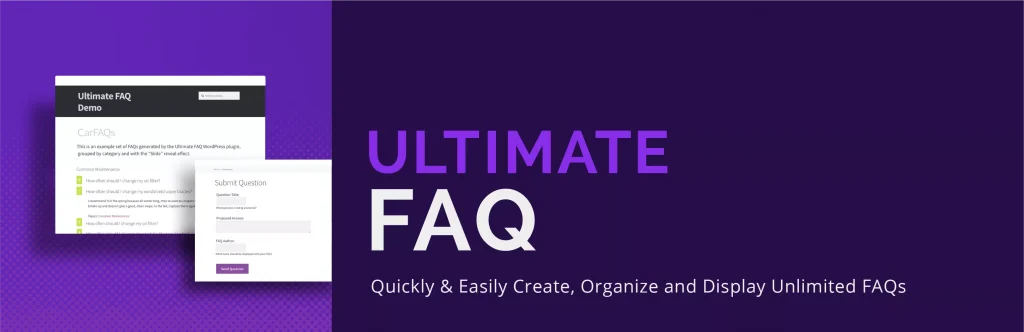
Ultimate FAQ Accordion by Etoile Web Design is a beginner-friendly plugin focused on clean FAQ management and multilingual support. It uses a custom post type, supports unlimited FAQs with categories and tags, and includes Gutenberg blocks, patterns, and shortcodes for display.
It automatically adds FAQPage structured data in LD+JSON format and tracks FAQ view counts out of the box. The Pro version adds OpenAI integration for AI-generated FAQs and expanded styling options.
Key Features
- Unlimited FAQ entries with categories and tags
- Automatic FAQPage structured data in LD+JSON format
- Built-in FAQ view count statistics
- Works with WPML, Loco Translate, and Polylang
- Gutenberg blocks, patterns, and shortcodes for flexible display
- Pro: OpenAI integration for AI-generated FAQ content
Pros:
- Built-in FAQ Schema Markup automatically adds structured data for better search engine visibility
- Strong multilingual support with WPML, Loco Translate, and Polylang compatibility
- Automatic view count tracking shows which FAQ entries get the most attention
Cons:
- Visual styling options are very limited in the free version
- AI FAQ generation requires upgrading to the Pro version
Best For: Multilingual WordPress sites that need structured FAQ management with schema markup and basic analytics
4. Quick and Easy FAQs

Quick and Easy FAQs by Inspiry Themes is a lightweight plugin that creates FAQ entries via a custom post type and displays them through Gutenberg blocks or shortcodes. It supports list, accordion, and toggle display styles with group filtering and sorting by title or date.
There is no visual builder or schema markup, but it delivers exactly what it promises without any bloat. The shortcode system is well-documented and the plugin is translation-ready with RTL support included.
Key Features
- Three display styles: list, accordion, and toggle
- FAQ group filtering and sorting by title or date
- Gutenberg block and shortcode support for flexible placement
- Settings page for basic color customization
- Custom CSS box for additional styling control
- RTL and translation-ready out of the box
Pros:
- Very lightweight with no unnecessary features adding load to your site
- Supports multiple display styles with filterable group options
- Well-documented shortcode parameters for flexible FAQ display and ordering
Cons:
- No FAQ Schema Markup means missing out on Google rich snippet benefits
- No visual customization builder requires manual CSS for styling changes
Best For: Developers and technical users who want a lightweight FAQ plugin they can style themselves
5. Helpie FAQ
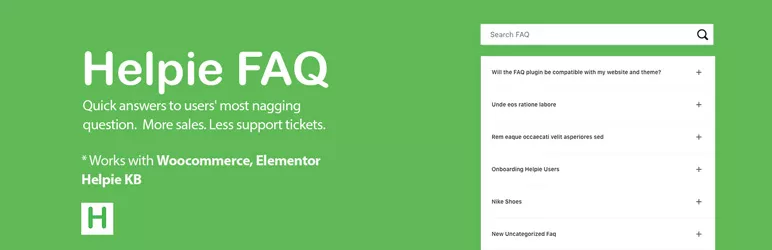
Helpie FAQ is a feature-rich plugin with a strong focus on WooCommerce integration and Elementor compatibility. It supports FAQ groups, drag-and-drop sorting, an inline search bar, and a dedicated FAQ tab directly on WooCommerce product pages.
It includes two Elementor widgets, a Gutenberg block, automatic FAQ Schema markup, and header/body styling options from the admin panel. You can also display popular or recently updated FAQs separately.
Key Features
- Dedicated FAQ tab on WooCommerce product pages
- Inline FAQ search bar for instant answer filtering
- Two dedicated Elementor widgets and a Gutenberg block
- Drag-and-drop FAQ sorting within groups
- Automatic FAQ Schema markup added on display
- FAQ header and body color, font, and padding controls
Pros:
- Strong WooCommerce integration for product-specific FAQ management by product or category
- Built-in inline search helps visitors find answers without scrolling
- Two Elementor widgets and a Gutenberg block cover the most popular page building workflows
Cons:
- Admin interface and front-end design feel dated compared to more modern alternatives
- Knowledge base docs feature is still listed as coming soon
Best For: WooCommerce stores that need product-specific FAQ management with inline search and Elementor support
6. Arconix FAQ

Arconix FAQ by Tyche Softwares is a minimal, stable FAQ plugin built on a custom post type with jQuery-powered accordion and toggle display. FAQs can be grouped using tag taxonomies and displayed with the simple [faq] shortcode.
It is deliberately lightweight with no schema markup, visual builders, or advanced styling options. What it offers is a dependable and low-maintenance FAQ solution that works reliably across different WordPress setups.
Key Features
- Custom post type-driven FAQ management
- jQuery accordion and toggle display modes
- FAQ grouping via tag taxonomies
- Load FAQs open or closed by default
- Optional return-to-top link for long FAQ pages
- Simple [faq] shortcode for easy placement anywhere
Pros:
- Lightweight and stable with a long track record of reliable performance
- Return-to-top link option improves navigation on content-heavy FAQ pages
- Tag-based taxonomy provides a simple way to group FAQs by topic
Cons:
- No FAQ Schema Markup, which is now a standard feature in most competing plugins
- Almost no visual customization available without writing custom CSS
Best For: Users who need a simple, maintenance-free FAQ solution with basic grouping and accordion display
7. SFN Easy FAQ Manager
SFN Easy FAQ Manager uses custom post types and taxonomies to manage FAQs with flexible shortcode-based display. It includes an anchor-linked combo shortcode, smooth scrolling, AJAX expand/collapse, and a dedicated FAQ search widget.
An SEO options panel provides noindex, nofollow, and noarchive controls for FAQ archive pages. It also supports redirecting all FAQ content to a single page and includes German and French translations.
Key Features
- Anchor-linked FAQ combo shortcode with smooth scrolling
- AJAX-powered expand and collapse functionality
- Dedicated FAQ search widget for focused results
- SEO archive controls: noindex, nofollow, and noarchive options
- Option to redirect all FAQs to a single dedicated page
- German and French translation support included
Pros:
- Flexible shortcode options including anchor-linked FAQ display with smooth scrolling
- SEO archive controls give precise control over how FAQ archive pages are indexed
- A dedicated search widget keeps results focused only on FAQ content
Cons:
- No FAQ Schema Markup, limiting eligibility for Google rich snippets
- No native Gutenberg block or visual builder support
Best For: Developer-oriented users who want flexible shortcode-based FAQ management with SEO archive controls
8. Advanced FAQ Manager

Advanced FAQ Manager by ThemeHigh organizes FAQs within category-based posts, where each post acts as a group. It supports multiple images in answers, a last-updated date display, per-group style overrides, social sharing buttons, and a comment box on individual FAQs.
A clone option speeds up content creation by duplicating existing FAQ sets. The color customization panel lets you adjust title and answer background and text colors globally or per group.
Key Features
- Category-based FAQ grouping with single-click publishing
- Multiple image support inside FAQ answers
- Per-group style override for title and content colors
- Social sharing buttons for Facebook, LinkedIn, and Twitter
- Comment box on individual FAQs for visitor feedback
- Clone option to duplicate existing FAQ sets quickly
Pros:
- Per-group style overrides let you customize individual FAQ groups independently from global settings
- Social share buttons allow visitors to share FAQ content directly across major platforms
- Image support inside answers lets you add visuals for more detailed and helpful responses
Cons:
- No Gutenberg block or Elementor widget, limiting usability in modern page builders
- No FAQ Schema Markup in either the free or paid version
Best For: Users who need category-based FAQ management with image-rich answers and social sharing
9. Happy WooCommerce FAQs
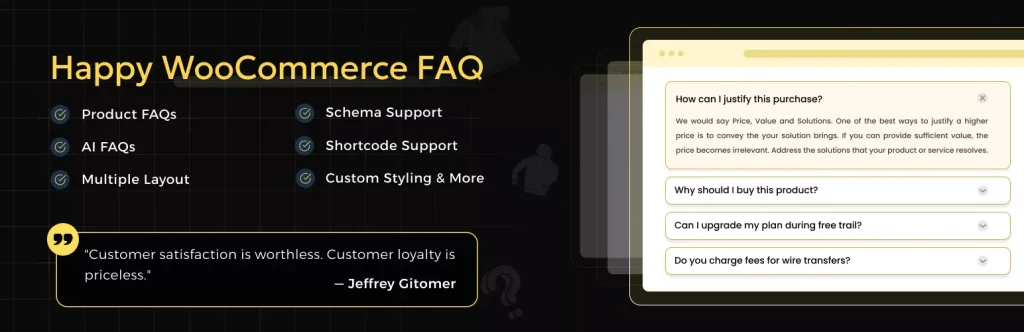
Happy WooCommerce FAQs by HappyDevs is built specifically for WooCommerce, letting you add unlimited FAQs to individual products, categories, and tags. It includes an AI FAQ generator, schema support, Gutenberg block support, and a customer comment feature on the FAQ tab.
The free version covers individual product FAQs, schema, sorting, and expand/collapse all. The Pro version adds customer question forms, variation FAQs, AJAX search, multi-column layouts, and display on shop, cart, and checkout pages.
Key Features
- Unlimited FAQs assignable to products, categories, and tags
- AI FAQ generator for automatic content creation
- Customer question submission through the product FAQ tab
- FAQ Schema markup for search engine visibility
- Gutenberg block and classic editor support
- WPML and Polylang translation compatibility
Pros:
- Purpose-built for WooCommerce with support for products, categories, and tags in one plugin
- AI FAQ generator creates product FAQ content automatically without manual writing
- Customer question submission turns product pages into an interactive Q&A resource
Cons:
- Not designed for general WordPress FAQ pages outside of WooCommerce
- Key features like AJAX search, variation FAQs, and shop page display require the paid version
Best For: WooCommerce store owners who need a dedicated product FAQ plugin with AI generation and customer interaction
10. FAQly – Ultimate FAQ
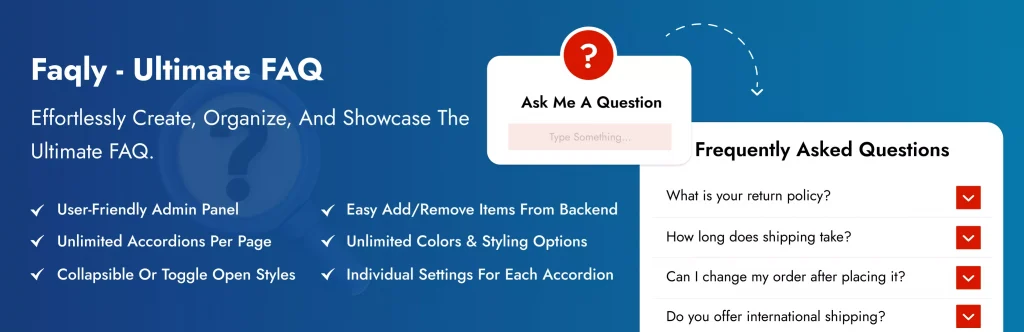
FAQly is a modern, growing FAQ plugin that delivers strong value in its free version. It supports unlimited FAQs with categories and tags, an accordion layout, built-in schema markup, view statistics, and live search. It works with Gutenberg, Elementor, and WPBakery.
The Pro version adds horizontal, vertical, and multi-column layouts, 17+ themes, 14+ icon sets, AJAX search, WooCommerce integration, nested accordions, and 25+ animation effects. It is a strong option for users who want schema and live search without paying for them.
Key Features
- Unlimited FAQs with category and tag organization
- Built-in FAQ Schema Markup for SEO visibility
- Live search bar for instant FAQ filtering
- Built-in FAQ view statistics tracking
- Gutenberg blocks, shortcodes, and block patterns supported
- Pro: Horizontal layout, 17+ themes, and WooCommerce FAQ integration
Pros:
- FAQ Schema Markup and live search are both included free, features many plugins charge for
- Built-in view statistics track which questions get the most attention
- Compatible with Gutenberg, Elementor, and WPBakery with blocks, patterns, and shortcodes
Cons:
- Newer plugin with fewer user reviews and less community history than established alternatives
- Horizontal layout, design themes, and WooCommerce support all require the paid Pro version
Best For: Users who want a modern FAQ plugin with schema markup and live search included at no cost
Final Words
Each plugin on this list serves a different type of WordPress user. WooCommerce store owners will get the most value from Happy WooCommerce FAQs or Helpie FAQ. Users who want something minimal will appreciate Quick and Easy FAQs or Arconix FAQ. Those looking for a capable free option with modern features should try FAQly.
But if you want the most complete, visually advanced, and future-proof FAQ solution for any WordPress or WooCommerce site, Easy Accordion is the clear winner. It combines design flexibility, built-in SEO schema, AI-powered content generation, and compatibility with every major page builder. Over 100,000 sites trust it for a reason.
Expand/Collapse All Demo: 02
1 How do I add accordion to my site?

Images Supported sit amet, consetetur sadipscing elitr, sed diam nonumy eirmod tempor invidunt ut labore et dolore magna aliquyam erat, sed diam voluptua. At vero eos et accusam et justo duo dolores et ea rebum. Stet clita kasd gubergren, no sea takimata sanctus est Lorem ipsum dolor sit amet.
2 How to show multiple instances of accordion on one page?
Lorem ipsum dolor sit amet, consetetur sadipscing elitr, sed diam nonumy eirmod tempor invidunt ut labore et dolore magna aliquyam erat, sed diam voluptua. At vero eos et accusam et justo duo dolores et ea rebum. Stet clita kasd gubergren, no sea takimata sanctus est Lorem ipsum dolor sit amet. Lorem ipsum dolor sit amet, consetetur sadipscing elitr, sed diam nonumy eirmod tempor invidunt ut labore et dolore magna aliquyam erat, sed diam voluptua. At vero eos et accusam et justo duo dolores et ea rebum. Stet clita kasd gubergren, no sea takimata sanctus est Lorem ipsum dolor sit amet. Lorem ipsum dolor sit amet, consetetur sadipscing elitr, sed diam nonumy eirmod tempor invidunt ut labore et dolore magna aliquyam erat, sed diam voluptua. At vero eos et accusam et justo duo dolores et ea rebum. Stet clita kasd gubergren, no sea takimata sanctus est Lorem ipsum dolor sit amet.
Duis autem vel eum iriure dolor in hendrerit in vulputate velit esse molestie consequat, vel illum dolore eu feugiat nulla facilisis at vero eros et accumsan et iusto odio dignissim qui blandit praesent luptatum zzril delenit augue duis dolore te feugait nulla facilisi. Lorem ipsum dolor sit amet, consectetuer adipiscing elit, sed diam nonummy nibh euismod tincidunt ut laoreet dolore magna aliquam erat volutpat.
3 Why should you use Easy Accordion Pro version?
Lorem ipsum dolor sit amet, consetetur sadipscing elitr, sed diam nonumy eirmod tempor invidunt ut labore et dolore magna aliquyam erat, sed diam voluptua. At vero eos et accusam et justo duo dolores et ea rebum. Stet clita kasd gubergren, no sea takimata sanctus est Lorem ipsum dolor sit amet.
Lorem ipsum dolor sit amet, consetetur sadipscing elitr, sed diam nonumy eirmod tempor invidunt ut labore et dolore magna aliquyam erat, sed diam voluptua. At vero eos et accusam et justo duo dolores et ea rebum. Stet clita kasd gubergren, no sea takimata sanctus est Lorem ipsum dolor sit amet.
Lorem ipsum dolor sit amet, consetetur sadipscing elitr, sed diam nonumy eirmod tempor invidunt ut labore et dolore magna aliquyam erat, sed diam voluptua. At vero eos et accusam et justo duo dolores et ea rebum. Stet clita kasd gubergren, no sea takimata sanctus est Lorem ipsum dolor sit amet.
4 Do I need coding skills to accordion in my site?
Lorem ipsum dolor sit amet, consetetur sadipscing elitr, sed diam nonumy eirmod tempor invidunt ut labore et dolore magna aliquyam erat, sed diam voluptua. At vero eos et accusam et justo duo dolores et ea rebum. Stet clita kasd gubergren, no sea takimata sanctus est Lorem ipsum dolor sit amet. Lorem ipsum dolor sit amet, consetetur sadipscing elitr, sed diam nonumy eirmod tempor invidunt ut labore et dolore magna aliquyam erat, sed diam voluptua.
At vero eos et accusam et justo duo dolores et ea rebum. Stet clita kasd gubergren, no sea takimata sanctus est Lorem ipsum dolor sit amet. Lorem ipsum dolor sit amet, consetetur sadipscing elitr, sed diam nonumy eirmod tempor invidunt ut labore et dolore magna aliquyam erat, sed diam voluptua. At vero eos et accusam et justo duo dolores et ea rebum. Stet clita kasd gubergren, no sea takimata sanctus est Lorem ipsum dolor sit amet.
Expand/Collapse All Demo: 03
How do I add accordion to my site?
Eeirmod tempor invidunt ut labore et dolore magna aliquyam erat, sed diam voluptua. At vero eos et accusam et justo duo dolores et ea rebum. Stet clita kasd gubergren, no sea takimata sanctus est Lorem ipsum dolor sit amet.
Lorem ipsum dolor sit amet, consetetur sadipscing elitr, sed diam nonumy eirmod tempor invidunt ut labore et dolore magna aliquyam erat, sed diam voluptua. At vero eos et accusam et justo duo dolores et ea rebum. Stet clita kasd gubergren.
How to show multiple instances of accordion on one page?
Lorem ipsum dolor sit amet, consetetur sadipscing elitr, sed diam nonumy eirmod tempor invidunt ut labore et dolore magna aliquyam erat, sed diam voluptua. At vero eos et accusam et justo duo dolores et ea rebum. Stet clita kasd gubergren, no sea takimata sanctus est Lorem ipsum dolor sit amet. Lorem ipsum dolor sit amet, consetetur sadipscing elitr, sed diam nonumy eirmod tempor invidunt ut labore et dolore magna aliquyam erat, sed diam voluptua. At vero eos et accusam et justo duo dolores et ea rebum. Stet clita kasd gubergren, no sea takimata sanctus est Lorem ipsum dolor sit amet. Lorem ipsum dolor sit amet, consetetur sadipscing elitr, sed diam nonumy eirmod tempor invidunt ut labore et dolore magna aliquyam erat, sed diam voluptua. At vero eos et accusam et justo duo dolores et ea rebum. Stet clita kasd gubergren, no sea takimata sanctus est Lorem ipsum dolor sit amet.
Duis autem vel eum iriure dolor in hendrerit in vulputate velit esse molestie consequat, vel illum dolore eu feugiat nulla facilisis at vero eros et accumsan et iusto odio dignissim qui blandit praesent luptatum zzril delenit augue duis dolore te feugait nulla facilisi. Lorem ipsum dolor sit amet, consectetuer adipiscing elit, sed diam nonummy nibh euismod tincidunt ut laoreet dolore magna aliquam erat volutpat.
Do I need coding skills to accordion in my site?
Lorem ipsum dolor sit amet, consetetur sadipscing elitr, sed diam nonumy eirmod tempor invidunt ut labore et dolore magna aliquyam erat, sed diam voluptua. At vero eos et accusam et justo duo dolores et ea rebum. Stet clita kasd gubergren, no sea takimata sanctus est Lorem ipsum dolor sit amet. Lorem ipsum dolor sit amet, consetetur sadipscing elitr, sed diam nonumy eirmod tempor invidunt ut labore et dolore magna aliquyam erat, sed diam voluptua. At vero eos et accusam et justo duo dolores et ea rebum. Stet clita kasd gubergren, no sea takimata sanctus est Lorem ipsum dolor sit amet. Lorem ipsum dolor sit amet, consetetur sadipscing elitr, sed diam nonumy eirmod tempor invidunt ut labore et dolore magna aliquyam erat, sed diam voluptua. At vero eos et accusam et justo duo dolores et ea rebum. Stet clita kasd gubergren, no sea takimata sanctus est Lorem ipsum dolor sit amet.
How do I make changes to an existing order?
Lorem ipsum dolor sit amet consectetur adipiscing elit magnis neque, malesuada hendrerit venenatis risus eget luctus justo aliquam feugiat class, donec lobortis cras auctor senectus non habitant praesent. Cursus viverra feugiat sem id odio quis cubilia habitasse fermentum a dis blandit, iaculis at lectus torquent inceptos etiam aenean rhoncus dapibus eu. Metus blandit sem erat venenatis vel donec malesuada ultrices, hac proin dignissim cras dapibus id senectus mus, posuere vehicula rutrum libero maecenas auctor porta. Lacus fusce pellentesque purus, accumsan nisl rutrum ultrices, habitasse posuere.
Aenean hac integer sed semper hendrerit ut nisl, est lectus non a class ac, eget ad mattis fermentum felis elementum. Nec vehicula potenti porta est fames integer facilisi scelerisque convallis mi semper praesent tellus felis fringilla volutpat, himenaeos aenean massa proin purus phasellus quisque ut tincidunt quis eros suspendisse nascetur penatibus.
What shipping options do you have?
Porttitor enim sapien dignissim orci nunc malesuada cras sociis mi, aptent dapibus magna ultrices dis volutpat mauris suscipit, feugiat maecenas felis faucibus habitant elementum fames purus. Nascetur facilisis scelerisque varius cum dis nostra hac sociosqu pellentesque velit, per dignissim est cursus natoque fringilla taciti morbi praesent auctor proin, dapibus accumsan sollicitudin hendrerit in dictum vulputate lacinia mauris.
Vivamus ultrices tellus hendrerit dapibus tristique velit auctor potenti, rutrum pharetra scelerisque odio iaculis porta diam taciti proin, aliquam facilisis aenean vel sem lectus dis.
Do you ship your products internationally?
Aenean hac integer sed semper hendrerit ut nisl, est lectus non a class ac, eget ad mattis fermentum felis elementum. Nec vehicula potenti porta est fames integer facilisi scelerisque convallis mi semper praesent tellus felis fringilla volutpat, himenaeos aenean massa proin purus phasellus quisque ut tincidunt quis eros suspendisse nascetur penatibus.
Lorem ipsum dolor sit amet consectetur adipiscing elit magnis neque, malesuada hendrerit venenatis risus eget luctus justo aliquam feugiat class, donec lobortis cras auctor senectus non habitant praesent. Cursus viverra feugiat sem id odio quis cubilia habitasse fermentum a dis blandit, iaculis at lectus torquent inceptos etiam aenean rhoncus dapibus eu. Metus blandit sem erat venenatis vel donec malesuada ultrices, hac proin dignissim cras dapibus id senectus mus, posuere vehicula rutrum libero maecenas auctor porta. Lacus fusce pellentesque purus, accumsan nisl rutrum ultrices, habitasse posuere.
Porttitor enim sapien dignissim orci nunc malesuada cras sociis mi, aptent dapibus magna ultrices dis volutpat mauris suscipit, feugiat maecenas felis faucibus.