

Add interactive Hover Effects to your Image Accordions, creating a dynamic experience when the user hovers over them. By enabling and adding a layer of dynamic effects, you can showcase images elegantly and increase user engagement in your image-heavy accordion layouts.
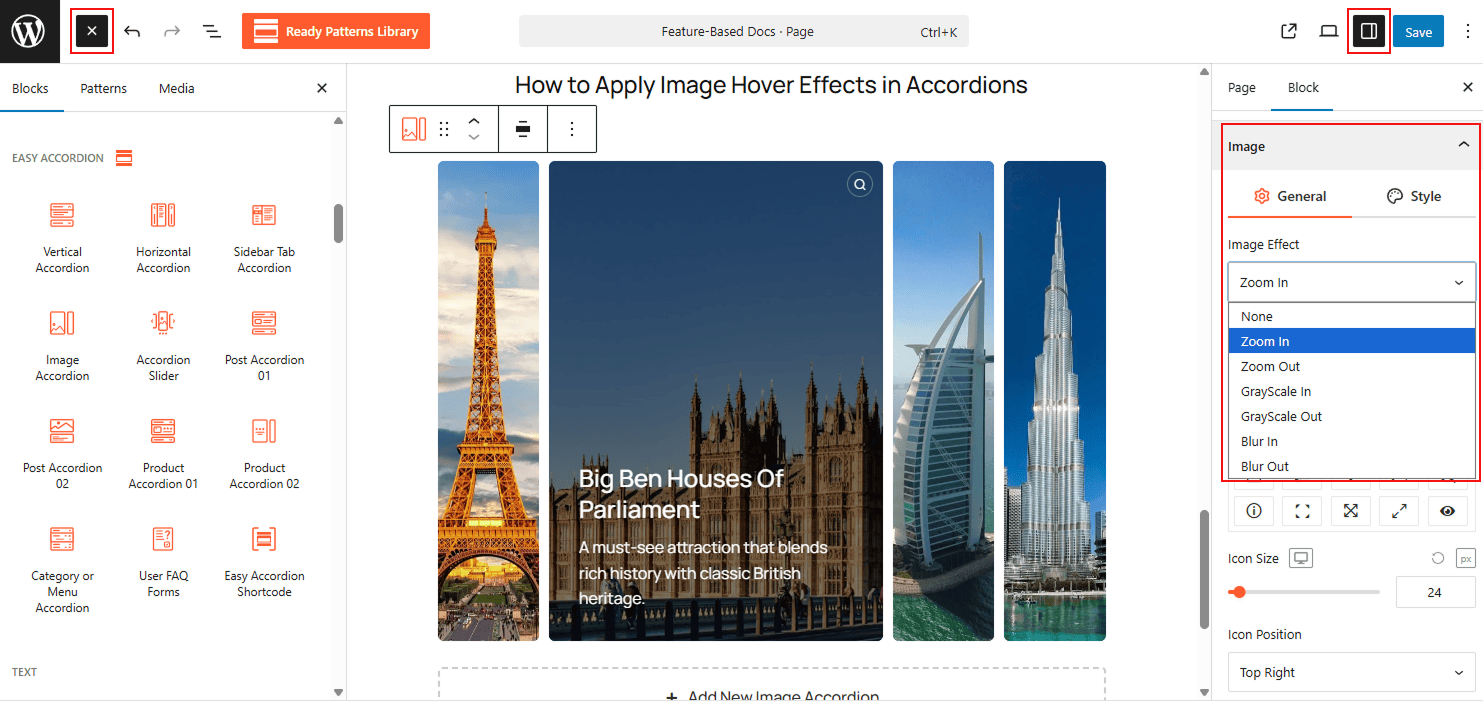
To Add Image Hover Effects:
- Insert any Accordion Blocks (e.g., “Image Accordion“) block to your page.
- Go to the Image panel, “Hover Effects” in the block settings.
- Select an effect from the list (e.g., Zoom In, Grayscale, or Blur).
- Adjust the animation speed for a smooth transition.
To know how to configure, please visit the detailed documentation.
Let’s watch the Live Demo of how the Image Hover Effects work in Accordions.