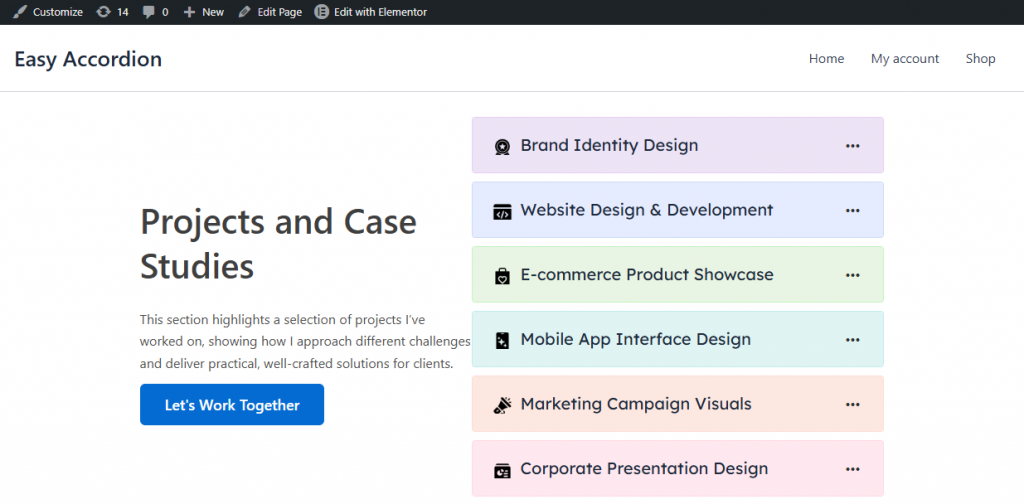
Elementor is one of the most popular WordPress page builders. In this guide, we’ll show you how to use Easy Accordion Blocks and FAQ sections in Elementor using Saved Templates.
Easy Accordion integrates seamlessly with Elementor, allowing you to display FAQs, accordions, knowledge bases, product information sections, and other accordion layouts anywhere on your pages using reusable Saved Templates.
You can complete this in 2 easy steps:
- Step 1: Create a Saved Template using Accordion Blocks or import a ready-made pattern from the Rich Pattern Library.
- Step 2: Add the Accordion Blocks or FAQs sections in Elementor using the Saved Template widget.
Step 1: Create a Saved Template
Before using Easy Accordion inside Elementor, you need at least one Saved Template.
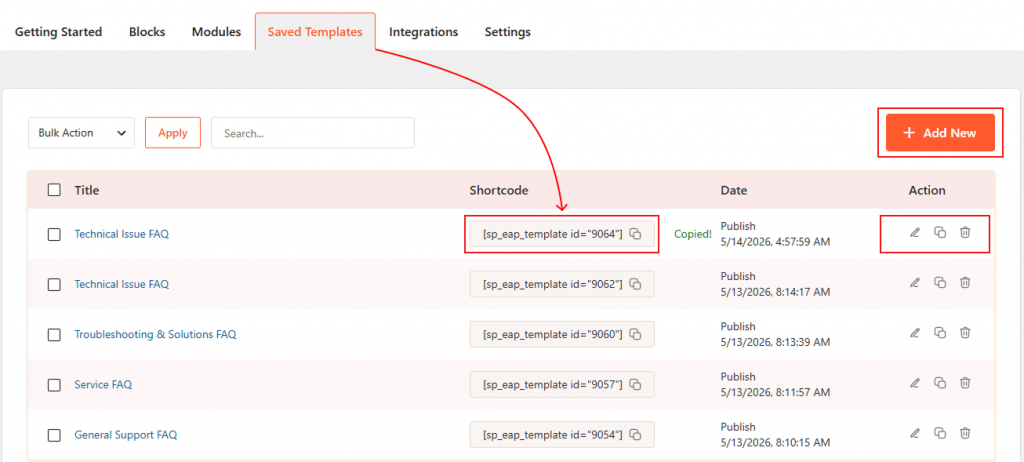
- Navigate to Easy Accordion → Saved Templates and create a new template using Accordion Blocks, or import a professionally designed pattern from the Rich Pattern Library.
- Once your template is ready, it becomes available inside the Saved Template widget and can be reused throughout your website.
Step 2: Add the Accordion Blocks or FAQs sections in Elementor
Follow these 5 steps to display your accordion inside Elementor.
1. Enable the Elementor Addon
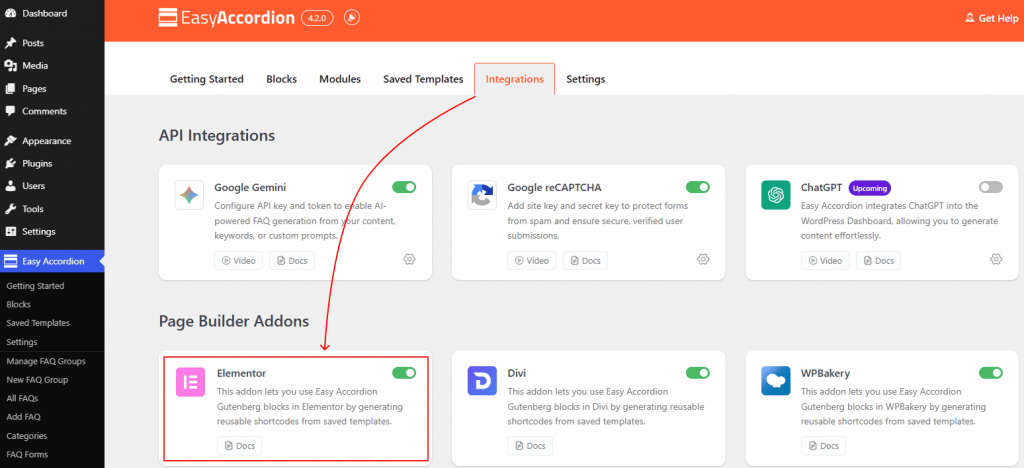
Go to Easy Accordion → Integrations from your WordPress dashboard. Scroll to Page Builder Addons, enable the Elementor toggle, and click Save.
2. Open Elementor
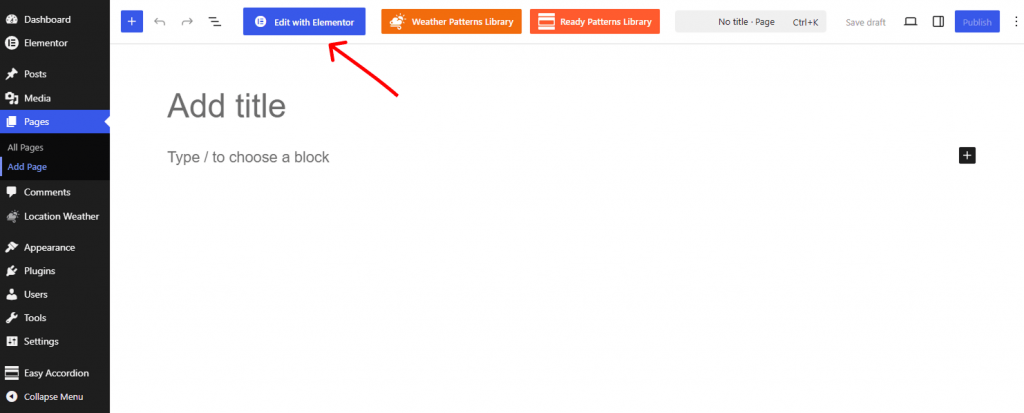
Open the page where you want to display your accordion and click Edit with Elementor.
3. Add the Easy Accordion Saved Template Widget
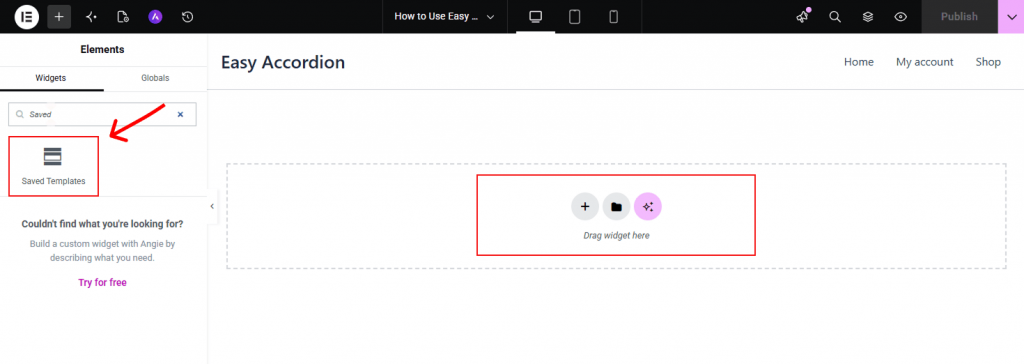
In the Elementor sidebar, search for Saved Template and drag the widget into your desired section.
4. Choose Your Template
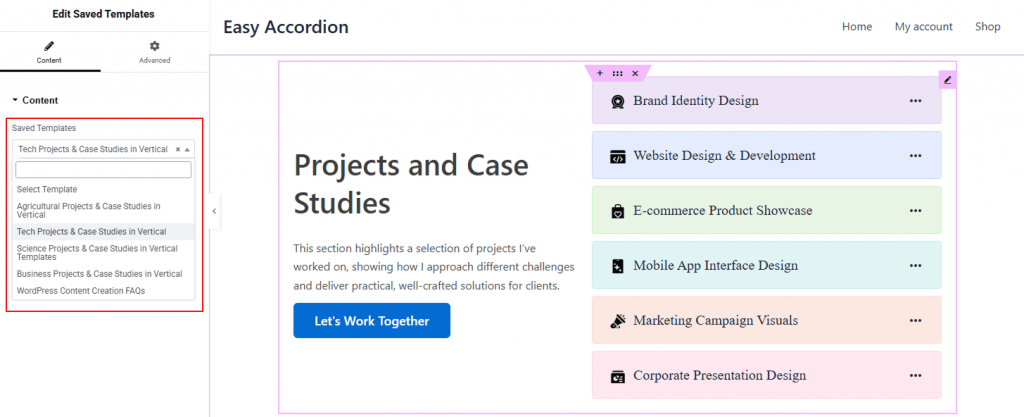
Under the widget settings, select your preferred accordion template from the Choose Template dropdown.
5. Publish the Page
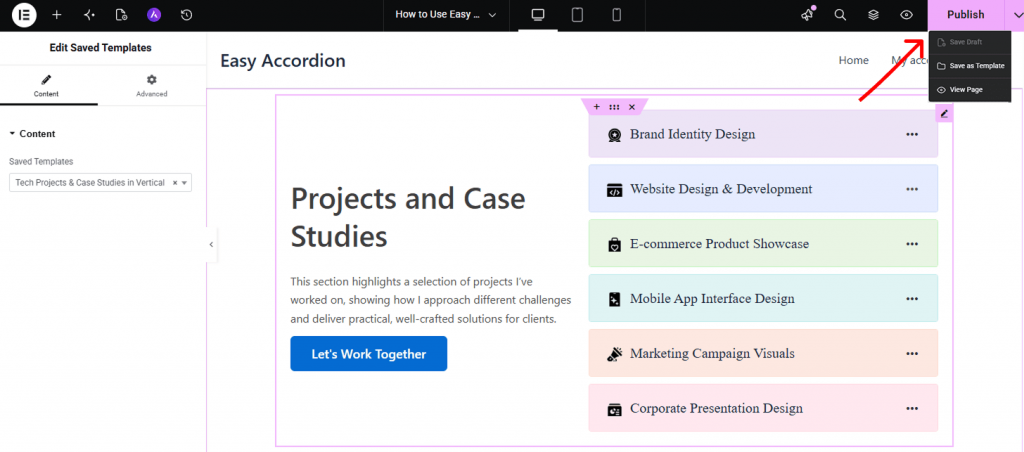
Your accordion will appear instantly in the Elementor editor. Click Update or Publish to save your changes.
That’s it.
Live Example
Let’s see the live example below of how your Easy Accordion section will appear inside Elementor.