

Turn your post listings into an interactive visual with the expandable Post Accordion 02 Block, where users can reveal images, excerpts, and metadata on demand, keeping the interface clean and engaging. Choose from horizontal or vertical layouts, adjust the slider, filter with advanced Query Builder, and enhance your feed with built-in search, FAQ schema, Ajax pagination, and full customization to match your brand.
Explore Ready Post Accordion Patterns →
How to Add the Post Accordion 02 Block:
To integrate the Post Accordion 02 block into your layout, follow these steps:
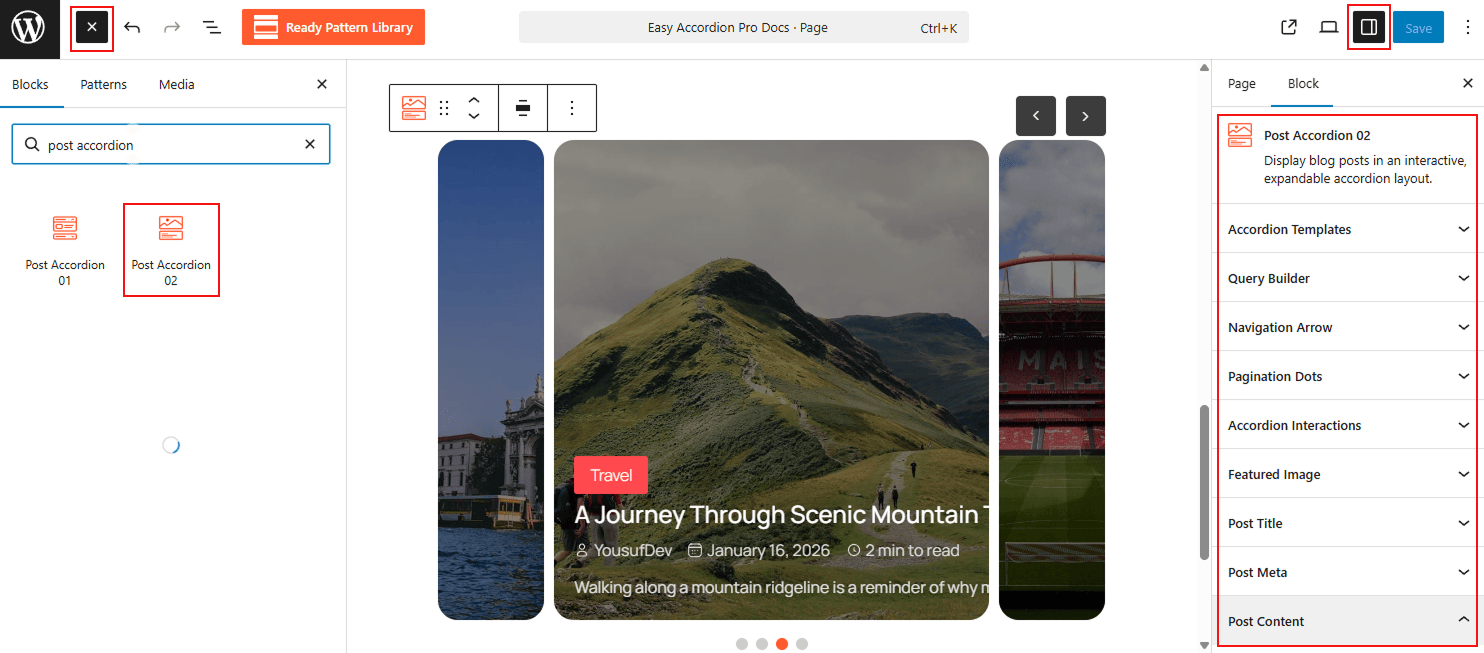
- Go to your WordPress Dashboard.
- Navigate to Pages> Add New (or edit an existing page).
- In the block editor, click the “+” (Add Block) button.
- Search for“Post Accordion 02” under the Easy Accordion category.
- Click to insert the block into your page.
How to Customize the Post Accordion 02 Block:
Using Post Accordion 02, you can automate your content display and tailor every visual detail. Use the settings below to configure your block:
- Dynamic Layouts: Select from three Accordion Templates and choose between Horizontal or Vertical layouts.
- Flexible Query Builder: Use the Query Builder to automatically pull posts by category, tag, or date.
- Smart Interactions: Define how panels open via Click, Hover, or AutoPlay, and enable Ajax Pagination for smooth browsing.
- Comprehensive Styling: Fully customize the typography, colors, and backgrounds for titles, metadata, excerpts, and buttons.
Now, let’s explore the detailed Settings & Stylings:
Accordion Templates: General
From this panel, you can select the visual structure and layout orientation to define how your blog posts are displayed within the accordion.
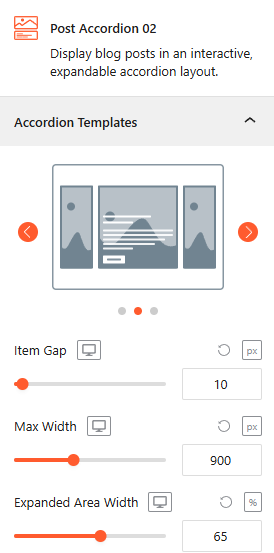
- Template Selection: Choose from a variety of visual presets to determine the base design of your post accordion.
- Template Layouts: Select the right layout, either Horizontal or Vertical, to best utilize your page’s space.
- Item Gap (Accordion): Adjust the vertical or horizontal spacing between individual accordion panels.
- Max Width: Set a maximum width for the entire accordion container to ensure it fits perfectly within your page layout.
- Expanded Area Height: Adjust the Expanded Area height according to the Expanded Accordion item.
Slider Settings:
From this panel, you can easily manage the motion and responsive behavior for carousel layouts.
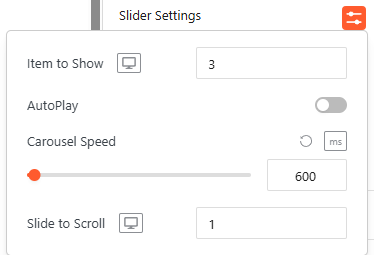
- Item to Show: Set the number of posts visible at once on Desktop, Tablet, and Mobile devices.
- AutoPlay: Enable this toggle to allow the accordion to scroll through posts automatically.
- Carousel Speed: Adjust the transition speed (in milliseconds) for a smoother scrolling experience.
- Slide to Scroll: Define how many items slide forward or backward with each navigation movement.
Advanced Utilities:
- FAQ Search: Enable a live search bar to let visitors instantly filter through accordion content. For details, visit here.
- Toggle All Button: Add a master control that allows users to expand or collapse all accordion items with a single click. For details, visit here.
- Ajax Pagination: Enable seamless page transitions for the post list without requiring a full browser refresh. For details, visit here.
- Navigation Arrow: Toggle the display of directional arrows to allow users to manually slide through items. For more details, please visit here.
- Pagination Dots: Enable or disable the dot indicators at the bottom of the slider to show current progress. For more details, please visit here.
- FAQ Schema Markup: Automatically apply structured data to your content to improve visibility in search engine results. For more details, please visit here.
- Preloader: Toggle on a smooth loading animation that displays while the block’s content is being fetched.
Post Query Builder:
From this panel, you can define the specific logic and criteria used to automatically fetch and display your posts within the accordion. For more details, please visit here.
Accordion Interactions:
From this panel, you can define the behavioral triggers and initial display states to ensure a smooth, interactive experience for your visitors. For more details, please visit here.
Featured Image: General & Effects
The Featured Image settings allow you to enhance the visual presentation of your blog posts within the accordion panels through dynamic transitions and performance optimizations.
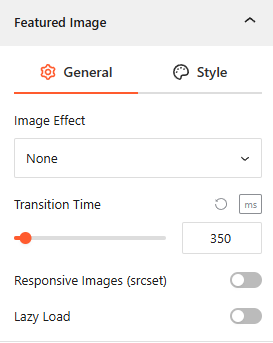
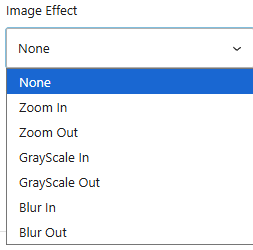
- Image Effect: Select dynamic hover transitions, including Zoom, Grayscale, or Blur (In/Out) to engage visitors.
- Transition Time: Adjust the animation duration (in ms) for smoother visual effects.
- Performance: Enable Responsive Images (srcset) and Lazy Load to optimize loading speeds and SEO.
Style Featured Image:
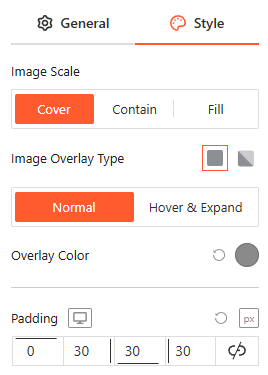
- Image Scale: Choose how images fit their container using Cover, Contain, or Fill.
- Image Overlay: Apply a solid or gradient color layer to improve contrast and readability.
- States & Padding: Customize the Overlay Color for both Normal and Hover/Expand states, and set precise Padding for a balanced layout.
Toggle Icon:
From the Toggle Icon panel, you can customize the appearance, behavior, and positioning of the icons that indicate whether an accordion item is expanded or collapsed. For more details, please visit here.
Post Title:
From the Post Title panel, you can manage the structural tags, featured image, titles, and link behaviors for your post headers to ensure optimal SEO and user navigation. For more details, please visit here.
Post Meta:
From the Post Meta panel, you can choose which specific details to display alongside your posts to provide better context for your readers. For more details, please visit here.
Post Content:
From the Content panel, you can manage the expanded area of your accordion by configuring the post summary, action buttons, and visual animations for a dynamic reading experience. For more details, please visit here.
Motion Effects:
From the Motion Effects panel, you can add animations and interactive movement to your accordion, making the content feel more dynamic as users scroll or interact. For more details, please visit here.
Advanced Settings:
The Advanced panel allows you to manage the accordion’s overall container, covering visibility, accessibility, and high-level styling. For more details, please visit here.
Congratulations! Let’s watch a live demo of how your Post Accordion 02 will look.