

Control the width of the expanded content area to improve readability. By limiting the Image Accordion‘s expanded items’ width, you can easily prevent text and images from stretching too wide on large screens, ensuring an optimal reading experience for your users.
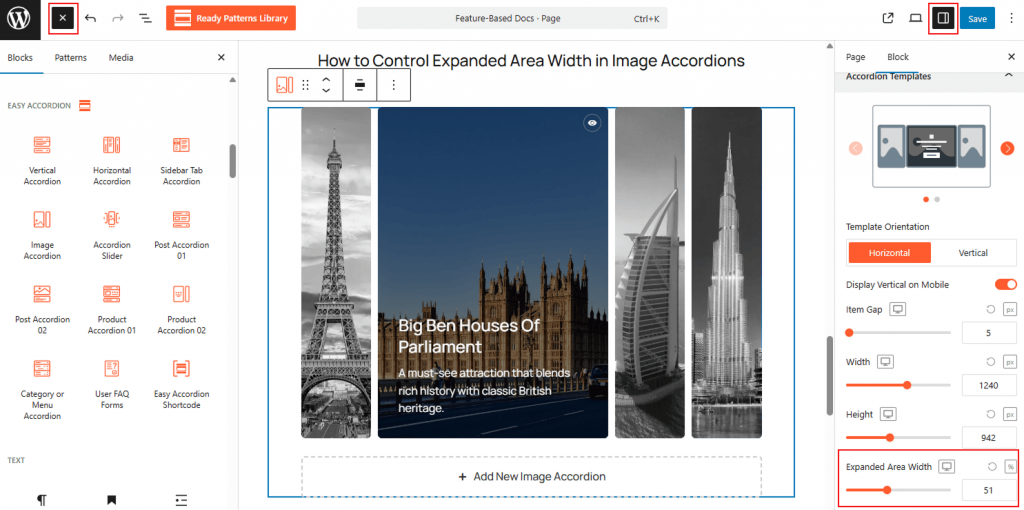
To Control Expanded Area Width:
- Insert any Accordion Blocks (e.g., “Image Accordion“) block to your page.
- Navigate to the Accordion Templates panel.
- Find Expanded Area Width, and adjust width using the slider (choose between px or %).
- It will constrain the answer container while the title bar remains full-width.
To know how to configure, please visit the detailed documentation.
Let’s watch a Live Demo of how you can Control Expanded Area Width for Image Accordions.