
FAQs from Posts, Pages, Custom Post Types, Taxonomies
FAQs from Posts Demo
Post Accordion: Auto-Display Blog Posts in Collapsible Sections
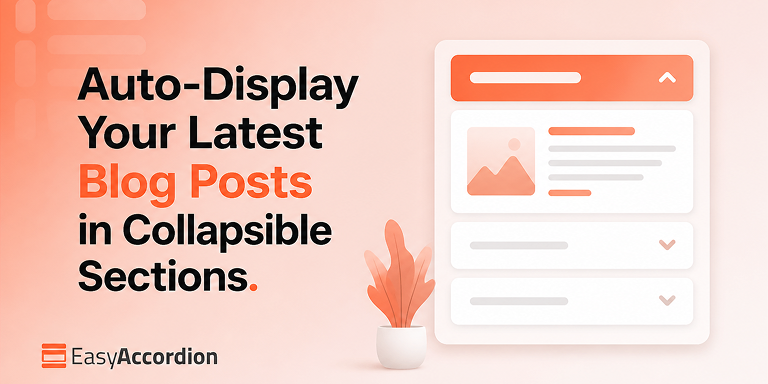
A post accordion lets you display latest blog posts in your WordPress website as collapsible sections that update automatically. Each panel header shows a post title; expanding it reveals the featured image, excerpt, date, and a read-more link. Because the accordion queries your posts dynamically, every new article you publish appears instantly — no manual…
Display WooCommerce Products in Accordions: A Space-Saving Layout for Large Catalogs
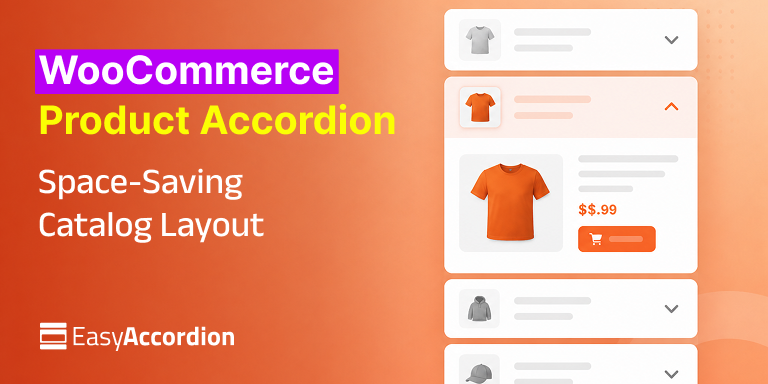
A WooCommerce product accordion displays your products inside collapsible panels — each panel opens to reveal the product image, price, description, and add-to-cart button. As a result, a catalog of 50, 100, or 500 products fits into a compact, scannable layout instead of an endless grid, which reduces scroll fatigue and helps shoppers find products…
The 40-60 Word Rule: How to Write FAQ Answers That AI Engines Actually Quote
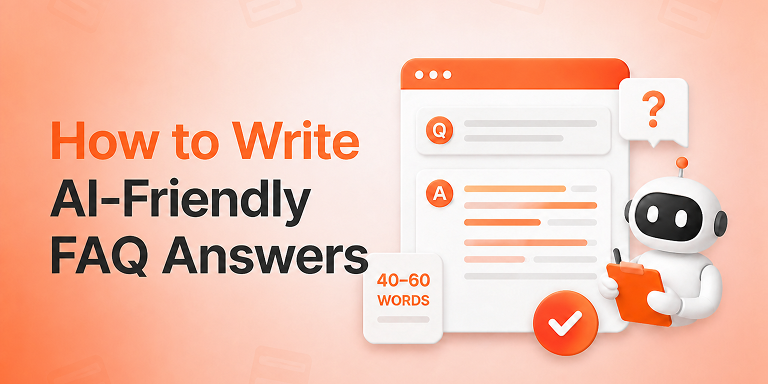
The 40-60 word rule is simple: answer every FAQ question directly, completely, and in 40 to 60 words, placed immediately after the question heading. That length gives Google’s Featured Snippets, AI Overviews, ChatGPT, and Perplexity a clean, self-contained block they can extract and quote — which makes your brand the answer instead of just another…
10 AI Prompts and Writing Tones That Generate FAQs Customers Actually Read
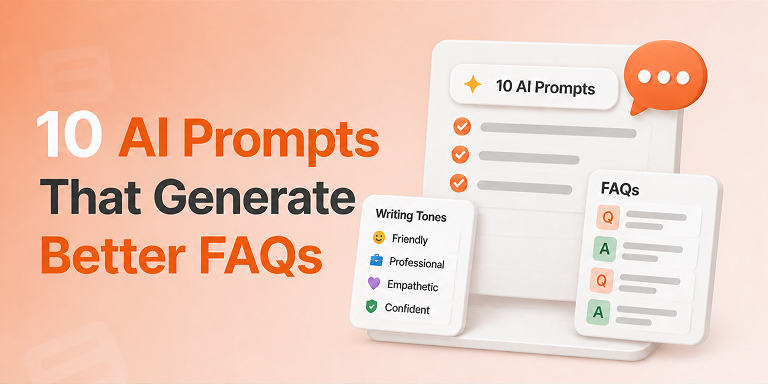
The best AI prompts for FAQs combine three ingredients: a specific content source, a clearly named writing tone, and a strict output format. When you give ChatGPT or Gemini all three, the AI produces question-and-answer pairs that sound human, answer real objections, and slot straight into an SEO-ready FAQ section.
Most FAQ pages fail for…
Turn Your Blog Post, Page or Product into an SEO-Ready FAQ Section with AI
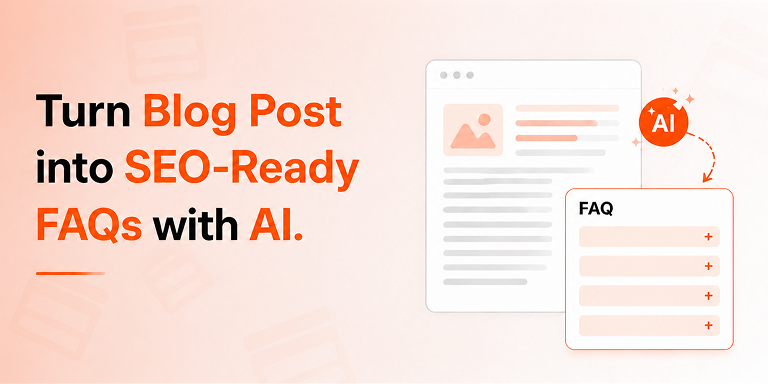
An AI FAQ generator turns any existing blog post or product page into an SEO-ready FAQ section in under five minutes. You simply select your content source, let AI draft the questions and answers, and publish with automatic FAQ schema markup — no coding and no manual writing required.
Sounds too good to be true?…
Your FAQ Looks Fine on Desktop but Broken on Mobile: Here’s the Breakpoint Fix
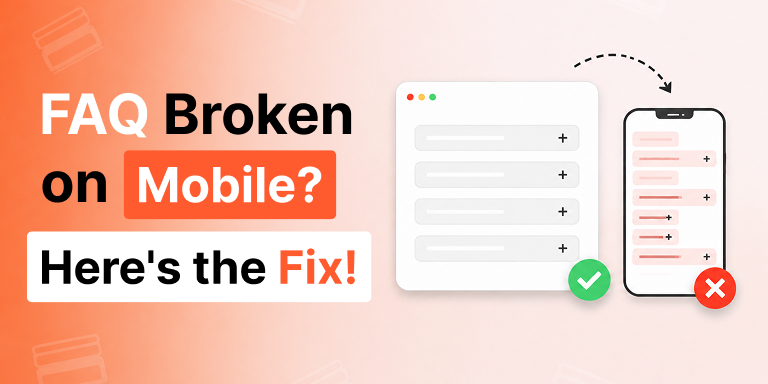
You spent an afternoon building the perfect FAQ section. On your laptop it’s flawless: clean columns, balanced spacing, questions sitting side by side like a well-set table. You hit publish, feel good, and move on.
Then a customer texts you a screenshot from their phone.
The questions are crushed into a thin strip. The text…
FAQs from Posts Demo: 02
How to Create Image Accordions in WordPress
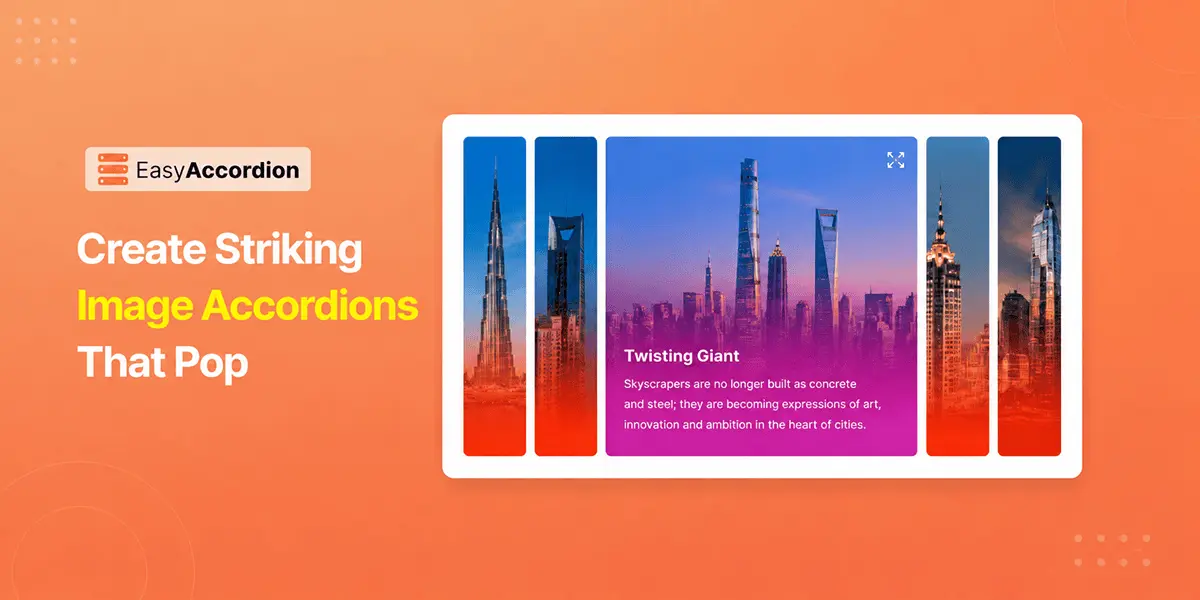
Do you want to showcase your images, portfolio, services, or online courses in an interactive accordion in WordPress? An image accordion makes it simple.
Traditional galleries often take up too much space and fail to attract user attention. To stay ahead of the competition, you need a dynamic way to present your gallery, portfolio, or products. And, it’s none but creating an image accordion.
To create image accordions, you need an accordion plugin like Easy Accordion. It lets you add & display multiple images in a compact layout where each item expands on interaction — helping you highlight key content while increasing engagement.
In this post, you’ll learn 4 easy steps to create image accordions in WordPress. No coding, no complex setup — just add your images, customize the layout, and publish.
What are Image Accordions in WordPress?
At its core, an accordion is a musical instrument that produces sound by expanding and compressing the bellows while pressing keys. Similarly, in web design, the term “accordion” refers to a UI component in which content sections expand and collapse on user interaction in a compact, structured way.
An image accordion applies the same concept to visuals instead of text. It presents multiple images in a single layout, where each image expands on interaction, allowing users to focus on one visual at a time while keeping others minimized.
In WordPress, image accordions are typically used to create modern, interactive visual sections for showcasing portfolios, products, or galleries in a clean and space-efficient format.
Benefits of using Image Accordion in WordPress
Using an image accordion in WordPress offers more than a stylish design element—it provides a smarter way to organize and present visual content. By combining interactivity with structured layouts, image accordions help improve user engagement, optimize space, and create a more polished browsing experience.
Save Space with Collapsible Layout
Image accordions let you display multiple images in a compact, expandable layout instead of stacking them in long galleries. By using them, you can keep your page clean and organized while still showcasing all your visuals effectively, especially for mobile-friendly designs.
Create an Interactive Visual Experience
Compared to static galleries, image accordions allow users to interact with content by hovering or clicking to expand it. This dynamic interaction encourages visitors to explore your content rather than just scroll past it, creating a more engaging browsing experience.
Showcase Images in a Clear and Structured Way
In Image accordions, the visuals are presented in a structured format, preventing visual overload, where users can scan and select what they want to view. Moreover, it makes large sets of visuals easier to navigate and understand.
Increase User Interaction & Boost Conversion
Since only one item expands at a time, this interactive behavior draws user attention & encourages them to explore more content rather than passively scrolling, which leads to longer time spent on the page.
Adapt Easily to Different Use Cases
From gallery displays to business portfolio showcases, image accordions act as a complete solution. They are widely useful for creating modern portfolios, product showcases, service sections, and collapsible galleries for dynamic content needs.
4 Easy Steps to Create an Image Accordion in WordPress
Step 1: Get Easy Accordion
Easy Accordion is the No #1 WordPress FAQs builder & Accordion plugin with the highest active users, reviews, and ratings. It is designed to allow you to create multi-styled interactive FAQs & Accordions, including Horizontal & Vertical, Image & Slider, Post & Product, Woo Product FAQ, Media, Sidebar Tab, Menu, Category, Multi-Level, Nested Accordions, and more.
More than 100,000 users love this FAQ builder for its intuitive features, including the Ready Patterns Library, Stunning Templates, Extensive Icons, Animation Effects, Schema Markup, easy customizations, and quick support.
So, why wait? Let’s install Easy Accordion and Activate. If you’re new to this plugin, read this guide to download it in minutes.
Step 2: Create an Image Accordion for a Page or Post
Before creating an image accordion, you need to check if the image accordion is disabled.
- Go to the Easy Accordion → Blocks from your dashboard.
- Locate the Image Accordion Block and toggle it on to enable it.
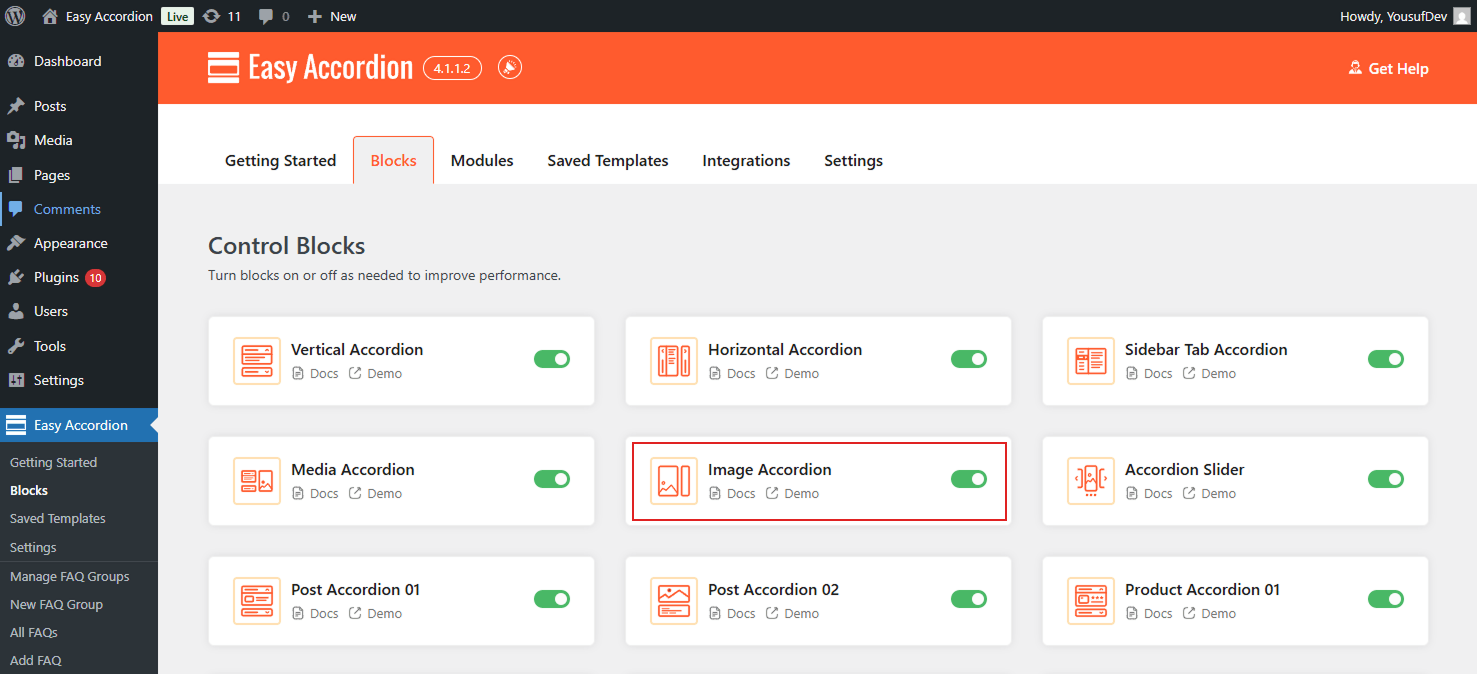
After enabling this block, it’s time to create an image accordion.
- Open any page or post you want to add an accordion, and click the (+) button or Ready Patterns Library, and search for “Image Accordion.”
- Then, click Import or Insert the block in your post or page.
- Customize as needed with interactions, image effects, animations, and more.
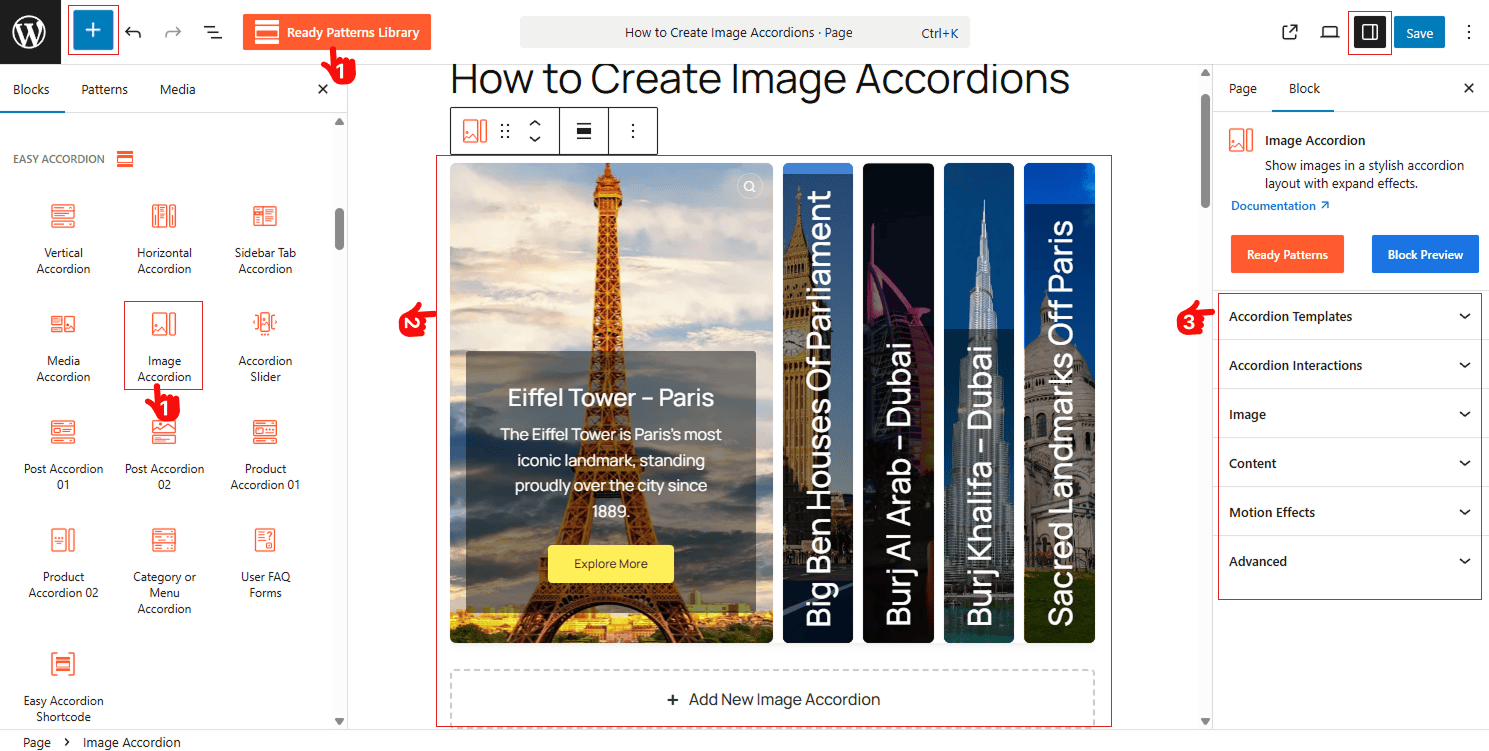
Now, let’s upload your image from the Media Library.
Step 3: Upload Images with Lightbox & Add Interactions
After inserting the block, you’re ready to add accordion images, add effects, and interactions.
- Upload or select Images from the Media Library inside the block
- Choose your desired layouts & orientations: Horizontal & Vertical
- Go to the Image panel to enable Image Effects, Lightbox with style
- Adjust Item Gap, Height & Expanded Items Width
- Enable FAQ Schema & Preloader
- Set Accordion Activator Interactions: OnClick, On Hover, or AutoPlay
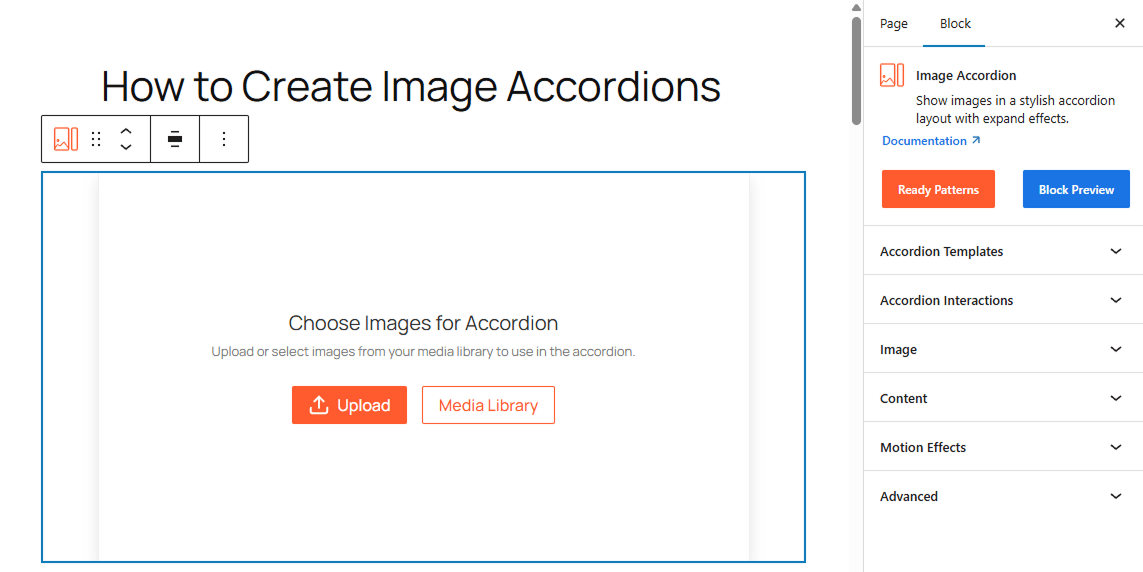
Note: You can add Anchor Links for each accordion Item
Step 4: Customize with Advanced Styling & Publish
- Navigate to the Content panel, Toggle on to Show or Hide the Icons, Titles, descriptions, or Button for each accordion.
- Toggle on to Show or Hide Icons & Titles on Collapsed Item.
- Set Content Position & Alignment as you wish.
- Add animation and motion effects to the content as you prefer.
- Configure the global stylings, accordion visibility & add custom design.
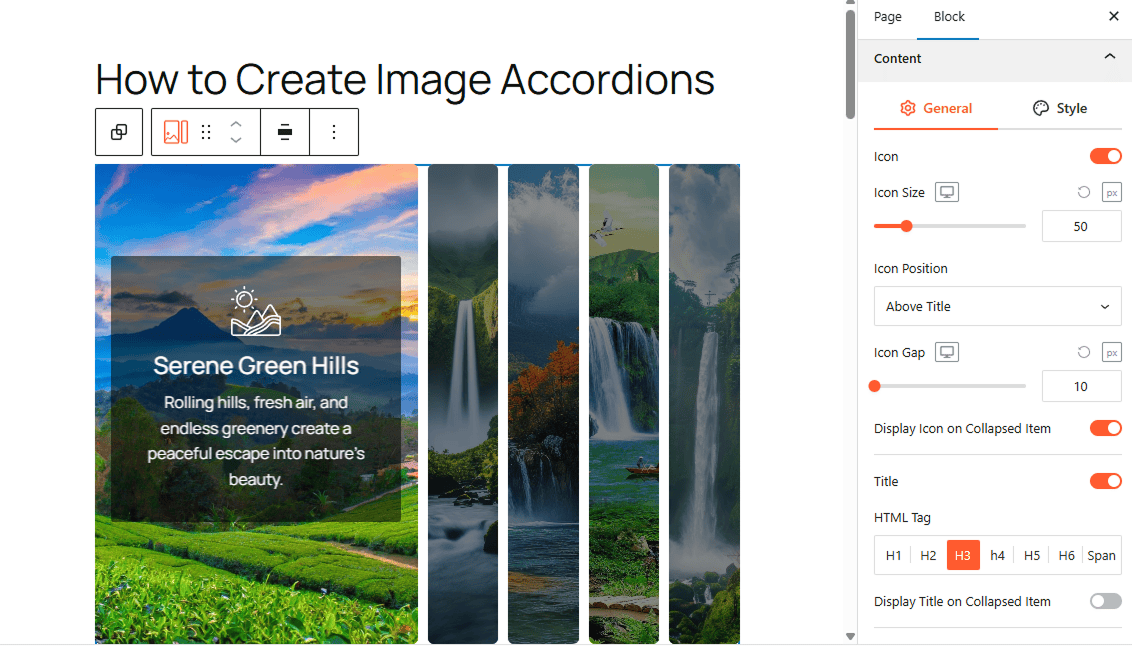
Once all customization is finished, click Publish or Update.
Congratulations. Let’s see a live demo of how image accordions will display on your WordPress site.
Final Words:
Stop showcasing galleries with static sections; they often get ignored as users scroll long pages, causing important visuals to lose impact and visibility.
Stay ahead of the competition with dynamic Image accordions. Organize your images into expandable sections, allowing users to view one visual at a time in a structured layout.
Why wait? Download Easy Accordion today, and start creating image accordions to transform static visuals into structured, interactive experiences.
How to Add FAQ in WordPress to Grow Conversion
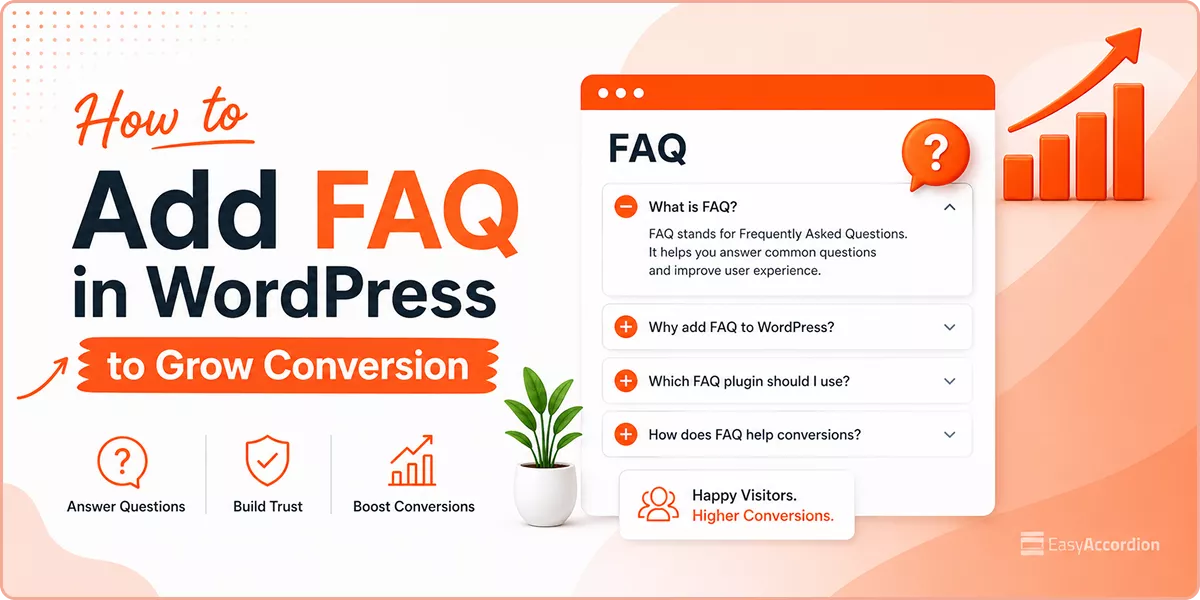
Do you want to increase visibility on SERP & AI, grow conversion rate, and cut off support costs with SEO/ GEO-ready, comprehensive FAQs?
In this blog, I’ll show you how to add FAQ in WordPress– the best and easiest ways to write and add high-converting FAQs in minutes with no code.
Let’s get in.
TL;DR/ By the End of This Blog, You will Learn:
- What is FAQ? – It’s the list of frequently asked questions and their answers.
- How to Write FAQs: Collect the most asked questions from your support team and write clearly and shortly.
- How to add FAQ in WordPress without plugin: Use the Accordion or the Details block of WordPress block editor or you can code.
- How to add FAQ in WordPress with plugins: Install the best FAQ plugin, Choose a layout, add content, customize and publish.
- What is the best FAQ plugin: Easy Accordion is the best FAQ plugin with the highest active installations (100,000+), reviews (354+), and ratings (4.9 ⭐⭐⭐⭐⭐)
- How to add FAQ in WordPress block editor, Gutenberg: Use Easy Accordion, Choose ready pattern, customize visually, and publish your FAQ in minutes:
- How to Add FAQ Schema in WordPress: Switch on the Easy Accordion Built-in FAQ Schema toggle or add the code snippet.
- How to add FAQ in Elimentor & popular page builders: Create templates with ready patterns of Easy Accordion and use the shortcode in Elementor or any popular page builders.
- Why You Should Add FAQs: FAQs increase visibility on Search Engines & AI, grow conversion rate, and cut support costs.
What Is an FAQ?
FAQ stands for Frequently Asked Questions.
It’s a simple list of common questions your visitors ask about your service or product, paired with clear, helpful answers.
Think of it as a self-service support desk that’s always available on your site, 24/7.
See some examples below.
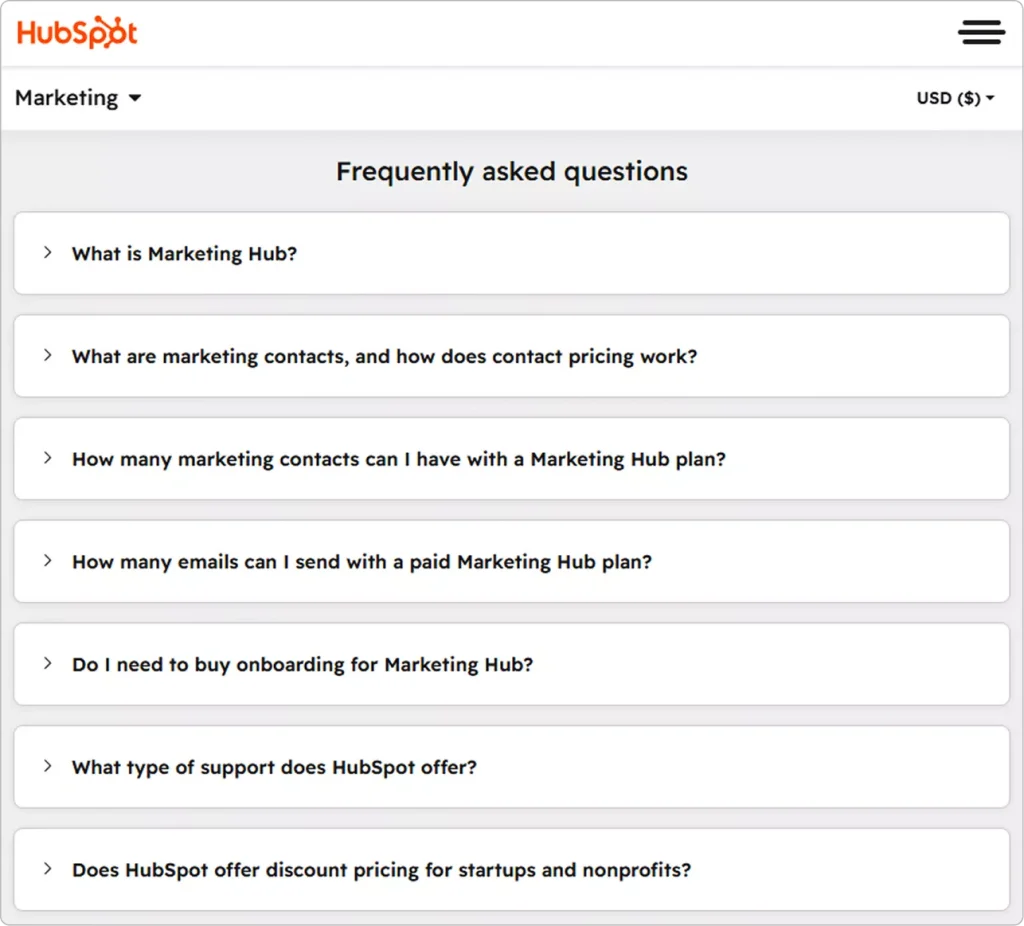
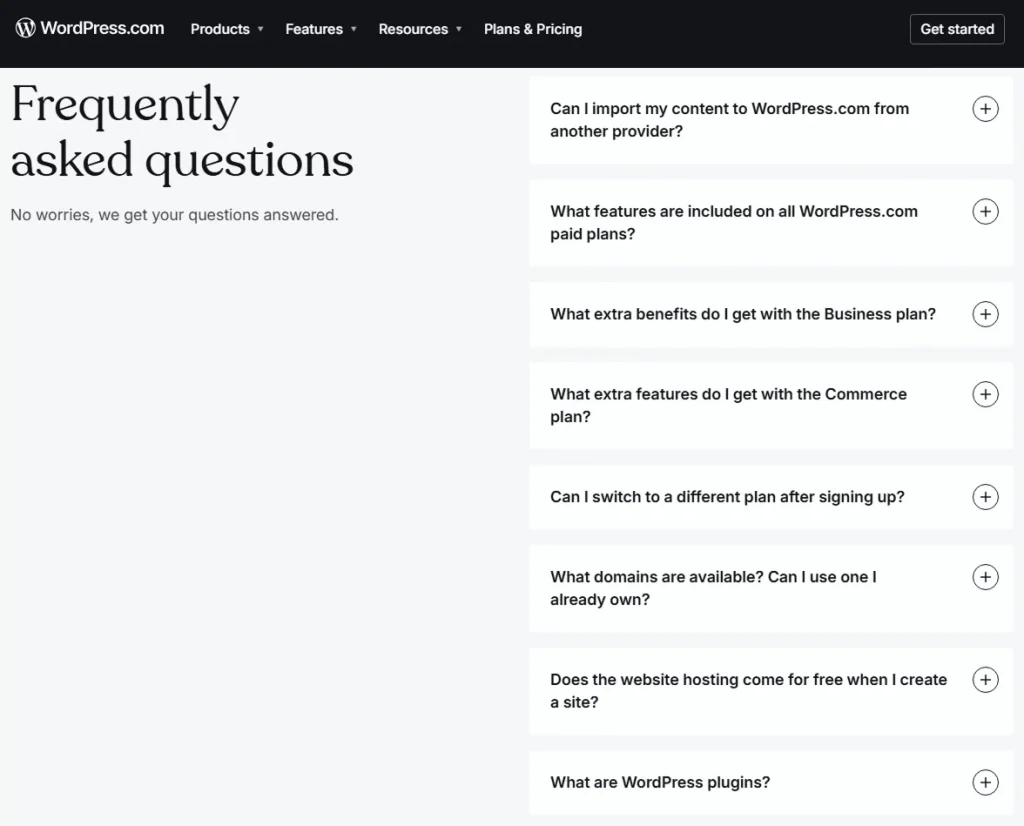
How to Write FAQs?
Writing great FAQs isn’t complicated. But many WordPress site owners still get it wrong.
Here’s how to do it right.
Collect Real Questions
Don’t guess what your visitors want to know. Collect real questions from:
- Your Support Inbox
- Live Chat Logs
- Product Page Comments
- Product Reviews
- Socials and Communities
What to Do If You Have No Question List Yet?
If you are new in the market or you have no frequently asked question list, what to do?
It’s very usual that most of the customers leave your sites with questions in their mind. They have no time or no mind to ask you the question. Finally, you are losing customers.
What to do? In this cases, check:
- Your competitors’ FAQs
- Your competitors’ product reviews
- tools like AnswerThePublic or Reddit
- Google’s “People Also Ask” box
Pro Tip: If your service or product is totally new in the market, customers must have more questions. You yourself have to research and build a question list initially.
Best Practices for FAQs
Keep answers short and scannable.
Nobody wants to read a wall of text inside an FAQ. Aim for 2 to 4 sentences per answer. If it needs more, link out to a full blog post or documentation page.
Use natural, conversational language.
Write the way your customer talks, not the way a lawyer writes. Simple words build trust faster than technical jargon.
Organize by topic.
Group related questions together. For example, a WooCommerce store might have separate groups for Shipping, Returns, and Payment. This saves visitors time and reduces frustration.
Watch Analytics and Update your FAQs regularly.
New product launch? Policy change? Update your FAQs right away. Outdated answers erode trust quickly.
Add an FAQ form or Support Link Below Your FAQs
Don’t limit your FAQs. Divers visitors can have some questions you never guessed or listed. So, add and FAQ form or support link at the bottom of your FAQ section.
Pro tip: Use an accordion-style FAQ layout. It lets visitors scan questions fast and open only what’s relevant to them. More on that below.
Learn more about how to write high-converting FAQs.
How to Add FAQ in WordPress Without a Plugin
You don’t always need a plugin to add FAQs in WordPress.
If you’re using the Gutenberg block editor, WordPress has a built-in option to get started quickly.
Step 1: Open the post or page where you want to add your FAQ section.
Step 2: Click the + (Add Block) button in the editor.
Step 3: Search for the Accordion or Details block and add it.
Step 4: Type your question in the summary field and your answer in the body.
Step 5: Repeat the block for each FAQ item.
That’s it. No plugin needed.
However, this method has real limitations. The Details block offers almost zero styling control. There’s no accordion animation, no toggle icons, and most importantly, no FAQ schema markup.
Without schema, your FAQs won’t qualify for Google rich snippets. And that’s a missed SEO opportunity you can’t afford.
So, when should you use this method? Only for a quick, one-off FAQ on a low-priority page. For anything else, a dedicated plugin is the smarter move.
How to Add FAQ in WordPress with Plugins
Using a plugin is the easiest and most powerful way to add FAQs in WordPress.
A good FAQ plugin gives you beautiful accordion layouts, FAQ schema for SEO, and full design control, all without touching a single line of code.
The first step is to find the best FAQ plugin.
What Is the Best FAQ Plugin for WordPress?
There are dozens of FAQ plugins in the WordPress repository. But not all of them are worth your time.
I found Easy Accordion the best WordPress FAQ builder plugin.
Why Easy Accordion is the Best FAQ Plugin
Easy Accordion is the #1 FAQ and accordion plugin for WordPress with the highest user rating, reviews, and active installations.
Rating on WordPress Plugin Repository: 4.9 /5.00
User Reviews: 354+
Active installations 100,000+ (free and pro)
It lets you:
- Choose from a rich pattern library, customize visually, and publish in minutes
- Generate FAQs instantly with integrated AI
- Manage a lot of FAQs in Categories
- Turn on the FAQ schema markup for SEO and AI-search visibility
- Works with Gutenberg, Elementor, Divi, WPBakery, and more
- Supports WooCommerce product FAQs to reduce cart abandonment
- Enjoy total freedom in customizing your FAQ
- Control custom responsive breakpoints for every screen size
Let’s get Easy Accordion→
How to add FAQ in WordPress Block Editor
After you install the best FAQ builder plugin– Easy Accordion, follow the simple steps to add high-converting FAQs.
Step 1: Choose a Ready FAQ Pattern
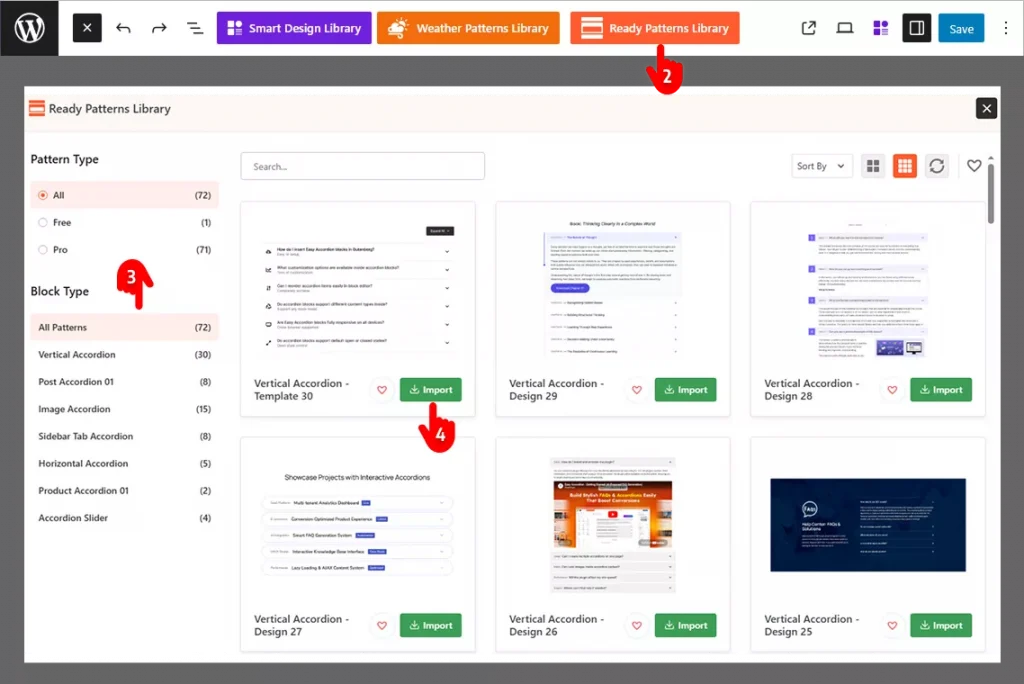
- First go to the page or post you want to add FAQs
- Click the Easy Accordion Library
- Find the best pattern for your needs and preferences
- Import the pattern
Step 2: Add your Original Content
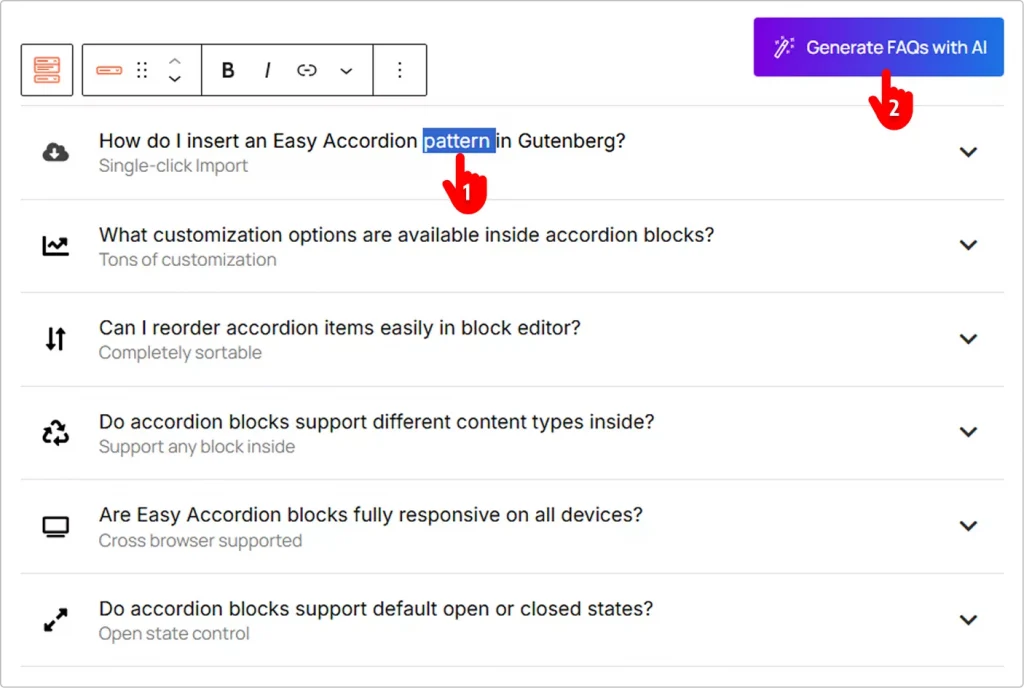
1st Way: Add Manually (Best for a few ready questions)
Replace the demo content with your original FAQs and answers as you do it in Google docs.
2nd Way: Generate FAQs with AI (Best option if you have no question ready)
Click the Create the FAQs with AI button and generate FAQs with AI. It’s intuitive and simple. That’s said, you need to set your API key. Go to the Integration tab from Easy Accordion’s Getting Started and click the Settings Icon on your preferred AI assistant. Do it following the intuitive instructions.
Step 3: Customize Your FAQ and Publish
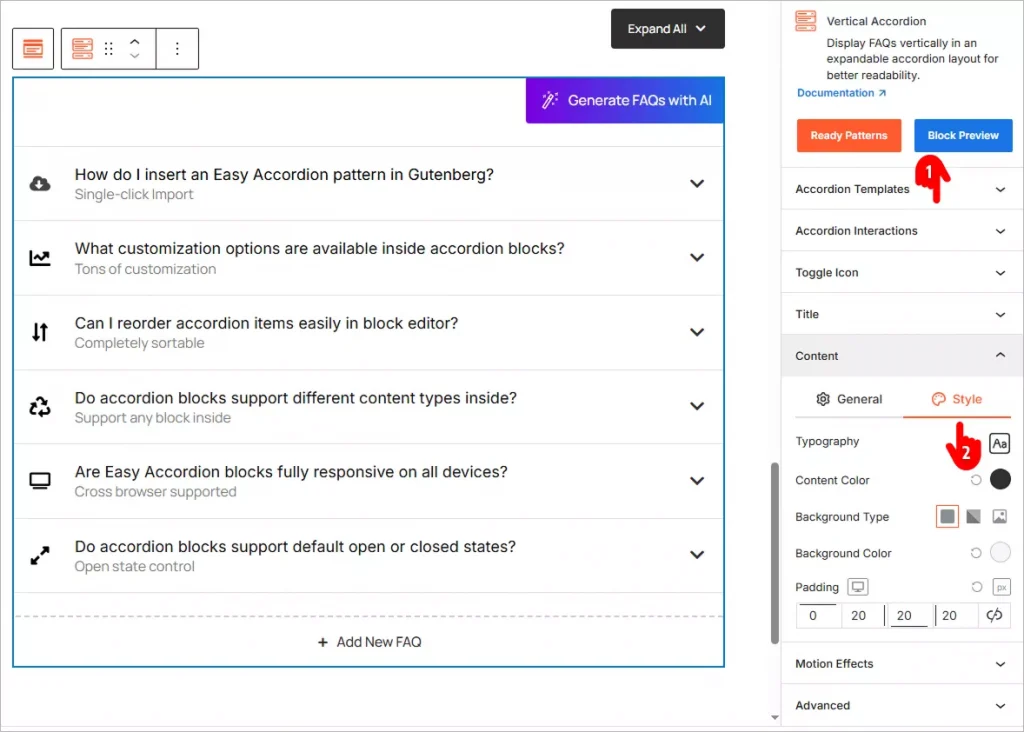
- Navigate through the panels, explore the available features, and apply them as needed.
- Many panels have a Style tab. Go and add styles to your FAQ to match your brand.
- Once you’re done, click the Publish or Save button in the top-right corner.
How to Add FAQ Schema in WordPress (For SEO & GEO)
What Is FAQ Schema?
FAQ Schema is a type of structured data that helps search engines and AI systems understand your FAQ content. It enables your FAQs to appear as rich results on search engines and improves visibility in AI-driven answers.
Why FAQ Schema Matters for SEO & GEO
- Increases chances of rich snippets on SERP
- Improves visibility in AI search and answer engines (GEO)
- Enhances click-through rate (CTR)
- Makes content easier for search engines to interpret
Method 1: Use Easy Accordion and Turn on the FAQ Schema Markup Toggle
Easy Accordion is the simplest way to add FAQ schema in WordPress.
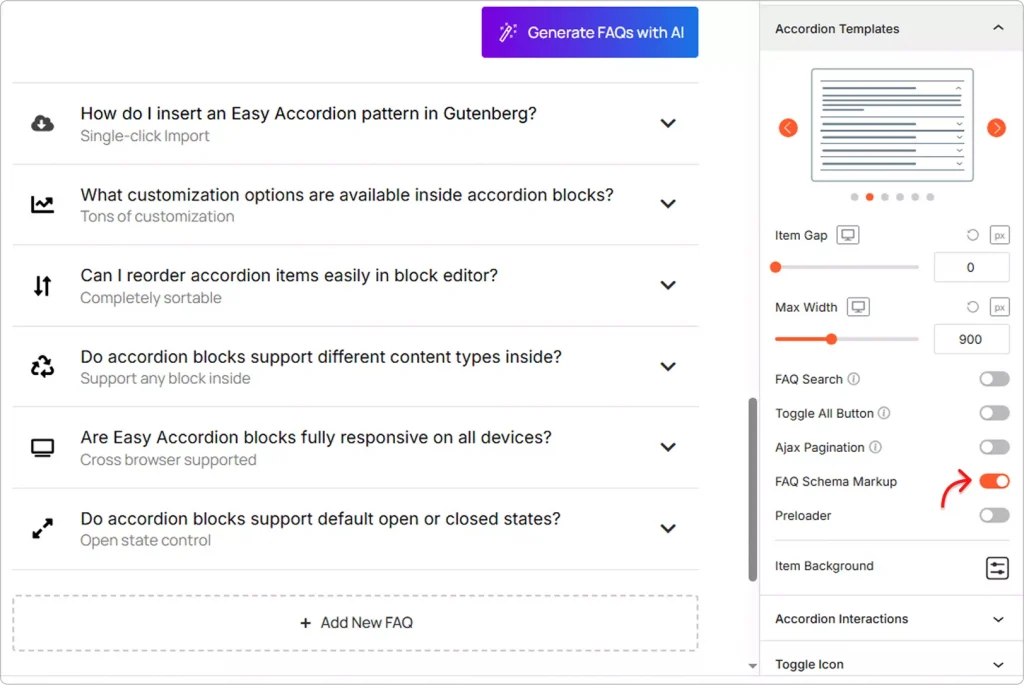
Once you install the plugin and build your FAQ, turning on schema markup takes just one click. No coding. No manual JSON-LD. No third-party SEO plugin required.
Method 2: Add FAQ Schema Manually with the Help of AI
AI will suggest you add the following JSON-LD code inside your page, post, or site header and replace the sample content with your own FAQs:
<script type="application/ld+json">
{
  "@context": "https://schema.org",
  "@type": "FAQPage",
  "mainEntity": [
    {
      "@type": "Question",
      "name": "Your Question Here",
      "acceptedAnswer": {
        "@type": "Answer",
        "text": "Your answer here."
      }
    },
    {
      "@type": "Question",
      "name": "Your Second Question Here",
      "acceptedAnswer": {
        "@type": "Answer",
        "text": "Your second answer here."
      }
    }
  ]
}
</script>
However, it takes more time. Moreover, if you are not a coder, you need to hire a coder to review the code generated by AI. A vague prompt or a simple CSS conflict can disrupt your site.
How to add FAQ in Elimentor & Popular Page Builders
Elementor accordion widget and some addons allows you to add a generic FAQ section with basic customizations.
Easy Accordion lets you use your professionally designed, advanced FAQs and accordions in Elementor and other popular page builders.
Here’s how:
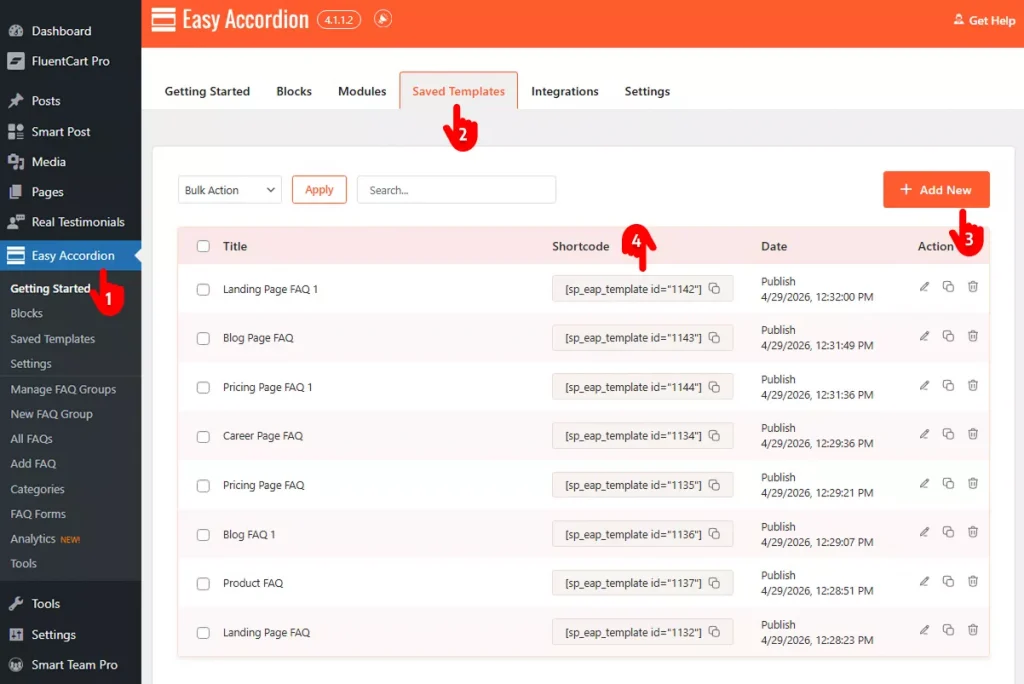
- Go to your WordPress dashboard and click Easy Accordion in the admin sidebar.
- Navigate to the Saved Templates tab.
- Click the Add New button and design your FAQ sections or page and publish. Don’t forget to name your section or the page.
- Get back to the Saved Templates tab, copy the shortcode and go in Elementor or the page builder you use and paste it. It will work flawlessly.
Key benefits of Adding FAQ
Most WordPress site owners treat FAQs as an afterthought.
Big mistake.
A well-built FAQ section is one of the highest-ROI additions you can make to any WordPress or WooCommerce site. Here’s exactly why.
Boost Your SEO Rankings
Google loves structured FAQ content.
When you add FAQ schema markup, your content becomes eligible for rich snippets in search results. That means your site can show up in the “People Also Ask” section, taking up more real estate on page one.
More visibility leads to more clicks, without spending a cent on ads.
Get Featured by AI Search Engines
This one is new, but it’s growing fast.
AI assistants like ChatGPT, Gemini, and Claude now pull answers directly from structured web content. A properly marked-up FAQ gives your site a real shot at being cited as a source in AI-generated responses.
That’s free traffic from the future of search.
Reduce Support Tickets Dramatically
Every unanswered question on your site is a potential support ticket, or worse, a lost customer.
FAQs answer common objections before they become problems. The result? Fewer emails, fewer support requests, and more time back in your day.
Increase Conversions and Sales
Shoppers abandon carts when they have doubts.
Adding FAQs directly on your WooCommerce product pages removes buying hesitation at the most critical moment. Answer questions about shipping, returns, sizing, or compatibility right there on the page. Watch your conversions go up.
Build Trust Instantly
Visitors trust sites that answer their questions upfront.
A clear, well-organized FAQ signals that you understand your customers. It shows confidence in your product or service. And trust, as every marketer knows, is the foundation of every sale.
Improve User Experience
Nobody likes hunting for answers.
An accordion-style FAQ lets visitors scan questions fast and open only what’s relevant. It keeps your pages clean and organized, while making information easy to find. Better UX means longer time on site and lower bounce rates.
Works Around the Clock
Your FAQ section never sleeps.
While you’re offline, it’s out there answering customer questions, handling objections, and guiding purchase decisions. It’s like having a support agent working 24/7 at zero cost.
Bottom Line
FAQs are not just a nice-to-have feature. They drive SEO, build trust, reduce support load, and increase sales, all at the same time.
The smartest move? Add them now, and use a plugin like Easy Accordion to make them schema-ready, visually engaging, and fully optimized for conversion.
How to Create Post Accordion in WordPress (Easy Guide)
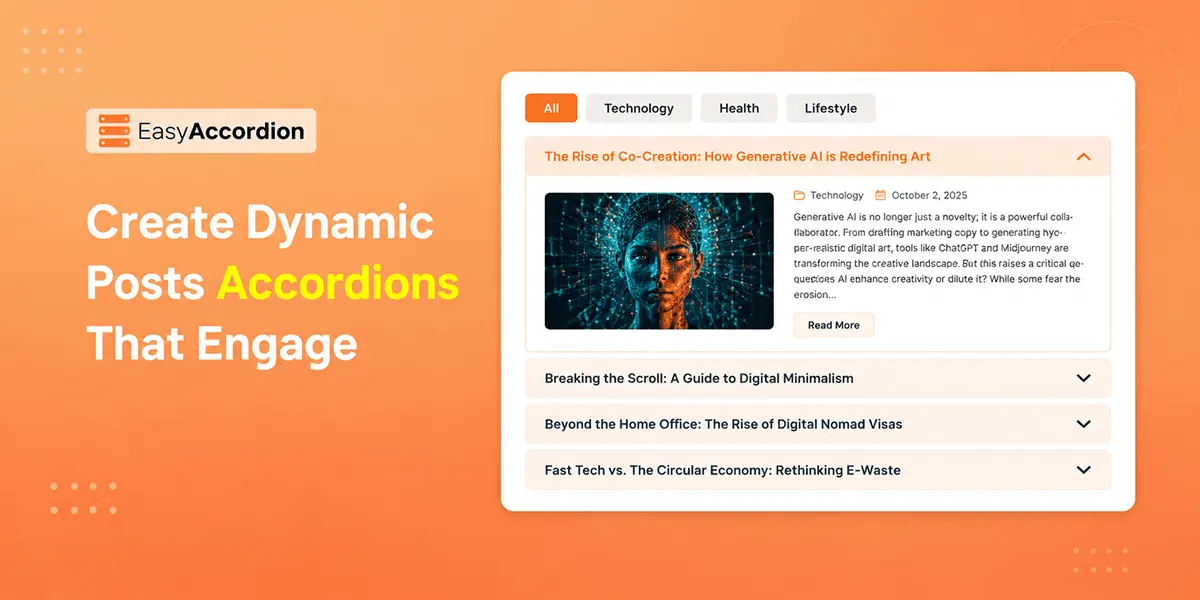
Do you want to display your blog posts, news updates, or custom post types in an interactive, collapsible layout on your WordPress site? A post-accordion makes it simple.
Traditional blog layouts, such as long lists and rigid grids, can overwhelm your visitors and reduce engagement. Creating a post accordion can be a great solution, which allows you to display & organize multiple posts while keeping your pages easy to navigate.
To create a post accordion, you need an accordion plugin like Easy Accordion. It lets you showcase your posts in dynamic horizontal and vertical accordion layouts, helping you attract readers’ attention to your content in a more structured and engaging way.
In this blog, I’ll show you 4 easy steps to create post accordions in WordPress — without coding.
What Is a Post Accordion in WordPress?
A post accordion is a dynamic WordPress layout that displays posts, pages, or custom post types in collapsible sections. It lets users expand each item to view key content such as titles, images, excerpts, and metadata while keeping the layout compact and easy to browse.
Unlike static layouts, it pulls content automatically from categories, tags, or custom queries, making it ideal for blogs, archives, news listings, portfolios, and resource pages.
Why You Need to Use Post Accordion?
Whether you run a portfolio site, magazine, or news site, displaying your posts in an accordion is a modern addition. It brings your business various benefits, including:
- Save Space Without Hiding Valuable Content: Instead of forcing visitors to scroll endlessly, a post accordion compresses multiple posts into an organized, expandable layout.
- Improve User Experience: Displaying posts in accordions allows visitors to scan titles and open only the content they care about, making navigation faster and more intuitive.
- Fetch Post Dynamically with Query Builder: The powerful post query builder makes it easy for you to pull posts by category, tag, author, or date — reducing manual updates.
- Work for Multiple Content Types: From blog posts to portfolios and custom post types, using post accordions, you can showcase multiple post types as needed.
- Keep Your Site Modern and Interactive: Expandable layouts create a more engaging browsing experience compared to static lists or archives.
4 Easy Steps to Add Posts Accordion in WordPress
As you want to display your WordPress posts or pages in Accordions, you need a plugin like Easy Accordion, which allows you to build stylish and fully customizable post accordions with its dedicated Post 01 & 02 accordion blocks. Simply follow the steps below, and start creating the dynamic posts accordion in minutes.
Step 1: Get Easy Accordion
Easy Accordion is a leading WordPress FAQ and accordion builder plugin trusted by over 100,000+ users. It lets you create interactive accordions in multiple styles, including horizontal and vertical layouts, image, slider, post, product, media, and multi-level accordions.
With a 70+ Ready Patterns library, pre-built templates, icons, animations, schema markup, and easy customization options, it allows you to build comprehensive FAQs and accordions without coding.
To get started, install and activate Easy Accordion on your WordPress site. If you’re new, follow the quick setup guide to begin in minutes.
Step 2: Create Your Post Accordion
Before creating a post accordion, you need to check if the post accordion is disabled. Once enabled, just follow the steps below.
- Open the page or post where you want to display your posts.
- Click the (+) button and search for Post Accordion 01 or 02 under the Easy Accordion category, or choose Post Patterns from the Ready Patterns Library.
- Import or insert the block and customize as needed.
- Choose horizontal or vertical template style, set gap & width as needed.
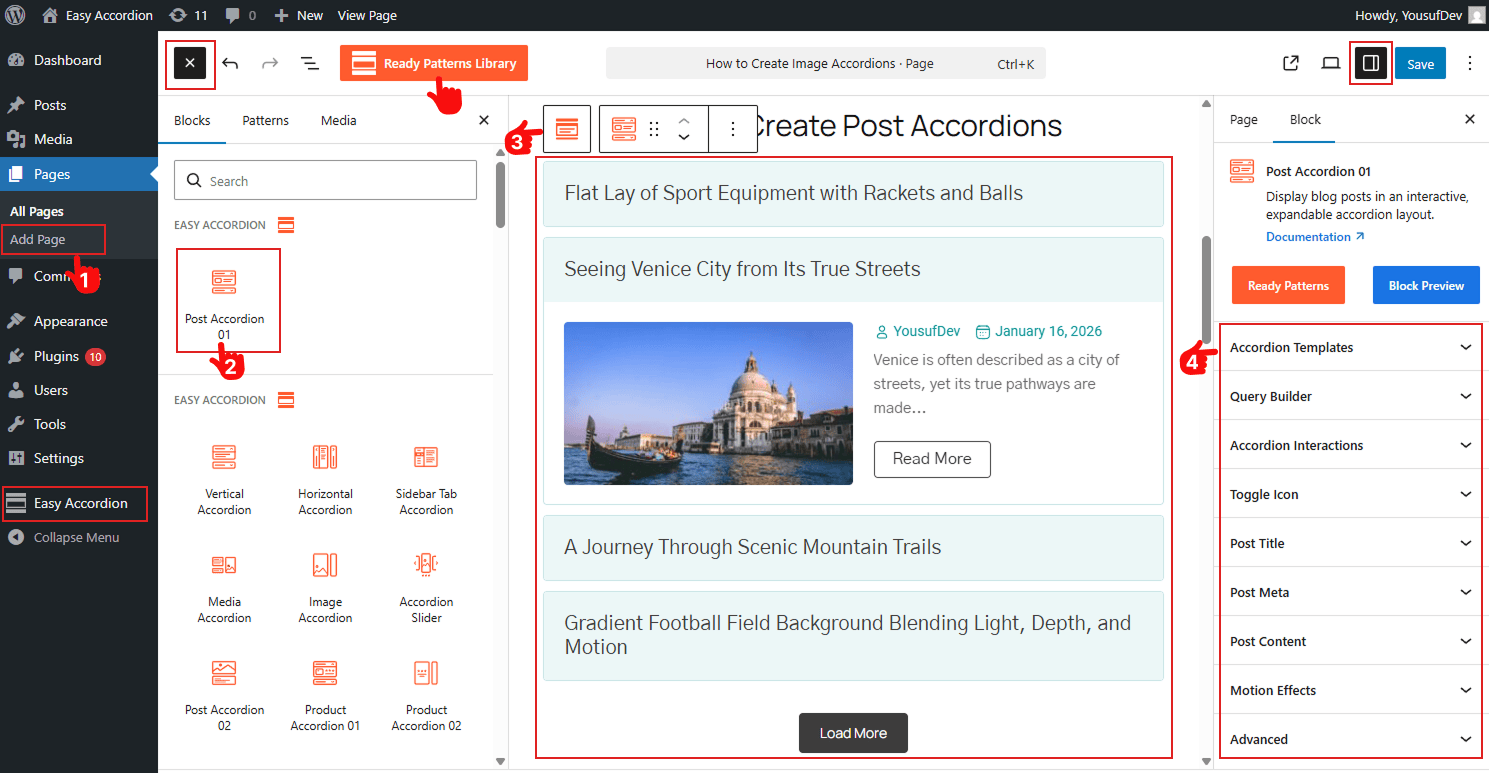
Note: You can also enable Advanced utilities like FAQ Search, Ajax Pagination, Toggle All Button, Schema Markup, and Preloader to enhance usability and SEO visibility.
Step 3: Filter Posts, Customize Title, Image & Meta
Filter Posts: After choosing the template, it’s time to decide which posts you want to display by using the Powerful Query Builder. It will allow setting post types, filter posts by Latest, Taxonomy, or Specific ones, and adding Live Filtering with Taxonomy Filter.
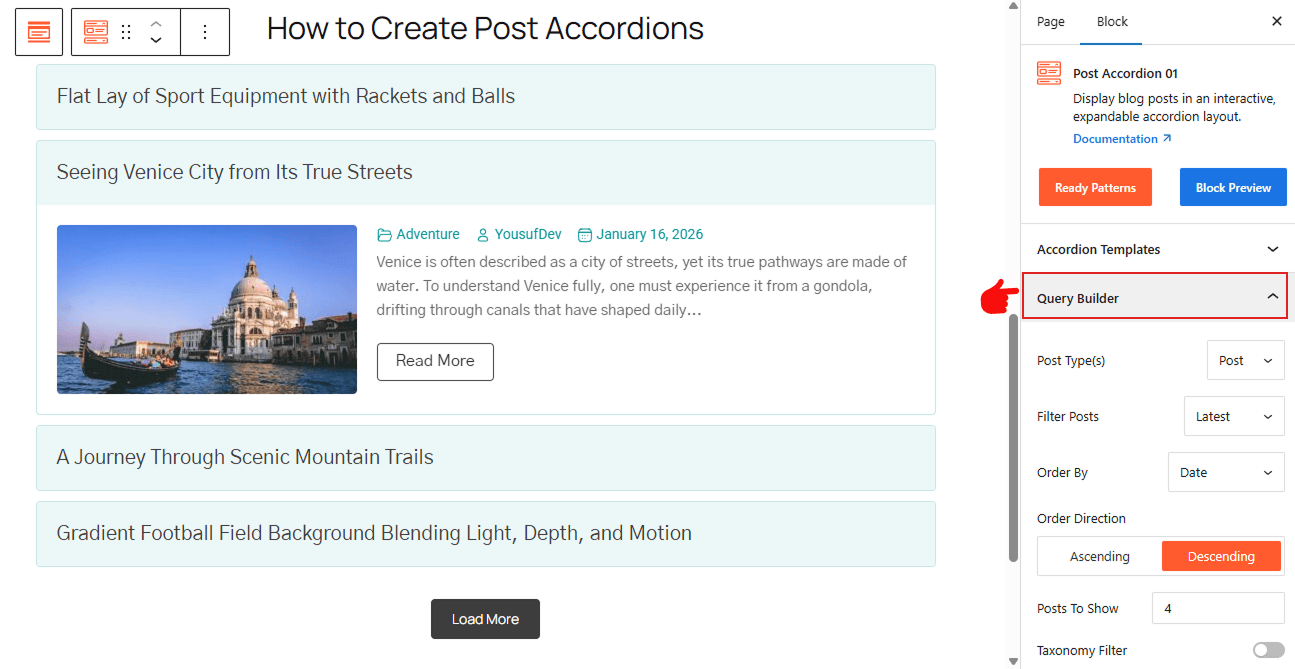
For details, visit here.
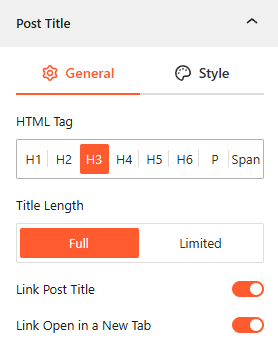
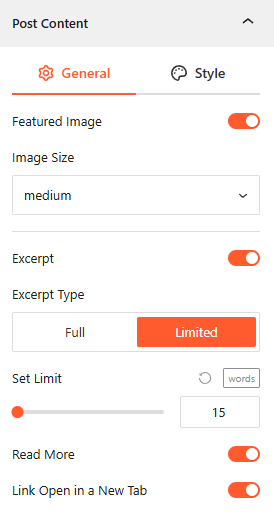
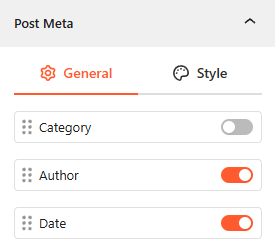
Customize Post Title, Image & Meta: You will find a dedicated panel to customize your Post Title, Featured Image & Meta, including Post Excerpt & Read More Button. To know how to customize them in detail, please visit here.
Step 4: Stylize with Interactions, Animations, and Publish
- You can add accordion interaction triggers, such as: Click, Hover & AutoPlay.
- Configure the Adjustable Post Content height with animations.
- Enable Accordion Close Button.
- Enable Motion Effects to make it visually engaging.
- Customize the Typography, colors, and set device-specific visibility, background, and add custom CSS with the advanced settings as needed.
- Once all are finished, click Publish or Update.
Congratulations. Let’s see a live demo of how post accordions will display on your WordPress site.
Final Thoughts
Creating an accordion is one of the most effective ways to organize WordPress content.
Instead of overwhelming visitors with endless lists, post accordion lets you create a cleaner, more interactive experience that keeps content accessible and engaging.
So, if you want a smarter way to showcase blog posts, archives, or custom content, download Easy Accordion today and display your posts dynamically in minutes that engage, convert, and boost conversions.
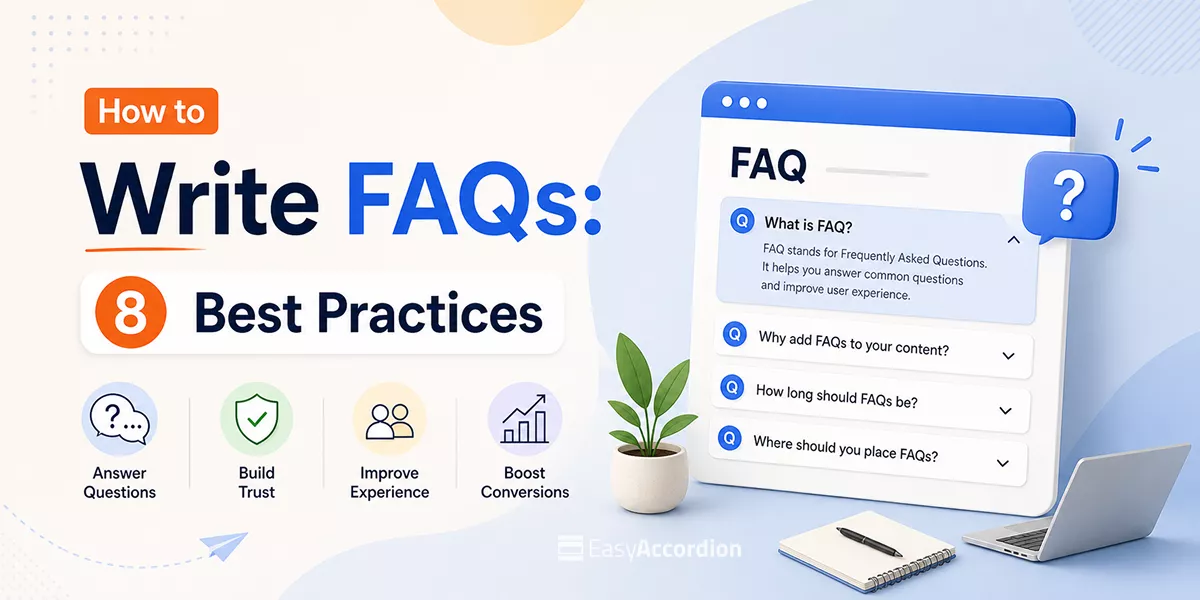
How to Write FAQs: 8 Best Practices with Examples
Are you fed up with your confused visitors, high bounce rates, repetitive customer queries? Do you want to learn how to write FAQs that really increase visibility on search engines and AI, reduce support costs, and grow conversion rates?
In this blog, I’ll share 8 effective strategies to write high-converting FAQs and the best examples.
By the end of this blog, you will be able to write the most impactful FAQs and turn your confused visitors into regular customers.
Let’s get in.
TL;DR/ Key Takeaways
- What is FAQ: A FAQ is a structured list of real customer questions paired with clear, direct answers that build trust and drive action.
- Best Tips to Write High-converting FAQs: Use real customer questions, keep answers short and conversational, optimize for SEO and GEO, and use an accordion layout for better UX.
- Common Mistakes in FAQ Writing: Avoid writing assumed questions, burying answers, skipping schema markup, and leaving your FAQ section without a next step or CTA.
- Explore Ready FAQ Template Library: Get a rich FAQ template library. Choose a pattern, customize visually, and publish in minutes.
What is FAQ?
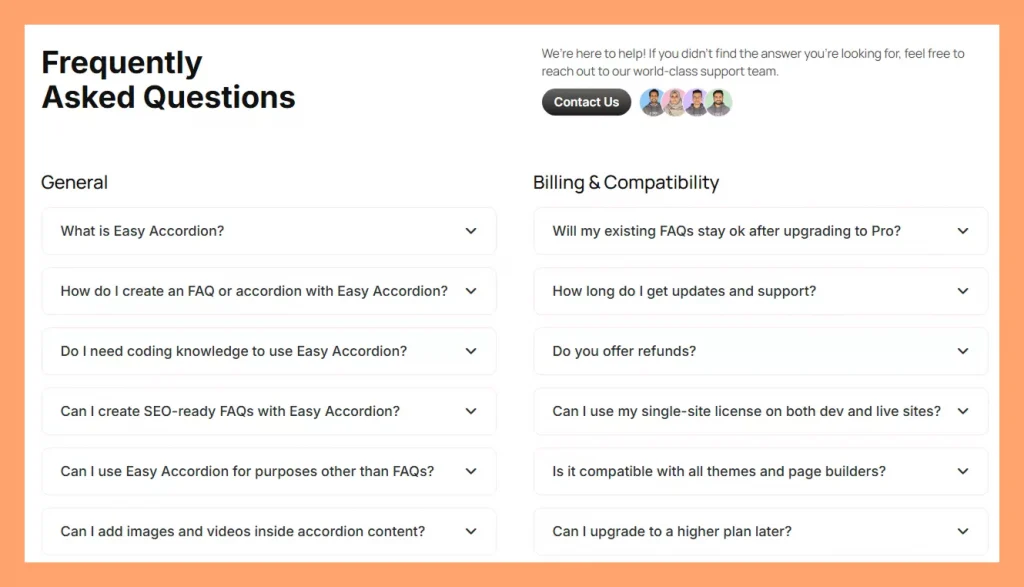
FAQ stands for “Frequently Asked Questions”. It’s a structured list of real customer questions paired with clear, helpful answers.
- Real questions — phrased the way your customer would type or speak it
- Direct answers — leading with the most important information
- Supporting detail — a short explanation, stat, or example that builds confidence
- Accordion Layout — Expand & collapse layout to make FAQs scannable & interactive.
- A next step — a subtle CTA, link, or reassurance that moves the reader forward
Why FAQs are So Important
FAQs are one of the most underrated assets on any WordPress or WooCommerce site. Here is why they deserve serious attention.
Increase Visibility on AI (GEO Advantage)
AI tools like Claude, ChatGPT, Gemini, and Google’s AI Overviews favor structured question-and-answer content. When your FAQs include schema markup, these tools cite your site in AI-generated responses and put your content in front of users who never type a traditional search query.
Win featured snippets and “People Also Ask” spots (SEO advantage)
Google pulls FAQ content into featured snippets and “People Also Ask” boxes, which sit above regular organic results. With proper schema markup, your site can appear twice on the same results page and capture high-intent shoppers right at the moment they are closest to buying.
Reduce Confusion
Confused visitors do not buy. They simply leave. A clear FAQ removes the friction between “I’m interested” and “I’m buying.” It answers doubts before they turn into objections. It also fills the gaps your product page might miss.
Grow Conversion
Addressing buyer questions at the point of decision increases conversion rates. Product page FAQs, in particular, reduce cart abandonment by eliminating unanswered doubts right before checkout. That directly impacts your WooCommerce revenue.
Cut Support Cost
Every question your FAQ answers is a support ticket you never receive. For WooCommerce stores with high order volumes, this adds up quickly. A strong FAQ can reduce repetitive support queries by 30 to 50 percent.
Improve On-Page Engagement Signals
When visitors find answers on your page, they stay longer. They scroll further and click more. These engagement signals tell search engines your content is valuable, which then improves your rankings over time.
Where You Actually Need an FAQ Section
Not every page needs a FAQ. But these locations almost always benefit from one:
Homepage — Address the top general queries you have collected.
Product pages — Answer shipping, compatibility, returns, and feature questions
Pricing page — Eliminate hesitation around billing, plans, and refunds
Landing pages — Handle objections right before the CTA
Support/contact page — Deflect common queries before users submit tickets
Blog posts — Add topical FAQs to capture “People Also Ask” traffic
Documentation — Answer setup and usage questions inline
If a page needs to address users’ concern and a conversion goal, a FAQ belongs on it.
8 Best Practices for Writing FAQs That Convert
1. Collect Real Customer Questions
The biggest FAQ mistake is writing questions you think people ask. Instead, collect questions people actually ask.
Start with these sources:
- Your Support Inbox
- Sales call notes
- Product Page Comments
- Product Reviews
- Socials and Communities
- Heatmaps: Microsoft Clarity/ Hotjar
Prioritize questions that appear more than once. Those are your most important FAQ items.
What to Do If You Have No Question List Yet?
If you are fresher in the market or you have no question in your channels, what to do?
It’s a common scenario that most of the customers leave your sites with questions in their mind. They are too busy to ask you the question. Finally, you are losing customers.
What to do? In this cases, check:
- Your competitors’ FAQs
- Your competitors’ product reviews
- tools like AnswerThePublic or Reddit
- Google’s “People Also Ask” box
- Keyword Research
- Ask multiple AIs
Pro Tip: If your service or product is completely new in the market, customers must have more questions. You yourself have to research and ideate a question list initially.
2. Keep Answers Short and Scannable
Nobody reads FAQ answers like a novel. Visitors scan, search, and want the answer fast. So your answer structure should follow a simple three-part pattern.
Lead with the direct answer in the very first sentence. No preamble, no “great question.” Add one supporting sentence if needed for clarity. Then close with a link or CTA if any action is required.
Here is a bad example: “That’s a great question! Our plugin is compatible with most themes, but it really depends on the theme you’re using and how it’s coded. If your theme follows WordPress coding standards, you should be fine, but there might be some issues with custom CSS.”
Here is a good example: “Yes. Easy Accordion works with all standard WordPress themes, including Astra, Avada, and OceanWP. Test on a staging site first if your theme uses heavy custom CSS.”
Short answers also display far better inside accordion layouts, which we cover in practice number seven.
3. Use Natural, Conversational Language
Write FAQs the way your customer talks, not the way a legal document reads.
Use “you” and “we” instead of “the user” or “the company.” Avoid jargon unless your audience is technical, and even then define it once. Match the vocabulary your customer actually uses. If they say “plugin,” do not say “extension.” And finally, read your answer out loud. If it sounds robotic, rewrite it.
For WooCommerce stores, this is especially important. Shoppers make emotional decisions, so warm and human language builds trust faster than corporate copy.
4. Optimize Your FAQ for SEO and GEO (FAQ Schema)
A well-structured FAQ does double duty: it helps visitors AND search engines.
For SEO:
- Include your target keyword naturally in the question
- Use H2 or H3 tags for questions (not just bold text)
- Add FAQ schema markup — structured data that tells Google your content is a FAQ
For GEO (AI search visibility):
- Write answers that are complete on their own — AI engines pull self-contained answers
- Aim for 40–60 word answers for complex questions — long enough to be useful, short enough to extract
- Structure answers as “yes/no + explanation” when possible — AI models prefer direct starts
- Use FAQ schema– AI bots love structured data.
Tools like Easy Accordion add FAQ schema markup automatically. This means your FAQs become eligible for Google rich snippets and AI answer features without any technical setup.
5. Add Search and Filters for a Lot of Questions
If you have more than 10 FAQ items, navigation becomes a problem. Visitors do not scroll through 30 questions to find the one they need.
The solution: add search and filtering.
- FAQ search lets users type a keyword and see matching answers instantly
- Category filters let users browse by topic (Shipping, Returns, Compatibility, etc.)
For WooCommerce stores, this is especially valuable. A product with 20+ FAQs becomes unusable without filters. With them, it becomes a powerful self-service tool.
Easy Accordion’s Pro version includes AJAX live search and smart frontend filters — so visitors find answers in seconds, not minutes.
6. Add an FAQ Form or Support Link Below Your FAQs
Even the best FAQ misses some questions. So always give visitors a path forward.
Two options work well:
Option A: FAQ submission form — Let visitors submit questions they cannot find answers to. This also builds your FAQ over time. Easy Accordion includes a User FAQ Form block for exactly this purpose.
Option B: Support link or CTA — A simple “Still have questions? [Contact us]” line at the bottom of your FAQ section catches anyone who did not find their answer.
Never leave a FAQ section as a dead end. Always offer the next step.
7. Use the Accordion Layout for Your FAQ
A plain list of questions and answers is hard to read. Everything is visible at once. It is visually noisy and visitors struggle to find what they need.
The accordion layout solves this neatly. Each question is a collapsed row. Visitors click to expand only what they need. The result is a cleaner UI with less visual clutter, faster scanning since users find the question before reading the answer, a better mobile experience, and stronger engagement because interactive elements keep users on the page longer.
For WordPress and WooCommerce, Easy Accordion is the go-to plugin for this. It offers 15+ accordion block types — including vertical, horizontal, image, post, and product accordions — with full Gutenberg, Elementor, and classic editor support.
You can set it up in three steps: pick a template, add your content (or generate it with AI), and publish.
8. Watch Analytics and Update Your FAQs Regularly
FAQs are not a “set it and forget it” asset. Customer questions change. Products evolve. New objections emerge.
Track a few key signals regularly. Check your support ticket volume to see if the same questions still come in after publishing your FAQ. Review your FAQ analytics every week. If you are a WordPress user, Easy Accordion’s built-in FAQ analytics is the best choice for you.
A good rule: review your FAQ every quarter. Add two or three new items. Remove anything outdated. This keeps your content fresh for both users and search engines.
Common FAQ Mistakes That Kill Engagement
Never make these common FAQ mistakes.
- Writing from company perspective, not user perspective: Focuses on what you want to say instead of what users actually need, reducing relevance and clarity.
- Overloading with too many questions: Too many FAQs overwhelm users, making it harder to find quick, helpful answers.
- Outdated or irrelevant info: Old or unnecessary information breaks trust and confuses users.
- No clear next step (missing CTA): Without a clear action, users leave without converting or moving forward.
Ready FAQ Template Library (Plug-and-Play)
Easy Accordion, a WordPress FAQ & accordion plugin, includes a full library of pre-designed, ready-to-use FAQ and accordion templates. You do not need to start from scratch or hire a designer if you are a WordPress user. Even non-WordPress users can get modern, high-impact FAQ design ideas.
Final Words
A great FAQ does more than answer questions. It builds trust, reduces friction, drives conversions, and improves your visibility in both traditional and AI search.
The difference between a FAQ that helps and one that converts is intention. Use real questions. Write short, direct answers. Add schema markup. Use an accordion layout. Keep it updated.
Start with five strong questions today. Add more as you learn what your customers actually need.
If you are using WordPress or WooCommerce, Easy Accordion makes the whole process faster — from AI-generated content to built-in schema markup to analytics. It powers 100,000+ sites and is rated 4.9 stars for a reason.
Easy Accordion 4.2.0: Smarter AI, New Blocks & Patterns for FAQ & Accordion
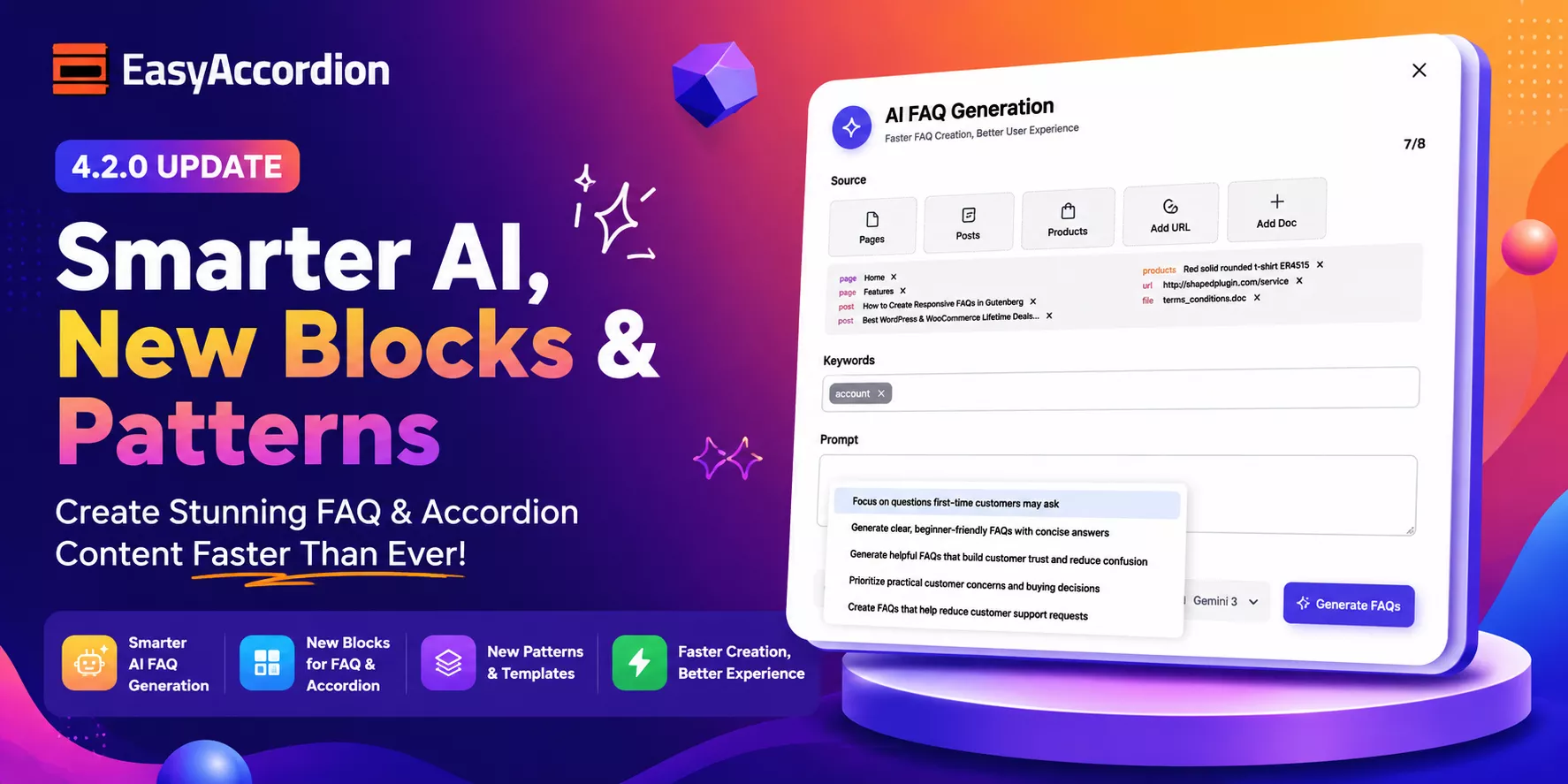
Hey, WordPress and WooCommerce users! We have some exciting news for you.
Easy Accordion Pro 4.2.0 has officially landed– and it is packed with many new features. This release brings powerful AI tools, four new accordion block types, six page builder integrations, motion animations, a 200+ template library, and much more.
Whether you run a blog, a WooCommerce store, or a business site, this update has something game-changing for your FAQs and group content display. So, let’s dive in and explore everything new in version 4.2.0!
What’s New in Easy Accordion Pro 4.2.0?
Here is a quick overview of everything included in this release:
- Four new accordion block types
- AI-powered FAQ generation
- Five new Pro modules
- Six page builder integrations
- Google reCAPTCHA spam protection
- 200+ ready-made patterns and templates
Let’s break each one down.
New Accordion Blocks
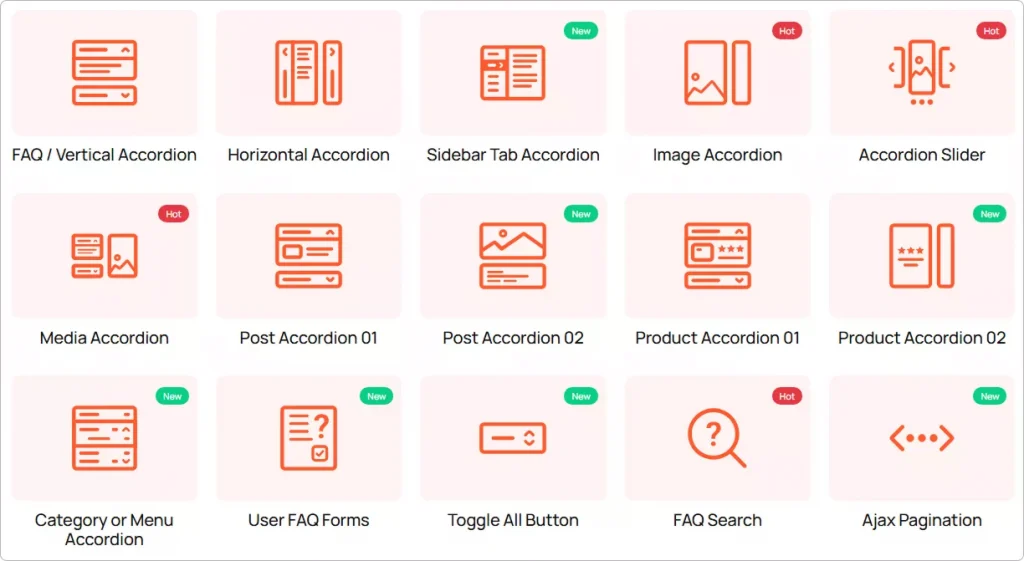
1. Post Accordion 02 Block
Do you want to turn your WordPress blog posts into interactive, expandable accordions? Now you can. The new Post Accordion 02 block lets you display your posts in a collapsible accordion layout. It is perfect for FAQs, knowledge bases, how-to guides, and content-rich blog archives.
This block keeps your pages clean and organized. Visitors expand only the content they want. That means less scrolling and more engagement.
2. Product Accordion 02 Block
Running a WooCommerce store? This one is for you. The Product Accordion 02 block lets you display your WooCommerce products in a beautiful collapsible accordion layout. It works great for showcasing product specs, bundles, pricing tiers, or product FAQs — all without overwhelming your visitors.
The result? A cleaner product page that converts better.
3. Media Accordion Block
Rich media content deserves a rich display. The new Media Accordion block is designed specifically for media-heavy content. You can now embed images, videos, audio, and galleries directly inside expandable accordion panels. It is ideal for portfolio sites, tutorial pages, and multimedia-heavy product descriptions.
4. Category / Menu Accordion Block
Got a large site with complex navigation or deep taxonomies? The Category / Menu Accordion block helps you streamline menus and taxonomies into a clean, collapsible format. This block is especially useful for WooCommerce category pages and content-heavy membership sites.
Generate FAQs Automatically with AI
This is one of the most exciting additions to Easy Accordion Pro. Version 4.2.0 introduces the Generate FAQ with AI module. It lets you create ready-to-publish FAQ content automatically — in seconds.
Just enter a topic, choose your AI provider, and let the plugin do the heavy lifting. No more writing FAQs from scratch. No more blank screens.
Now Supports Google Gemini
Along with existing AI compatibility, version 4.2.0 adds Google Gemini as a supported AI provider. You can now choose between AI engines to match your workflow, budget, and output style preferences.
This feature is a massive time-saver for agencies, bloggers, and store owners who manage large sites with dozens of FAQ pages.
New User FAQ Forms Block
Give your visitors a voice. The new User FAQ Forms block lets visitors submit their own questions directly from your site’s frontend — without needing to contact you via email or chat.
It is an excellent way to crowdsource real questions from real users. Plus, it helps you discover content gaps and build a more relevant FAQ database over time.
Google reCAPTCHA Integration
To keep spam out of your FAQ forms, version 4.2.0 adds Google reCAPTCHA integration. This integration automatically blocks spam submissions and bot abuse, so your FAQ inbox stays clean.
New Pro Modules
FAQ Analytics Module
Want to know which FAQs your visitors actually click on? The FAQ Analytics module tracks clicks and user engagement metrics across your accordion and FAQ content. Use this data to refine your content strategy, remove low-performing FAQs, and expand the ones that drive the most interaction.
FAQ Forms Module
The FAQ Forms module lets you build fully functional frontend FAQ submission forms. Visitors can submit questions directly from any page. You review and publish them as FAQs — it is a simple and powerful content loop that keeps your FAQ section fresh and relevant.
Motion Effects and Animations Module
Static accordions are a thing of the past. The new Motion Effects and Animations module adds beautiful scroll-triggered animations to your accordions. No CSS knowledge required. Just pick an animation style, set the timing, and publish. Your content will feel alive and engaging from the moment visitors land on your page.
Export / Import FAQs Module
Managing FAQs across multiple sites just got a lot easier. The Export / Import FAQs module lets you back up your entire FAQ library and restore it with a single click. It is perfect for agencies managing client sites or developers working across staging and production environments.
Ready Patterns Library Module
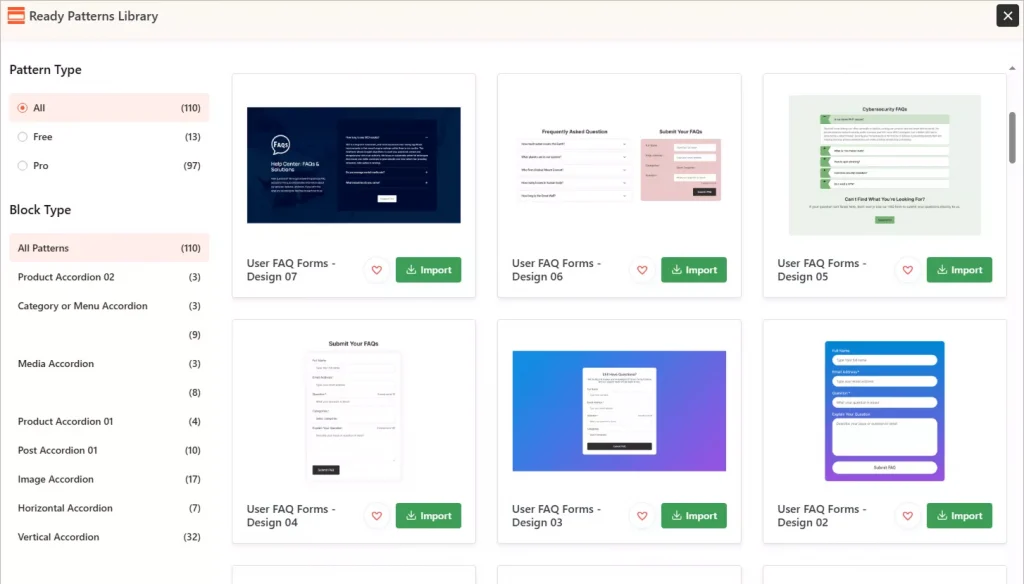
Starting from scratch is now optional. The Ready Patterns Library module gives you access to 200+ pre-designed FAQ and accordion templates. Browse the library, pick a layout you love, import it with one click, and customize it to match your brand. You can launch a beautiful, professional FAQ section in minutes — not hours.
Six New Page Builder Add-ons
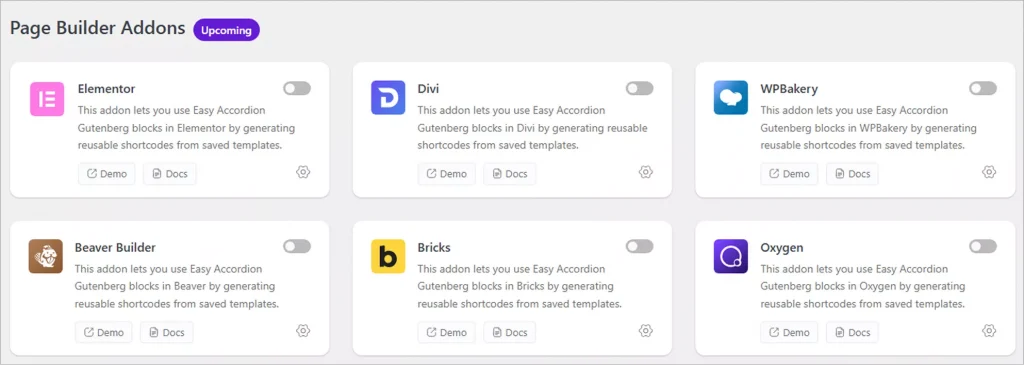
Easy Accordion Pro now works seamlessly with every major WordPress page builder. Version 4.2.0 introduces Saved Templates rendering support for:
- Elementor
- Divi
- WPBakery
- Oxygen Builder
- Beaver Builder
- Bricks Builder
No matter which builder you use, your saved accordion templates will drop right in — no shortcodes, no workarounds, no conflicts. This is a huge win for agencies and freelancers who build with multiple tools across different client projects.
Why Upgrade to Easy Accordion Pro?
Here is a quick summary of what you unlock with the Pro version:
- AI FAQ generation (with Google Gemini support)
- FAQ Analytics to track real user engagement
- Frontend FAQ submission forms with reCAPTCHA protection
- Motion Effects and scroll animations
- Export / Import FAQ library
- 200+ ready-made patterns and templates
- All four new accordion block types
- Six page builder integrations
If you are still on the free version, now is the perfect time to upgrade. Easy Accordion Pro gives you everything you need to build, manage, and optimize FAQs and accordions on your WordPress site — without writing a single line of code.
Get Started with Easy Accordion Pro 4.2.0
Version 4.2.0 is available now. If you are already a Pro user, simply update from your WordPress dashboard. All your existing content, FAQs, and settings will remain completely intact.
New to Easy Accordion Pro?
Easy Accordion Pro is developed by ShapedPlugin LLC — a team with over a decade of experience building high-quality WordPress and WooCommerce plugins used by 360,000+ websites in 180+ countries.
Have questions about the new features? Drop them in the comments below — we would love to hear from you and reply!
How to Add Stylish Horizontal Accordions in WordPress
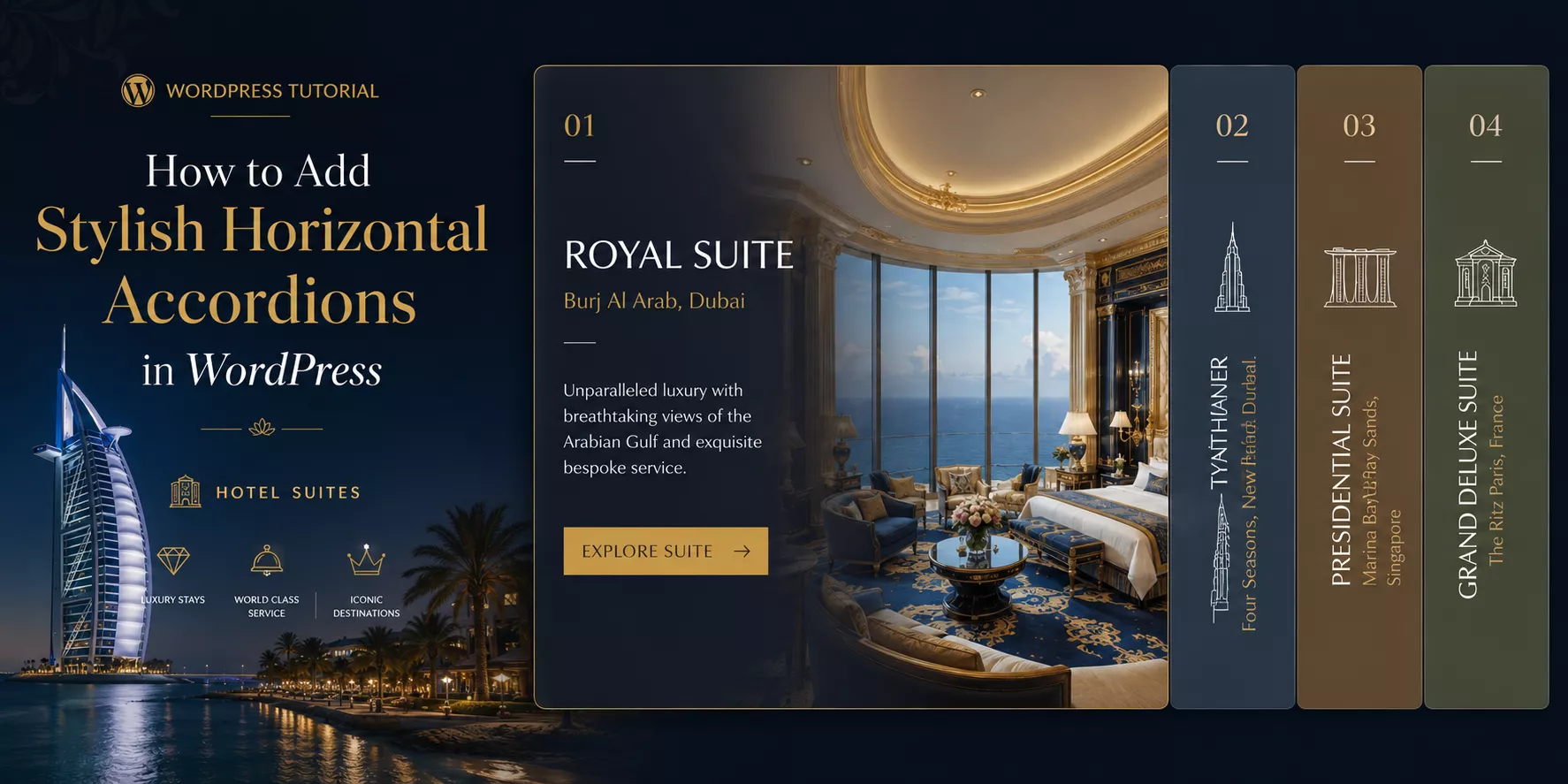
In this blog, I’ll show you the easiest method to add stylish horizontal accordions in WordPress in minutes. No code or complex prompt is needed.
Most WordPress users know accordions. But horizontal accordions? That is a different story.
A vertical accordion stacks content top to bottom. A horizontal accordion expands content side by side. It is a subtle difference that creates a dramatically different user experience.
This guide covers everything you need to know. You will learn what horizontal accordions are, the best use cases, the easiest way to build them in WordPress, and actionable design tips to make yours stand out.
TL;DR / Key Takeaways
- Horizontal accordions expand content side by side, not top to bottom.
- Horizontal accordions work best for visual story telling, booking steps, featured news/article/project/portfolio showcase, events showcase, speakers & performers showcase, etc. Want to learn more? read the details below.
- Easy Accordion is the easiest no-code way to add horizontal accordions in WordPress and WooCommerce. Only 3 simple steps– Choose a ready pattern, add your content, customize visually and publish in minutes.
- Good design, perfect contrast, and smooth animations make the biggest difference.
- Avoid overloading panels with text. Keep content concise and scannable.
- Besides Gutenberg, you can create accordions for Elementor, Divi, and all popular page builders with Easy Accordion.
What is a Horizontal Accordion?
A horizontal accordion is an interactive UI element. It displays a row of panels side by side. Each panel expands or collapses when a user clicks or hovers over it.
Think of it like a folder system laid flat. Instead of opening drawers one on top of another, you open them left to right.
Here is a simple breakdown:
- Vertical accordion: panels stack top to bottom (the traditional FAQ layout).
- Horizontal accordion: panels expand left to right (a modern, visual-first layout).
Horizontal accordions can display text, images, icons, or mixed media inside each panel. They are fully interactive and responsive when built with the right tool.
What are Key Use Cases of Horizontal Accordions
Horizontal accordions are not just pretty. They solve real layout problems. Here are the best scenarios to use them.
- Project Showcases
- Portfolio Showcases
- Image Galleries or Visual Storytelling
- Hotel Suite Categories Showcase
- Booking Steps Display
- Sequential Travel Destinations Display
- Event or Schedule Layouts
- Speakers & Performers Showcase
- News, Content, Service, & Product Highlights
- Product Features Showcase
- Team Members Showcase
- Portfolio Display
- Project Display
- Service Showcase
- Step-by-Step Processes Showcase
- Class & Categories Showcase
- Service or Offering Breakdown Showcase
- Product/Service Offerings or Features
- Timelines & Schedules
Best Method to Create Horizontal Accordions in WordPress
There are several ways to add horizontal accordions in WordPress. Let’s look at the key options.
Option 1: Custom CSS and JavaScript with AI (Advanced)
You can build a horizontal accordion from scratch with HTML, CSS, and JS using AI. This gives you full control.
However, it requires prompt engineering skill, coding knowledge to review, ongoing maintenance, and hours of work. A vague prompt or small CSS conflict can break the layout across your entire site.
Not ideal for most WordPress users.
Option 2: Easy Accordion Plugin (Best Method)
Easy Accordion is the most popular and beginner-friendly solution. It is a dedicated WordPress FAQ and accordion plugin trusted by 100,000+ WordPress sites.
It includes multiple Horizontal Accordion blocks and thoughtfully designed patterns by UX/ UI professionals.
Plus, it’s fully compatible with Elementor, Divi, WP Bakery, and all major page builders.
Here is why Easy Accordion stands out for horizontal accordions:
- Rich pattern library to import, customize, and publish in minutes
- No coding required to configure or style
- Visual customizer to control colors, dimensions, icons, and animations
- No matter your editor or builder, works for all
- Responsive design with custom breakpoints for every device
- Auto layout switch from horizontal to vertical on mobile (Pro)
- Works with WooCommerce for product-focused horizontal displays
- Accordion Slider for more content.
- Supports content types text, images, videos, product, and custom posts.
Easy Accordion holds a 4.9-star rating and has been trusted by WordPress users since 2015. It is the most reliable choice for building horizontal accordions without touching code.
Let’s Install Easy Accordion and choose ready patterns from a rich library to add stunning horizontal accordion effortlessly.
3 Simple Steps to Add a Horizontal Accordion
After installing the best wordpress accordion plugin, follow the 3 easy steps below to add an outstanding horizontal accordion in WordPress block editor.
Step 1: Choose a Ready Horizontal Accordion Pattern
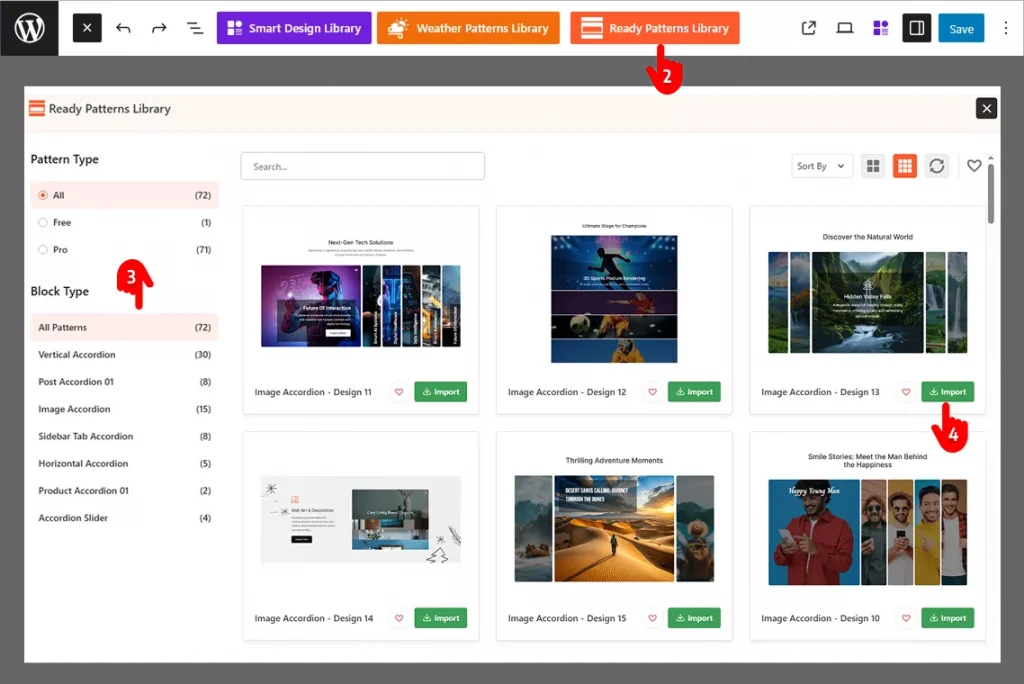
- Go to the page or post where you want to add the accordion.
- Click the Easy Accordion Library icon at the top of block editor.
- Find a horizontal accordion pattern that fits your needs.
- Click Import and it drops straight into your page.
Step 2: Add Your Image & Content
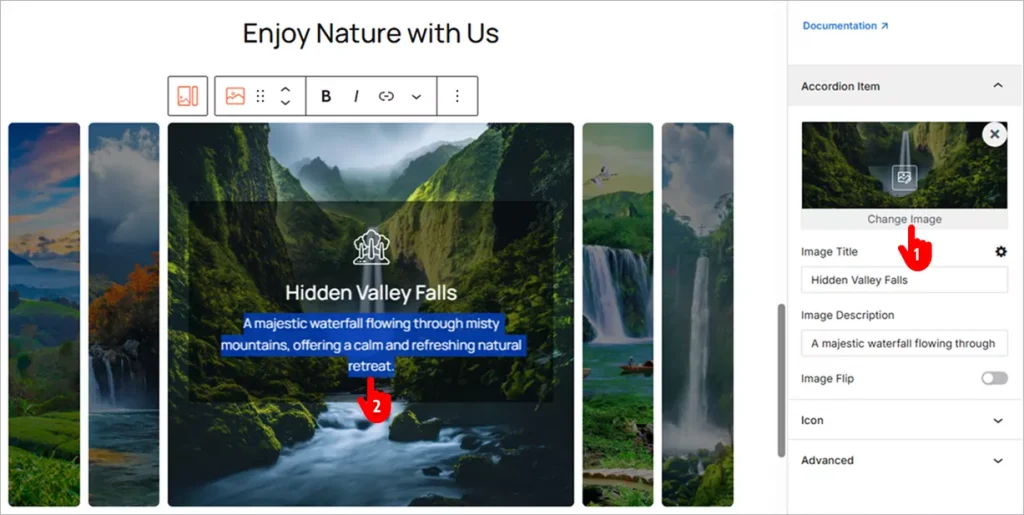
- Click “Change Image” in the right-side panel to upload your own image.
- Add your content just like you would in a Google Doc.
Step 3: Customize Visually and Publish Your Accordion
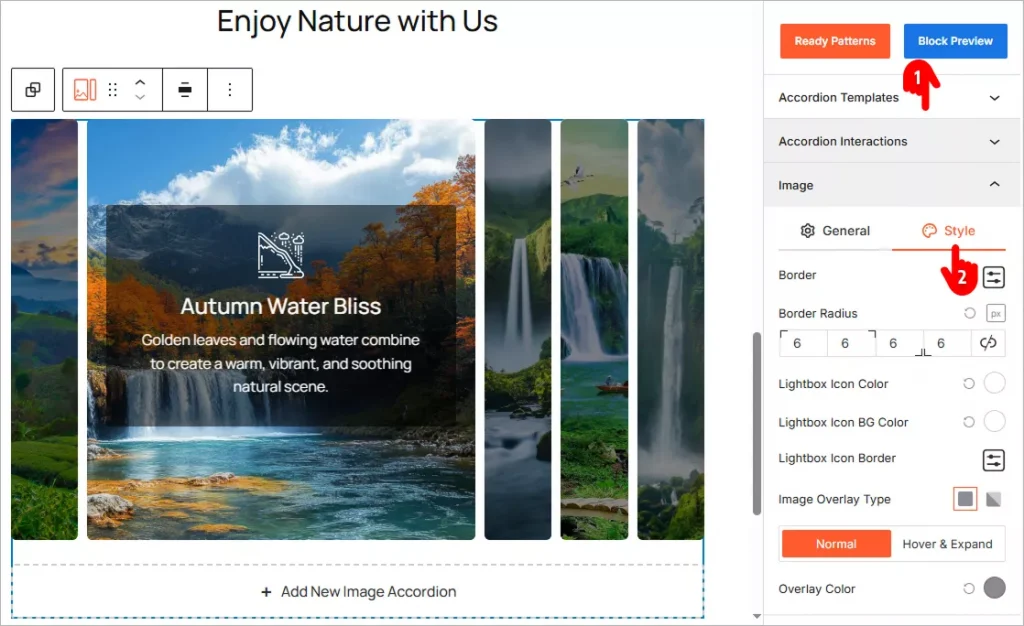
- Browse through the panels and explore all available features. Apply them based on your needs.
- Most panels include a Style tab. Use it to customize your Horizontal Accordion and match your brand’s look and feel.
- When you’re happy with your changes, click the Publish or Save button in the top-right corner.
Design Tips to Make Your Horizontal Accordions Stand Out
A horizontal accordion is only as good as its design. Follow these tips to create one that looks professional and performs well.
Use Strong Visual Contrast Between Panels
Each collapsed panel should look distinct from its neighbors. Use alternating background colors or clear border lines. Strong contrast helps users understand where one panel ends and another begins.
Keep Panel Labels Short and Descriptive
The collapsed state shows only the visual and panel label. Make it count. Use action words or clear topics. For example, use “Step 1: Plan” instead of “Planning Phase Overview.” Short labels scan faster and invite clicks.
What to do if your titles are not short anyway? use vertical orientation for the titles in collapsed mode.
Add Hover Animations for Interactivity Cues
Users need to know a panel is clickable. A subtle hover effect, like a color shift or slight scale, signals interactivity. Easy Accordion includes animation options you can enable without writing CSS.
Balance Panel Width with Content Length
Each panel should hold a manageable amount of content. If one panel has 500 words and another has 20, the layout feels off. Aim for roughly equal content depth across all panels.
Use High-Quality Images Inside Panels
For image-heavy accordions like portfolios or product showcases, image quality matters more than anywhere else. Blurry or low-resolution images kill credibility. Use crisp visuals sized correctly for the expanded panel width.
Set a Clear Expanded State
The open panel should look noticeably different from the closed ones. Use a stronger background color, bolder title text, or a shadow. Users should always know which panel is active.
Test on Mobile Before Publishing
Horizontal accordions can become cramped on small screens. Easy Accordion Pro includes an auto layout switch that converts horizontal accordions to vertical on mobile devices. Always preview your accordion on a phone before going live.
Match Your Brand Colors and Fonts
An accordion that clashes with your site design looks out of place. Use your brand color palette and match font choices to your theme. Easy Accordion’s visual editor makes this easy with direct color and typography controls.
Common Mistakes to Avoid
Even great ideas can fall flat with the wrong execution. Here are the most common horizontal accordion mistakes and how to sidestep them.
Mistake 1: Overloading Panels with Text
A horizontal accordion is a visual element. Stuffing each panel with paragraphs of text defeats the purpose. Keep content tight. Use bullet points, short sentences, and visuals instead of long-form copy.
Mistake 2: Using Too Many Panels
More than five or six panels starts to feel cramped on desktop and unusable on mobile. Limit yourself to four or five panels for the cleanest result. Group related content if needed.
Mistake 3: Skipping the Mobile Test
A horizontal layout that looks stunning on a 1440px monitor can break completely on a 375px phone screen. Always test responsiveness before publishing. Use a plugin that handles mobile adaptation automatically.
Mistake 4: Ignoring Load Speed
Animations and large images inside accordion panels can slow your page down. Easy Accordion is optimized for speed and performance. Still, compress your images and keep media file sizes in check.
Mistake 5: No Clear Call to Action Inside Panels
If a panel showcases a product, service, or feature, give the user somewhere to go next. Add a button or link inside the expanded panel. An accordion without a CTA is a missed conversion opportunity.
Mistake 6: Inconsistent Styling Across Panels
Every panel should follow the same visual rules. Mixing fonts, icon styles, or spacing between panels looks unprofessional. Set your styles once in Easy Accordion’s editor and apply them globally.
Mistake 7: Not Using Schema Markup
If your horizontal accordion contains FAQ content, missing schema markup means missing out on Google rich snippets and AI-generated answers. Easy Accordion automatically adds FAQ Schema Markup to help your content appear in search results and AI assistant responses.
Key Benefits of Using Horizontal Accordions
Here are the concrete benefits horizontal accordions deliver.
- Quick Content Scannability: Accordions, including horizontal ones, improve content scannability. Visitors can watch everything at a glance and scan the themes quickly.
- Stronger Visual Impact: A horizontal layout immediately looks different from a standard page. It grabs attention and keeps users engaged longer.
- Better Use of Screen Real Estate: Horizontal layouts use wide screens efficiently. They spread content across the full width instead of leaving whitespace on the sides.
- Improved User Experience: Interactive elements invite exploration. Users who interact with your content spend more time on your page and convert at higher rates.
- Reduced Page Length: Instead of scrolling through long sections, users access all content within one compact horizontal block. Less scrolling means faster decisions.
- Higher Conversion Rate: Horizontal accordions are highly interactive and playful with effects and animations that connect visitors and convert them more.
Final Words
Horizontal accordions are unique, stylish, interactive, and highly converting.
They look better. They work smarter. They convert your visitors.
The easiest way to get started is with Easy Accordion. It includes multiple dedicated Horizontal Accordion blocks and ready patterns, visual customizations, mobile-responsive design, and built-in Schema for SEO & GEO. No code required.
Let’s add a stunning horizontal accordion to your site and grow conversion.
FAQs from Taxonomies Demo: 01
Post Accordion: Auto-Display Blog Posts in Collapsible Sections
A post accordion lets you display latest blog posts in your WordPress website as collapsible sections that update automatically. Each panel header shows a post title; expanding it reveals the featured image, excerpt, date, and a read-more link. Because the accordion queries your posts dynamically, every new article you publish appears instantly — no manual updates required.
Every blog faces the same layout problem eventually: how do you showcase your growing archive without burying visitors in an endless feed? Standard “recent posts” widgets show five bare links. Full post grids, on the other hand, eat entire screens. However, there’s a middle path that gives you both compactness and rich previews — the post accordion.
In this guide, you’ll learn what a post accordion is, why it beats standard recent-post widgets, and how to set one up in minutes without touching code. Additionally, we’ll cover smart use cases, SEO implications, and design tips that turn a simple post list into a traffic-circulating machine. Let’s get started.
What Is a Post Accordion in WordPress?
A post accordion is a dynamic WordPress block that displays your blog posts as expandable, collapsible panels. Unlike a static list you build by hand, it pulls posts automatically from your database — filtered by category, tag, or recency — so the section always shows fresh content without any maintenance.
Think of it as a self-updating table of contents for your blog. Visitors scan the post titles in the collapsed headers, then expand only the articles that catch their interest to preview the featured image and excerpt. Consequently, one compact section can showcase ten or twenty posts in the space a traditional grid needs for three.
Modern accordion plugins ship this as a ready-made block. For instance, Easy Accordion‘s Post Accordion block queries your live posts inside the Gutenberg editor — you choose the source (latest, category, or hand-picked), set the count and order, toggle which elements appear, and publish. From that moment on, WordPress feeds the accordion forever.
Why Display Latest Blog Posts in Collapsible Sections?
Collapsible post sections solve three problems at once: they save space, they increase the number of posts a visitor actually sees, and they update themselves. Moreover, they keep readers exploring your site, which lifts pages per session — a signal that correlates with stronger engagement and better rankings.
Here’s the full case, benefit by benefit.
Show 3× More Posts in the Same Space
A typical three-column post grid displays three posts per screen. In contrast, an accordion lists ten or more titles in the same vertical space, because collapsed panels take one line each. Therefore, your best content earns visibility instead of hiding below the fold or behind pagination.
Set It Once, Update Never
Static “featured posts” sections rot silently — the moment you stop updating them, they showcase stale content. A post accordion, however, runs on a live query. Publish a new article, and it appears at the top of the accordion automatically. As a result, your homepage, sidebar, and hub pages stay perpetually fresh with zero maintenance.
Boost Internal Linking and Session Depth
Every expanded panel presents an excerpt and a read-more link — an internal link your visitors actually want to click. Internal links distribute page authority across your site and help crawlers discover new posts faster. Furthermore, readers who preview before clicking choose articles they genuinely want, so bounce rates on the destination posts improve too.
Give Readers Control (and Keep Them Longer)
Accordions embody progressive disclosure: show a little, reveal more on demand. Readers scan twenty titles in seconds, open two or three previews, and pick their next read — all without leaving the page. Consequently, the experience feels fast and respectful of attention, especially on mobile where screen space is precious.
Organize Content Hubs by Category
Building a topic hub or resource page? Stack multiple post accordions — one per category — under clear H2 headings. Each accordion auto-fills with that category’s latest articles. In other words, you build a living content hub once, and it curates itself from then on.
How to Auto-Display Latest Blog Posts in an Accordion (Step by Step)
To display your latest blog posts in collapsible sections, install a free accordion plugin with a post block, insert the Post Accordion block, choose your post source and count, toggle the elements each panel shows, style it, and publish. The whole setup takes about five minutes with no coding.
Here’s the exact walkthrough using Easy Accordion, whose free version includes the Post Accordion Gutenberg block.
Step 1: Install the Plugin
First, navigate to Plugins → Add New in your WordPress dashboard. Search for “Easy Accordion,” then install and activate it.
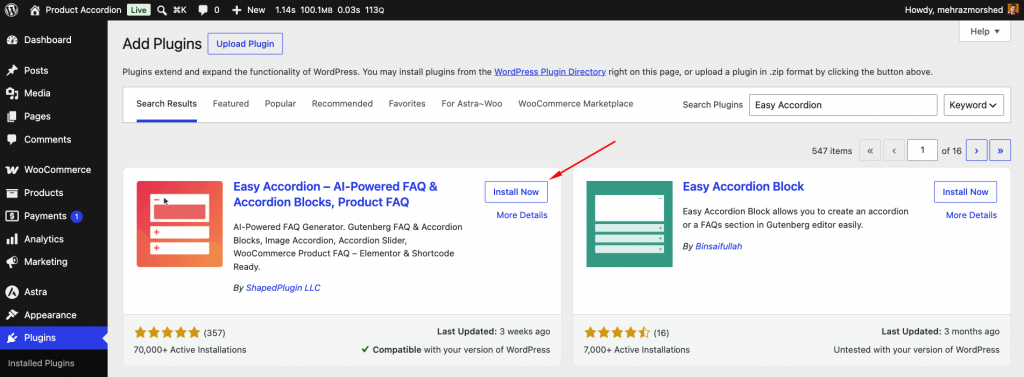
The plugin adds a dozen accordion blocks to your editor, including the dynamic Post Accordion.
Step 2: Insert the Post Accordion Block
Next, open the page or template where the post list belongs — your homepage, a sidebar via the widget editor, or a category hub page.
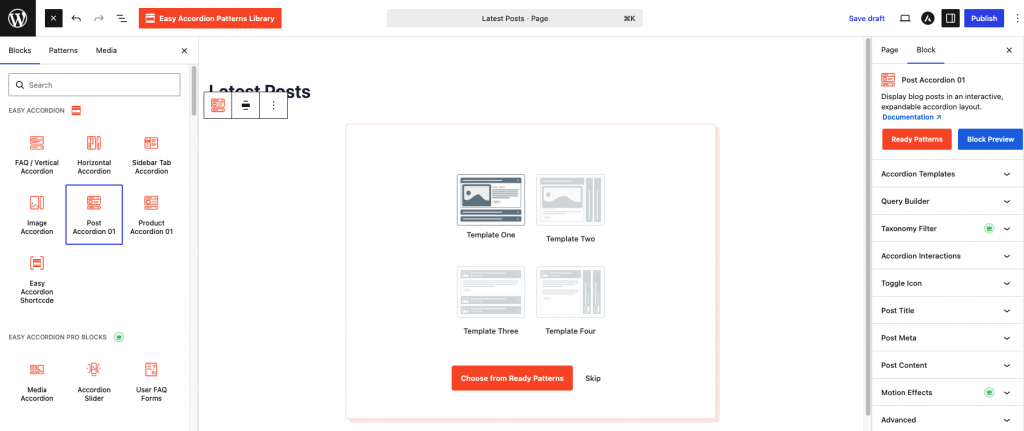
Click the block inserter, search for Post Accordion, and add it. Real posts from your site load into the preview immediately.
Step 3: Choose the Post Source and Order
Now, configure the query. Display the latest posts site-wide, filter by one or more categories, or select specific posts manually.
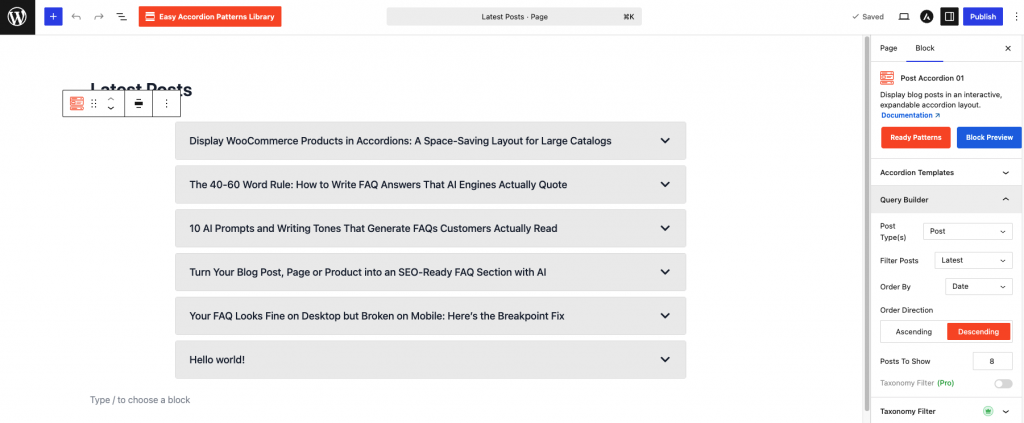
Then, set how many posts to show and the order — newest first, alphabetical, or most commented. For evergreen hubs, category filtering works best; for homepages, latest-first keeps things fresh.
Step 4: Toggle What Each Panel Shows
After that, decide what appears inside each expanded panel: featured image, excerpt, publish date, author, and the read-more button.
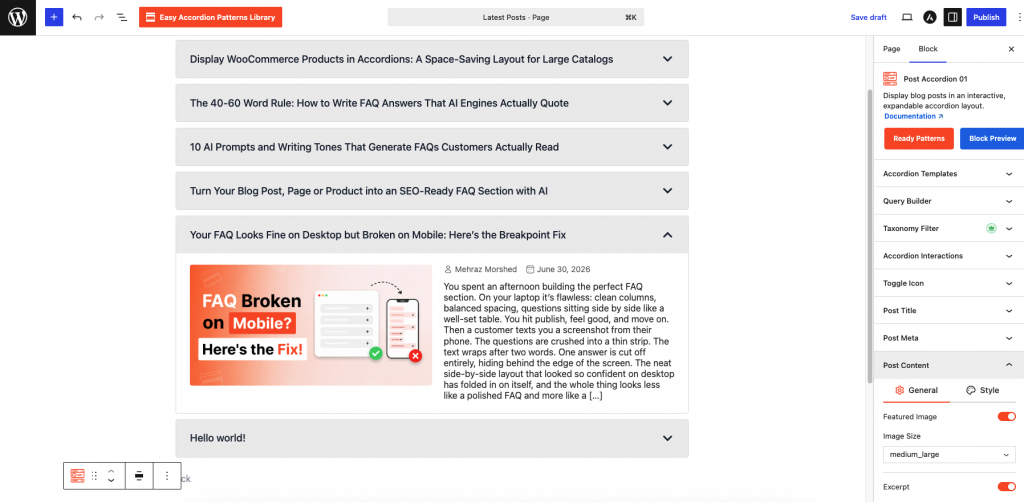
A proven combination for engagement is image + excerpt + read-more. Meanwhile, keep the collapsed header clean — the post title alone scans fastest.
Step 5: Style the Accordion
Then, match the design to your theme: expand/collapse icons, header background, typography, borders, and spacing.
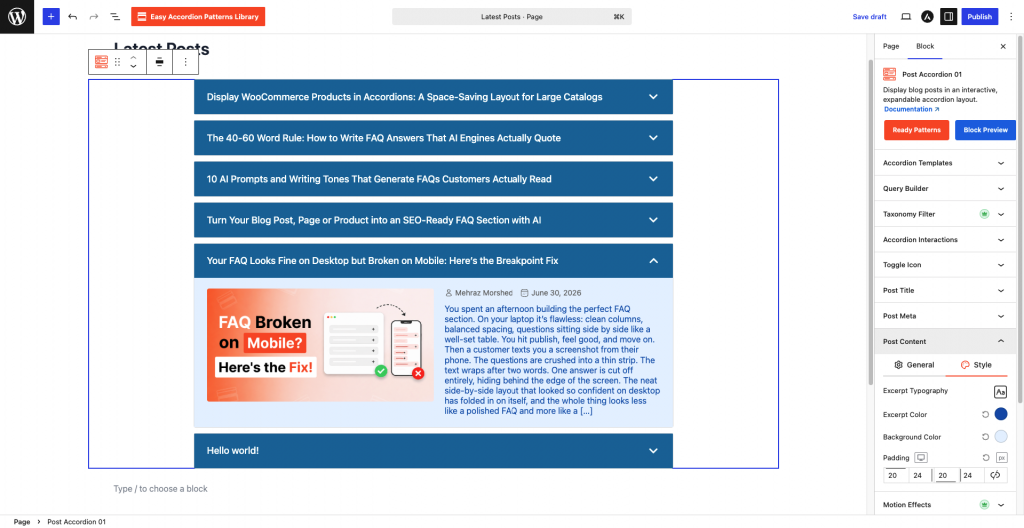
Consider opening the first panel by default so the section never looks empty, and choose a distinct hover state so visitors instantly recognize the headers as clickable.
Step 6: Publish and Verify Auto-Updates
Finally, publish the page. To confirm the dynamic behavior, publish a quick test post — it should appear in the accordion immediately. From here on, the section maintains itself: new posts flow in, the count stays constant, and the oldest entries rotate out automatically.
Does Putting Posts in Accordions Affect SEO?
No — content inside collapsed accordions is fully indexed by Google, provided it loads in the page’s initial HTML. Under mobile-first indexing, Google treats accordion and tab content as first-class, so your post titles, excerpts, and internal links all count.
In fact, the SEO effect is usually positive, for three reasons. First, every accordion panel adds a crawlable internal link to a recent post, which accelerates discovery and spreads link equity. Second, fresh post titles rotating through key pages send freshness signals on pages that would otherwise remain static. Third, the title-plus-excerpt structure creates clean, machine-readable content chunks — a format that AI answer engines parse easily when deciding what to cite.
One best practice, however: treat the accordion as a distribution layer, not a replacement for your blog archive. Keep your standard category and archive pages intact as primary crawl paths, and let the accordion amplify — not substitute — them.
Best Places to Use a Post Accordion
Placement determines impact. These spots deliver the most value:
Design Tips That Get More Posts Read
Small choices decide whether visitors expand panels or scroll past. Apply these:
Frequently Asked Questions
Does the post accordion update automatically when I publish?
Yes. The Post Accordion block runs a live query against your WordPress posts, so new articles appear the moment you publish them. The display count stays fixed, which means the newest post enters at the top while the oldest rotates out automatically.
Can I show posts from a specific category only?
Yes. Filter the accordion by one or multiple categories, tags, or a manual selection. This makes it ideal for topic hub pages — each accordion pulls only its own category’s latest posts, so every hub curates itself without manual updates.
Will the posts inside the accordion be indexed by Google?
Yes. Google fully indexes accordion content under mobile-first indexing, as long as it loads in the initial HTML — which block-based post accordions do. Additionally, every panel’s read-more link acts as a crawlable internal link that helps new posts get discovered faster.
Can I use the post accordion in my sidebar or footer?
Yes. Insert the block through the WordPress widget editor (Appearance → Widgets) or your theme’s template parts. A compact post accordion makes an excellent replacement for the default Recent Posts widget, because it adds image and excerpt previews in barely more space.
What’s the difference between a post accordion and a recent posts widget?
A recent posts widget shows plain title links only. A post accordion adds expandable previews — featured image, excerpt, date, and a read-more button — while occupying similar collapsed space. Consequently, visitors preview before clicking, which increases both click quality and pages per session.
Does it work with Elementor and other page builders?
Yes. Easy Accordion integrates with Elementor, Divi, Beaver Builder, Bricks, Oxygen, and WPBakery in addition to the native Gutenberg block. Therefore, you can drop the same auto-updating post accordion into any layout system your site already runs.
Let Your Blog Promote Itself
Your archive is full of articles that deserve a second life — the only thing missing is a layout that surfaces them automatically. A post accordion delivers exactly that: compact, rich, self-updating previews of your latest content, placed wherever readers make their “what next?” decision.
Here’s your action plan. Add a Post Accordion block to your homepage set to your ten latest posts, open the first panel by default, and include images with two-line excerpts. Then, build one category-filtered accordion on your most important hub page. Check your pages-per-session metric after two weeks — when readers can preview before they click, they click more, and they stay longer.
Ready to set it up? Install Easy Accordion for free, insert the Post Accordion block, and let your latest posts display themselves from today onward.
Display WooCommerce Products in Accordions: A Space-Saving Layout for Large Catalogs
A WooCommerce product accordion displays your products inside collapsible panels — each panel opens to reveal the product image, price, description, and add-to-cart button. As a result, a catalog of 50, 100, or 500 products fits into a compact, scannable layout instead of an endless grid, which reduces scroll fatigue and helps shoppers find products faster.
Large catalogs create a painful paradox: the more products you add, the harder each one becomes to find. Standard WooCommerce grids force shoppers to scroll through row after row, most visitors have already left. However, there’s a smarter layout hiding in plain sight — the accordion.
In this guide, you’ll learn what a product accordion is, why it outperforms endless grids for large catalogs, and how to add one to your WooCommerce store in minutes without writing code. Furthermore, we’ll cover the SEO question everyone asks (“does collapsed content hurt rankings?”), the best use cases, and design tips that lift conversions. Let’s dive in.
What Is a WooCommerce Product Accordion?
A WooCommerce product accordion is a collapsible layout that lists products as expandable panels. Each panel header shows the product name (and optionally a thumbnail or price), while the expanded panel reveals the full details — image, description, price, and an add-to-cart button — without leaving the page.
In other words, it works like an interactive table of contents for your catalog. Shoppers scan the headers, expand only the products that interest them, and add items to the cart on the spot. Consequently, one screen of accordion panels can present the same inventory that would otherwise require ten screens of grid scrolling.
Modern accordion plugins pull products dynamically from WooCommerce. For example, Easy Accordion‘s Product Accordion block queries your live store — by category, latest, or custom selection — so prices, stock status, and images stay in sync automatically. You configure the layout once; WooCommerce feeds it forever.
Why Use Accordions for Large Product Catalogs?
Accordions solve the four biggest problems of large catalogs: endless scrolling, slow page perception, decision paralysis, and mobile clutter. Additionally, they keep shoppers on a single page, which preserves momentum toward the add-to-cart click.
Let’s look at each benefit in detail.
They Cut Scroll Depth Dramatically
A 100-product grid at four columns still forces 25 rows of scrolling. In contrast, a categorized accordion shows perhaps eight category panels on one screen. Shoppers reach any product in two clicks instead of twenty swipes. Less scrolling means less abandonment — especially on mobile, where over 60% of ecommerce traffic now lives.
They Reduce Decision Paralysis
Psychology research on choice overload is consistent: when people face too many visible options at once, they choose nothing. An accordion presents choices progressively — category first, then products — so each decision stays small. Therefore, the shopper moves forward instead of freezing at a wall of thumbnails.
They Improve Perceived Performance
A compact product accordion renders a lighter first screen than a massive image grid, and well-built accordion plugins lazy-load panel content. As a result, the page feels faster, Core Web Vitals improve, and shoppers on slow connections stay engaged instead of bouncing during load.
They Keep Shoppers on One Page
Every extra page load between “interested” and “purchased” leaks revenue. Because a product accordion includes the add-to-cart button inside each panel, shoppers browse, compare, and buy from a single URL. Moreover, fewer navigation hops mean cleaner analytics and simpler funnels.
They Organize Related Products Naturally
Product accordions mirror how customers think: “show me the coffee makers… now show me the grinders.” Grouping products under expandable category headers matches that mental model perfectly, whereas a flat grid forces the customer to do the sorting in their head.
How to Display WooCommerce Products in an Accordion (Step by Step)
To display product accordion, install a free accordion plugin with a product block, insert the Product Accordion block on any page, choose which products to pull (by category, latest, or manual selection), style the panels, and publish. The setup takes about five minutes and requires zero code.
Here’s the full walkthrough using Easy Accordion, whose free version includes a dedicated Product Accordion Gutenberg block.
Step 1: Install the Plugin
First, go to Plugins → Add New in your WordPress dashboard, search for “Easy Accordion,” then install and activate it.
The plugin detects WooCommerce automatically, so the product-specific blocks appear in your block library right away.
Step 2: Insert the Product Accordion Block
Next, open the page where you want the catalog — a shop landing page, a category hub, or even your homepage. Click the block inserter, search for Product Accordion, and add it.
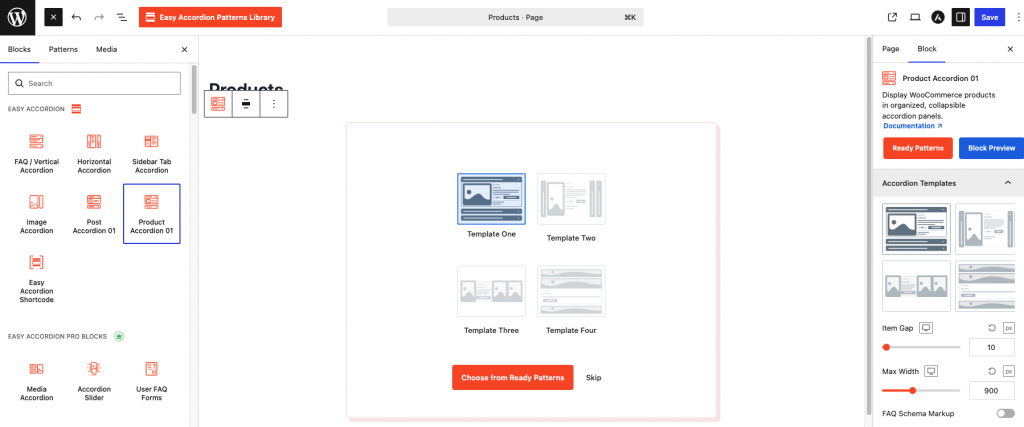
A live preview appears immediately inside the editor, so you see real products as you configure.
Step 3: Choose Your Product Source
Now, decide what the accordion pulls in. Query products by category (ideal for organizing a large catalog into collapsible sections), display the latest or featured products, or hand-pick specific items.
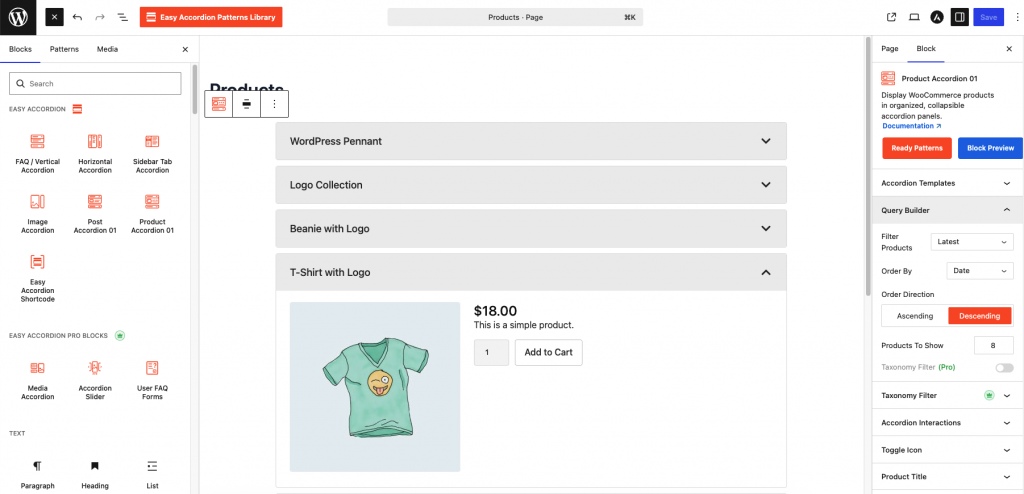
Additionally, set the product count and ordering — newest first, price, popularity, or menu order.
Step 4: Configure What Each Panel Shows
After that, toggle the elements inside each panel: product image, price, short description, and the add-to-cart button.
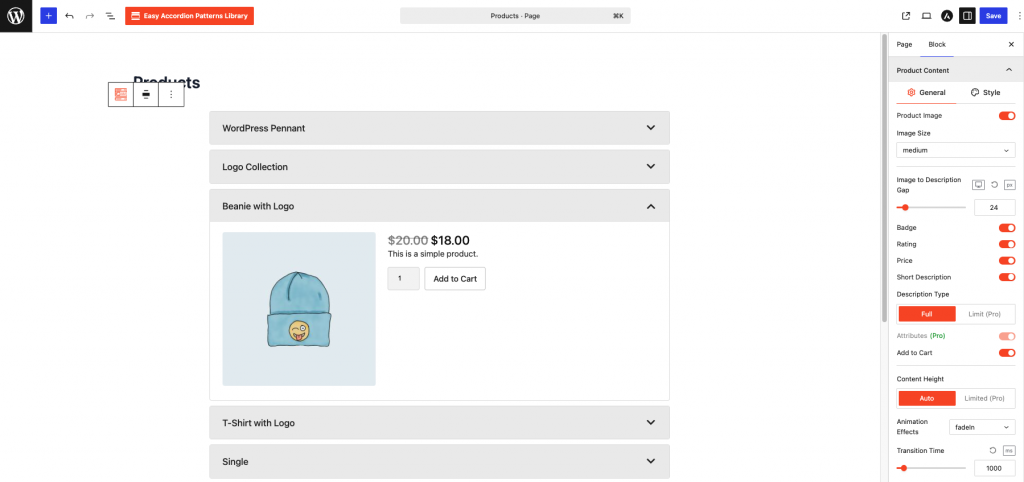
For large catalogs, a clean combination works best — thumbnail plus price in view, full description and buy button on expand. Consequently, headers stay scannable while panels stay persuasive.
Step 5: Style the Accordion
Then, adjust the look: expand/collapse icons, header colors, borders, spacing, and typography. Match your theme’s buttons so the add-to-cart CTA feels native.
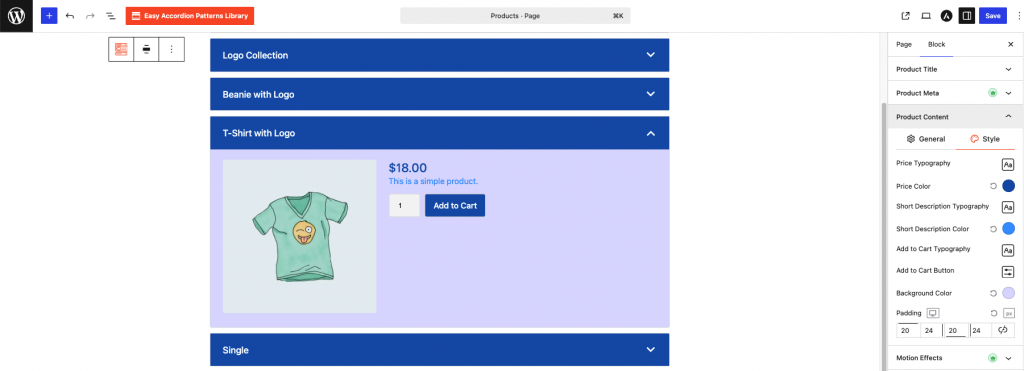
Prefer a different structure? Switch between one-column and multi-column layouts, or set the first panel to open by default so the section never looks empty.
Step 6: Publish and Test on Mobile
Finally, publish and open the page on your phone.

Check three things: headers are tappable with a thumb, panels expand smoothly, and the add-to-cart button sits above the fold inside each opened panel. Because most catalog browsing happens on mobile, this two-minute test protects the majority of your revenue.
Does Hiding Products in Accordions Hurt SEO?
No — Google fully indexes content inside collapsed accordions. Under mobile-first indexing, Google confirmed that content hidden for user experience (tabs, accordions, expandable sections) receives full weight, as long as the text loads in the page HTML rather than after a click.
That said, two implementation details matter. First, use an accordion that renders product content server-side or in the initial markup — not one that fetches panel content only when clicked, because crawlers may never trigger that fetch. Second, keep your standard WooCommerce category and product pages live; the accordion is a presentation layer for browsing, while individual product URLs remain your primary ranking assets.
There’s a bonus, too. Accordion layouts naturally structure content as headers and grouped details — a machine-friendly pattern that AI answer engines parse easily. Furthermore, if you pair product accordions with an FAQ accordion (with FAQ schema) on the same page, you cover both transactional queries and question-based queries that surface in People Also Ask and AI Overviews.
Best Use Cases for Product Accordions
Product accordions shine in specific scenarios. Prioritize these:
Design Tips That Lift Conversions
Layout alone doesn’t sell; details do. Apply these proven tweaks:
Frequently Asked Questions
Can I display WooCommerce products in an accordion without coding?
Yes. A free plugin like Easy Accordion adds a Product Accordion block to the WordPress editor. You insert the block, choose products by category or selection, toggle the image, price, and add-to-cart button, then publish — no PHP, shortcode building, or template edits required.
Does the accordion update automatically when products change?
Yes. The Product Accordion block queries WooCommerce dynamically, so prices, images, stock status, and new products sync automatically. Change a price in WooCommerce, and every accordion displaying that product updates instantly — you never maintain the layout manually.
Will collapsed products still be indexed by Google?
Yes. Google fully indexes content inside collapsed accordions under mobile-first indexing, provided the content loads in the initial HTML. Keep your regular product pages live as primary ranking URLs, and treat the accordion as a browsing layer that improves user experience.
Can shoppers add products to the cart from the accordion?
Yes. Each expanded panel can include a native add-to-cart button, so shoppers buy without leaving the page. Fewer page loads between discovery and purchase means less drop-off — particularly on mobile connections, where every extra load costs conversions.
Is an accordion better than a product grid?
It depends on catalog size and intent. Grids suit small, visual collections where images sell (fashion, art). Accordions win for large, categorized catalogs — menus, parts, wholesale lists — where shoppers scan by name or category first and view details second.
Does the product accordion work with Elementor and other page builders?
Yes. Easy Accordion integrates with Elementor, Divi, Beaver Builder, Bricks, Oxygen, and WPBakery, alongside the native Gutenberg block. Consequently, you can drop the same dynamic product accordion into any layout your site already uses.
Give Your Catalog Room to Breathe
A big catalog is an asset — until the layout turns it into a wall. Product accordions flip that equation: they compress hundreds of products into a scannable, categorized, one-page experience where shoppers expand exactly what interests them and buy on the spot.
Here’s your action plan. Pick your largest category page, install a free accordion plugin, and rebuild the page with a Product Accordion block grouped by subcategory. Then, open the first panel by default, show prices in the headers, and add an FAQ accordion with schema at the bottom. Finally, compare scroll depth and add-to-cart rates against the old grid after two weeks — the numbers will make the decision for you.
Ready to try it? Install Easy Accordion for free, insert the Product Accordion block, and turn your endless grid into a space-saving catalog today.
The 40-60 Word Rule: How to Write FAQ Answers That AI Engines Actually Quote
The 40-60 word rule is simple: answer every FAQ question directly, completely, and in 40 to 60 words, placed immediately after the question heading. That length gives Google’s Featured Snippets, AI Overviews, ChatGPT, and Perplexity a clean, self-contained block they can extract and quote — which makes your brand the answer instead of just another link.
Search behavior has fundamentally changed. Today, more than 60% of Google searches end without a click, because users get their answers directly from AI Overviews, Featured Snippets, and chatbots. Consequently, the question is no longer “How do I rank #1?” but rather “How do I become the sentence the AI reads out loud?”
The answer, in most cases, comes down to how you write FAQ answers. In this guide, you’ll learn exactly why the 40-60 word rule works, how to structure quotable answers step by step, and which mistakes silently disqualify your content from AI citations. Let’s get into it.
What Is the 40-60 Word Rule?
The 40-60 word rule is a content writing principle for answer engine optimization (AEO): every question-based heading should be followed by a direct, standalone answer of roughly 40 to 60 words. The answer must make complete sense on its own, without the reader — or the AI — needing any surrounding context.
Think of it as writing the quote before the journalist asks for it. Search engines and large language models scan your page for extractable chunks. Therefore, when your answer arrives pre-packaged at the ideal length, you remove every barrier between your content and the citation.
Notably, this isn’t guesswork. Study after study of Featured Snippets shows that Google’s paragraph snippets average around 40-60 words. Moreover, AI systems like ChatGPT and Perplexity favor concise, declarative passages they can lift with minimal editing. The rule simply aligns your writing with how machines already select answers.
Why Do AI Engines Prefer 40-60 Word Answers?
AI engines prefer 40-60 word answers because that length is long enough to be complete yet short enough to be extractable. Shorter answers often lack essential context, while longer ones bury the answer in detail the AI must trim — and trimming risks distortion, so the AI usually picks a cleaner source instead.
Let’s unpack the mechanics behind this.
1. Retrieval Systems Work in Chunks
Answer engines use retrieval-augmented generation (RAG): they fetch relevant passages from the web, then synthesize a response. Crucially, they retrieve chunks, not whole pages. A tight 50-word answer forms a perfect chunk. In contrast, a 300-word ramble splits across chunks and loses coherence during retrieval.
2. Snippet Real Estate Is Fixed
Featured Snippets and voice assistant responses have hard display limits. Google’s paragraph snippets truncate around 300 characters — almost exactly 45–55 words. As a result, an answer written to that length appears in full, while a longer one gets cut mid-sentence, which looks broken and reduces click-through.
3. Confidence Beats Length
AI systems weigh how certain a passage sounds. Direct, declarative openings (“Yes, FAQ schema still works in 2026 because…”) signal confidence. However, hedge-filled introductions (“There are many factors to consider when thinking about…”) signal filler. Machines skip filler, and frankly, so do humans.
4. The Answer Survives Paraphrasing
LLMs rarely quote verbatim; instead, they paraphrase. A compact answer with one clear claim survives paraphrasing intact, so your fact — and often your brand name — travels into the AI’s response. A sprawling answer, on the other hand, gets blended with other sources until your contribution disappears.
How to Write FAQ Answers That AI Engines Quote (Step by Step)
To write quotable FAQ answers, phrase the heading as a real user question, open with the direct answer in the first sentence, expand to 40-60 words with one supporting fact, use active voice throughout, and mark the whole section up with FAQ schema. Follow these six steps every time.
Step 1: Start with a Question People Actually Ask
First, mine real queries instead of inventing them. Check Google’s People Also Ask boxes, your site search logs, support tickets, and product reviews. Then, phrase your heading exactly the way users phrase it — “Does FAQ schema still work?” beats “FAQ Schema Efficacy Considerations” every single time.
Step 2: Answer in the Very First Sentence
Next, resist the urge to warm up. Your first sentence must contain the answer: yes or no, the number, the definition, the recommendation. Everything after sentence one is support. This “answer-first” structure mirrors the inverted pyramid journalists use, and it’s precisely what extraction algorithms scan for.
Step 3: Add One Fact, Then Stop
After the direct answer, add a single supporting element — a statistic, a reason, or a brief example. Consequently, you land naturally in the 40-60 word rule. If you’re tempted to add a second paragraph, put it below the core answer as optional depth. The AI quotes the top; humans who want more keep reading.
Step 4: Write in Active Voice with Concrete Subjects
Active voice shortens sentences and clarifies who does what. Compare: “Schema markup should be added by site owners” versus “Add schema markup to every FAQ section.” The second version is shorter, clearer, and far more quotable. Additionally, use concrete subjects — name the tool, the platform, the number.
Step 5: Make Every Answer Self-Contained
Never write answers that depend on earlier context. Pronouns like “it” or “this method” break extraction, because the AI may retrieve your answer without the preceding paragraph. Instead, restate the subject: “The 40-60 word rule works because…” reads perfectly even in isolation.
Step 6: Wrap It in FAQ Schema Markup
Finally, add FAQPage structured data (JSON-LD) so machines don’t have to guess where questions end and answers begin. If you use WordPress, an FAQ plugin like Easy Accordion generates this schema automatically for every accordion item — and its AI generator can even draft the 40-60 word answers from your existing content, ready for your final edit.
Before and After: The 40-60 Word Rule in Action
Theory is nice; examples are better. Here’s the same FAQ answer written both ways.
❌ Before (112 words, buried answer): “When it comes to the question of whether accordions are bad for SEO, there are quite a few things that need to be taken into consideration. Historically, some SEO professionals believed that content hidden inside collapsed elements might be devalued by search engines, and this belief was based on older statements…”
✅ After (52 words, answer-first): “No, accordions do not hurt SEO. Google fully indexes content inside collapsed accordions under mobile-first indexing, and it ranks that content normally. In fact, accordions can improve SEO indirectly, because they reduce scroll depth and improve user experience. Just ensure the content loads in the HTML rather than after a click.”
Notice the difference? The second version answers instantly, cites a mechanism, and stands alone. That’s the version an AI engine quotes.
Where Should You Apply the 40–60 Word Rule?
Apply the 40-60 word rule anywhere a machine might extract an answer: FAQ sections, the opening paragraph under every H2, product page Q&As, definition boxes, and “What is X?” intros. In short, treat every question-based heading on your site as a snippet opportunity.
Priority targets include:
Common Mistakes That Disqualify Your Answers
Even well-written answers lose citations to avoidable errors. Watch for these:
Frequently Asked Questions
Is the 40-60 word rule an official Google guideline?
No, Google has never published an official word count. However, the 40-60 word rule comes from large-scale analyses of Featured Snippets, which consistently average around 45–55 words. It’s an evidence-based best practice, not a rulebook requirement — completeness and clarity always outrank exact word counts.
Does the rule apply to ChatGPT and Perplexity, or just Google?
It applies across platforms. ChatGPT, Perplexity, Gemini, and Copilot all retrieve and synthesize concise passages more reliably than long ones. Additionally, short self-contained answers survive paraphrasing, so your facts reach users intact regardless of which AI engine handles the query.
Can I still write long-form content with this rule?
Absolutely — the rule shapes your openings, not your depth. Lead each section with a 40-60 word direct answer, then expand with examples, data, and nuance below it. As a result, you serve extraction algorithms and thorough human readers on the same page.
How do I count words without obsessing over it?
Aim for two to four sentences and roughly 250–300 characters, then move on. The range is a target zone, not a hard limit; a complete 38-word answer beats a padded 60-word one. Most editors and SEO plugins display word counts, so a quick glance suffices.
Do I need FAQ schema for the rule to work?
The rule improves extraction even without schema, but combining both multiplies your results. FAQ schema explicitly labels each question-answer pair in machine-readable JSON-LD, which increases eligibility for People Also Ask, AI Overviews, and chatbot citations. WordPress FAQ plugins add this markup automatically.
How many FAQ answers should one page have?
Five to eight focused questions serve most pages best. That range covers genuine user doubts without diluting topical focus. For pillar guides or complex products, extend to ten or twelve — but every question must relate directly to the page’s core topic.
Write the Quote You Want to Hear
AI engines don’t reward the longest answer or the cleverest one. Instead, they reward the clearest — the passage they can lift, trust, and attribute without effort. The 40-60 word rule turns that machine preference into a repeatable writing habit: question heading, answer first, one supporting fact, active voice, schema markup.
So here’s your action plan. Open your five most important pages, find every question-based heading, and rewrite the first paragraph under each to 40-60 words. Then, wrap those sections in FAQ schema. Within weeks, you’ll start seeing your sentences — and your brand — inside the answers people actually read.
Want to speed this up? A WordPress FAQ plugin with an AI generator, like Easy Accordion, drafts schema-ready FAQ answers from your existing content in seconds. You apply the 40-60 word polish; the plugin handles the structure.
10 AI Prompts and Writing Tones That Generate FAQs Customers Actually Read
The best AI prompts for FAQs combine three ingredients: a specific content source, a clearly named writing tone, and a strict output format. When you give ChatGPT or Gemini all three, the AI produces question-and-answer pairs that sound human, answer real objections, and slot straight into an SEO-ready FAQ section.
Most FAQ pages fail for the same reason: they read like a legal department wrote them. Customers skim two questions, feel nothing, and open a support ticket anyway. However, the fix isn’t writing harder, it’s prompting smarter. Because tone is the difference between an FAQ people read and an FAQ people skip, every prompt below pairs a proven structure with a specific writing tone.
In this guide, you’ll get 10 copy-paste AI prompts mapped to 10 writing tones, professional, friendly, conversational, technical, persuasive, supportive, and more. Additionally, you’ll learn when to use each tone, how to keep AI answers accurate, and how to publish the results with FAQ schema so search engines and AI answer engines can quote them. Let’s start.
What Makes a Good AI Prompt for FAQ Generation?
A good FAQ prompt specifies four things: the source content the AI must base answers on, the audience, the writing tone, and the output rules (question count, answer length, and format). Vague prompts like “write FAQs about my product” produce generic filler; specific prompts produce publishable drafts.
Before you copy the prompts below, remember the golden rules that make all of them work:
The 10 AI Prompts and Writing Tones (Copy-Paste Ready)
Now, here are the 10 prompts.
1. The Professional Tone — For Service Pages and B2B
When to use it: law firms, agencies, SaaS pricing pages, and anywhere credibility drives conversion.
Prompt:
Act as a senior content strategist. Using only the content below, generate 6 FAQs for a B2B audience evaluating this service. Write in a professional, confident tone — no slang, no exclamation marks. Phrase each question exactly as a potential client would ask it. Answer directly in the first sentence, keep each answer 40–60 words, and end each answer with a concrete detail (number, timeframe, or deliverable). Content: [PASTE CONTENT]
Why it works: the “answer directly in the first sentence” instruction forces the inverted-pyramid structure that both busy executives and AI engines prefer.
2. The Friendly Tone — For Ecommerce Product Pages
When to use it: WooCommerce product FAQs, lifestyle brands, and anything customers buy on emotion first.
Prompt:
You are a helpful shop assistant who genuinely loves this product. From the product details below, write 6 FAQs a first-time buyer would ask before purchasing (shipping, sizing, materials, returns, compatibility). Use a warm, friendly tone with simple words a 12-year-old understands. Keep answers 40–60 words, lead with the answer, and never oversell. Product details: [PASTE CONTENT]
Why it works: naming real pre-purchase objection categories (shipping, sizing, returns) stops the AI from inventing irrelevant questions.
3. The Conversational Tone — For Blog Post FAQs
When to use it: adding an FAQ section to how-to guides, listicles, and pillar articles.
Prompt:
Read the article below. Identify the 5 follow-up questions a reader would most likely type into Google or ChatGPT after finishing it. Write each question in natural, conversational language, then answer in a relaxed, human tone — contractions welcome. Each answer must stand alone without the article’s context, run 40–60 words, and start with the direct answer. Article: [PASTE CONTENT]
Why it works: asking for follow-up questions creates FAQs that extend the article instead of repeating it, exactly what People Also Ask boxes reward.
4. The Informative Tone — For Knowledge Bases and Wikis
When to use it: help centers, documentation hubs, and evergreen explainer pages.
Prompt:
Act as a knowledge-base editor. From the content below, produce 8 FAQs that cover the topic completely for a reader with zero prior knowledge. Use a neutral, informative tone — facts first, no marketing language. Define any technical term the first time it appears. Answers: 40–60 words, direct answer first, one fact or example each. Content: [PASTE CONTENT]
Why it works: the “zero prior knowledge” constraint surfaces the basic questions experts forget to answer, often the highest-volume search queries.
5. The Technical Tone — For Developer Docs and Specs
When to use it: APIs, plugins, hardware specs, and integration pages.
Prompt:
You are a senior technical writer. Based on the documentation below, generate 6 FAQs an experienced developer would ask before implementation. Use precise technical language, exact version numbers, and correct terminology — no simplification. Where relevant, mention limits, requirements, or compatibility. Answers: 40–60 words, declarative, answer-first. Documentation: [PASTE CONTENT]
Why it works: granting permission to stay technical prevents the AI’s default habit of dumbing down, which developers find patronizing and search engines find thin.
6. The Persuasive Tone — For Landing and Pricing Pages
When to use it: conversion pages where every FAQ must neutralize an objection.
Prompt:
Act as a conversion copywriter. From the offer below, write 6 FAQs that each address one specific purchase objection (price, trust, results, effort, alternatives, risk). Answer persuasively but honestly: acknowledge the concern in a few words, then resolve it with a fact, guarantee, or comparison. Keep answers 40–60 words, answer-first, no hype words like ‘revolutionary.’ Offer details: [PASTE CONTENT]
Why it works: mapping one FAQ to one objection turns your FAQ section into a silent sales team instead of a formality.
7. The Supportive Tone — For Sensitive Topics
When to use it: healthcare, finance, legal issues, and any topic where customers arrive anxious.
Prompt:
You are an empathetic support specialist. Using the information below, create 6 FAQs for someone who feels worried or overwhelmed about this topic. Use a calm, supportive tone: validate the concern in the first few words, then give a clear, reassuring, factual answer. Never minimize the problem. Answers: 40–60 words, plain language, direct answer early. Information: [PASTE CONTENT]
Why it works: the validate-then-answer pattern lowers bounce rates on high-anxiety pages, and the factual constraint keeps the empathy from turning into fluff.
8. The Documentation Style — For Step-by-Step Processes
When to use it: setup guides, onboarding flows, and “how do I…” queries.
Prompt:
Act as a documentation specialist. From the process described below, generate 6 ‘How do I…’ FAQs. Answer each with a compressed step sequence: ‘Go to X, click Y, then Z.’ Use imperative verbs, name exact menu labels and button names, and keep each answer 40–60 words. If a step has a common failure point, mention the fix in one sentence. Process: [PASTE CONTENT]
Why it works: “How do I” questions dominate voice search and chatbot queries, and compressed step answers are what AI assistants read aloud.
9. The Beginner-Friendly Tone — For Tutorials and Onboarding
When to use it: courses, starter guides, and any audience new to your field.
Prompt:
You are a patient teacher explaining this to a complete beginner. From the content below, write 6 FAQs a total newcomer would be embarrassed to ask. Use short sentences, everyday analogies, and zero jargon — if a technical term is unavoidable, explain it in brackets. Answers: 40–60 words, answer-first, encouraging but not condescending. Content: [PASTE CONTENT]
Why it works: “embarrassed to ask” is a powerful framing trick; it reliably surfaces the long-tail beginner queries competitors overlook.
10. The Balanced Tone — The All-Purpose Default
When to use it: mixed audiences, homepages, and whenever you’re unsure which tone fits.
Prompt:
Using only the content below, generate 7 FAQs for a general audience. Use a balanced tone: professional enough to trust, warm enough to enjoy. Phrase questions as real users would type them into a search engine. Every answer must open with the direct answer, run 40–60 words, contain one concrete fact, and make sense in isolation. Output as a numbered Q&A list. Content: [PASTE CONTENT]
Why it works: this is the safest starting point, generate with the balanced prompt first, then regenerate individual answers in a stronger tone where the page demands it.
How Do You Use These Writing Tones Inside WordPress?
You don’t have to paste prompts into ChatGPT manually. Easy Accordion‘s AI FAQ generator builds these tones into a dropdown, Balanced, Professional, Friendly, Conversational, Informative, Technical, Persuasive, Supportive, Documentation Style, and Beginner-Friendly, and generates FAQs directly inside the Gutenberg editor.
The workflow takes about two minutes. First, insert an FAQ accordion block and click Generate FAQs with AI. Next, choose your content source, a page, post, or WooCommerce product, so the AI grounds every answer in your real content. Then, pick a writing tone and one of 17 output languages, set the question count, and generate. Finally, edit the drafts, drag them into order, and publish; the plugin adds FAQ schema markup (JSON-LD) automatically, so Google and AI answer engines can parse every question and answer.
Consequently, the prompts above become even simpler in practice: the plugin handles the structure and schema, while the tone dropdown replaces the tone instructions.
Best Practices: Keep AI-Generated FAQs Accurate and Readable
AI accelerates drafting, but publishing remains your responsibility. Follow these rules every time:
Frequently Asked Questions
Do these prompts work with ChatGPT, Gemini, and DeepSeek?
Yes. All 10 prompts use plain-language instructions that every major model follows, ChatGPT, Gemini, Claude, and DeepSeek included. Results vary slightly by model, so regenerate once or twice and keep the best draft. Inside Easy Accordion, Gemini powers the free version, while Pro adds ChatGPT and DeepSeek.
How many FAQs should I generate per page?
Generate 6–8 and publish the best 5–8. That range answers genuine user doubts without diluting the page’s topical focus. For pillar guides or complex products, extend to ten or twelve, but every question must relate directly to the page’s core topic.
Which writing tone converts best?
No single tone wins everywhere; the best tone matches page intent. Persuasive suits pricing pages, friendly suits ecommerce, supportive suits sensitive topics, and technical suits developer docs. When in doubt, start balanced, then A/B test a stronger tone on your highest-traffic page.
Will Google penalize AI-generated FAQ content?
No, Google evaluates content quality, not authorship method. AI-generated FAQs rank fine when they’re accurate, helpful, original, and human-reviewed. However, unedited, unsourced AI filler performs poorly under Google’s helpful content standards, so always ground generation in your real content and edit before publishing.
Do AI-generated FAQs need schema markup?
Yes, if you want maximum visibility. FAQ schema (JSON-LD FAQPage markup) labels each question and answer for machines, which increases eligibility for People Also Ask, AI Overviews, and chatbot citations. FAQ plugins like Easy Accordion add this markup automatically to every accordion.
Can I generate FAQs in other languages?
Yes. Add “Respond in [language]” to any prompt, or select from 17 output languages in Easy Accordion‘s AI generator, including Spanish, French, German, Hindi, Bengali, Arabic, Chinese, and Japanese. Multilingual FAQs open long-tail international queries with far less competition.
Prompt for the Reader, Not the Robot
A great FAQ section sounds like your best support agent on their best day, quick, clear, and tuned to how the customer feels. These 10 prompts get you there because they control the three things AI can’t guess: your source content, your audience, and your tone.
Here’s your action plan. Pick your highest-traffic page, choose the tone that matches its intent, run the corresponding prompt (or select the tone in your FAQ plugin), and edit the draft to 40–60 word answers. Then, publish with FAQ schema enabled and add one real question from your support inbox. Repeat weekly, and within a month, every key page on your site will have an FAQ section customers actually read, and AI engines actually quote.
Turn Your Blog Post, Page or Product into an SEO-Ready FAQ Section with AI
An AI FAQ generator turns any existing blog post or product page into an SEO-ready FAQ section in under five minutes. You simply select your content source, let AI draft the questions and answers, and publish with automatic FAQ schema markup — no coding and no manual writing required.
Sounds too good to be true? It isn’t. In fact, this workflow is quickly becoming one of the smartest SEO moves of 2026. Search has changed: more than 60% of Google searches now end without a single click, because users get their answers directly from AI Overviews, Featured Snippets, and chatbots like ChatGPT and Gemini. As a result, the websites that win are the ones that structure their content as clear questions and answers — exactly what FAQ sections do.
In this guide, you’ll learn how to convert the content you already have into high-performing FAQ sections with AI, step by step. Moreover, we’ll cover the SEO, AEO, and GEO benefits, the best practices, and the common mistakes to avoid. Let’s dive in.
What Is an AI FAQ Generator?
An AI FAQ generator is a tool that automatically creates frequently asked questions and answers from your existing content using artificial intelligence models like Google Gemini or ChatGPT. Instead of brainstorming questions manually, you feed the AI a page, post, or product, and it produces a complete, ready-to-publish FAQ section.
Modern WordPress FAQ plugins, such as Easy Accordion, build this feature directly into the block editor. Consequently, you never leave your WordPress dashboard. You pick a content source, choose a writing tone and language, and generate accurate FAQs in seconds.
Here’s what a good AI FAQ generator should offer:
Why Turn Blog Posts and Product Pages into FAQ Sections?
Turning existing content into FAQ sections boosts search visibility, wins AI citations, and answers customer objections at the exact moment of decision. In other words, one repurposing workflow serves SEO, AEO (Answer Engine Optimization), and GEO (Generative Engine Optimization) at the same time.
Let’s break down each benefit.
FAQ Sections Feed Google’s Answer Features
Google pulls question-and-answer content into People Also Ask boxes, Featured Snippets, and AI Overviews. Therefore, a well-structured FAQ section gives your page multiple chances to appear at the top of the results — even above the traditional #1 ranking.
AI Engines Quote Question-Based Content
ChatGPT, Perplexity, Gemini, and Claude synthesize answers from sources they can easily parse. Short, direct answers under question-based headings are the easiest format for these systems to extract and cite. As a result, FAQ sections have become a core GEO tactic: they make your brand quotable in AI-generated answers, not just visible in blue links.
Product Page FAQs Increase Conversions
Shoppers abandon carts when questions go unanswered. Shipping times, sizing, compatibility, return policies — every unanswered doubt costs you a sale. However, a product FAQ tab answers those objections instantly, which reduces support tickets and lifts conversion rates simultaneously.
You Already Own the Raw Material
This is the best part. You don’t need new content; you need a new format. Your blog posts already explain topics in depth, and your product pages already describe features and benefits. An AI FAQ generator simply restructures that knowledge into the question-answer format that modern search rewards.
How to Turn a Blog Post or Product Page into an FAQ Section with AI
To convert any post or page into an SEO-ready FAQ section, install a WordPress FAQ plugin with AI generation, connect a free Gemini API key, select your content source, generate the FAQs, review the answers, and publish with schema markup enabled. The whole process takes about five minutes.
Here’s the detailed walkthrough using Easy Accordion, which includes AI FAQ generator powered by Google Gemini.
Step 1: Install the Plugin
First, go to Plugins → Add New in your WordPress dashboard.
Then, search for “Easy Accordion,” install it, and activate it.
Easy Accordion includes the AI FAQ generator, 12+ Gutenberg blocks, and automatic FAQ schema support.
Step 2: Connect a Free AI API Key
Next, open the plugin’s Integrations panel and connect Google Gemini.
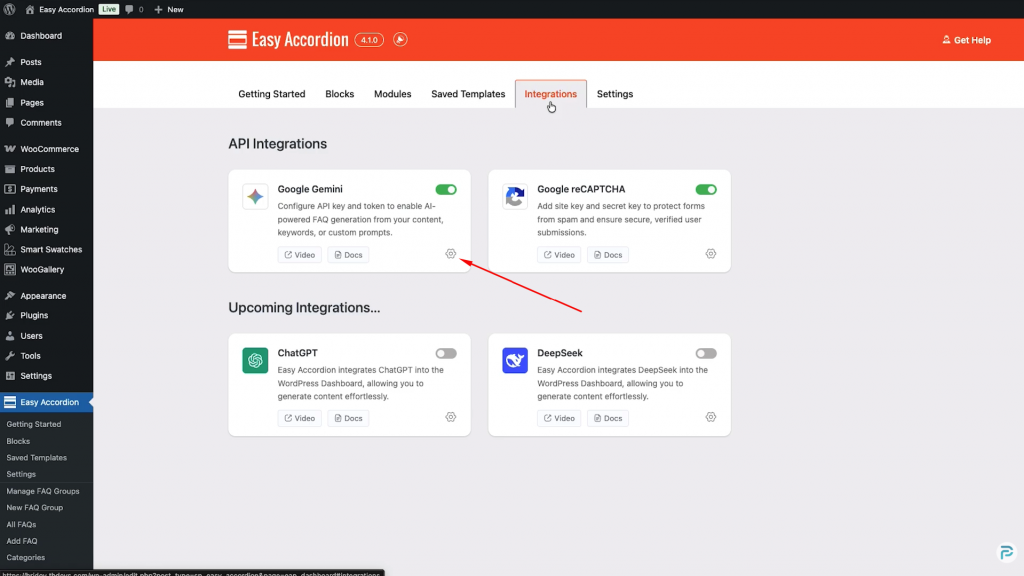
You can grab a free API key from Google AI Studio in under a minute.
Paste it in, save, and the AI generator becomes active across all your accordion blocks.
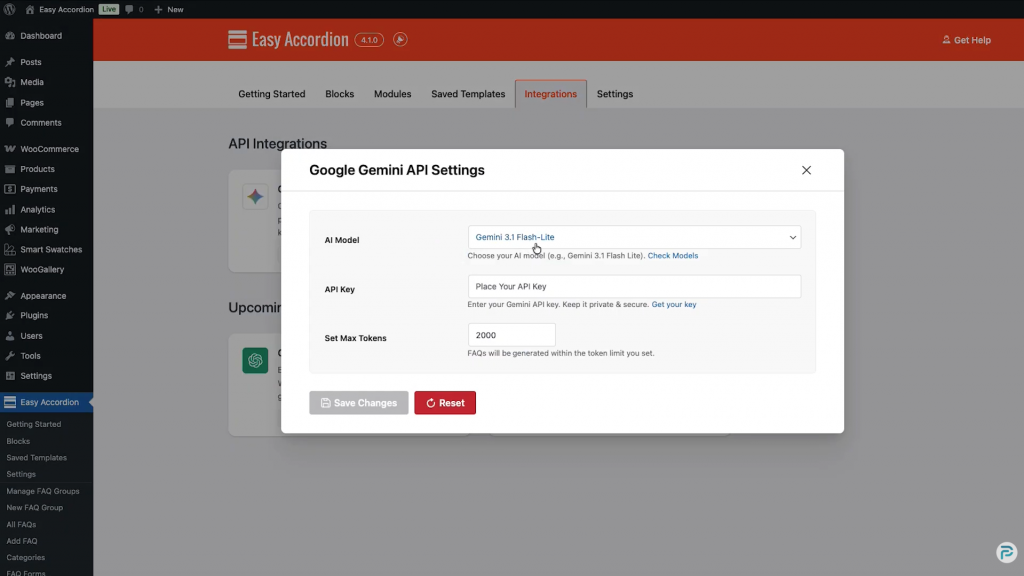
Prefer ChatGPT or DeepSeek? The Pro version supports those models as well.
Step 3: Add an FAQ Block to Your Page
Now, open the post or page where you want the FAQ section. Insert the Vertical Accordion (FAQ) block from the block library.
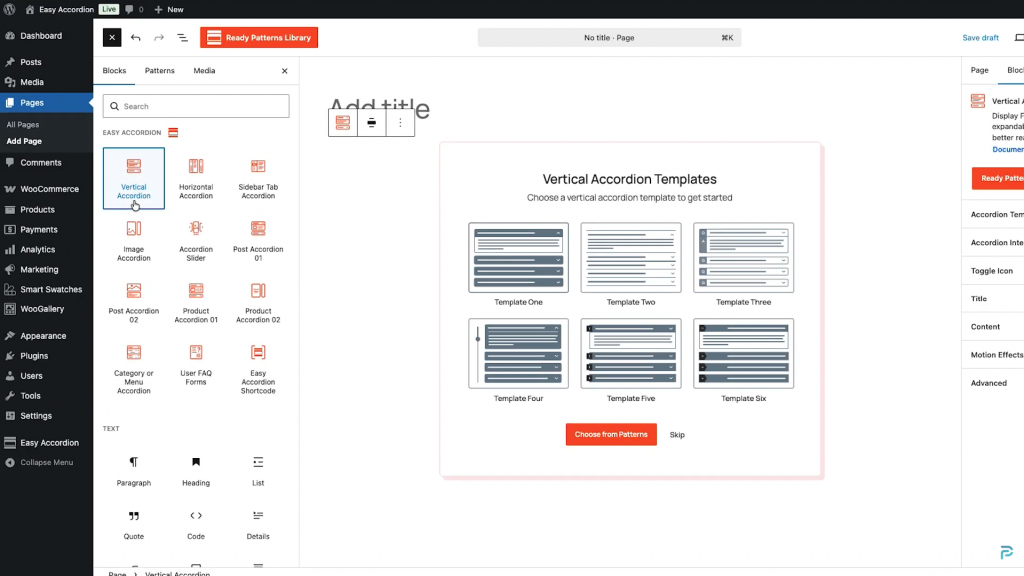
Alternatively, use the shortcode or the Elementor widget if you build pages outside Gutenberg.
Step 4: Select Your Content Source
Click Generate FAQs with AI. This is where the magic happens: instead of typing a prompt from scratch, choose a content source — Pages, Posts, or Products — and pick the exact item you want to repurpose.
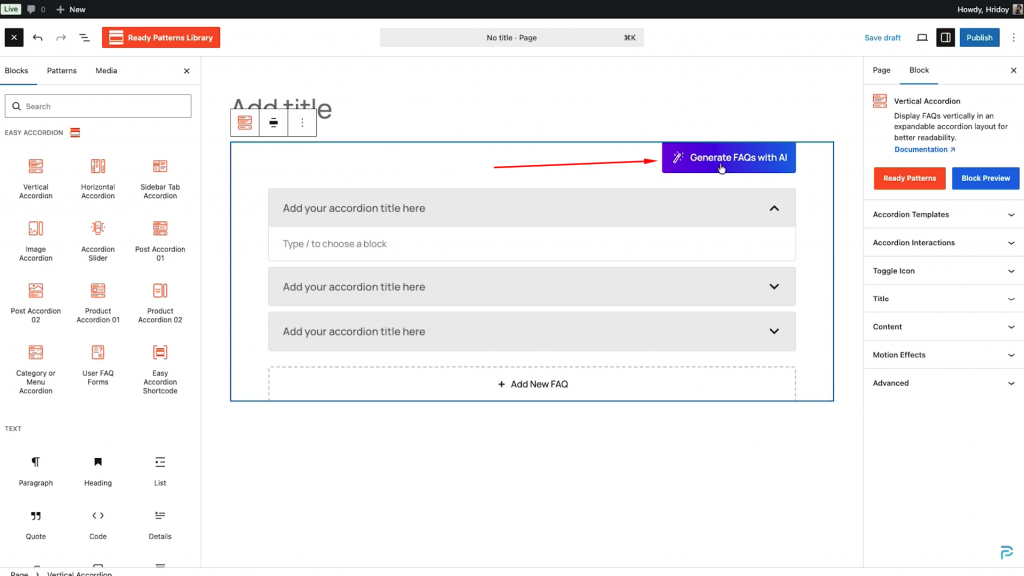
The AI then reads that content and bases every question and answer on it. Consequently, the output stays factually grounded in what you actually published.
Step 5: Choose Tone, Language, and Question Count
After that, fine-tune the output. Select a writing tone (professional, friendly, conversational, technical, beginner-friendly, and more) and an output language — 17 languages are supported, from English and Spanish to Bengali, Arabic, and Japanese.
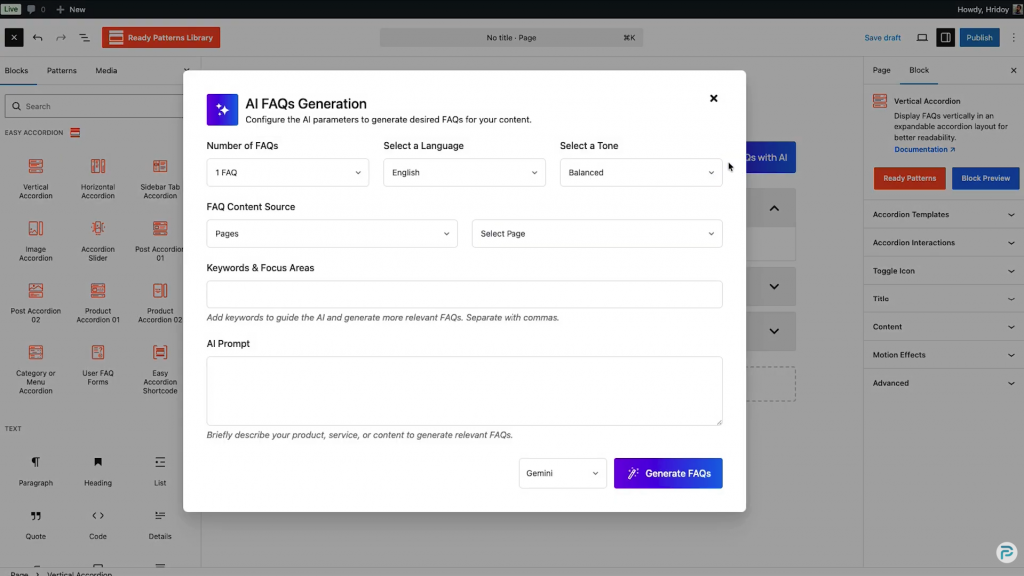
Additionally, set how many FAQs you want. For most pages, 5–8 questions hit the sweet spot.
Step 6: Review and Edit the Generated FAQs
AI drafts fast; humans make it trustworthy. Therefore, always review each answer before publishing. Trim answers to roughly 40–60 words, because concise answers are what search engines and AI models quote most often.
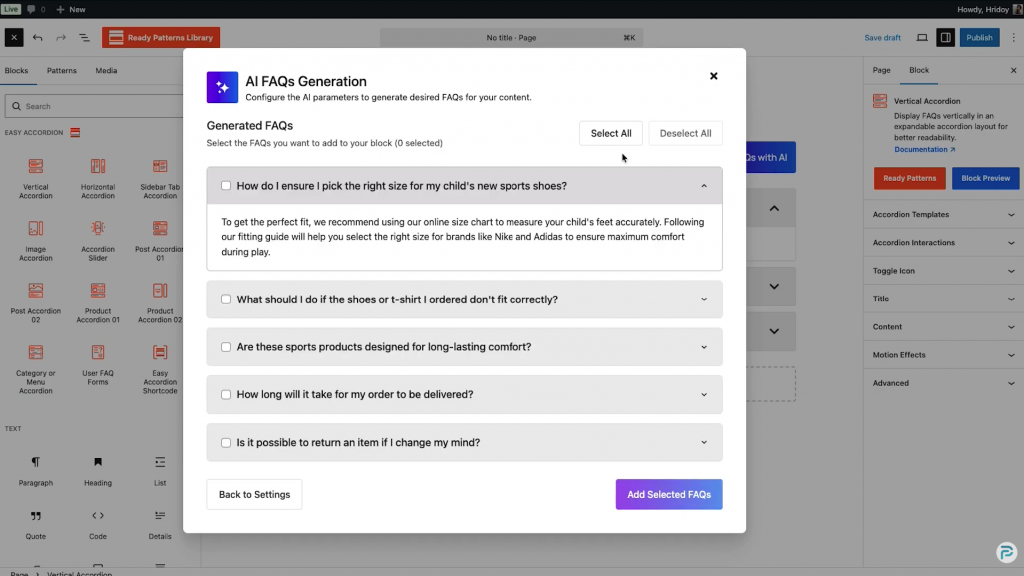
Furthermore, reorder questions with drag-and-drop so the most important ones appear first.
Step 7: Publish with FAQ Schema Enabled
Finally, make sure FAQ schema markup is switched on. The plugin automatically outputs JSON-LD structured data (FAQPage, Question, Answer), which tells Google and AI crawlers exactly what each question and answer is.
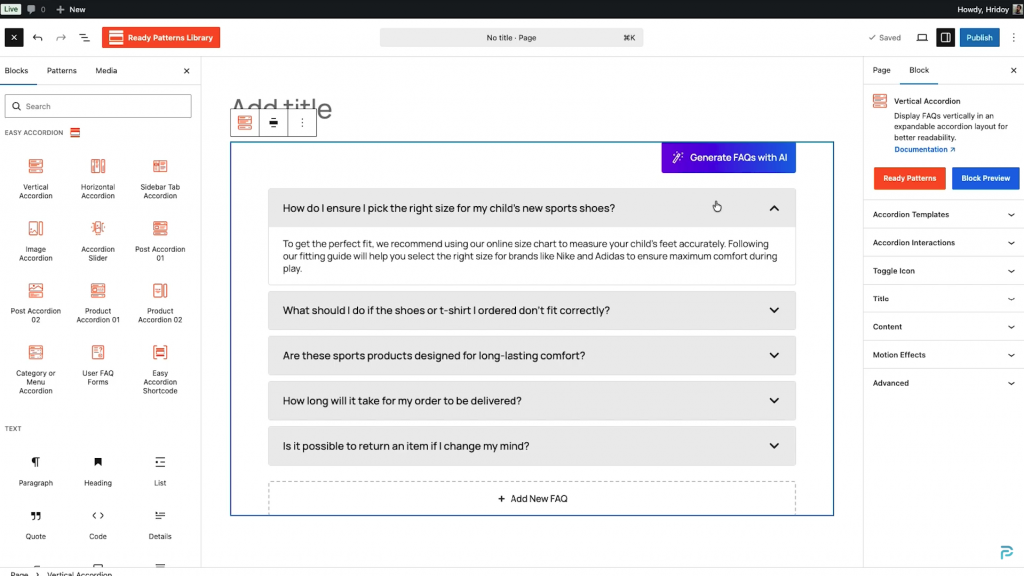
Hit publish — your FAQ section is now live, structured, and machine-readable.
What Is FAQ Schema Markup and Why Does It Matter?
FAQ schema markup is structured data in JSON-LD format that labels your questions and answers so search engines and AI systems can read them without guessing. It’s the difference between content machines might understand and content machines definitely understand.
Without schema, Google has to infer your page structure. With schema, however, every question and answer carries an explicit label. That clarity increases your eligibility for rich results, People Also Ask placements, and citations inside AI-generated answers. In short, schema is the native language of answer engines — and a quality FAQ plugin writes it for you automatically.
Best Practices for AI-Generated FAQ Sections
AI gives you speed; strategy gives you results. Follow these rules to get both:
Common Mistakes to Avoid
Even with AI, a few missteps can undo your work. Avoid these:
Frequently Asked Questions
Can AI really write accurate FAQs from my content?
Yes — when the AI reads your actual page as its source. Content-sourced generation grounds every answer in what you published, which dramatically reduces errors. Nevertheless, always review the output before publishing, because you remain responsible for accuracy.
Is the AI FAQ generator available in Easy Accordion?
Yes. Easy Accordion includes AI FAQ generation powered by Google Gemini, and Google AI Studio offers a free API tier. The Pro version adds more AI models, such as ChatGPT and DeepSeek, along with advanced layouts and analytics.
Does FAQ schema still help SEO in 2026?
Absolutely. Although Google limited FAQ rich snippets to authoritative sites in 2023, FAQ schema still feeds People Also Ask, AI Overviews, and AI chatbots. Structured data helps machines understand your content — and machine understanding is what AI-era visibility depends on.
How many FAQs should I add to a page?
Five to eight focused questions work best for most pages. That range covers the main user doubts without diluting the page’s topic. For complex products or pillar guides, you can extend to ten or twelve.
Do accordions hide content from Google?
No. Google fully indexes content inside collapsed accordions on mobile-first indexing. Moreover, accordions improve user experience by reducing scroll depth, which supports engagement signals.
Can I generate FAQs in languages other than English?
Yes. Modern AI FAQ generators support multilingual output — Easy Accordion, for example, generates FAQs in 17 languages, including Spanish, French, German, Hindi, Bengali, Arabic, Chinese, and Japanese.
Your Old Content Is Your Next Ranking Asset
The search landscape rewards answers, not just articles. Fortunately, you don’t need to write anything new to compete. Every blog post and product page you’ve already published contains dozens of potential questions and answers — and an AI FAQ generator extracts them in minutes.
So here’s your action plan: pick your five highest-traffic pages, generate a focused FAQ section for each with AI, enable schema markup, and review the answers by hand. Then watch those pages start appearing in People Also Ask boxes, AI Overviews, and chatbot citations.
Ready to try it? Install Easy Accordion, connect your AI API key, and turn your first blog post into an SEO-ready FAQ section today.
Your FAQ Looks Fine on Desktop but Broken on Mobile: Here’s the Breakpoint Fix
You spent an afternoon building the perfect FAQ section. On your laptop it’s flawless: clean columns, balanced spacing, questions sitting side by side like a well-set table. You hit publish, feel good, and move on.
Then a customer texts you a screenshot from their phone.
The questions are crushed into a thin strip. The text wraps after two words. One answer is cut off entirely, hiding behind the edge of the screen. The neat side-by-side layout that looked so confident on desktop has folded in on itself, and the whole thing looks less like a polished FAQ and more like a parking ticket that went through the wash.
If you’ve lived this exact moment, you’re not careless and your plugin isn’t broken. You’ve hit one of the most common — and most quietly damaging — problems in web design: a layout that was built for a wide screen and never told what to do on a narrow one. The good news is that the fix is specific, repeatable, and takes minutes once you understand what’s actually happening.
This is the why, and the FAQ breakpoint fix.
Why Does a FAQ Accordion Look Fine on Desktop but Break on Mobile?
A FAQ accordion breaks on mobile because the layout that works at 1440 pixels wide physically cannot work at 390 pixels wide, and most setups never define what should change in between.
Three things are usually going wrong at once:
1. The layout direction is wrong for the screen.
Horizontal accordions, image accordions, and multi-column FAQ grids are designed to expand sideways. A horizontal accordion that reveals content to the right looks elegant on a desktop, where there’s room to the side. On a phone, there is no “side.” The available width is a narrow vertical column, so a horizontal layout gets compressed into something unreadable — thin panels, truncated titles, content that overflows or clips.
2. The widths are fixed instead of fluid.
If a column is set to a fixed pixel width, it stays that width no matter how small the screen gets. A 600-pixel panel on a 390-pixel screen doesn’t shrink gracefully; it spills off the edge or forces a horizontal scrollbar, which is the cardinal sin of mobile UX.
3. The touch targets are too small.
Desktop design assumes a precise mouse pointer. Mobile assumes a thumb. When titles, toggle icons, and tap areas are sized for a cursor, mobile users end up mis-tapping, opening the wrong question, or pinching to zoom just to read — friction that sends people back to the search results instead of your content.
None of these are visible on your desktop, which is exactly why the problem ships. You test on the screen in front of you, it looks perfect, and you never see what the phone sees.
Why This Matters More Than It Looks
It’s tempting to treat a squished FAQ as a cosmetic annoyance. It isn’t.
Most of your traffic is mobile.
For the majority of websites, more than half of visitors arrive on a phone, and for local businesses, stores, and content sites that share heavily on social, it’s often far higher. A broken mobile FAQ isn’t an edge case affecting a few people — it’s the experience your primary audience is having.
It costs you sales and support time.
FAQs do quiet, important work: they answer the objection that was about to stop a purchase, and they deflect the support ticket that was about to land in your inbox. When that content is unreadable on mobile, the objection goes unanswered and the customer either leaves or emails you the question anyway. The thing you built to save time starts costing it.
It hurts you in search and in AI answers.
Search engines evaluate the mobile version of your page first. A FAQ section that triggers horizontal scrolling, tiny tap targets, or cut-off text sends poor mobile-usability signals — and the structured questions inside it are also the exact content that answer engines like Google’s “People Also Ask,” ChatGPT, Gemini, and Perplexity pull from. If your best answer-shaped content lives inside a layout that’s degraded on mobile, you’re undermining your visibility in the two places that matter most right now.
A FAQ that breaks on phones isn’t a small design bug. It’s a leak in conversions, support efficiency, and discoverability at the same time.
What is a Responsive Breakpoint, in Plain Terms?
A responsive breakpoint is a screen width at which your layout is allowed to change.
Think of it as a rule you give the page: “Up to this width, behave one way. Below it, behave another.” The classic breakpoints map to device families — large desktops, smaller laptops, tablets, and phones — but the exact numbers aren’t sacred. A breakpoint should be set wherever your layout starts to look strained, not at some universal magic number.
The reason breakpoints fix FAQ problems is that they let a single FAQ section have two personalities: a confident, spacious layout on desktop and a clean, stacked, thumb-friendly layout on mobile — without you building or maintaining two separate things.
FAQ Breakpoint Fix, Step by Step
Here’s the practical sequence that turns a broken mobile FAQ into one that reads beautifully on any screen. This is exactly how the responsive controls in Easy Accordion are designed to work, so you can follow it directly inside the plugin.
Step 1: Switch the layout direction on small screens
The single highest-impact fix: if you’re using a horizontal accordion, image accordion, or multi-column layout, set it to automatically switch to a vertical, single-column layout on mobile.
Vertical is the natural reading direction on a phone. Each question stacks on top of the next, every title gets the full screen width, and content expands downward into the space phones have plenty of. In Easy Accordion, the auto layout switch does this for you — a horizontal accordion on desktop becomes a clean vertical accordion the moment the screen drops below your chosen breakpoint, with no second build required.
Step 2: Set custom breakpoints to your content, not to a template
Default device breakpoints are a starting guess. Your content is specific. Maybe your titles are long and start wrapping awkwardly at tablet size; maybe your three-column grid only feels cramped below a certain point.
Use custom responsive breakpoints to define the exact widths where your FAQ should change behavior. Preview the section at each width, find the point where it starts to strain, and set your breakpoint a little above it. You’re tailoring the change to your real questions and answers rather than hoping a template’s defaults happen to fit.
Step 3: Let widths go fluid below the breakpoint
Once you’ve crossed into mobile territory, panels and columns should fill the available width rather than holding a fixed pixel size. Fluid widths are what stop the overflow and the dreaded horizontal scrollbar. The accordion should occupy 100% of its container on a phone, full stop.
Step 4: Size titles, spacing, and icons for thumbs
In your mobile breakpoint, give titles a comfortable tap height, increase spacing between items so people don’t fat-finger the wrong question, and make sure the toggle icon is large enough to be an obvious, easy target. The goal is that someone reading one-handed on a train can open exactly the answer they want on the first tap.
Step 5: Preview on a real phone, not just a resized window
Resizing your browser is a decent first check, but it isn’t the same as a real device. Touch behavior, system fonts, and the actual viewport all differ. Before you call it done, open the page on an actual phone and tap through it the way a customer would. That five-minute check is the difference between “looks responsive” and “is responsive.”
A Quick Before-and-After
Picture the same FAQ section, two ways.
Before: a three-column horizontal accordion. On desktop, sharp. On mobile, three columns crammed into one narrow strip, titles broken across four lines each, one answer clipped at the screen edge, and a horizontal scrollbar that nobody asked for. The customer pinches, squints, gives up.
After: the same section, with a breakpoint that switches it to a single vertical column below tablet width. On desktop, still sharp. On mobile, each question now spans the full width, titles read on one or two clean lines, answers expand downward, and the toggle icons are big enough to hit without thinking. The customer finds the answer in seconds and finishes the checkout.
Nothing about the content changed. The only difference is that the layout was told what to do when the screen got small.
The Takeaway
A FAQ that looks great on desktop and breaks on mobile is almost never a content problem — it’s a layout that was never given mobile instructions. The FAQ breakpoint fix is to switch direction to vertical on small screens, set breakpoints to your actual content, let widths go fluid, size everything for thumbs, and verify on a real device.
Do that, and your FAQ stops being the embarrassing screenshot a customer sends you and starts being what it was meant to be: the calm, readable place where objections get answered and support tickets quietly disappear — on every screen, not just the one on your desk.
If you’d rather not wrangle CSS and media queries by hand, the auto layout switch and custom breakpoint controls in Easy Accordion handle all of this visually, so a single FAQ section just works from desktop down to phone.
Frequently Asked Questions
Q. Why does my FAQ accordion look broken only on mobile?
Because the layout was built for a wide screen and never told what to do on a narrow one. Horizontal or multi-column layouts and fixed pixel widths can’t compress into a phone’s width, so titles wrap, content clips, and a horizontal scrollbar appears. Setting a mobile breakpoint that switches to a single vertical column fixes it.
Q. What breakpoint should I use for a mobile FAQ?
There’s no single magic number. Common device breakpoints are a starting point, but the best breakpoint is wherever your layout starts to look strained. Preview your FAQ at decreasing widths, find where titles wrap or columns crowd, and set the breakpoint just above that point.
Q. Should FAQ accordions be horizontal or vertical on mobile?
Vertical, in nearly every case. A phone screen is a narrow vertical column, so stacking questions top to bottom gives each one full width and a natural reading flow. Horizontal layouts are best reserved for desktop, with an automatic switch to vertical on small screens.
Q. Do collapsed FAQ accordions hurt mobile SEO?
No. Content inside an accordion is present in the page’s HTML and can be read and indexed; it’s simply hidden visually until tapped. What does hurt mobile SEO is poor usability — horizontal scrolling, tiny tap targets, and clipped text — which a responsive breakpoint setup removes.
Q. Can I make one FAQ section responsive without building two versions?
Yes. With responsive breakpoints and an auto layout switch, a single FAQ section can display a spacious multi-column or horizontal layout on desktop and automatically restack into a clean single column on mobile — one build, every screen. Easy Accordion provides both controls in its visual editor.
5 Best WordPress Accordion Plugins for 2026
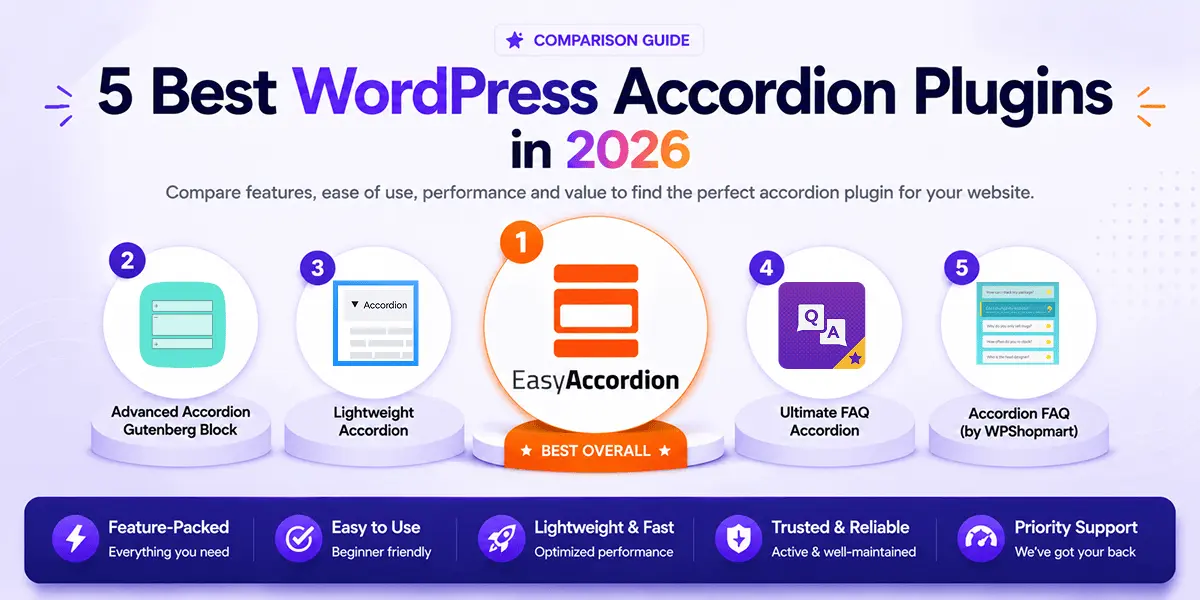
Are you looking for the best accordion plugin for WordPress? You’re in the right place.
The wrong plugin quietly hurts your site — slow loads, broken mobile layouts, and zero SEO value. The right one organizes your content, reduces support load, boosts search visibility, and converts visitors into customers.
In 2026, the best accordion plugins go far beyond simple toggles — offering AI-powered FAQ generation, WooCommerce support, live search, analytics, and schema markup for Google rich snippets, all in one plugin.
In this guide, I’ll compare the 5 Best WordPress Accordion Plugins for 2026 — tested for features, performance, and value — so you can find the perfect fit for your site.
Quick Comparison: Top 5 WordPress Accordion Plugins in 2026
| Plugin | Active Users | Rating | Free Version | Pro Version |
|---|---|---|---|---|
| Easy Accordion | 80,000+ | ⭐ 4.9 (350+ reviews) | ✅ Yes | $29/yr |
| Advanced Accordion Block | 10,000+ | ⭐ 4.5 | ✅ Yes | $49/yr |
| Lightweight Accordion | 10,000+ | ⭐ 5.0 | ✅ Yes | Free only |
| Ultimate FAQ Accordion | 30,000+ | ⭐ 4.6 | ✅ Yes | $67/yr |
| Accordion FAQ | 30,000+ | ⭐ 4.6 | ✅ Yes | $59/yr |
1. Easy Accordion
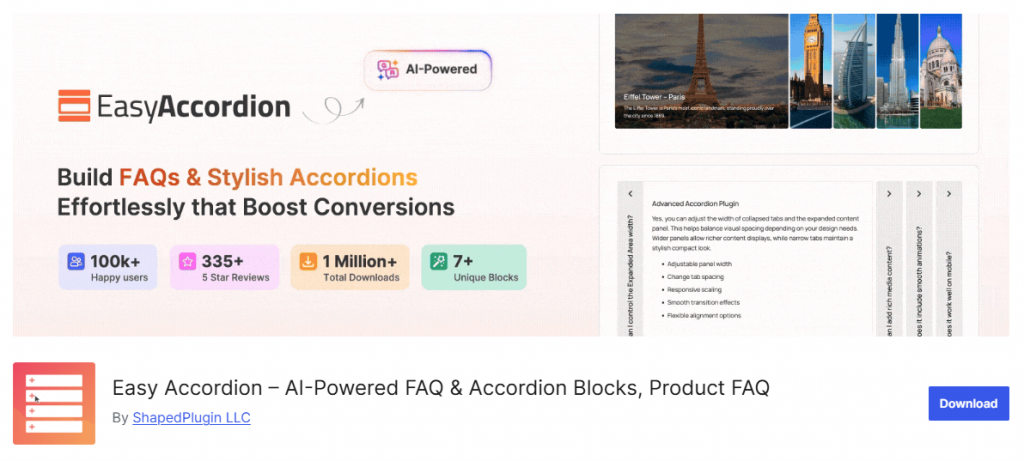
Easy Accordion is the most feature-rich FAQ and accordion plugin for WordPress, trusted by over 100,000 users since 2015 with a 4.9-star rating from 350+ verified reviews. It is the only plugin on this list that covers every major accordion type — FAQ, image, post, product, WooCommerce category, menu, and horizontal accordions — all from a single, well-maintained plugin.
What sets Easy Accordion apart in 2026 is its built-in AI FAQ Generator, which creates complete, ready-to-publish FAQ sets in seconds. Add that to FAQ analytics, AJAX live search, WooCommerce product FAQ blocks, motion effects, and 25+ Pro templates, and you have an accordion builder that can handle any use case — from a simple FAQ section to a fully interactive product knowledge base.
Key Features:
- AI FAQ Generator — Generate full FAQ sets instantly using AI (newest and most-requested feature)
- Visual FAQ Builder — Drag-and-drop FAQ creation with no coding required
- WooCommerce Product FAQs — Dedicated FAQ block for WooCommerce product pages
- FAQ Analytics — Track which FAQ items users open, skip, or engage with most
- Search & Live Filter — AJAX-powered live search so visitors find answers instantly
- User FAQ Forms — Let your visitors submit their own questions from the frontend
- 25+ Content Animations & Motion Effects — Smooth, trendy entrance animations for accordion items
- FAQ Schema Markup — Automatic structured data for Google rich snippets and AI answer visibility
- Ready-Patterns Library — Ready-made designs you can import and customize in seconds
- Multi-Level Accordions — Nest accordions inside accordions for deep content hierarchies
- Image, Post, Product & Menu Accordion types — Unique accordion formats beyond the basic FAQ toggle
- 16+ Toggle Icon Styles, Anchor Links, Title Badges, Subtitles — Granular control over every element
- Works with Gutenberg, Elementor, Divi, WP Bakery — No page builder left behind
Best For: WordPress and WooCommerce sites that need a complete, visually polished FAQ and accordion builder with built-in AI, SEO schema, and analytics.
2. Advanced Accordion Gutenberg Block
Advanced Accordion Gutenberg Block by Spider Themes is a Gutenberg-native accordion plugin designed specifically for the WordPress block editor. It builds entirely with native block components, which means it integrates smoothly with the Full Site Editor and doesn’t rely on any shortcodes.
The plugin covers standard FAQ and content accordion use cases well. Its standout features include accordion search, anchor links, open/close all buttons, FAQ schema, and a “steps or checklist” accordion layout for tutorial-style content.
Key Features:
- 100% native Gutenberg block — no shortcodes required
- Accordion search bar with keyword highlighting
- Open All / Close All toggle buttons
- Anchor links to specific accordion sections
- FAQ Schema Markup for SEO rich snippets
- Activator event control (click or hover)
- Steps/checklist accordion layout
- Read More button for long content trimming
Best For: Gutenberg-first WordPress users who want a block-native accordion focused purely on the block editor experience.
3. Lightweight Accordion
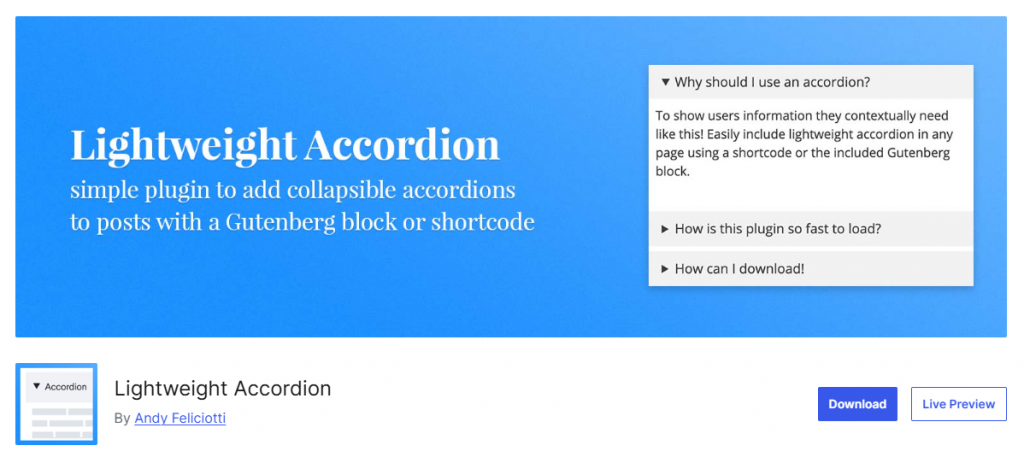
Lightweight Accordion takes a philosophy-first approach: zero JavaScript, minimal CSS, and the native HTML <details> element for accordion behavior. The result is a plugin with almost no performance overhead — the accordion works even with JavaScript disabled.
It supports both Gutenberg blocks and classic editor shortcodes, includes FAQ schema via inline Microdata, and allows basic customization of the accordion title tag, colors, and default open/closed state.
Key Features:
- Built on the native HTML <details> tag — zero JavaScript required
- Compatible with Gutenberg block and classic editor shortcode
- FAQ schema support via inline Microdata
- Customize title HTML tag, open/closed default state
- Color and border customization options
- Open accordion items by default (individually settable)
Best For: Performance-focused developers who want a minimal, JavaScript-free accordion with no design requirements.
4. Ultimate FAQ Accordion
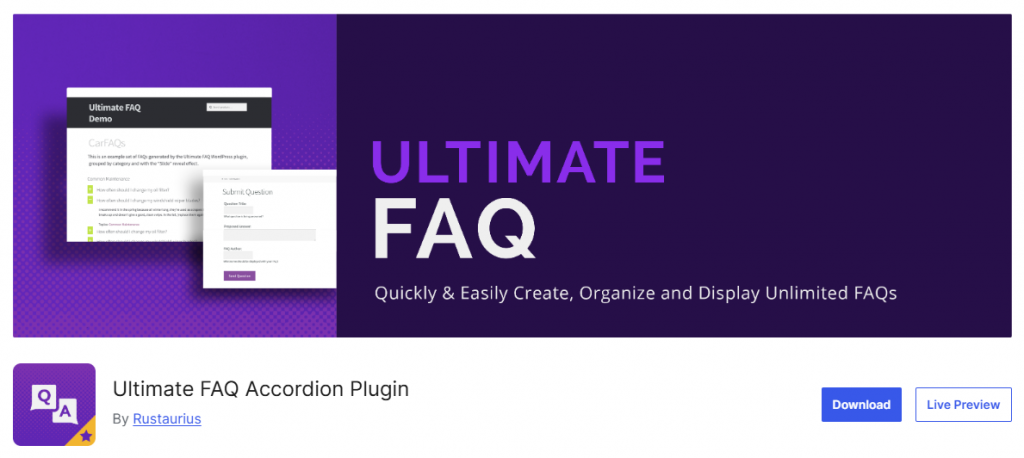
Ultimate FAQ Accordion is a beginner-friendly plugin focused on clean FAQ management, multilingual support, and basic automation. It uses a custom post type for FAQ entries, supports unlimited FAQs with categories and tags, and displays them through Gutenberg blocks, patterns, or shortcodes.
The plugin adds FAQ Page structured data in LD+JSON format automatically and tracks FAQ view counts out of the box. The Pro version adds OpenAI integration for AI-generated FAQ content and expanded styling controls.
Key Features:
- Unlimited FAQ entries with custom categories and tags
- Automatic FAQ Page Schema in LD+JSON format
- Built-in FAQ view count tracking
- Works with WPML, Loco Translate, and Polylang
- Gutenberg blocks, patterns, and shortcodes for display
- Pro: OpenAI integration for AI-generated FAQ content
- Compatible with Elementor for design flexibility
Best For: Multilingual WordPress sites that need clean FAQ management with schema markup and basic analytics.
5. Accordion FAQ
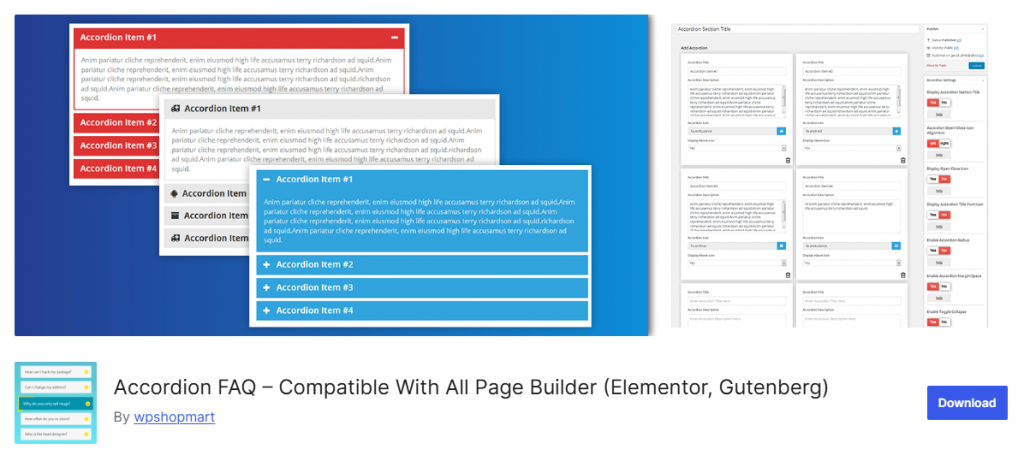
Accordion FAQ by WPShopmart is a Bootstrap-based responsive accordion builder built around a backend drag-and-drop interface. It supports unlimited accordion groups, unlimited color options, Font Awesome icons, and two built-in display styles — all via shortcodes that drop into any page builder.
The free version handles basic accordion needs cleanly. The Pro version adds 8 design templates, 500+ Google Fonts, 30+ animations, and hover activation.
Key Features:
- Drag-and-drop backend accordion item sorting
- Unlimited color customization for accordion groups
- Font Awesome icon picker included in the editor
- Two display styles with show/hide all on page load
- Bootstrap-based fully responsive design
- Pro: 8 design templates, 30+ animations, hover activation
Best For: Users who need a simple, shortcode-based, universally compatible accordion without any advanced requirements.
Recommendations: Which Accordion Plugin Should You Choose?
Here’s a quick decision guide based on your needs:
| Use Case | Recommended Plugin |
| Complete FAQ + Accordion solution for any site | Easy Accordion |
| AI-powered FAQ generation | Easy Accordion |
| WooCommerce product FAQ pages | Easy Accordion |
| FAQ analytics and user search | Easy Accordion |
| Gutenberg-native, block-editor-first experience | Advanced Accordion Block |
| Zero JavaScript, maximum performance | Lightweight Accordion |
| Multilingual FAQ with schema support | Ultimate FAQ Accordion |
| Shortcode-based compatibility with any page builder | Accordion FAQ |
For the vast majority of WordPress and WooCommerce sites, Easy Accordion is the clear choice. With 100,000+ users, a 4.9-star rating, built-in AI, WooCommerce support, live search, FAQ analytics, schema markup, and 25+ Pro templates — it offers more in its free version than most plugins offer in their paid tiers.
If you’re just getting started, download the free version and explore the ready-made FAQ patterns to launch your first accordion in minutes.
Frequently Asked Questions
Which is the best free accordion plugin for WordPress?
Easy Accordion offers the most generous free tier — including drag-and-drop FAQ builder, responsive design, FAQ schema markup, and multiple accordion types — making it the best free option for most WordPress sites.
Do accordion plugins hurt SEO?
No — accordion plugins with FAQ Schema Markup (like Easy Accordion) actively help SEO by enabling Google rich snippets and increasing visibility in AI-powered search results. Accordions also improve dwell time by making content easier to browse.
Does Easy Accordion work with WooCommerce?
Yes. Easy Accordion includes dedicated WooCommerce Product FAQ blocks and WooCommerce category accordion support, allowing you to add and manage FAQs directly on product pages.
Is a free accordion plugin enough, or do I need Pro?
The free version of Easy Accordion works well for basic FAQ sections. If you need AI FAQ generation, live search, accordion slider, FAQ analytics, or advanced templates, the Pro version starts at $29/year and covers all of those features.
Ready to build better FAQs and accordions?
10+ Best FAQ Plugins for WordPress (Free & Paid)
Are you looking for the best FAQ plugins for WordPress and WooCommerce to add comprehensive FAQs effortlessly and grow conversions? In addition, FAQs increase visibility in AI answers & SERPs and drive more traffic to your site.
In this blog, I’ll discuss more than 10 best FAQ WordPress plugins along with their pros and cons. By the end of this blog, you will be able to choose the best Q&A plugin for your specific needs.
An FAQ section is no longer optional for WordPress websites. Whether you run a blog, a service business, or a WooCommerce store, your visitors always have questions. How you answer those questions directly affects your bounce rate, your support workload, and your conversion rate.
The right FAQ plugin makes the process simple. It helps you organize questions, display them in an attractive accordion layout, add schema markup for search engines, and keep your site running fast. This list covers the 10 best FAQ plugins for WordPress and WooCommerce to help you find the right fit.
What to Look for in the Best FAQ & Accordion Plugin
Before picking a plugin, consider these key criteria:
- Design flexibility: Can you customize colors, fonts, icons, and layouts without writing code?
- Display options: Does it support accordion, toggle, list, horizontal, and image layouts?
- Page builder compatibility: Does it work with Gutenberg, Elementor, Divi, or your preferred builder?
- FAQ Schema Markup: Does it automatically add structured data for Google rich snippets and AI visibility?
- WooCommerce support: Can you add product-specific FAQs directly on product pages?
- Search functionality: Can visitors search through FAQs quickly?
- AI content generation: Can the plugin help you write FAQ content automatically?
- Performance: Is it lightweight and optimized to avoid slowing down your site?
List of the Best FAQ WordPress Plugins
| Plugins | Active Users | Ratings | Price |
|---|---|---|---|
| Easy Accordion | 80,000+ | 4.9 | Free / $29 |
| Ultimate FAQ Accordion | 30,000+ | 4.6 | Free / $67 |
| Accordion FAQ | 30,000+ | 4.6 | Free / $59 |
| Quick and Easy FAQs | 10,000+ | 4.6 | Free |
| Helpie FAQ | 9,000+ | 4.6 | Free / $39 |
| Arconix FAQ | 6,000+ | 4.7 | Free |
| SFN Easy FAQ Manager | 2,000+ | 4.4 | Free |
| Advanced FAQ Manager | 2,000+ | 3.8 | Free / $39 |
| Happy WooCommerce FAQs | 1,000+ | 4.8 | Free / $30 |
| FAQly – Ultimate FAQ | 1,000+ | 3.8 | Free / $15 |
1. Easy Accordion
Easy Accordion is the most feature-rich FAQ and accordion plugin available, trusted by 100,000+ WordPress and WooCommerce sites since 2015 with a 4.9-star rating. It is the only plugin on this list offering horizontal, image, post, product, and category accordions alongside standard FAQ layouts.
The Pro version adds AI-powered FAQ generation, AJAX live search, FAQ analytics, anchor links, nested accordions, and an accordion slider. It works seamlessly with Gutenberg, Elementor, Divi, WP Bakery, and every major page builder.
Key Features
- 15+ specialized Gutenberg blocks for FAQs and accordions
- Hundreds of ready FAQ & Accordion patterns to use
- Built-in FAQ Schema Markup for SEO and AI visibility
- AI-powered FAQ generation to create content in seconds
- Visual FAQ builder with reusable custom templates
- Elementor and popular page builders add-ons
- Dedicated WooCommerce product FAQ and category accordion blocks
- Responsive design with custom breakpoints for every device
Pros:
- Most complete feature set with vertical, horizontal, image, post, product, and category accordions in one plugin
- FAQ Schema Markup and AI generation help you rank in Google rich snippets and AI-chats
- Fully compatible with Gutenberg, Elementor, Divi, WP Bakery, and all WooCommerce setups
Cons:
- Advanced features like AJAX search, accordion slider, and analytics require the premium version
- The large number of options can feel overwhelming for users who just need a basic FAQ list
Best For: WordPress and WooCommerce sites that need a full-featured, visually rich FAQ and accordion builder with SEO benefits
2. Accordion FAQ
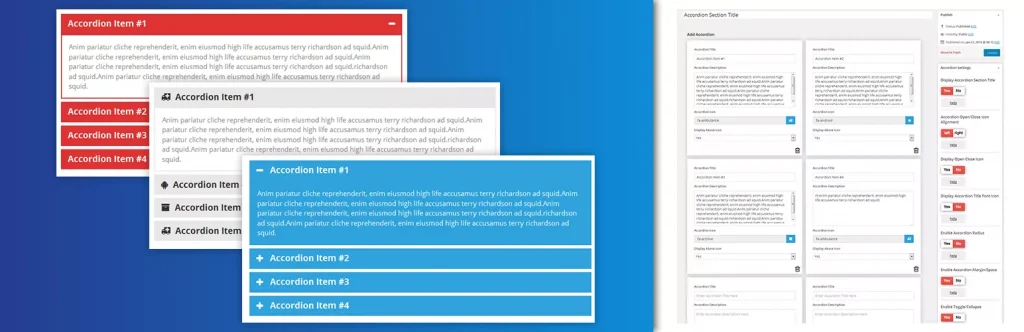
Accordion FAQ by WPShopmart is a Bootstrap-based responsive accordion builder with a drag-and-drop backend interface. It supports unlimited accordion groups, unlimited color options, Font Awesome icons, and two built-in display styles.
The free version handles basic needs well, while the Pro version adds 8 design templates, 500+ Google Fonts, 30+ animations, and hover activation. It uses shortcodes for display and works with both Elementor and Gutenberg.
Key Features
- Drag-and-drop accordion item sorting from the backend
- Unlimited color options for full visual control
- Font Awesome icon picker integrated in the editor
- Two display styles with hide/show all on page load
- Bootstrap framework for reliable cross-browser performance
- Pro: 8 design templates and 30+ content animations
Pros:
- Drag-and-drop sorting makes reordering accordion items quick and code-free
- Unlimited color options and Font Awesome support offer decent customization in the free version
- Bootstrap-based and fully responsive across all devices and browsers
Cons:
- No FAQ Schema Markup in the free version, missing key SEO structured data benefits
- Heavy reliance on shortcodes makes it less intuitive for native Gutenberg users
Best For: Users who want a simple, shortcode-based responsive accordion without complex setup
3. Ultimate FAQ Accordion
Ultimate FAQ Accordion by Etoile Web Design is a beginner-friendly plugin focused on clean FAQ management and multilingual support. It uses a custom post type, supports unlimited FAQs with categories and tags, and includes Gutenberg blocks, patterns, and shortcodes for display.
It automatically adds FAQPage structured data in LD+JSON format and tracks FAQ view counts out of the box. The Pro version adds OpenAI integration for AI-generated FAQs and expanded styling options.
Key Features
- Unlimited FAQ entries with categories and tags
- Automatic FAQPage structured data in LD+JSON format
- Built-in FAQ view count statistics
- Works with WPML, Loco Translate, and Polylang
- Gutenberg blocks, patterns, and shortcodes for flexible display
- Pro: OpenAI integration for AI-generated FAQ content
Pros:
- Built-in FAQ Schema Markup automatically adds structured data for better search engine visibility
- Strong multilingual support with WPML, Loco Translate, and Polylang compatibility
- Automatic view count tracking shows which FAQ entries get the most attention
Cons:
- Visual styling options are very limited in the free version
- AI FAQ generation requires upgrading to the Pro version
Best For: Multilingual WordPress sites that need structured FAQ management with schema markup and basic analytics
4. Quick and Easy FAQs

Quick and Easy FAQs by Inspiry Themes is a lightweight plugin that creates FAQ entries via a custom post type and displays them through Gutenberg blocks or shortcodes. It supports list, accordion, and toggle display styles with group filtering and sorting by title or date.
There is no visual builder or schema markup, but it delivers exactly what it promises without any bloat. The shortcode system is well-documented and the plugin is translation-ready with RTL support included.
Key Features
- Three display styles: list, accordion, and toggle
- FAQ group filtering and sorting by title or date
- Gutenberg block and shortcode support for flexible placement
- Settings page for basic color customization
- Custom CSS box for additional styling control
- RTL and translation-ready out of the box
Pros:
- Very lightweight with no unnecessary features adding load to your site
- Supports multiple display styles with filterable group options
- Well-documented shortcode parameters for flexible FAQ display and ordering
Cons:
- No FAQ Schema Markup means missing out on Google rich snippet benefits
- No visual customization builder requires manual CSS for styling changes
Best For: Developers and technical users who want a lightweight FAQ plugin they can style themselves
5. Helpie FAQ
Helpie FAQ is a feature-rich plugin with a strong focus on WooCommerce integration and Elementor compatibility. It supports FAQ groups, drag-and-drop sorting, an inline search bar, and a dedicated FAQ tab directly on WooCommerce product pages.
It includes two Elementor widgets, a Gutenberg block, automatic FAQ Schema markup, and header/body styling options from the admin panel. You can also display popular or recently updated FAQs separately.
Key Features
- Dedicated FAQ tab on WooCommerce product pages
- Inline FAQ search bar for instant answer filtering
- Two dedicated Elementor widgets and a Gutenberg block
- Drag-and-drop FAQ sorting within groups
- Automatic FAQ Schema markup added on display
- FAQ header and body color, font, and padding controls
Pros:
- Strong WooCommerce integration for product-specific FAQ management by product or category
- Built-in inline search helps visitors find answers without scrolling
- Two Elementor widgets and a Gutenberg block cover the most popular page building workflows
Cons:
- Admin interface and front-end design feel dated compared to more modern alternatives
- Knowledge base docs feature is still listed as coming soon
Best For: WooCommerce stores that need product-specific FAQ management with inline search and Elementor support
6. Arconix FAQ

Arconix FAQ by Tyche Softwares is a minimal, stable FAQ plugin built on a custom post type with jQuery-powered accordion and toggle display. FAQs can be grouped using tag taxonomies and displayed with the simple [faq] shortcode.
It is deliberately lightweight with no schema markup, visual builders, or advanced styling options. What it offers is a dependable and low-maintenance FAQ solution that works reliably across different WordPress setups.
Key Features
- Custom post type-driven FAQ management
- jQuery accordion and toggle display modes
- FAQ grouping via tag taxonomies
- Load FAQs open or closed by default
- Optional return-to-top link for long FAQ pages
- Simple [faq] shortcode for easy placement anywhere
Pros:
- Lightweight and stable with a long track record of reliable performance
- Return-to-top link option improves navigation on content-heavy FAQ pages
- Tag-based taxonomy provides a simple way to group FAQs by topic
Cons:
- No FAQ Schema Markup, which is now a standard feature in most competing plugins
- Almost no visual customization available without writing custom CSS
Best For: Users who need a simple, maintenance-free FAQ solution with basic grouping and accordion display
7. SFN Easy FAQ Manager
SFN Easy FAQ Manager uses custom post types and taxonomies to manage FAQs with flexible shortcode-based display. It includes an anchor-linked combo shortcode, smooth scrolling, AJAX expand/collapse, and a dedicated FAQ search widget.
An SEO options panel provides noindex, nofollow, and noarchive controls for FAQ archive pages. It also supports redirecting all FAQ content to a single page and includes German and French translations.
Key Features
- Anchor-linked FAQ combo shortcode with smooth scrolling
- AJAX-powered expand and collapse functionality
- Dedicated FAQ search widget for focused results
- SEO archive controls: noindex, nofollow, and noarchive options
- Option to redirect all FAQs to a single dedicated page
- German and French translation support included
Pros:
- Flexible shortcode options including anchor-linked FAQ display with smooth scrolling
- SEO archive controls give precise control over how FAQ archive pages are indexed
- A dedicated search widget keeps results focused only on FAQ content
Cons:
- No FAQ Schema Markup, limiting eligibility for Google rich snippets
- No native Gutenberg block or visual builder support
Best For: Developer-oriented users who want flexible shortcode-based FAQ management with SEO archive controls
8. Advanced FAQ Manager

Advanced FAQ Manager by ThemeHigh organizes FAQs within category-based posts, where each post acts as a group. It supports multiple images in answers, a last-updated date display, per-group style overrides, social sharing buttons, and a comment box on individual FAQs.
A clone option speeds up content creation by duplicating existing FAQ sets. The color customization panel lets you adjust title and answer background and text colors globally or per group.
Key Features
- Category-based FAQ grouping with single-click publishing
- Multiple image support inside FAQ answers
- Per-group style override for title and content colors
- Social sharing buttons for Facebook, LinkedIn, and Twitter
- Comment box on individual FAQs for visitor feedback
- Clone option to duplicate existing FAQ sets quickly
Pros:
- Per-group style overrides let you customize individual FAQ groups independently from global settings
- Social share buttons allow visitors to share FAQ content directly across major platforms
- Image support inside answers lets you add visuals for more detailed and helpful responses
Cons:
- No Gutenberg block or Elementor widget, limiting usability in modern page builders
- No FAQ Schema Markup in either the free or paid version
Best For: Users who need category-based FAQ management with image-rich answers and social sharing
9. Happy WooCommerce FAQs
Happy WooCommerce FAQs by HappyDevs is built specifically for WooCommerce, letting you add unlimited FAQs to individual products, categories, and tags. It includes an AI FAQ generator, schema support, Gutenberg block support, and a customer comment feature on the FAQ tab.
The free version covers individual product FAQs, schema, sorting, and expand/collapse all. The Pro version adds customer question forms, variation FAQs, AJAX search, multi-column layouts, and display on shop, cart, and checkout pages.
Key Features
- Unlimited FAQs assignable to products, categories, and tags
- AI FAQ generator for automatic content creation
- Customer question submission through the product FAQ tab
- FAQ Schema markup for search engine visibility
- Gutenberg block and classic editor support
- WPML and Polylang translation compatibility
Pros:
- Purpose-built for WooCommerce with support for products, categories, and tags in one plugin
- AI FAQ generator creates product FAQ content automatically without manual writing
- Customer question submission turns product pages into an interactive Q&A resource
Cons:
- Not designed for general WordPress FAQ pages outside of WooCommerce
- Key features like AJAX search, variation FAQs, and shop page display require the paid version
Best For: WooCommerce store owners who need a dedicated product FAQ plugin with AI generation and customer interaction
10. FAQly – Ultimate FAQ
FAQly is a modern, growing FAQ plugin that delivers strong value in its free version. It supports unlimited FAQs with categories and tags, an accordion layout, built-in schema markup, view statistics, and live search. It works with Gutenberg, Elementor, and WPBakery.
The Pro version adds horizontal, vertical, and multi-column layouts, 17+ themes, 14+ icon sets, AJAX search, WooCommerce integration, nested accordions, and 25+ animation effects. It is a strong option for users who want schema and live search without paying for them.
Key Features
- Unlimited FAQs with category and tag organization
- Built-in FAQ Schema Markup for SEO visibility
- Live search bar for instant FAQ filtering
- Built-in FAQ view statistics tracking
- Gutenberg blocks, shortcodes, and block patterns supported
- Pro: Horizontal layout, 17+ themes, and WooCommerce FAQ integration
Pros:
- FAQ Schema Markup and live search are both included free, features many plugins charge for
- Built-in view statistics track which questions get the most attention
- Compatible with Gutenberg, Elementor, and WPBakery with blocks, patterns, and shortcodes
Cons:
- Newer plugin with fewer user reviews and less community history than established alternatives
- Horizontal layout, design themes, and WooCommerce support all require the paid Pro version
Best For: Users who want a modern FAQ plugin with schema markup and live search included at no cost
Final Words
Each plugin on this list serves a different type of WordPress user. WooCommerce store owners will get the most value from Happy WooCommerce FAQs or Helpie FAQ. Users who want something minimal will appreciate Quick and Easy FAQs or Arconix FAQ. Those looking for a capable free option with modern features should try FAQly.
But if you want the most complete, visually advanced, and future-proof FAQ solution for any WordPress or WooCommerce site, Easy Accordion is the clear winner. It combines design flexibility, built-in SEO schema, AI-powered content generation, and compatibility with every major page builder. Over 100,000 sites trust it for a reason.
How to Add Stylish Horizontal Accordions in WordPress
In this blog, I’ll show you the easiest method to add stylish horizontal accordions in WordPress in minutes. No code or complex prompt is needed.
Most WordPress users know accordions. But horizontal accordions? That is a different story.
A vertical accordion stacks content top to bottom. A horizontal accordion expands content side by side. It is a subtle difference that creates a dramatically different user experience.
This guide covers everything you need to know. You will learn what horizontal accordions are, the best use cases, the easiest way to build them in WordPress, and actionable design tips to make yours stand out.
TL;DR / Key Takeaways
- Horizontal accordions expand content side by side, not top to bottom.
- Horizontal accordions work best for visual story telling, booking steps, featured news/article/project/portfolio showcase, events showcase, speakers & performers showcase, etc. Want to learn more? read the details below.
- Easy Accordion is the easiest no-code way to add horizontal accordions in WordPress and WooCommerce. Only 3 simple steps– Choose a ready pattern, add your content, customize visually and publish in minutes.
- Good design, perfect contrast, and smooth animations make the biggest difference.
- Avoid overloading panels with text. Keep content concise and scannable.
- Besides Gutenberg, you can create accordions for Elementor, Divi, and all popular page builders with Easy Accordion.
What is a Horizontal Accordion?
A horizontal accordion is an interactive UI element. It displays a row of panels side by side. Each panel expands or collapses when a user clicks or hovers over it.
Think of it like a folder system laid flat. Instead of opening drawers one on top of another, you open them left to right.
Here is a simple breakdown:
- Vertical accordion: panels stack top to bottom (the traditional FAQ layout).
- Horizontal accordion: panels expand left to right (a modern, visual-first layout).
Horizontal accordions can display text, images, icons, or mixed media inside each panel. They are fully interactive and responsive when built with the right tool.
What are Key Use Cases of Horizontal Accordions
Horizontal accordions are not just pretty. They solve real layout problems. Here are the best scenarios to use them.
- Project Showcases
- Portfolio Showcases
- Image Galleries or Visual Storytelling
- Hotel Suite Categories Showcase
- Booking Steps Display
- Sequential Travel Destinations Display
- Event or Schedule Layouts
- Speakers & Performers Showcase
- News, Content, Service, & Product Highlights
- Product Features Showcase
- Team Members Showcase
- Portfolio Display
- Project Display
- Service Showcase
- Step-by-Step Processes Showcase
- Class & Categories Showcase
- Service or Offering Breakdown Showcase
- Product/Service Offerings or Features
- Timelines & Schedules
Best Method to Create Horizontal Accordions in WordPress
There are several ways to add horizontal accordions in WordPress. Let’s look at the key options.
Option 1: Custom CSS and JavaScript with AI (Advanced)
You can build a horizontal accordion from scratch with HTML, CSS, and JS using AI. This gives you full control.
However, it requires prompt engineering skill, coding knowledge to review, ongoing maintenance, and hours of work. A vague prompt or small CSS conflict can break the layout across your entire site.
Not ideal for most WordPress users.
Option 2: Easy Accordion Plugin (Best Method)
Easy Accordion is the most popular and beginner-friendly solution. It is a dedicated WordPress FAQ and accordion plugin trusted by 100,000+ WordPress sites.
It includes multiple Horizontal Accordion blocks and thoughtfully designed patterns by UX/ UI professionals.
Plus, it’s fully compatible with Elementor, Divi, WP Bakery, and all major page builders.
Here is why Easy Accordion stands out for horizontal accordions:
- Rich pattern library to import, customize, and publish in minutes
- No coding required to configure or style
- Visual customizer to control colors, dimensions, icons, and animations
- No matter your editor or builder, works for all
- Responsive design with custom breakpoints for every device
- Auto layout switch from horizontal to vertical on mobile (Pro)
- Works with WooCommerce for product-focused horizontal displays
- Accordion Slider for more content.
- Supports content types text, images, videos, product, and custom posts.
Easy Accordion holds a 4.9-star rating and has been trusted by WordPress users since 2015. It is the most reliable choice for building horizontal accordions without touching code.
Let’s Install Easy Accordion and choose ready patterns from a rich library to add stunning horizontal accordion effortlessly.
3 Simple Steps to Add a Horizontal Accordion
After installing the best wordpress accordion plugin, follow the 3 easy steps below to add an outstanding horizontal accordion in WordPress block editor.
Step 1: Choose a Ready Horizontal Accordion Pattern
- Go to the page or post where you want to add the accordion.
- Click the Easy Accordion Library icon at the top of block editor.
- Find a horizontal accordion pattern that fits your needs.
- Click Import and it drops straight into your page.
Step 2: Add Your Image & Content
- Click “Change Image” in the right-side panel to upload your own image.
- Add your content just like you would in a Google Doc.
Step 3: Customize Visually and Publish Your Accordion
- Browse through the panels and explore all available features. Apply them based on your needs.
- Most panels include a Style tab. Use it to customize your Horizontal Accordion and match your brand’s look and feel.
- When you’re happy with your changes, click the Publish or Save button in the top-right corner.
Design Tips to Make Your Horizontal Accordions Stand Out
A horizontal accordion is only as good as its design. Follow these tips to create one that looks professional and performs well.
Use Strong Visual Contrast Between Panels
Each collapsed panel should look distinct from its neighbors. Use alternating background colors or clear border lines. Strong contrast helps users understand where one panel ends and another begins.
Keep Panel Labels Short and Descriptive
The collapsed state shows only the visual and panel label. Make it count. Use action words or clear topics. For example, use “Step 1: Plan” instead of “Planning Phase Overview.” Short labels scan faster and invite clicks.
What to do if your titles are not short anyway? use vertical orientation for the titles in collapsed mode.
Add Hover Animations for Interactivity Cues
Users need to know a panel is clickable. A subtle hover effect, like a color shift or slight scale, signals interactivity. Easy Accordion includes animation options you can enable without writing CSS.
Balance Panel Width with Content Length
Each panel should hold a manageable amount of content. If one panel has 500 words and another has 20, the layout feels off. Aim for roughly equal content depth across all panels.
Use High-Quality Images Inside Panels
For image-heavy accordions like portfolios or product showcases, image quality matters more than anywhere else. Blurry or low-resolution images kill credibility. Use crisp visuals sized correctly for the expanded panel width.
Set a Clear Expanded State
The open panel should look noticeably different from the closed ones. Use a stronger background color, bolder title text, or a shadow. Users should always know which panel is active.
Test on Mobile Before Publishing
Horizontal accordions can become cramped on small screens. Easy Accordion Pro includes an auto layout switch that converts horizontal accordions to vertical on mobile devices. Always preview your accordion on a phone before going live.
Match Your Brand Colors and Fonts
An accordion that clashes with your site design looks out of place. Use your brand color palette and match font choices to your theme. Easy Accordion’s visual editor makes this easy with direct color and typography controls.
Common Mistakes to Avoid
Even great ideas can fall flat with the wrong execution. Here are the most common horizontal accordion mistakes and how to sidestep them.
Mistake 1: Overloading Panels with Text
A horizontal accordion is a visual element. Stuffing each panel with paragraphs of text defeats the purpose. Keep content tight. Use bullet points, short sentences, and visuals instead of long-form copy.
Mistake 2: Using Too Many Panels
More than five or six panels starts to feel cramped on desktop and unusable on mobile. Limit yourself to four or five panels for the cleanest result. Group related content if needed.
Mistake 3: Skipping the Mobile Test
A horizontal layout that looks stunning on a 1440px monitor can break completely on a 375px phone screen. Always test responsiveness before publishing. Use a plugin that handles mobile adaptation automatically.
Mistake 4: Ignoring Load Speed
Animations and large images inside accordion panels can slow your page down. Easy Accordion is optimized for speed and performance. Still, compress your images and keep media file sizes in check.
Mistake 5: No Clear Call to Action Inside Panels
If a panel showcases a product, service, or feature, give the user somewhere to go next. Add a button or link inside the expanded panel. An accordion without a CTA is a missed conversion opportunity.
Mistake 6: Inconsistent Styling Across Panels
Every panel should follow the same visual rules. Mixing fonts, icon styles, or spacing between panels looks unprofessional. Set your styles once in Easy Accordion’s editor and apply them globally.
Mistake 7: Not Using Schema Markup
If your horizontal accordion contains FAQ content, missing schema markup means missing out on Google rich snippets and AI-generated answers. Easy Accordion automatically adds FAQ Schema Markup to help your content appear in search results and AI assistant responses.
Key Benefits of Using Horizontal Accordions
Here are the concrete benefits horizontal accordions deliver.
- Quick Content Scannability: Accordions, including horizontal ones, improve content scannability. Visitors can watch everything at a glance and scan the themes quickly.
- Stronger Visual Impact: A horizontal layout immediately looks different from a standard page. It grabs attention and keeps users engaged longer.
- Better Use of Screen Real Estate: Horizontal layouts use wide screens efficiently. They spread content across the full width instead of leaving whitespace on the sides.
- Improved User Experience: Interactive elements invite exploration. Users who interact with your content spend more time on your page and convert at higher rates.
- Reduced Page Length: Instead of scrolling through long sections, users access all content within one compact horizontal block. Less scrolling means faster decisions.
- Higher Conversion Rate: Horizontal accordions are highly interactive and playful with effects and animations that connect visitors and convert them more.
Final Words
Horizontal accordions are unique, stylish, interactive, and highly converting.
They look better. They work smarter. They convert your visitors.
The easiest way to get started is with Easy Accordion. It includes multiple dedicated Horizontal Accordion blocks and ready patterns, visual customizations, mobile-responsive design, and built-in Schema for SEO & GEO. No code required.
Let’s add a stunning horizontal accordion to your site and grow conversion.
Easy Accordion 4.2.0: Smarter AI, New Blocks & Patterns for FAQ & Accordion
Hey, WordPress and WooCommerce users! We have some exciting news for you.
Easy Accordion Pro 4.2.0 has officially landed– and it is packed with many new features. This release brings powerful AI tools, four new accordion block types, six page builder integrations, motion animations, a 200+ template library, and much more.
Whether you run a blog, a WooCommerce store, or a business site, this update has something game-changing for your FAQs and group content display. So, let’s dive in and explore everything new in version 4.2.0!
What’s New in Easy Accordion Pro 4.2.0?
Here is a quick overview of everything included in this release:
- Four new accordion block types
- AI-powered FAQ generation
- Five new Pro modules
- Six page builder integrations
- Google reCAPTCHA spam protection
- 200+ ready-made patterns and templates
Let’s break each one down.
New Accordion Blocks
1. Post Accordion 02 Block
Do you want to turn your WordPress blog posts into interactive, expandable accordions? Now you can. The new Post Accordion 02 block lets you display your posts in a collapsible accordion layout. It is perfect for FAQs, knowledge bases, how-to guides, and content-rich blog archives.
This block keeps your pages clean and organized. Visitors expand only the content they want. That means less scrolling and more engagement.
2. Product Accordion 02 Block
Running a WooCommerce store? This one is for you. The Product Accordion 02 block lets you display your WooCommerce products in a beautiful collapsible accordion layout. It works great for showcasing product specs, bundles, pricing tiers, or product FAQs — all without overwhelming your visitors.
The result? A cleaner product page that converts better.
3. Media Accordion Block
Rich media content deserves a rich display. The new Media Accordion block is designed specifically for media-heavy content. You can now embed images, videos, audio, and galleries directly inside expandable accordion panels. It is ideal for portfolio sites, tutorial pages, and multimedia-heavy product descriptions.
4. Category / Menu Accordion Block
Got a large site with complex navigation or deep taxonomies? The Category / Menu Accordion block helps you streamline menus and taxonomies into a clean, collapsible format. This block is especially useful for WooCommerce category pages and content-heavy membership sites.
Generate FAQs Automatically with AI
This is one of the most exciting additions to Easy Accordion Pro. Version 4.2.0 introduces the Generate FAQ with AI module. It lets you create ready-to-publish FAQ content automatically — in seconds.
Just enter a topic, choose your AI provider, and let the plugin do the heavy lifting. No more writing FAQs from scratch. No more blank screens.
Now Supports Google Gemini
Along with existing AI compatibility, version 4.2.0 adds Google Gemini as a supported AI provider. You can now choose between AI engines to match your workflow, budget, and output style preferences.
This feature is a massive time-saver for agencies, bloggers, and store owners who manage large sites with dozens of FAQ pages.
New User FAQ Forms Block
Give your visitors a voice. The new User FAQ Forms block lets visitors submit their own questions directly from your site’s frontend — without needing to contact you via email or chat.
It is an excellent way to crowdsource real questions from real users. Plus, it helps you discover content gaps and build a more relevant FAQ database over time.
Google reCAPTCHA Integration
To keep spam out of your FAQ forms, version 4.2.0 adds Google reCAPTCHA integration. This integration automatically blocks spam submissions and bot abuse, so your FAQ inbox stays clean.
New Pro Modules
FAQ Analytics Module
Want to know which FAQs your visitors actually click on? The FAQ Analytics module tracks clicks and user engagement metrics across your accordion and FAQ content. Use this data to refine your content strategy, remove low-performing FAQs, and expand the ones that drive the most interaction.
FAQ Forms Module
The FAQ Forms module lets you build fully functional frontend FAQ submission forms. Visitors can submit questions directly from any page. You review and publish them as FAQs — it is a simple and powerful content loop that keeps your FAQ section fresh and relevant.
Motion Effects and Animations Module
Static accordions are a thing of the past. The new Motion Effects and Animations module adds beautiful scroll-triggered animations to your accordions. No CSS knowledge required. Just pick an animation style, set the timing, and publish. Your content will feel alive and engaging from the moment visitors land on your page.
Export / Import FAQs Module
Managing FAQs across multiple sites just got a lot easier. The Export / Import FAQs module lets you back up your entire FAQ library and restore it with a single click. It is perfect for agencies managing client sites or developers working across staging and production environments.
Ready Patterns Library Module
Starting from scratch is now optional. The Ready Patterns Library module gives you access to 200+ pre-designed FAQ and accordion templates. Browse the library, pick a layout you love, import it with one click, and customize it to match your brand. You can launch a beautiful, professional FAQ section in minutes — not hours.
Six New Page Builder Add-ons
Easy Accordion Pro now works seamlessly with every major WordPress page builder. Version 4.2.0 introduces Saved Templates rendering support for:
- Elementor
- Divi
- WPBakery
- Oxygen Builder
- Beaver Builder
- Bricks Builder
No matter which builder you use, your saved accordion templates will drop right in — no shortcodes, no workarounds, no conflicts. This is a huge win for agencies and freelancers who build with multiple tools across different client projects.
Why Upgrade to Easy Accordion Pro?
Here is a quick summary of what you unlock with the Pro version:
- AI FAQ generation (with Google Gemini support)
- FAQ Analytics to track real user engagement
- Frontend FAQ submission forms with reCAPTCHA protection
- Motion Effects and scroll animations
- Export / Import FAQ library
- 200+ ready-made patterns and templates
- All four new accordion block types
- Six page builder integrations
If you are still on the free version, now is the perfect time to upgrade. Easy Accordion Pro gives you everything you need to build, manage, and optimize FAQs and accordions on your WordPress site — without writing a single line of code.
Get Started with Easy Accordion Pro 4.2.0
Version 4.2.0 is available now. If you are already a Pro user, simply update from your WordPress dashboard. All your existing content, FAQs, and settings will remain completely intact.
New to Easy Accordion Pro?
Easy Accordion Pro is developed by ShapedPlugin LLC — a team with over a decade of experience building high-quality WordPress and WooCommerce plugins used by 360,000+ websites in 180+ countries.
Have questions about the new features? Drop them in the comments below — we would love to hear from you and reply!
How to Write FAQs: 8 Best Practices with Examples
Are you fed up with your confused visitors, high bounce rates, repetitive customer queries? Do you want to learn how to write FAQs that really increase visibility on search engines and AI, reduce support costs, and grow conversion rates?
In this blog, I’ll share 8 effective strategies to write high-converting FAQs and the best examples.
By the end of this blog, you will be able to write the most impactful FAQs and turn your confused visitors into regular customers.
Let’s get in.
TL;DR/ Key Takeaways
- What is FAQ: A FAQ is a structured list of real customer questions paired with clear, direct answers that build trust and drive action.
- Best Tips to Write High-converting FAQs: Use real customer questions, keep answers short and conversational, optimize for SEO and GEO, and use an accordion layout for better UX.
- Common Mistakes in FAQ Writing: Avoid writing assumed questions, burying answers, skipping schema markup, and leaving your FAQ section without a next step or CTA.
- Explore Ready FAQ Template Library: Get a rich FAQ template library. Choose a pattern, customize visually, and publish in minutes.
What is FAQ?
FAQ stands for “Frequently Asked Questions”. It’s a structured list of real customer questions paired with clear, helpful answers.
- Real questions — phrased the way your customer would type or speak it
- Direct answers — leading with the most important information
- Supporting detail — a short explanation, stat, or example that builds confidence
- Accordion Layout — Expand & collapse layout to make FAQs scannable & interactive.
- A next step — a subtle CTA, link, or reassurance that moves the reader forward
Why FAQs are So Important
FAQs are one of the most underrated assets on any WordPress or WooCommerce site. Here is why they deserve serious attention.
Increase Visibility on AI (GEO Advantage)
AI tools like Claude, ChatGPT, Gemini, and Google’s AI Overviews favor structured question-and-answer content. When your FAQs include schema markup, these tools cite your site in AI-generated responses and put your content in front of users who never type a traditional search query.
Win featured snippets and “People Also Ask” spots (SEO advantage)
Google pulls FAQ content into featured snippets and “People Also Ask” boxes, which sit above regular organic results. With proper schema markup, your site can appear twice on the same results page and capture high-intent shoppers right at the moment they are closest to buying.
Reduce Confusion
Confused visitors do not buy. They simply leave. A clear FAQ removes the friction between “I’m interested” and “I’m buying.” It answers doubts before they turn into objections. It also fills the gaps your product page might miss.
Grow Conversion
Addressing buyer questions at the point of decision increases conversion rates. Product page FAQs, in particular, reduce cart abandonment by eliminating unanswered doubts right before checkout. That directly impacts your WooCommerce revenue.
Cut Support Cost
Every question your FAQ answers is a support ticket you never receive. For WooCommerce stores with high order volumes, this adds up quickly. A strong FAQ can reduce repetitive support queries by 30 to 50 percent.
Improve On-Page Engagement Signals
When visitors find answers on your page, they stay longer. They scroll further and click more. These engagement signals tell search engines your content is valuable, which then improves your rankings over time.
Where You Actually Need an FAQ Section
Not every page needs a FAQ. But these locations almost always benefit from one:
Homepage — Address the top general queries you have collected.
Product pages — Answer shipping, compatibility, returns, and feature questions
Pricing page — Eliminate hesitation around billing, plans, and refunds
Landing pages — Handle objections right before the CTA
Support/contact page — Deflect common queries before users submit tickets
Blog posts — Add topical FAQs to capture “People Also Ask” traffic
Documentation — Answer setup and usage questions inline
If a page needs to address users’ concern and a conversion goal, a FAQ belongs on it.
8 Best Practices for Writing FAQs That Convert
1. Collect Real Customer Questions
The biggest FAQ mistake is writing questions you think people ask. Instead, collect questions people actually ask.
Start with these sources:
- Your Support Inbox
- Sales call notes
- Product Page Comments
- Product Reviews
- Socials and Communities
- Heatmaps: Microsoft Clarity/ Hotjar
Prioritize questions that appear more than once. Those are your most important FAQ items.
What to Do If You Have No Question List Yet?
If you are fresher in the market or you have no question in your channels, what to do?
It’s a common scenario that most of the customers leave your sites with questions in their mind. They are too busy to ask you the question. Finally, you are losing customers.
What to do? In this cases, check:
- Your competitors’ FAQs
- Your competitors’ product reviews
- tools like AnswerThePublic or Reddit
- Google’s “People Also Ask” box
- Keyword Research
- Ask multiple AIs
Pro Tip: If your service or product is completely new in the market, customers must have more questions. You yourself have to research and ideate a question list initially.
2. Keep Answers Short and Scannable
Nobody reads FAQ answers like a novel. Visitors scan, search, and want the answer fast. So your answer structure should follow a simple three-part pattern.
Lead with the direct answer in the very first sentence. No preamble, no “great question.” Add one supporting sentence if needed for clarity. Then close with a link or CTA if any action is required.
Here is a bad example: “That’s a great question! Our plugin is compatible with most themes, but it really depends on the theme you’re using and how it’s coded. If your theme follows WordPress coding standards, you should be fine, but there might be some issues with custom CSS.”
Here is a good example: “Yes. Easy Accordion works with all standard WordPress themes, including Astra, Avada, and OceanWP. Test on a staging site first if your theme uses heavy custom CSS.”
Short answers also display far better inside accordion layouts, which we cover in practice number seven.
3. Use Natural, Conversational Language
Write FAQs the way your customer talks, not the way a legal document reads.
Use “you” and “we” instead of “the user” or “the company.” Avoid jargon unless your audience is technical, and even then define it once. Match the vocabulary your customer actually uses. If they say “plugin,” do not say “extension.” And finally, read your answer out loud. If it sounds robotic, rewrite it.
For WooCommerce stores, this is especially important. Shoppers make emotional decisions, so warm and human language builds trust faster than corporate copy.
4. Optimize Your FAQ for SEO and GEO (FAQ Schema)
A well-structured FAQ does double duty: it helps visitors AND search engines.
For SEO:
- Include your target keyword naturally in the question
- Use H2 or H3 tags for questions (not just bold text)
- Add FAQ schema markup — structured data that tells Google your content is a FAQ
For GEO (AI search visibility):
- Write answers that are complete on their own — AI engines pull self-contained answers
- Aim for 40–60 word answers for complex questions — long enough to be useful, short enough to extract
- Structure answers as “yes/no + explanation” when possible — AI models prefer direct starts
- Use FAQ schema– AI bots love structured data.
Tools like Easy Accordion add FAQ schema markup automatically. This means your FAQs become eligible for Google rich snippets and AI answer features without any technical setup.
5. Add Search and Filters for a Lot of Questions
If you have more than 10 FAQ items, navigation becomes a problem. Visitors do not scroll through 30 questions to find the one they need.
The solution: add search and filtering.
- FAQ search lets users type a keyword and see matching answers instantly
- Category filters let users browse by topic (Shipping, Returns, Compatibility, etc.)
For WooCommerce stores, this is especially valuable. A product with 20+ FAQs becomes unusable without filters. With them, it becomes a powerful self-service tool.
Easy Accordion’s Pro version includes AJAX live search and smart frontend filters — so visitors find answers in seconds, not minutes.
6. Add an FAQ Form or Support Link Below Your FAQs
Even the best FAQ misses some questions. So always give visitors a path forward.
Two options work well:
Option A: FAQ submission form — Let visitors submit questions they cannot find answers to. This also builds your FAQ over time. Easy Accordion includes a User FAQ Form block for exactly this purpose.
Option B: Support link or CTA — A simple “Still have questions? [Contact us]” line at the bottom of your FAQ section catches anyone who did not find their answer.
Never leave a FAQ section as a dead end. Always offer the next step.
7. Use the Accordion Layout for Your FAQ
A plain list of questions and answers is hard to read. Everything is visible at once. It is visually noisy and visitors struggle to find what they need.
The accordion layout solves this neatly. Each question is a collapsed row. Visitors click to expand only what they need. The result is a cleaner UI with less visual clutter, faster scanning since users find the question before reading the answer, a better mobile experience, and stronger engagement because interactive elements keep users on the page longer.
For WordPress and WooCommerce, Easy Accordion is the go-to plugin for this. It offers 15+ accordion block types — including vertical, horizontal, image, post, and product accordions — with full Gutenberg, Elementor, and classic editor support.
You can set it up in three steps: pick a template, add your content (or generate it with AI), and publish.
8. Watch Analytics and Update Your FAQs Regularly
FAQs are not a “set it and forget it” asset. Customer questions change. Products evolve. New objections emerge.
Track a few key signals regularly. Check your support ticket volume to see if the same questions still come in after publishing your FAQ. Review your FAQ analytics every week. If you are a WordPress user, Easy Accordion’s built-in FAQ analytics is the best choice for you.
A good rule: review your FAQ every quarter. Add two or three new items. Remove anything outdated. This keeps your content fresh for both users and search engines.
Common FAQ Mistakes That Kill Engagement
Never make these common FAQ mistakes.
- Writing from company perspective, not user perspective: Focuses on what you want to say instead of what users actually need, reducing relevance and clarity.
- Overloading with too many questions: Too many FAQs overwhelm users, making it harder to find quick, helpful answers.
- Outdated or irrelevant info: Old or unnecessary information breaks trust and confuses users.
- No clear next step (missing CTA): Without a clear action, users leave without converting or moving forward.
Ready FAQ Template Library (Plug-and-Play)
Easy Accordion, a WordPress FAQ & accordion plugin, includes a full library of pre-designed, ready-to-use FAQ and accordion templates. You do not need to start from scratch or hire a designer if you are a WordPress user. Even non-WordPress users can get modern, high-impact FAQ design ideas.
Final Words
A great FAQ does more than answer questions. It builds trust, reduces friction, drives conversions, and improves your visibility in both traditional and AI search.
The difference between a FAQ that helps and one that converts is intention. Use real questions. Write short, direct answers. Add schema markup. Use an accordion layout. Keep it updated.
Start with five strong questions today. Add more as you learn what your customers actually need.
If you are using WordPress or WooCommerce, Easy Accordion makes the whole process faster — from AI-generated content to built-in schema markup to analytics. It powers 100,000+ sites and is rated 4.9 stars for a reason.
How to Create Post Accordion in WordPress (Easy Guide)
Do you want to display your blog posts, news updates, or custom post types in an interactive, collapsible layout on your WordPress site? A post-accordion makes it simple.
Traditional blog layouts, such as long lists and rigid grids, can overwhelm your visitors and reduce engagement. Creating a post accordion can be a great solution, which allows you to display & organize multiple posts while keeping your pages easy to navigate.
To create a post accordion, you need an accordion plugin like Easy Accordion. It lets you showcase your posts in dynamic horizontal and vertical accordion layouts, helping you attract readers’ attention to your content in a more structured and engaging way.
In this blog, I’ll show you 4 easy steps to create post accordions in WordPress — without coding.
What Is a Post Accordion in WordPress?
A post accordion is a dynamic WordPress layout that displays posts, pages, or custom post types in collapsible sections. It lets users expand each item to view key content such as titles, images, excerpts, and metadata while keeping the layout compact and easy to browse.
Unlike static layouts, it pulls content automatically from categories, tags, or custom queries, making it ideal for blogs, archives, news listings, portfolios, and resource pages.
Why You Need to Use Post Accordion?
Whether you run a portfolio site, magazine, or news site, displaying your posts in an accordion is a modern addition. It brings your business various benefits, including:
- Save Space Without Hiding Valuable Content: Instead of forcing visitors to scroll endlessly, a post accordion compresses multiple posts into an organized, expandable layout.
- Improve User Experience: Displaying posts in accordions allows visitors to scan titles and open only the content they care about, making navigation faster and more intuitive.
- Fetch Post Dynamically with Query Builder: The powerful post query builder makes it easy for you to pull posts by category, tag, author, or date — reducing manual updates.
- Work for Multiple Content Types: From blog posts to portfolios and custom post types, using post accordions, you can showcase multiple post types as needed.
- Keep Your Site Modern and Interactive: Expandable layouts create a more engaging browsing experience compared to static lists or archives.
4 Easy Steps to Add Posts Accordion in WordPress
As you want to display your WordPress posts or pages in Accordions, you need a plugin like Easy Accordion, which allows you to build stylish and fully customizable post accordions with its dedicated Post 01 & 02 accordion blocks. Simply follow the steps below, and start creating the dynamic posts accordion in minutes.
Step 1: Get Easy Accordion
Easy Accordion is a leading WordPress FAQ and accordion builder plugin trusted by over 100,000+ users. It lets you create interactive accordions in multiple styles, including horizontal and vertical layouts, image, slider, post, product, media, and multi-level accordions.
With a 70+ Ready Patterns library, pre-built templates, icons, animations, schema markup, and easy customization options, it allows you to build comprehensive FAQs and accordions without coding.
To get started, install and activate Easy Accordion on your WordPress site. If you’re new, follow the quick setup guide to begin in minutes.
Step 2: Create Your Post Accordion
Before creating a post accordion, you need to check if the post accordion is disabled. Once enabled, just follow the steps below.
- Open the page or post where you want to display your posts.
- Click the (+) button and search for Post Accordion 01 or 02 under the Easy Accordion category, or choose Post Patterns from the Ready Patterns Library.
- Import or insert the block and customize as needed.
- Choose horizontal or vertical template style, set gap & width as needed.
Note: You can also enable Advanced utilities like FAQ Search, Ajax Pagination, Toggle All Button, Schema Markup, and Preloader to enhance usability and SEO visibility.
Step 3: Filter Posts, Customize Title, Image & Meta
Filter Posts: After choosing the template, it’s time to decide which posts you want to display by using the Powerful Query Builder. It will allow setting post types, filter posts by Latest, Taxonomy, or Specific ones, and adding Live Filtering with Taxonomy Filter.
For details, visit here.
Customize Post Title, Image & Meta: You will find a dedicated panel to customize your Post Title, Featured Image & Meta, including Post Excerpt & Read More Button. To know how to customize them in detail, please visit here.
Step 4: Stylize with Interactions, Animations, and Publish
- You can add accordion interaction triggers, such as: Click, Hover & AutoPlay.
- Configure the Adjustable Post Content height with animations.
- Enable Accordion Close Button.
- Enable Motion Effects to make it visually engaging.
- Customize the Typography, colors, and set device-specific visibility, background, and add custom CSS with the advanced settings as needed.
- Once all are finished, click Publish or Update.
Congratulations. Let’s see a live demo of how post accordions will display on your WordPress site.
Final Thoughts
Creating an accordion is one of the most effective ways to organize WordPress content.
Instead of overwhelming visitors with endless lists, post accordion lets you create a cleaner, more interactive experience that keeps content accessible and engaging.
So, if you want a smarter way to showcase blog posts, archives, or custom content, download Easy Accordion today and display your posts dynamically in minutes that engage, convert, and boost conversions.
How to Add FAQ in WordPress to Grow Conversion
Do you want to increase visibility on SERP & AI, grow conversion rate, and cut off support costs with SEO/ GEO-ready, comprehensive FAQs?
In this blog, I’ll show you how to add FAQ in WordPress– the best and easiest ways to write and add high-converting FAQs in minutes with no code.
Let’s get in.
TL;DR/ By the End of This Blog, You will Learn:
- What is FAQ? – It’s the list of frequently asked questions and their answers.
- How to Write FAQs: Collect the most asked questions from your support team and write clearly and shortly.
- How to add FAQ in WordPress without plugin: Use the Accordion or the Details block of WordPress block editor or you can code.
- How to add FAQ in WordPress with plugins: Install the best FAQ plugin, Choose a layout, add content, customize and publish.
- What is the best FAQ plugin: Easy Accordion is the best FAQ plugin with the highest active installations (100,000+), reviews (354+), and ratings (4.9 ⭐⭐⭐⭐⭐)
- How to add FAQ in WordPress block editor, Gutenberg: Use Easy Accordion, Choose ready pattern, customize visually, and publish your FAQ in minutes:
- How to Add FAQ Schema in WordPress: Switch on the Easy Accordion Built-in FAQ Schema toggle or add the code snippet.
- How to add FAQ in Elimentor & popular page builders: Create templates with ready patterns of Easy Accordion and use the shortcode in Elementor or any popular page builders.
- Why You Should Add FAQs: FAQs increase visibility on Search Engines & AI, grow conversion rate, and cut support costs.
What Is an FAQ?
FAQ stands for Frequently Asked Questions.
It’s a simple list of common questions your visitors ask about your service or product, paired with clear, helpful answers.
Think of it as a self-service support desk that’s always available on your site, 24/7.
See some examples below.
How to Write FAQs?
Writing great FAQs isn’t complicated. But many WordPress site owners still get it wrong.
Here’s how to do it right.
Collect Real Questions
Don’t guess what your visitors want to know. Collect real questions from:
- Your Support Inbox
- Live Chat Logs
- Product Page Comments
- Product Reviews
- Socials and Communities
What to Do If You Have No Question List Yet?
If you are new in the market or you have no frequently asked question list, what to do?
It’s very usual that most of the customers leave your sites with questions in their mind. They have no time or no mind to ask you the question. Finally, you are losing customers.
What to do? In this cases, check:
- Your competitors’ FAQs
- Your competitors’ product reviews
- tools like AnswerThePublic or Reddit
- Google’s “People Also Ask” box
Pro Tip: If your service or product is totally new in the market, customers must have more questions. You yourself have to research and build a question list initially.
Best Practices for FAQs
Keep answers short and scannable.
Nobody wants to read a wall of text inside an FAQ. Aim for 2 to 4 sentences per answer. If it needs more, link out to a full blog post or documentation page.
Use natural, conversational language.
Write the way your customer talks, not the way a lawyer writes. Simple words build trust faster than technical jargon.
Organize by topic.
Group related questions together. For example, a WooCommerce store might have separate groups for Shipping, Returns, and Payment. This saves visitors time and reduces frustration.
Watch Analytics and Update your FAQs regularly.
New product launch? Policy change? Update your FAQs right away. Outdated answers erode trust quickly.
Add an FAQ form or Support Link Below Your FAQs
Don’t limit your FAQs. Divers visitors can have some questions you never guessed or listed. So, add and FAQ form or support link at the bottom of your FAQ section.
Pro tip: Use an accordion-style FAQ layout. It lets visitors scan questions fast and open only what’s relevant to them. More on that below.
Learn more about how to write high-converting FAQs.
How to Add FAQ in WordPress Without a Plugin
You don’t always need a plugin to add FAQs in WordPress.
If you’re using the Gutenberg block editor, WordPress has a built-in option to get started quickly.
Step 1: Open the post or page where you want to add your FAQ section.
Step 2: Click the + (Add Block) button in the editor.
Step 3: Search for the Accordion or Details block and add it.
Step 4: Type your question in the summary field and your answer in the body.
Step 5: Repeat the block for each FAQ item.
That’s it. No plugin needed.
However, this method has real limitations. The Details block offers almost zero styling control. There’s no accordion animation, no toggle icons, and most importantly, no FAQ schema markup.
Without schema, your FAQs won’t qualify for Google rich snippets. And that’s a missed SEO opportunity you can’t afford.
So, when should you use this method? Only for a quick, one-off FAQ on a low-priority page. For anything else, a dedicated plugin is the smarter move.
How to Add FAQ in WordPress with Plugins
Using a plugin is the easiest and most powerful way to add FAQs in WordPress.
A good FAQ plugin gives you beautiful accordion layouts, FAQ schema for SEO, and full design control, all without touching a single line of code.
The first step is to find the best FAQ plugin.
What Is the Best FAQ Plugin for WordPress?
There are dozens of FAQ plugins in the WordPress repository. But not all of them are worth your time.
I found Easy Accordion the best WordPress FAQ builder plugin.
Why Easy Accordion is the Best FAQ Plugin
Easy Accordion is the #1 FAQ and accordion plugin for WordPress with the highest user rating, reviews, and active installations.
Rating on WordPress Plugin Repository: 4.9 /5.00
User Reviews: 354+
Active installations 100,000+ (free and pro)
It lets you:
- Choose from a rich pattern library, customize visually, and publish in minutes
- Generate FAQs instantly with integrated AI
- Manage a lot of FAQs in Categories
- Turn on the FAQ schema markup for SEO and AI-search visibility
- Works with Gutenberg, Elementor, Divi, WPBakery, and more
- Supports WooCommerce product FAQs to reduce cart abandonment
- Enjoy total freedom in customizing your FAQ
- Control custom responsive breakpoints for every screen size
Let’s get Easy Accordion→
How to add FAQ in WordPress Block Editor
After you install the best FAQ builder plugin– Easy Accordion, follow the simple steps to add high-converting FAQs.
Step 1: Choose a Ready FAQ Pattern
- First go to the page or post you want to add FAQs
- Click the Easy Accordion Library
- Find the best pattern for your needs and preferences
- Import the pattern
Step 2: Add your Original Content
1st Way: Add Manually (Best for a few ready questions)
Replace the demo content with your original FAQs and answers as you do it in Google docs.
2nd Way: Generate FAQs with AI (Best option if you have no question ready)
Click the Create the FAQs with AI button and generate FAQs with AI. It’s intuitive and simple. That’s said, you need to set your API key. Go to the Integration tab from Easy Accordion’s Getting Started and click the Settings Icon on your preferred AI assistant. Do it following the intuitive instructions.
Step 3: Customize Your FAQ and Publish
- Navigate through the panels, explore the available features, and apply them as needed.
- Many panels have a Style tab. Go and add styles to your FAQ to match your brand.
- Once you’re done, click the Publish or Save button in the top-right corner.
How to Add FAQ Schema in WordPress (For SEO & GEO)
What Is FAQ Schema?
FAQ Schema is a type of structured data that helps search engines and AI systems understand your FAQ content. It enables your FAQs to appear as rich results on search engines and improves visibility in AI-driven answers.
Why FAQ Schema Matters for SEO & GEO
- Increases chances of rich snippets on SERP
- Improves visibility in AI search and answer engines (GEO)
- Enhances click-through rate (CTR)
- Makes content easier for search engines to interpret
Method 1: Use Easy Accordion and Turn on the FAQ Schema Markup Toggle
Easy Accordion is the simplest way to add FAQ schema in WordPress.
Once you install the plugin and build your FAQ, turning on schema markup takes just one click. No coding. No manual JSON-LD. No third-party SEO plugin required.
Method 2: Add FAQ Schema Manually with the Help of AI
AI will suggest you add the following JSON-LD code inside your page, post, or site header and replace the sample content with your own FAQs:
<script type="application/ld+json">
{
  "@context": "https://schema.org",
  "@type": "FAQPage",
  "mainEntity": [
    {
      "@type": "Question",
      "name": "Your Question Here",
      "acceptedAnswer": {
        "@type": "Answer",
        "text": "Your answer here."
      }
    },
    {
      "@type": "Question",
      "name": "Your Second Question Here",
      "acceptedAnswer": {
        "@type": "Answer",
        "text": "Your second answer here."
      }
    }
  ]
}
</script>
However, it takes more time. Moreover, if you are not a coder, you need to hire a coder to review the code generated by AI. A vague prompt or a simple CSS conflict can disrupt your site.
How to add FAQ in Elimentor & Popular Page Builders
Elementor accordion widget and some addons allows you to add a generic FAQ section with basic customizations.
Easy Accordion lets you use your professionally designed, advanced FAQs and accordions in Elementor and other popular page builders.
Here’s how:
- Go to your WordPress dashboard and click Easy Accordion in the admin sidebar.
- Navigate to the Saved Templates tab.
- Click the Add New button and design your FAQ sections or page and publish. Don’t forget to name your section or the page.
- Get back to the Saved Templates tab, copy the shortcode and go in Elementor or the page builder you use and paste it. It will work flawlessly.
Key benefits of Adding FAQ
Most WordPress site owners treat FAQs as an afterthought.
Big mistake.
A well-built FAQ section is one of the highest-ROI additions you can make to any WordPress or WooCommerce site. Here’s exactly why.
Boost Your SEO Rankings
Google loves structured FAQ content.
When you add FAQ schema markup, your content becomes eligible for rich snippets in search results. That means your site can show up in the “People Also Ask” section, taking up more real estate on page one.
More visibility leads to more clicks, without spending a cent on ads.
Get Featured by AI Search Engines
This one is new, but it’s growing fast.
AI assistants like ChatGPT, Gemini, and Claude now pull answers directly from structured web content. A properly marked-up FAQ gives your site a real shot at being cited as a source in AI-generated responses.
That’s free traffic from the future of search.
Reduce Support Tickets Dramatically
Every unanswered question on your site is a potential support ticket, or worse, a lost customer.
FAQs answer common objections before they become problems. The result? Fewer emails, fewer support requests, and more time back in your day.
Increase Conversions and Sales
Shoppers abandon carts when they have doubts.
Adding FAQs directly on your WooCommerce product pages removes buying hesitation at the most critical moment. Answer questions about shipping, returns, sizing, or compatibility right there on the page. Watch your conversions go up.
Build Trust Instantly
Visitors trust sites that answer their questions upfront.
A clear, well-organized FAQ signals that you understand your customers. It shows confidence in your product or service. And trust, as every marketer knows, is the foundation of every sale.
Improve User Experience
Nobody likes hunting for answers.
An accordion-style FAQ lets visitors scan questions fast and open only what’s relevant. It keeps your pages clean and organized, while making information easy to find. Better UX means longer time on site and lower bounce rates.
Works Around the Clock
Your FAQ section never sleeps.
While you’re offline, it’s out there answering customer questions, handling objections, and guiding purchase decisions. It’s like having a support agent working 24/7 at zero cost.
Bottom Line
FAQs are not just a nice-to-have feature. They drive SEO, build trust, reduce support load, and increase sales, all at the same time.
The smartest move? Add them now, and use a plugin like Easy Accordion to make them schema-ready, visually engaging, and fully optimized for conversion.
How to Create Image Accordions in WordPress
Do you want to showcase your images, portfolio, services, or online courses in an interactive accordion in WordPress? An image accordion makes it simple.
Traditional galleries often take up too much space and fail to attract user attention. To stay ahead of the competition, you need a dynamic way to present your gallery, portfolio, or products. And, it’s none but creating an image accordion.
To create image accordions, you need an accordion plugin like Easy Accordion. It lets you add & display multiple images in a compact layout where each item expands on interaction — helping you highlight key content while increasing engagement.
In this post, you’ll learn 4 easy steps to create image accordions in WordPress. No coding, no complex setup — just add your images, customize the layout, and publish.
What are Image Accordions in WordPress?
At its core, an accordion is a musical instrument that produces sound by expanding and compressing the bellows while pressing keys. Similarly, in web design, the term “accordion” refers to a UI component in which content sections expand and collapse on user interaction in a compact, structured way.
An image accordion applies the same concept to visuals instead of text. It presents multiple images in a single layout, where each image expands on interaction, allowing users to focus on one visual at a time while keeping others minimized.
In WordPress, image accordions are typically used to create modern, interactive visual sections for showcasing portfolios, products, or galleries in a clean and space-efficient format.
Benefits of using Image Accordion in WordPress
Using an image accordion in WordPress offers more than a stylish design element—it provides a smarter way to organize and present visual content. By combining interactivity with structured layouts, image accordions help improve user engagement, optimize space, and create a more polished browsing experience.
Save Space with Collapsible Layout
Image accordions let you display multiple images in a compact, expandable layout instead of stacking them in long galleries. By using them, you can keep your page clean and organized while still showcasing all your visuals effectively, especially for mobile-friendly designs.
Create an Interactive Visual Experience
Compared to static galleries, image accordions allow users to interact with content by hovering or clicking to expand it. This dynamic interaction encourages visitors to explore your content rather than just scroll past it, creating a more engaging browsing experience.
Showcase Images in a Clear and Structured Way
In Image accordions, the visuals are presented in a structured format, preventing visual overload, where users can scan and select what they want to view. Moreover, it makes large sets of visuals easier to navigate and understand.
Increase User Interaction & Boost Conversion
Since only one item expands at a time, this interactive behavior draws user attention & encourages them to explore more content rather than passively scrolling, which leads to longer time spent on the page.
Adapt Easily to Different Use Cases
From gallery displays to business portfolio showcases, image accordions act as a complete solution. They are widely useful for creating modern portfolios, product showcases, service sections, and collapsible galleries for dynamic content needs.
4 Easy Steps to Create an Image Accordion in WordPress
Step 1: Get Easy Accordion
Easy Accordion is the No #1 WordPress FAQs builder & Accordion plugin with the highest active users, reviews, and ratings. It is designed to allow you to create multi-styled interactive FAQs & Accordions, including Horizontal & Vertical, Image & Slider, Post & Product, Woo Product FAQ, Media, Sidebar Tab, Menu, Category, Multi-Level, Nested Accordions, and more.
More than 100,000 users love this FAQ builder for its intuitive features, including the Ready Patterns Library, Stunning Templates, Extensive Icons, Animation Effects, Schema Markup, easy customizations, and quick support.
So, why wait? Let’s install Easy Accordion and Activate. If you’re new to this plugin, read this guide to download it in minutes.
Step 2: Create an Image Accordion for a Page or Post
Before creating an image accordion, you need to check if the image accordion is disabled.
- Go to the Easy Accordion → Blocks from your dashboard.
- Locate the Image Accordion Block and toggle it on to enable it.
After enabling this block, it’s time to create an image accordion.
- Open any page or post you want to add an accordion, and click the (+) button or Ready Patterns Library, and search for “Image Accordion.”
- Then, click Import or Insert the block in your post or page.
- Customize as needed with interactions, image effects, animations, and more.
Now, let’s upload your image from the Media Library.
Step 3: Upload Images with Lightbox & Add Interactions
After inserting the block, you’re ready to add accordion images, add effects, and interactions.
- Upload or select Images from the Media Library inside the block
- Choose your desired layouts & orientations: Horizontal & Vertical
- Go to the Image panel to enable Image Effects, Lightbox with style
- Adjust Item Gap, Height & Expanded Items Width
- Enable FAQ Schema & Preloader
- Set Accordion Activator Interactions: OnClick, On Hover, or AutoPlay
Note: You can add Anchor Links for each accordion Item
Step 4: Customize with Advanced Styling & Publish
- Navigate to the Content panel, Toggle on to Show or Hide the Icons, Titles, descriptions, or Button for each accordion.
- Toggle on to Show or Hide Icons & Titles on Collapsed Item.
- Set Content Position & Alignment as you wish.
- Add animation and motion effects to the content as you prefer.
- Configure the global stylings, accordion visibility & add custom design.
Once all customization is finished, click Publish or Update.
Congratulations. Let’s see a live demo of how image accordions will display on your WordPress site.
Final Words:
Stop showcasing galleries with static sections; they often get ignored as users scroll long pages, causing important visuals to lose impact and visibility.
Stay ahead of the competition with dynamic Image accordions. Organize your images into expandable sections, allowing users to view one visual at a time in a structured layout.
Why wait? Download Easy Accordion today, and start creating image accordions to transform static visuals into structured, interactive experiences.
FAQs from Taxonomies Demo: 02
How to Create Image Accordions in WordPress
Do you want to showcase your images, portfolio, services, or online courses in an interactive accordion in WordPress? An image accordion makes it simple.
Traditional galleries often take up too much space and fail to attract user attention. To stay ahead of the competition, you need a dynamic way to present your gallery, portfolio, or products. And, it’s none but creating an image accordion.
To create image accordions, you need an accordion plugin like Easy Accordion. It lets you add & display multiple images in a compact layout where each item expands on interaction — helping you highlight key content while increasing engagement.
In this post, you’ll learn 4 easy steps to create image accordions in WordPress. No coding, no complex setup — just add your images, customize the layout, and publish.
What are Image Accordions in WordPress?
At its core, an accordion is a musical instrument that produces sound by expanding and compressing the bellows while pressing keys. Similarly, in web design, the term “accordion” refers to a UI component in which content sections expand and collapse on user interaction in a compact, structured way.
An image accordion applies the same concept to visuals instead of text. It presents multiple images in a single layout, where each image expands on interaction, allowing users to focus on one visual at a time while keeping others minimized.
In WordPress, image accordions are typically used to create modern, interactive visual sections for showcasing portfolios, products, or galleries in a clean and space-efficient format.
Benefits of using Image Accordion in WordPress
Using an image accordion in WordPress offers more than a stylish design element—it provides a smarter way to organize and present visual content. By combining interactivity with structured layouts, image accordions help improve user engagement, optimize space, and create a more polished browsing experience.
Save Space with Collapsible Layout
Image accordions let you display multiple images in a compact, expandable layout instead of stacking them in long galleries. By using them, you can keep your page clean and organized while still showcasing all your visuals effectively, especially for mobile-friendly designs.
Create an Interactive Visual Experience
Compared to static galleries, image accordions allow users to interact with content by hovering or clicking to expand it. This dynamic interaction encourages visitors to explore your content rather than just scroll past it, creating a more engaging browsing experience.
Showcase Images in a Clear and Structured Way
In Image accordions, the visuals are presented in a structured format, preventing visual overload, where users can scan and select what they want to view. Moreover, it makes large sets of visuals easier to navigate and understand.
Increase User Interaction & Boost Conversion
Since only one item expands at a time, this interactive behavior draws user attention & encourages them to explore more content rather than passively scrolling, which leads to longer time spent on the page.
Adapt Easily to Different Use Cases
From gallery displays to business portfolio showcases, image accordions act as a complete solution. They are widely useful for creating modern portfolios, product showcases, service sections, and collapsible galleries for dynamic content needs.
4 Easy Steps to Create an Image Accordion in WordPress
Step 1: Get Easy Accordion
Easy Accordion is the No #1 WordPress FAQs builder & Accordion plugin with the highest active users, reviews, and ratings. It is designed to allow you to create multi-styled interactive FAQs & Accordions, including Horizontal & Vertical, Image & Slider, Post & Product, Woo Product FAQ, Media, Sidebar Tab, Menu, Category, Multi-Level, Nested Accordions, and more.
More than 100,000 users love this FAQ builder for its intuitive features, including the Ready Patterns Library, Stunning Templates, Extensive Icons, Animation Effects, Schema Markup, easy customizations, and quick support.
So, why wait? Let’s install Easy Accordion and Activate. If you’re new to this plugin, read this guide to download it in minutes.
Step 2: Create an Image Accordion for a Page or Post
Before creating an image accordion, you need to check if the image accordion is disabled.
- Go to the Easy Accordion → Blocks from your dashboard.
- Locate the Image Accordion Block and toggle it on to enable it.
After enabling this block, it’s time to create an image accordion.
- Open any page or post you want to add an accordion, and click the (+) button or Ready Patterns Library, and search for “Image Accordion.”
- Then, click Import or Insert the block in your post or page.
- Customize as needed with interactions, image effects, animations, and more.
Now, let’s upload your image from the Media Library.
Step 3: Upload Images with Lightbox & Add Interactions
After inserting the block, you’re ready to add accordion images, add effects, and interactions.
- Upload or select Images from the Media Library inside the block
- Choose your desired layouts & orientations: Horizontal & Vertical
- Go to the Image panel to enable Image Effects, Lightbox with style
- Adjust Item Gap, Height & Expanded Items Width
- Enable FAQ Schema & Preloader
- Set Accordion Activator Interactions: OnClick, On Hover, or AutoPlay
Note: You can add Anchor Links for each accordion Item
Step 4: Customize with Advanced Styling & Publish
- Navigate to the Content panel, Toggle on to Show or Hide the Icons, Titles, descriptions, or Button for each accordion.
- Toggle on to Show or Hide Icons & Titles on Collapsed Item.
- Set Content Position & Alignment as you wish.
- Add animation and motion effects to the content as you prefer.
- Configure the global stylings, accordion visibility & add custom design.
Once all customization is finished, click Publish or Update.
Congratulations. Let’s see a live demo of how image accordions will display on your WordPress site.
Final Words:
Stop showcasing galleries with static sections; they often get ignored as users scroll long pages, causing important visuals to lose impact and visibility.
Stay ahead of the competition with dynamic Image accordions. Organize your images into expandable sections, allowing users to view one visual at a time in a structured layout.
Why wait? Download Easy Accordion today, and start creating image accordions to transform static visuals into structured, interactive experiences.
How to Add FAQ in WordPress to Grow Conversion
Do you want to increase visibility on SERP & AI, grow conversion rate, and cut off support costs with SEO/ GEO-ready, comprehensive FAQs?
In this blog, I’ll show you how to add FAQ in WordPress– the best and easiest ways to write and add high-converting FAQs in minutes with no code.
Let’s get in.
TL;DR/ By the End of This Blog, You will Learn:
- What is FAQ? – It’s the list of frequently asked questions and their answers.
- How to Write FAQs: Collect the most asked questions from your support team and write clearly and shortly.
- How to add FAQ in WordPress without plugin: Use the Accordion or the Details block of WordPress block editor or you can code.
- How to add FAQ in WordPress with plugins: Install the best FAQ plugin, Choose a layout, add content, customize and publish.
- What is the best FAQ plugin: Easy Accordion is the best FAQ plugin with the highest active installations (100,000+), reviews (354+), and ratings (4.9 ⭐⭐⭐⭐⭐)
- How to add FAQ in WordPress block editor, Gutenberg: Use Easy Accordion, Choose ready pattern, customize visually, and publish your FAQ in minutes:
- How to Add FAQ Schema in WordPress: Switch on the Easy Accordion Built-in FAQ Schema toggle or add the code snippet.
- How to add FAQ in Elimentor & popular page builders: Create templates with ready patterns of Easy Accordion and use the shortcode in Elementor or any popular page builders.
- Why You Should Add FAQs: FAQs increase visibility on Search Engines & AI, grow conversion rate, and cut support costs.
What Is an FAQ?
FAQ stands for Frequently Asked Questions.
It’s a simple list of common questions your visitors ask about your service or product, paired with clear, helpful answers.
Think of it as a self-service support desk that’s always available on your site, 24/7.
See some examples below.
How to Write FAQs?
Writing great FAQs isn’t complicated. But many WordPress site owners still get it wrong.
Here’s how to do it right.
Collect Real Questions
Don’t guess what your visitors want to know. Collect real questions from:
- Your Support Inbox
- Live Chat Logs
- Product Page Comments
- Product Reviews
- Socials and Communities
What to Do If You Have No Question List Yet?
If you are new in the market or you have no frequently asked question list, what to do?
It’s very usual that most of the customers leave your sites with questions in their mind. They have no time or no mind to ask you the question. Finally, you are losing customers.
What to do? In this cases, check:
- Your competitors’ FAQs
- Your competitors’ product reviews
- tools like AnswerThePublic or Reddit
- Google’s “People Also Ask” box
Pro Tip: If your service or product is totally new in the market, customers must have more questions. You yourself have to research and build a question list initially.
Best Practices for FAQs
Keep answers short and scannable.
Nobody wants to read a wall of text inside an FAQ. Aim for 2 to 4 sentences per answer. If it needs more, link out to a full blog post or documentation page.
Use natural, conversational language.
Write the way your customer talks, not the way a lawyer writes. Simple words build trust faster than technical jargon.
Organize by topic.
Group related questions together. For example, a WooCommerce store might have separate groups for Shipping, Returns, and Payment. This saves visitors time and reduces frustration.
Watch Analytics and Update your FAQs regularly.
New product launch? Policy change? Update your FAQs right away. Outdated answers erode trust quickly.
Add an FAQ form or Support Link Below Your FAQs
Don’t limit your FAQs. Divers visitors can have some questions you never guessed or listed. So, add and FAQ form or support link at the bottom of your FAQ section.
Pro tip: Use an accordion-style FAQ layout. It lets visitors scan questions fast and open only what’s relevant to them. More on that below.
Learn more about how to write high-converting FAQs.
How to Add FAQ in WordPress Without a Plugin
You don’t always need a plugin to add FAQs in WordPress.
If you’re using the Gutenberg block editor, WordPress has a built-in option to get started quickly.
Step 1: Open the post or page where you want to add your FAQ section.
Step 2: Click the + (Add Block) button in the editor.
Step 3: Search for the Accordion or Details block and add it.
Step 4: Type your question in the summary field and your answer in the body.
Step 5: Repeat the block for each FAQ item.
That’s it. No plugin needed.
However, this method has real limitations. The Details block offers almost zero styling control. There’s no accordion animation, no toggle icons, and most importantly, no FAQ schema markup.
Without schema, your FAQs won’t qualify for Google rich snippets. And that’s a missed SEO opportunity you can’t afford.
So, when should you use this method? Only for a quick, one-off FAQ on a low-priority page. For anything else, a dedicated plugin is the smarter move.
How to Add FAQ in WordPress with Plugins
Using a plugin is the easiest and most powerful way to add FAQs in WordPress.
A good FAQ plugin gives you beautiful accordion layouts, FAQ schema for SEO, and full design control, all without touching a single line of code.
The first step is to find the best FAQ plugin.
What Is the Best FAQ Plugin for WordPress?
There are dozens of FAQ plugins in the WordPress repository. But not all of them are worth your time.
I found Easy Accordion the best WordPress FAQ builder plugin.
Why Easy Accordion is the Best FAQ Plugin
Easy Accordion is the #1 FAQ and accordion plugin for WordPress with the highest user rating, reviews, and active installations.
Rating on WordPress Plugin Repository: 4.9 /5.00
User Reviews: 354+
Active installations 100,000+ (free and pro)
It lets you:
- Choose from a rich pattern library, customize visually, and publish in minutes
- Generate FAQs instantly with integrated AI
- Manage a lot of FAQs in Categories
- Turn on the FAQ schema markup for SEO and AI-search visibility
- Works with Gutenberg, Elementor, Divi, WPBakery, and more
- Supports WooCommerce product FAQs to reduce cart abandonment
- Enjoy total freedom in customizing your FAQ
- Control custom responsive breakpoints for every screen size
Let’s get Easy Accordion→
How to add FAQ in WordPress Block Editor
After you install the best FAQ builder plugin– Easy Accordion, follow the simple steps to add high-converting FAQs.
Step 1: Choose a Ready FAQ Pattern
- First go to the page or post you want to add FAQs
- Click the Easy Accordion Library
- Find the best pattern for your needs and preferences
- Import the pattern
Step 2: Add your Original Content
1st Way: Add Manually (Best for a few ready questions)
Replace the demo content with your original FAQs and answers as you do it in Google docs.
2nd Way: Generate FAQs with AI (Best option if you have no question ready)
Click the Create the FAQs with AI button and generate FAQs with AI. It’s intuitive and simple. That’s said, you need to set your API key. Go to the Integration tab from Easy Accordion’s Getting Started and click the Settings Icon on your preferred AI assistant. Do it following the intuitive instructions.
Step 3: Customize Your FAQ and Publish
- Navigate through the panels, explore the available features, and apply them as needed.
- Many panels have a Style tab. Go and add styles to your FAQ to match your brand.
- Once you’re done, click the Publish or Save button in the top-right corner.
How to Add FAQ Schema in WordPress (For SEO & GEO)
What Is FAQ Schema?
FAQ Schema is a type of structured data that helps search engines and AI systems understand your FAQ content. It enables your FAQs to appear as rich results on search engines and improves visibility in AI-driven answers.
Why FAQ Schema Matters for SEO & GEO
- Increases chances of rich snippets on SERP
- Improves visibility in AI search and answer engines (GEO)
- Enhances click-through rate (CTR)
- Makes content easier for search engines to interpret
Method 1: Use Easy Accordion and Turn on the FAQ Schema Markup Toggle
Easy Accordion is the simplest way to add FAQ schema in WordPress.
Once you install the plugin and build your FAQ, turning on schema markup takes just one click. No coding. No manual JSON-LD. No third-party SEO plugin required.
Method 2: Add FAQ Schema Manually with the Help of AI
AI will suggest you add the following JSON-LD code inside your page, post, or site header and replace the sample content with your own FAQs:
<script type="application/ld+json">
{
  "@context": "https://schema.org",
  "@type": "FAQPage",
  "mainEntity": [
    {
      "@type": "Question",
      "name": "Your Question Here",
      "acceptedAnswer": {
        "@type": "Answer",
        "text": "Your answer here."
      }
    },
    {
      "@type": "Question",
      "name": "Your Second Question Here",
      "acceptedAnswer": {
        "@type": "Answer",
        "text": "Your second answer here."
      }
    }
  ]
}
</script>
However, it takes more time. Moreover, if you are not a coder, you need to hire a coder to review the code generated by AI. A vague prompt or a simple CSS conflict can disrupt your site.
How to add FAQ in Elimentor & Popular Page Builders
Elementor accordion widget and some addons allows you to add a generic FAQ section with basic customizations.
Easy Accordion lets you use your professionally designed, advanced FAQs and accordions in Elementor and other popular page builders.
Here’s how:
- Go to your WordPress dashboard and click Easy Accordion in the admin sidebar.
- Navigate to the Saved Templates tab.
- Click the Add New button and design your FAQ sections or page and publish. Don’t forget to name your section or the page.
- Get back to the Saved Templates tab, copy the shortcode and go in Elementor or the page builder you use and paste it. It will work flawlessly.
Key benefits of Adding FAQ
Most WordPress site owners treat FAQs as an afterthought.
Big mistake.
A well-built FAQ section is one of the highest-ROI additions you can make to any WordPress or WooCommerce site. Here’s exactly why.
Boost Your SEO Rankings
Google loves structured FAQ content.
When you add FAQ schema markup, your content becomes eligible for rich snippets in search results. That means your site can show up in the “People Also Ask” section, taking up more real estate on page one.
More visibility leads to more clicks, without spending a cent on ads.
Get Featured by AI Search Engines
This one is new, but it’s growing fast.
AI assistants like ChatGPT, Gemini, and Claude now pull answers directly from structured web content. A properly marked-up FAQ gives your site a real shot at being cited as a source in AI-generated responses.
That’s free traffic from the future of search.
Reduce Support Tickets Dramatically
Every unanswered question on your site is a potential support ticket, or worse, a lost customer.
FAQs answer common objections before they become problems. The result? Fewer emails, fewer support requests, and more time back in your day.
Increase Conversions and Sales
Shoppers abandon carts when they have doubts.
Adding FAQs directly on your WooCommerce product pages removes buying hesitation at the most critical moment. Answer questions about shipping, returns, sizing, or compatibility right there on the page. Watch your conversions go up.
Build Trust Instantly
Visitors trust sites that answer their questions upfront.
A clear, well-organized FAQ signals that you understand your customers. It shows confidence in your product or service. And trust, as every marketer knows, is the foundation of every sale.
Improve User Experience
Nobody likes hunting for answers.
An accordion-style FAQ lets visitors scan questions fast and open only what’s relevant. It keeps your pages clean and organized, while making information easy to find. Better UX means longer time on site and lower bounce rates.
Works Around the Clock
Your FAQ section never sleeps.
While you’re offline, it’s out there answering customer questions, handling objections, and guiding purchase decisions. It’s like having a support agent working 24/7 at zero cost.
Bottom Line
FAQs are not just a nice-to-have feature. They drive SEO, build trust, reduce support load, and increase sales, all at the same time.
The smartest move? Add them now, and use a plugin like Easy Accordion to make them schema-ready, visually engaging, and fully optimized for conversion.
How to Create Post Accordion in WordPress (Easy Guide)
Do you want to display your blog posts, news updates, or custom post types in an interactive, collapsible layout on your WordPress site? A post-accordion makes it simple.
Traditional blog layouts, such as long lists and rigid grids, can overwhelm your visitors and reduce engagement. Creating a post accordion can be a great solution, which allows you to display & organize multiple posts while keeping your pages easy to navigate.
To create a post accordion, you need an accordion plugin like Easy Accordion. It lets you showcase your posts in dynamic horizontal and vertical accordion layouts, helping you attract readers’ attention to your content in a more structured and engaging way.
In this blog, I’ll show you 4 easy steps to create post accordions in WordPress — without coding.
What Is a Post Accordion in WordPress?
A post accordion is a dynamic WordPress layout that displays posts, pages, or custom post types in collapsible sections. It lets users expand each item to view key content such as titles, images, excerpts, and metadata while keeping the layout compact and easy to browse.
Unlike static layouts, it pulls content automatically from categories, tags, or custom queries, making it ideal for blogs, archives, news listings, portfolios, and resource pages.
Why You Need to Use Post Accordion?
Whether you run a portfolio site, magazine, or news site, displaying your posts in an accordion is a modern addition. It brings your business various benefits, including:
- Save Space Without Hiding Valuable Content: Instead of forcing visitors to scroll endlessly, a post accordion compresses multiple posts into an organized, expandable layout.
- Improve User Experience: Displaying posts in accordions allows visitors to scan titles and open only the content they care about, making navigation faster and more intuitive.
- Fetch Post Dynamically with Query Builder: The powerful post query builder makes it easy for you to pull posts by category, tag, author, or date — reducing manual updates.
- Work for Multiple Content Types: From blog posts to portfolios and custom post types, using post accordions, you can showcase multiple post types as needed.
- Keep Your Site Modern and Interactive: Expandable layouts create a more engaging browsing experience compared to static lists or archives.
4 Easy Steps to Add Posts Accordion in WordPress
As you want to display your WordPress posts or pages in Accordions, you need a plugin like Easy Accordion, which allows you to build stylish and fully customizable post accordions with its dedicated Post 01 & 02 accordion blocks. Simply follow the steps below, and start creating the dynamic posts accordion in minutes.
Step 1: Get Easy Accordion
Easy Accordion is a leading WordPress FAQ and accordion builder plugin trusted by over 100,000+ users. It lets you create interactive accordions in multiple styles, including horizontal and vertical layouts, image, slider, post, product, media, and multi-level accordions.
With a 70+ Ready Patterns library, pre-built templates, icons, animations, schema markup, and easy customization options, it allows you to build comprehensive FAQs and accordions without coding.
To get started, install and activate Easy Accordion on your WordPress site. If you’re new, follow the quick setup guide to begin in minutes.
Step 2: Create Your Post Accordion
Before creating a post accordion, you need to check if the post accordion is disabled. Once enabled, just follow the steps below.
- Open the page or post where you want to display your posts.
- Click the (+) button and search for Post Accordion 01 or 02 under the Easy Accordion category, or choose Post Patterns from the Ready Patterns Library.
- Import or insert the block and customize as needed.
- Choose horizontal or vertical template style, set gap & width as needed.
Note: You can also enable Advanced utilities like FAQ Search, Ajax Pagination, Toggle All Button, Schema Markup, and Preloader to enhance usability and SEO visibility.
Step 3: Filter Posts, Customize Title, Image & Meta
Filter Posts: After choosing the template, it’s time to decide which posts you want to display by using the Powerful Query Builder. It will allow setting post types, filter posts by Latest, Taxonomy, or Specific ones, and adding Live Filtering with Taxonomy Filter.
For details, visit here.
Customize Post Title, Image & Meta: You will find a dedicated panel to customize your Post Title, Featured Image & Meta, including Post Excerpt & Read More Button. To know how to customize them in detail, please visit here.
Step 4: Stylize with Interactions, Animations, and Publish
- You can add accordion interaction triggers, such as: Click, Hover & AutoPlay.
- Configure the Adjustable Post Content height with animations.
- Enable Accordion Close Button.
- Enable Motion Effects to make it visually engaging.
- Customize the Typography, colors, and set device-specific visibility, background, and add custom CSS with the advanced settings as needed.
- Once all are finished, click Publish or Update.
Congratulations. Let’s see a live demo of how post accordions will display on your WordPress site.
Final Thoughts
Creating an accordion is one of the most effective ways to organize WordPress content.
Instead of overwhelming visitors with endless lists, post accordion lets you create a cleaner, more interactive experience that keeps content accessible and engaging.
So, if you want a smarter way to showcase blog posts, archives, or custom content, download Easy Accordion today and display your posts dynamically in minutes that engage, convert, and boost conversions.
How to Write FAQs: 8 Best Practices with Examples
Are you fed up with your confused visitors, high bounce rates, repetitive customer queries? Do you want to learn how to write FAQs that really increase visibility on search engines and AI, reduce support costs, and grow conversion rates?
In this blog, I’ll share 8 effective strategies to write high-converting FAQs and the best examples.
By the end of this blog, you will be able to write the most impactful FAQs and turn your confused visitors into regular customers.
Let’s get in.
TL;DR/ Key Takeaways
- What is FAQ: A FAQ is a structured list of real customer questions paired with clear, direct answers that build trust and drive action.
- Best Tips to Write High-converting FAQs: Use real customer questions, keep answers short and conversational, optimize for SEO and GEO, and use an accordion layout for better UX.
- Common Mistakes in FAQ Writing: Avoid writing assumed questions, burying answers, skipping schema markup, and leaving your FAQ section without a next step or CTA.
- Explore Ready FAQ Template Library: Get a rich FAQ template library. Choose a pattern, customize visually, and publish in minutes.
What is FAQ?
FAQ stands for “Frequently Asked Questions”. It’s a structured list of real customer questions paired with clear, helpful answers.
- Real questions — phrased the way your customer would type or speak it
- Direct answers — leading with the most important information
- Supporting detail — a short explanation, stat, or example that builds confidence
- Accordion Layout — Expand & collapse layout to make FAQs scannable & interactive.
- A next step — a subtle CTA, link, or reassurance that moves the reader forward
Why FAQs are So Important
FAQs are one of the most underrated assets on any WordPress or WooCommerce site. Here is why they deserve serious attention.
Increase Visibility on AI (GEO Advantage)
AI tools like Claude, ChatGPT, Gemini, and Google’s AI Overviews favor structured question-and-answer content. When your FAQs include schema markup, these tools cite your site in AI-generated responses and put your content in front of users who never type a traditional search query.
Win featured snippets and “People Also Ask” spots (SEO advantage)
Google pulls FAQ content into featured snippets and “People Also Ask” boxes, which sit above regular organic results. With proper schema markup, your site can appear twice on the same results page and capture high-intent shoppers right at the moment they are closest to buying.
Reduce Confusion
Confused visitors do not buy. They simply leave. A clear FAQ removes the friction between “I’m interested” and “I’m buying.” It answers doubts before they turn into objections. It also fills the gaps your product page might miss.
Grow Conversion
Addressing buyer questions at the point of decision increases conversion rates. Product page FAQs, in particular, reduce cart abandonment by eliminating unanswered doubts right before checkout. That directly impacts your WooCommerce revenue.
Cut Support Cost
Every question your FAQ answers is a support ticket you never receive. For WooCommerce stores with high order volumes, this adds up quickly. A strong FAQ can reduce repetitive support queries by 30 to 50 percent.
Improve On-Page Engagement Signals
When visitors find answers on your page, they stay longer. They scroll further and click more. These engagement signals tell search engines your content is valuable, which then improves your rankings over time.
Where You Actually Need an FAQ Section
Not every page needs a FAQ. But these locations almost always benefit from one:
Homepage — Address the top general queries you have collected.
Product pages — Answer shipping, compatibility, returns, and feature questions
Pricing page — Eliminate hesitation around billing, plans, and refunds
Landing pages — Handle objections right before the CTA
Support/contact page — Deflect common queries before users submit tickets
Blog posts — Add topical FAQs to capture “People Also Ask” traffic
Documentation — Answer setup and usage questions inline
If a page needs to address users’ concern and a conversion goal, a FAQ belongs on it.
8 Best Practices for Writing FAQs That Convert
1. Collect Real Customer Questions
The biggest FAQ mistake is writing questions you think people ask. Instead, collect questions people actually ask.
Start with these sources:
- Your Support Inbox
- Sales call notes
- Product Page Comments
- Product Reviews
- Socials and Communities
- Heatmaps: Microsoft Clarity/ Hotjar
Prioritize questions that appear more than once. Those are your most important FAQ items.
What to Do If You Have No Question List Yet?
If you are fresher in the market or you have no question in your channels, what to do?
It’s a common scenario that most of the customers leave your sites with questions in their mind. They are too busy to ask you the question. Finally, you are losing customers.
What to do? In this cases, check:
- Your competitors’ FAQs
- Your competitors’ product reviews
- tools like AnswerThePublic or Reddit
- Google’s “People Also Ask” box
- Keyword Research
- Ask multiple AIs
Pro Tip: If your service or product is completely new in the market, customers must have more questions. You yourself have to research and ideate a question list initially.
2. Keep Answers Short and Scannable
Nobody reads FAQ answers like a novel. Visitors scan, search, and want the answer fast. So your answer structure should follow a simple three-part pattern.
Lead with the direct answer in the very first sentence. No preamble, no “great question.” Add one supporting sentence if needed for clarity. Then close with a link or CTA if any action is required.
Here is a bad example: “That’s a great question! Our plugin is compatible with most themes, but it really depends on the theme you’re using and how it’s coded. If your theme follows WordPress coding standards, you should be fine, but there might be some issues with custom CSS.”
Here is a good example: “Yes. Easy Accordion works with all standard WordPress themes, including Astra, Avada, and OceanWP. Test on a staging site first if your theme uses heavy custom CSS.”
Short answers also display far better inside accordion layouts, which we cover in practice number seven.
3. Use Natural, Conversational Language
Write FAQs the way your customer talks, not the way a legal document reads.
Use “you” and “we” instead of “the user” or “the company.” Avoid jargon unless your audience is technical, and even then define it once. Match the vocabulary your customer actually uses. If they say “plugin,” do not say “extension.” And finally, read your answer out loud. If it sounds robotic, rewrite it.
For WooCommerce stores, this is especially important. Shoppers make emotional decisions, so warm and human language builds trust faster than corporate copy.
4. Optimize Your FAQ for SEO and GEO (FAQ Schema)
A well-structured FAQ does double duty: it helps visitors AND search engines.
For SEO:
- Include your target keyword naturally in the question
- Use H2 or H3 tags for questions (not just bold text)
- Add FAQ schema markup — structured data that tells Google your content is a FAQ
For GEO (AI search visibility):
- Write answers that are complete on their own — AI engines pull self-contained answers
- Aim for 40–60 word answers for complex questions — long enough to be useful, short enough to extract
- Structure answers as “yes/no + explanation” when possible — AI models prefer direct starts
- Use FAQ schema– AI bots love structured data.
Tools like Easy Accordion add FAQ schema markup automatically. This means your FAQs become eligible for Google rich snippets and AI answer features without any technical setup.
5. Add Search and Filters for a Lot of Questions
If you have more than 10 FAQ items, navigation becomes a problem. Visitors do not scroll through 30 questions to find the one they need.
The solution: add search and filtering.
- FAQ search lets users type a keyword and see matching answers instantly
- Category filters let users browse by topic (Shipping, Returns, Compatibility, etc.)
For WooCommerce stores, this is especially valuable. A product with 20+ FAQs becomes unusable without filters. With them, it becomes a powerful self-service tool.
Easy Accordion’s Pro version includes AJAX live search and smart frontend filters — so visitors find answers in seconds, not minutes.
6. Add an FAQ Form or Support Link Below Your FAQs
Even the best FAQ misses some questions. So always give visitors a path forward.
Two options work well:
Option A: FAQ submission form — Let visitors submit questions they cannot find answers to. This also builds your FAQ over time. Easy Accordion includes a User FAQ Form block for exactly this purpose.
Option B: Support link or CTA — A simple “Still have questions? [Contact us]” line at the bottom of your FAQ section catches anyone who did not find their answer.
Never leave a FAQ section as a dead end. Always offer the next step.
7. Use the Accordion Layout for Your FAQ
A plain list of questions and answers is hard to read. Everything is visible at once. It is visually noisy and visitors struggle to find what they need.
The accordion layout solves this neatly. Each question is a collapsed row. Visitors click to expand only what they need. The result is a cleaner UI with less visual clutter, faster scanning since users find the question before reading the answer, a better mobile experience, and stronger engagement because interactive elements keep users on the page longer.
For WordPress and WooCommerce, Easy Accordion is the go-to plugin for this. It offers 15+ accordion block types — including vertical, horizontal, image, post, and product accordions — with full Gutenberg, Elementor, and classic editor support.
You can set it up in three steps: pick a template, add your content (or generate it with AI), and publish.
8. Watch Analytics and Update Your FAQs Regularly
FAQs are not a “set it and forget it” asset. Customer questions change. Products evolve. New objections emerge.
Track a few key signals regularly. Check your support ticket volume to see if the same questions still come in after publishing your FAQ. Review your FAQ analytics every week. If you are a WordPress user, Easy Accordion’s built-in FAQ analytics is the best choice for you.
A good rule: review your FAQ every quarter. Add two or three new items. Remove anything outdated. This keeps your content fresh for both users and search engines.
Common FAQ Mistakes That Kill Engagement
Never make these common FAQ mistakes.
- Writing from company perspective, not user perspective: Focuses on what you want to say instead of what users actually need, reducing relevance and clarity.
- Overloading with too many questions: Too many FAQs overwhelm users, making it harder to find quick, helpful answers.
- Outdated or irrelevant info: Old or unnecessary information breaks trust and confuses users.
- No clear next step (missing CTA): Without a clear action, users leave without converting or moving forward.
Ready FAQ Template Library (Plug-and-Play)
Easy Accordion, a WordPress FAQ & accordion plugin, includes a full library of pre-designed, ready-to-use FAQ and accordion templates. You do not need to start from scratch or hire a designer if you are a WordPress user. Even non-WordPress users can get modern, high-impact FAQ design ideas.
Final Words
A great FAQ does more than answer questions. It builds trust, reduces friction, drives conversions, and improves your visibility in both traditional and AI search.
The difference between a FAQ that helps and one that converts is intention. Use real questions. Write short, direct answers. Add schema markup. Use an accordion layout. Keep it updated.
Start with five strong questions today. Add more as you learn what your customers actually need.
If you are using WordPress or WooCommerce, Easy Accordion makes the whole process faster — from AI-generated content to built-in schema markup to analytics. It powers 100,000+ sites and is rated 4.9 stars for a reason.
Easy Accordion 4.2.0: Smarter AI, New Blocks & Patterns for FAQ & Accordion
Hey, WordPress and WooCommerce users! We have some exciting news for you.
Easy Accordion Pro 4.2.0 has officially landed– and it is packed with many new features. This release brings powerful AI tools, four new accordion block types, six page builder integrations, motion animations, a 200+ template library, and much more.
Whether you run a blog, a WooCommerce store, or a business site, this update has something game-changing for your FAQs and group content display. So, let’s dive in and explore everything new in version 4.2.0!
What’s New in Easy Accordion Pro 4.2.0?
Here is a quick overview of everything included in this release:
- Four new accordion block types
- AI-powered FAQ generation
- Five new Pro modules
- Six page builder integrations
- Google reCAPTCHA spam protection
- 200+ ready-made patterns and templates
Let’s break each one down.
New Accordion Blocks
1. Post Accordion 02 Block
Do you want to turn your WordPress blog posts into interactive, expandable accordions? Now you can. The new Post Accordion 02 block lets you display your posts in a collapsible accordion layout. It is perfect for FAQs, knowledge bases, how-to guides, and content-rich blog archives.
This block keeps your pages clean and organized. Visitors expand only the content they want. That means less scrolling and more engagement.
2. Product Accordion 02 Block
Running a WooCommerce store? This one is for you. The Product Accordion 02 block lets you display your WooCommerce products in a beautiful collapsible accordion layout. It works great for showcasing product specs, bundles, pricing tiers, or product FAQs — all without overwhelming your visitors.
The result? A cleaner product page that converts better.
3. Media Accordion Block
Rich media content deserves a rich display. The new Media Accordion block is designed specifically for media-heavy content. You can now embed images, videos, audio, and galleries directly inside expandable accordion panels. It is ideal for portfolio sites, tutorial pages, and multimedia-heavy product descriptions.
4. Category / Menu Accordion Block
Got a large site with complex navigation or deep taxonomies? The Category / Menu Accordion block helps you streamline menus and taxonomies into a clean, collapsible format. This block is especially useful for WooCommerce category pages and content-heavy membership sites.
Generate FAQs Automatically with AI
This is one of the most exciting additions to Easy Accordion Pro. Version 4.2.0 introduces the Generate FAQ with AI module. It lets you create ready-to-publish FAQ content automatically — in seconds.
Just enter a topic, choose your AI provider, and let the plugin do the heavy lifting. No more writing FAQs from scratch. No more blank screens.
Now Supports Google Gemini
Along with existing AI compatibility, version 4.2.0 adds Google Gemini as a supported AI provider. You can now choose between AI engines to match your workflow, budget, and output style preferences.
This feature is a massive time-saver for agencies, bloggers, and store owners who manage large sites with dozens of FAQ pages.
New User FAQ Forms Block
Give your visitors a voice. The new User FAQ Forms block lets visitors submit their own questions directly from your site’s frontend — without needing to contact you via email or chat.
It is an excellent way to crowdsource real questions from real users. Plus, it helps you discover content gaps and build a more relevant FAQ database over time.
Google reCAPTCHA Integration
To keep spam out of your FAQ forms, version 4.2.0 adds Google reCAPTCHA integration. This integration automatically blocks spam submissions and bot abuse, so your FAQ inbox stays clean.
New Pro Modules
FAQ Analytics Module
Want to know which FAQs your visitors actually click on? The FAQ Analytics module tracks clicks and user engagement metrics across your accordion and FAQ content. Use this data to refine your content strategy, remove low-performing FAQs, and expand the ones that drive the most interaction.
FAQ Forms Module
The FAQ Forms module lets you build fully functional frontend FAQ submission forms. Visitors can submit questions directly from any page. You review and publish them as FAQs — it is a simple and powerful content loop that keeps your FAQ section fresh and relevant.
Motion Effects and Animations Module
Static accordions are a thing of the past. The new Motion Effects and Animations module adds beautiful scroll-triggered animations to your accordions. No CSS knowledge required. Just pick an animation style, set the timing, and publish. Your content will feel alive and engaging from the moment visitors land on your page.
Export / Import FAQs Module
Managing FAQs across multiple sites just got a lot easier. The Export / Import FAQs module lets you back up your entire FAQ library and restore it with a single click. It is perfect for agencies managing client sites or developers working across staging and production environments.
Ready Patterns Library Module
Starting from scratch is now optional. The Ready Patterns Library module gives you access to 200+ pre-designed FAQ and accordion templates. Browse the library, pick a layout you love, import it with one click, and customize it to match your brand. You can launch a beautiful, professional FAQ section in minutes — not hours.
Six New Page Builder Add-ons
Easy Accordion Pro now works seamlessly with every major WordPress page builder. Version 4.2.0 introduces Saved Templates rendering support for:
- Elementor
- Divi
- WPBakery
- Oxygen Builder
- Beaver Builder
- Bricks Builder
No matter which builder you use, your saved accordion templates will drop right in — no shortcodes, no workarounds, no conflicts. This is a huge win for agencies and freelancers who build with multiple tools across different client projects.
Why Upgrade to Easy Accordion Pro?
Here is a quick summary of what you unlock with the Pro version:
- AI FAQ generation (with Google Gemini support)
- FAQ Analytics to track real user engagement
- Frontend FAQ submission forms with reCAPTCHA protection
- Motion Effects and scroll animations
- Export / Import FAQ library
- 200+ ready-made patterns and templates
- All four new accordion block types
- Six page builder integrations
If you are still on the free version, now is the perfect time to upgrade. Easy Accordion Pro gives you everything you need to build, manage, and optimize FAQs and accordions on your WordPress site — without writing a single line of code.
Get Started with Easy Accordion Pro 4.2.0
Version 4.2.0 is available now. If you are already a Pro user, simply update from your WordPress dashboard. All your existing content, FAQs, and settings will remain completely intact.
New to Easy Accordion Pro?
Easy Accordion Pro is developed by ShapedPlugin LLC — a team with over a decade of experience building high-quality WordPress and WooCommerce plugins used by 360,000+ websites in 180+ countries.
Have questions about the new features? Drop them in the comments below — we would love to hear from you and reply!
How to Add Stylish Horizontal Accordions in WordPress
In this blog, I’ll show you the easiest method to add stylish horizontal accordions in WordPress in minutes. No code or complex prompt is needed.
Most WordPress users know accordions. But horizontal accordions? That is a different story.
A vertical accordion stacks content top to bottom. A horizontal accordion expands content side by side. It is a subtle difference that creates a dramatically different user experience.
This guide covers everything you need to know. You will learn what horizontal accordions are, the best use cases, the easiest way to build them in WordPress, and actionable design tips to make yours stand out.
TL;DR / Key Takeaways
- Horizontal accordions expand content side by side, not top to bottom.
- Horizontal accordions work best for visual story telling, booking steps, featured news/article/project/portfolio showcase, events showcase, speakers & performers showcase, etc. Want to learn more? read the details below.
- Easy Accordion is the easiest no-code way to add horizontal accordions in WordPress and WooCommerce. Only 3 simple steps– Choose a ready pattern, add your content, customize visually and publish in minutes.
- Good design, perfect contrast, and smooth animations make the biggest difference.
- Avoid overloading panels with text. Keep content concise and scannable.
- Besides Gutenberg, you can create accordions for Elementor, Divi, and all popular page builders with Easy Accordion.
What is a Horizontal Accordion?
A horizontal accordion is an interactive UI element. It displays a row of panels side by side. Each panel expands or collapses when a user clicks or hovers over it.
Think of it like a folder system laid flat. Instead of opening drawers one on top of another, you open them left to right.
Here is a simple breakdown:
- Vertical accordion: panels stack top to bottom (the traditional FAQ layout).
- Horizontal accordion: panels expand left to right (a modern, visual-first layout).
Horizontal accordions can display text, images, icons, or mixed media inside each panel. They are fully interactive and responsive when built with the right tool.
What are Key Use Cases of Horizontal Accordions
Horizontal accordions are not just pretty. They solve real layout problems. Here are the best scenarios to use them.
- Project Showcases
- Portfolio Showcases
- Image Galleries or Visual Storytelling
- Hotel Suite Categories Showcase
- Booking Steps Display
- Sequential Travel Destinations Display
- Event or Schedule Layouts
- Speakers & Performers Showcase
- News, Content, Service, & Product Highlights
- Product Features Showcase
- Team Members Showcase
- Portfolio Display
- Project Display
- Service Showcase
- Step-by-Step Processes Showcase
- Class & Categories Showcase
- Service or Offering Breakdown Showcase
- Product/Service Offerings or Features
- Timelines & Schedules
Best Method to Create Horizontal Accordions in WordPress
There are several ways to add horizontal accordions in WordPress. Let’s look at the key options.
Option 1: Custom CSS and JavaScript with AI (Advanced)
You can build a horizontal accordion from scratch with HTML, CSS, and JS using AI. This gives you full control.
However, it requires prompt engineering skill, coding knowledge to review, ongoing maintenance, and hours of work. A vague prompt or small CSS conflict can break the layout across your entire site.
Not ideal for most WordPress users.
Option 2: Easy Accordion Plugin (Best Method)
Easy Accordion is the most popular and beginner-friendly solution. It is a dedicated WordPress FAQ and accordion plugin trusted by 100,000+ WordPress sites.
It includes multiple Horizontal Accordion blocks and thoughtfully designed patterns by UX/ UI professionals.
Plus, it’s fully compatible with Elementor, Divi, WP Bakery, and all major page builders.
Here is why Easy Accordion stands out for horizontal accordions:
- Rich pattern library to import, customize, and publish in minutes
- No coding required to configure or style
- Visual customizer to control colors, dimensions, icons, and animations
- No matter your editor or builder, works for all
- Responsive design with custom breakpoints for every device
- Auto layout switch from horizontal to vertical on mobile (Pro)
- Works with WooCommerce for product-focused horizontal displays
- Accordion Slider for more content.
- Supports content types text, images, videos, product, and custom posts.
Easy Accordion holds a 4.9-star rating and has been trusted by WordPress users since 2015. It is the most reliable choice for building horizontal accordions without touching code.
Let’s Install Easy Accordion and choose ready patterns from a rich library to add stunning horizontal accordion effortlessly.
3 Simple Steps to Add a Horizontal Accordion
After installing the best wordpress accordion plugin, follow the 3 easy steps below to add an outstanding horizontal accordion in WordPress block editor.
Step 1: Choose a Ready Horizontal Accordion Pattern
- Go to the page or post where you want to add the accordion.
- Click the Easy Accordion Library icon at the top of block editor.
- Find a horizontal accordion pattern that fits your needs.
- Click Import and it drops straight into your page.
Step 2: Add Your Image & Content
- Click “Change Image” in the right-side panel to upload your own image.
- Add your content just like you would in a Google Doc.
Step 3: Customize Visually and Publish Your Accordion
- Browse through the panels and explore all available features. Apply them based on your needs.
- Most panels include a Style tab. Use it to customize your Horizontal Accordion and match your brand’s look and feel.
- When you’re happy with your changes, click the Publish or Save button in the top-right corner.
Design Tips to Make Your Horizontal Accordions Stand Out
A horizontal accordion is only as good as its design. Follow these tips to create one that looks professional and performs well.
Use Strong Visual Contrast Between Panels
Each collapsed panel should look distinct from its neighbors. Use alternating background colors or clear border lines. Strong contrast helps users understand where one panel ends and another begins.
Keep Panel Labels Short and Descriptive
The collapsed state shows only the visual and panel label. Make it count. Use action words or clear topics. For example, use “Step 1: Plan” instead of “Planning Phase Overview.” Short labels scan faster and invite clicks.
What to do if your titles are not short anyway? use vertical orientation for the titles in collapsed mode.
Add Hover Animations for Interactivity Cues
Users need to know a panel is clickable. A subtle hover effect, like a color shift or slight scale, signals interactivity. Easy Accordion includes animation options you can enable without writing CSS.
Balance Panel Width with Content Length
Each panel should hold a manageable amount of content. If one panel has 500 words and another has 20, the layout feels off. Aim for roughly equal content depth across all panels.
Use High-Quality Images Inside Panels
For image-heavy accordions like portfolios or product showcases, image quality matters more than anywhere else. Blurry or low-resolution images kill credibility. Use crisp visuals sized correctly for the expanded panel width.
Set a Clear Expanded State
The open panel should look noticeably different from the closed ones. Use a stronger background color, bolder title text, or a shadow. Users should always know which panel is active.
Test on Mobile Before Publishing
Horizontal accordions can become cramped on small screens. Easy Accordion Pro includes an auto layout switch that converts horizontal accordions to vertical on mobile devices. Always preview your accordion on a phone before going live.
Match Your Brand Colors and Fonts
An accordion that clashes with your site design looks out of place. Use your brand color palette and match font choices to your theme. Easy Accordion’s visual editor makes this easy with direct color and typography controls.
Common Mistakes to Avoid
Even great ideas can fall flat with the wrong execution. Here are the most common horizontal accordion mistakes and how to sidestep them.
Mistake 1: Overloading Panels with Text
A horizontal accordion is a visual element. Stuffing each panel with paragraphs of text defeats the purpose. Keep content tight. Use bullet points, short sentences, and visuals instead of long-form copy.
Mistake 2: Using Too Many Panels
More than five or six panels starts to feel cramped on desktop and unusable on mobile. Limit yourself to four or five panels for the cleanest result. Group related content if needed.
Mistake 3: Skipping the Mobile Test
A horizontal layout that looks stunning on a 1440px monitor can break completely on a 375px phone screen. Always test responsiveness before publishing. Use a plugin that handles mobile adaptation automatically.
Mistake 4: Ignoring Load Speed
Animations and large images inside accordion panels can slow your page down. Easy Accordion is optimized for speed and performance. Still, compress your images and keep media file sizes in check.
Mistake 5: No Clear Call to Action Inside Panels
If a panel showcases a product, service, or feature, give the user somewhere to go next. Add a button or link inside the expanded panel. An accordion without a CTA is a missed conversion opportunity.
Mistake 6: Inconsistent Styling Across Panels
Every panel should follow the same visual rules. Mixing fonts, icon styles, or spacing between panels looks unprofessional. Set your styles once in Easy Accordion’s editor and apply them globally.
Mistake 7: Not Using Schema Markup
If your horizontal accordion contains FAQ content, missing schema markup means missing out on Google rich snippets and AI-generated answers. Easy Accordion automatically adds FAQ Schema Markup to help your content appear in search results and AI assistant responses.
Key Benefits of Using Horizontal Accordions
Here are the concrete benefits horizontal accordions deliver.
- Quick Content Scannability: Accordions, including horizontal ones, improve content scannability. Visitors can watch everything at a glance and scan the themes quickly.
- Stronger Visual Impact: A horizontal layout immediately looks different from a standard page. It grabs attention and keeps users engaged longer.
- Better Use of Screen Real Estate: Horizontal layouts use wide screens efficiently. They spread content across the full width instead of leaving whitespace on the sides.
- Improved User Experience: Interactive elements invite exploration. Users who interact with your content spend more time on your page and convert at higher rates.
- Reduced Page Length: Instead of scrolling through long sections, users access all content within one compact horizontal block. Less scrolling means faster decisions.
- Higher Conversion Rate: Horizontal accordions are highly interactive and playful with effects and animations that connect visitors and convert them more.
Final Words
Horizontal accordions are unique, stylish, interactive, and highly converting.
They look better. They work smarter. They convert your visitors.
The easiest way to get started is with Easy Accordion. It includes multiple dedicated Horizontal Accordion blocks and ready patterns, visual customizations, mobile-responsive design, and built-in Schema for SEO & GEO. No code required.
Let’s add a stunning horizontal accordion to your site and grow conversion.
10+ Best FAQ Plugins for WordPress (Free & Paid)
Are you looking for the best FAQ plugins for WordPress and WooCommerce to add comprehensive FAQs effortlessly and grow conversions? In addition, FAQs increase visibility in AI answers & SERPs and drive more traffic to your site.
In this blog, I’ll discuss more than 10 best FAQ WordPress plugins along with their pros and cons. By the end of this blog, you will be able to choose the best Q&A plugin for your specific needs.
An FAQ section is no longer optional for WordPress websites. Whether you run a blog, a service business, or a WooCommerce store, your visitors always have questions. How you answer those questions directly affects your bounce rate, your support workload, and your conversion rate.
The right FAQ plugin makes the process simple. It helps you organize questions, display them in an attractive accordion layout, add schema markup for search engines, and keep your site running fast. This list covers the 10 best FAQ plugins for WordPress and WooCommerce to help you find the right fit.
What to Look for in the Best FAQ & Accordion Plugin
Before picking a plugin, consider these key criteria:
- Design flexibility: Can you customize colors, fonts, icons, and layouts without writing code?
- Display options: Does it support accordion, toggle, list, horizontal, and image layouts?
- Page builder compatibility: Does it work with Gutenberg, Elementor, Divi, or your preferred builder?
- FAQ Schema Markup: Does it automatically add structured data for Google rich snippets and AI visibility?
- WooCommerce support: Can you add product-specific FAQs directly on product pages?
- Search functionality: Can visitors search through FAQs quickly?
- AI content generation: Can the plugin help you write FAQ content automatically?
- Performance: Is it lightweight and optimized to avoid slowing down your site?
List of the Best FAQ WordPress Plugins
| Plugins | Active Users | Ratings | Price |
|---|---|---|---|
| Easy Accordion | 80,000+ | 4.9 | Free / $29 |
| Ultimate FAQ Accordion | 30,000+ | 4.6 | Free / $67 |
| Accordion FAQ | 30,000+ | 4.6 | Free / $59 |
| Quick and Easy FAQs | 10,000+ | 4.6 | Free |
| Helpie FAQ | 9,000+ | 4.6 | Free / $39 |
| Arconix FAQ | 6,000+ | 4.7 | Free |
| SFN Easy FAQ Manager | 2,000+ | 4.4 | Free |
| Advanced FAQ Manager | 2,000+ | 3.8 | Free / $39 |
| Happy WooCommerce FAQs | 1,000+ | 4.8 | Free / $30 |
| FAQly – Ultimate FAQ | 1,000+ | 3.8 | Free / $15 |
1. Easy Accordion
Easy Accordion is the most feature-rich FAQ and accordion plugin available, trusted by 100,000+ WordPress and WooCommerce sites since 2015 with a 4.9-star rating. It is the only plugin on this list offering horizontal, image, post, product, and category accordions alongside standard FAQ layouts.
The Pro version adds AI-powered FAQ generation, AJAX live search, FAQ analytics, anchor links, nested accordions, and an accordion slider. It works seamlessly with Gutenberg, Elementor, Divi, WP Bakery, and every major page builder.
Key Features
- 15+ specialized Gutenberg blocks for FAQs and accordions
- Hundreds of ready FAQ & Accordion patterns to use
- Built-in FAQ Schema Markup for SEO and AI visibility
- AI-powered FAQ generation to create content in seconds
- Visual FAQ builder with reusable custom templates
- Elementor and popular page builders add-ons
- Dedicated WooCommerce product FAQ and category accordion blocks
- Responsive design with custom breakpoints for every device
Pros:
- Most complete feature set with vertical, horizontal, image, post, product, and category accordions in one plugin
- FAQ Schema Markup and AI generation help you rank in Google rich snippets and AI-chats
- Fully compatible with Gutenberg, Elementor, Divi, WP Bakery, and all WooCommerce setups
Cons:
- Advanced features like AJAX search, accordion slider, and analytics require the premium version
- The large number of options can feel overwhelming for users who just need a basic FAQ list
Best For: WordPress and WooCommerce sites that need a full-featured, visually rich FAQ and accordion builder with SEO benefits
2. Accordion FAQ
Accordion FAQ by WPShopmart is a Bootstrap-based responsive accordion builder with a drag-and-drop backend interface. It supports unlimited accordion groups, unlimited color options, Font Awesome icons, and two built-in display styles.
The free version handles basic needs well, while the Pro version adds 8 design templates, 500+ Google Fonts, 30+ animations, and hover activation. It uses shortcodes for display and works with both Elementor and Gutenberg.
Key Features
- Drag-and-drop accordion item sorting from the backend
- Unlimited color options for full visual control
- Font Awesome icon picker integrated in the editor
- Two display styles with hide/show all on page load
- Bootstrap framework for reliable cross-browser performance
- Pro: 8 design templates and 30+ content animations
Pros:
- Drag-and-drop sorting makes reordering accordion items quick and code-free
- Unlimited color options and Font Awesome support offer decent customization in the free version
- Bootstrap-based and fully responsive across all devices and browsers
Cons:
- No FAQ Schema Markup in the free version, missing key SEO structured data benefits
- Heavy reliance on shortcodes makes it less intuitive for native Gutenberg users
Best For: Users who want a simple, shortcode-based responsive accordion without complex setup
3. Ultimate FAQ Accordion
Ultimate FAQ Accordion by Etoile Web Design is a beginner-friendly plugin focused on clean FAQ management and multilingual support. It uses a custom post type, supports unlimited FAQs with categories and tags, and includes Gutenberg blocks, patterns, and shortcodes for display.
It automatically adds FAQPage structured data in LD+JSON format and tracks FAQ view counts out of the box. The Pro version adds OpenAI integration for AI-generated FAQs and expanded styling options.
Key Features
- Unlimited FAQ entries with categories and tags
- Automatic FAQPage structured data in LD+JSON format
- Built-in FAQ view count statistics
- Works with WPML, Loco Translate, and Polylang
- Gutenberg blocks, patterns, and shortcodes for flexible display
- Pro: OpenAI integration for AI-generated FAQ content
Pros:
- Built-in FAQ Schema Markup automatically adds structured data for better search engine visibility
- Strong multilingual support with WPML, Loco Translate, and Polylang compatibility
- Automatic view count tracking shows which FAQ entries get the most attention
Cons:
- Visual styling options are very limited in the free version
- AI FAQ generation requires upgrading to the Pro version
Best For: Multilingual WordPress sites that need structured FAQ management with schema markup and basic analytics
4. Quick and Easy FAQs
Quick and Easy FAQs by Inspiry Themes is a lightweight plugin that creates FAQ entries via a custom post type and displays them through Gutenberg blocks or shortcodes. It supports list, accordion, and toggle display styles with group filtering and sorting by title or date.
There is no visual builder or schema markup, but it delivers exactly what it promises without any bloat. The shortcode system is well-documented and the plugin is translation-ready with RTL support included.
Key Features
- Three display styles: list, accordion, and toggle
- FAQ group filtering and sorting by title or date
- Gutenberg block and shortcode support for flexible placement
- Settings page for basic color customization
- Custom CSS box for additional styling control
- RTL and translation-ready out of the box
Pros:
- Very lightweight with no unnecessary features adding load to your site
- Supports multiple display styles with filterable group options
- Well-documented shortcode parameters for flexible FAQ display and ordering
Cons:
- No FAQ Schema Markup means missing out on Google rich snippet benefits
- No visual customization builder requires manual CSS for styling changes
Best For: Developers and technical users who want a lightweight FAQ plugin they can style themselves
5. Helpie FAQ
Helpie FAQ is a feature-rich plugin with a strong focus on WooCommerce integration and Elementor compatibility. It supports FAQ groups, drag-and-drop sorting, an inline search bar, and a dedicated FAQ tab directly on WooCommerce product pages.
It includes two Elementor widgets, a Gutenberg block, automatic FAQ Schema markup, and header/body styling options from the admin panel. You can also display popular or recently updated FAQs separately.
Key Features
- Dedicated FAQ tab on WooCommerce product pages
- Inline FAQ search bar for instant answer filtering
- Two dedicated Elementor widgets and a Gutenberg block
- Drag-and-drop FAQ sorting within groups
- Automatic FAQ Schema markup added on display
- FAQ header and body color, font, and padding controls
Pros:
- Strong WooCommerce integration for product-specific FAQ management by product or category
- Built-in inline search helps visitors find answers without scrolling
- Two Elementor widgets and a Gutenberg block cover the most popular page building workflows
Cons:
- Admin interface and front-end design feel dated compared to more modern alternatives
- Knowledge base docs feature is still listed as coming soon
Best For: WooCommerce stores that need product-specific FAQ management with inline search and Elementor support
6. Arconix FAQ
Arconix FAQ by Tyche Softwares is a minimal, stable FAQ plugin built on a custom post type with jQuery-powered accordion and toggle display. FAQs can be grouped using tag taxonomies and displayed with the simple [faq] shortcode.
It is deliberately lightweight with no schema markup, visual builders, or advanced styling options. What it offers is a dependable and low-maintenance FAQ solution that works reliably across different WordPress setups.
Key Features
- Custom post type-driven FAQ management
- jQuery accordion and toggle display modes
- FAQ grouping via tag taxonomies
- Load FAQs open or closed by default
- Optional return-to-top link for long FAQ pages
- Simple [faq] shortcode for easy placement anywhere
Pros:
- Lightweight and stable with a long track record of reliable performance
- Return-to-top link option improves navigation on content-heavy FAQ pages
- Tag-based taxonomy provides a simple way to group FAQs by topic
Cons:
- No FAQ Schema Markup, which is now a standard feature in most competing plugins
- Almost no visual customization available without writing custom CSS
Best For: Users who need a simple, maintenance-free FAQ solution with basic grouping and accordion display
7. SFN Easy FAQ Manager
SFN Easy FAQ Manager uses custom post types and taxonomies to manage FAQs with flexible shortcode-based display. It includes an anchor-linked combo shortcode, smooth scrolling, AJAX expand/collapse, and a dedicated FAQ search widget.
An SEO options panel provides noindex, nofollow, and noarchive controls for FAQ archive pages. It also supports redirecting all FAQ content to a single page and includes German and French translations.
Key Features
- Anchor-linked FAQ combo shortcode with smooth scrolling
- AJAX-powered expand and collapse functionality
- Dedicated FAQ search widget for focused results
- SEO archive controls: noindex, nofollow, and noarchive options
- Option to redirect all FAQs to a single dedicated page
- German and French translation support included
Pros:
- Flexible shortcode options including anchor-linked FAQ display with smooth scrolling
- SEO archive controls give precise control over how FAQ archive pages are indexed
- A dedicated search widget keeps results focused only on FAQ content
Cons:
- No FAQ Schema Markup, limiting eligibility for Google rich snippets
- No native Gutenberg block or visual builder support
Best For: Developer-oriented users who want flexible shortcode-based FAQ management with SEO archive controls
8. Advanced FAQ Manager
Advanced FAQ Manager by ThemeHigh organizes FAQs within category-based posts, where each post acts as a group. It supports multiple images in answers, a last-updated date display, per-group style overrides, social sharing buttons, and a comment box on individual FAQs.
A clone option speeds up content creation by duplicating existing FAQ sets. The color customization panel lets you adjust title and answer background and text colors globally or per group.
Key Features
- Category-based FAQ grouping with single-click publishing
- Multiple image support inside FAQ answers
- Per-group style override for title and content colors
- Social sharing buttons for Facebook, LinkedIn, and Twitter
- Comment box on individual FAQs for visitor feedback
- Clone option to duplicate existing FAQ sets quickly
Pros:
- Per-group style overrides let you customize individual FAQ groups independently from global settings
- Social share buttons allow visitors to share FAQ content directly across major platforms
- Image support inside answers lets you add visuals for more detailed and helpful responses
Cons:
- No Gutenberg block or Elementor widget, limiting usability in modern page builders
- No FAQ Schema Markup in either the free or paid version
Best For: Users who need category-based FAQ management with image-rich answers and social sharing
9. Happy WooCommerce FAQs
Happy WooCommerce FAQs by HappyDevs is built specifically for WooCommerce, letting you add unlimited FAQs to individual products, categories, and tags. It includes an AI FAQ generator, schema support, Gutenberg block support, and a customer comment feature on the FAQ tab.
The free version covers individual product FAQs, schema, sorting, and expand/collapse all. The Pro version adds customer question forms, variation FAQs, AJAX search, multi-column layouts, and display on shop, cart, and checkout pages.
Key Features
- Unlimited FAQs assignable to products, categories, and tags
- AI FAQ generator for automatic content creation
- Customer question submission through the product FAQ tab
- FAQ Schema markup for search engine visibility
- Gutenberg block and classic editor support
- WPML and Polylang translation compatibility
Pros:
- Purpose-built for WooCommerce with support for products, categories, and tags in one plugin
- AI FAQ generator creates product FAQ content automatically without manual writing
- Customer question submission turns product pages into an interactive Q&A resource
Cons:
- Not designed for general WordPress FAQ pages outside of WooCommerce
- Key features like AJAX search, variation FAQs, and shop page display require the paid version
Best For: WooCommerce store owners who need a dedicated product FAQ plugin with AI generation and customer interaction
10. FAQly – Ultimate FAQ
FAQly is a modern, growing FAQ plugin that delivers strong value in its free version. It supports unlimited FAQs with categories and tags, an accordion layout, built-in schema markup, view statistics, and live search. It works with Gutenberg, Elementor, and WPBakery.
The Pro version adds horizontal, vertical, and multi-column layouts, 17+ themes, 14+ icon sets, AJAX search, WooCommerce integration, nested accordions, and 25+ animation effects. It is a strong option for users who want schema and live search without paying for them.
Key Features
- Unlimited FAQs with category and tag organization
- Built-in FAQ Schema Markup for SEO visibility
- Live search bar for instant FAQ filtering
- Built-in FAQ view statistics tracking
- Gutenberg blocks, shortcodes, and block patterns supported
- Pro: Horizontal layout, 17+ themes, and WooCommerce FAQ integration
Pros:
- FAQ Schema Markup and live search are both included free, features many plugins charge for
- Built-in view statistics track which questions get the most attention
- Compatible with Gutenberg, Elementor, and WPBakery with blocks, patterns, and shortcodes
Cons:
- Newer plugin with fewer user reviews and less community history than established alternatives
- Horizontal layout, design themes, and WooCommerce support all require the paid Pro version
Best For: Users who want a modern FAQ plugin with schema markup and live search included at no cost
Final Words
Each plugin on this list serves a different type of WordPress user. WooCommerce store owners will get the most value from Happy WooCommerce FAQs or Helpie FAQ. Users who want something minimal will appreciate Quick and Easy FAQs or Arconix FAQ. Those looking for a capable free option with modern features should try FAQly.
But if you want the most complete, visually advanced, and future-proof FAQ solution for any WordPress or WooCommerce site, Easy Accordion is the clear winner. It combines design flexibility, built-in SEO schema, AI-powered content generation, and compatibility with every major page builder. Over 100,000 sites trust it for a reason.
5 Best WordPress Accordion Plugins for 2026
Are you looking for the best accordion plugin for WordPress? You’re in the right place.
The wrong plugin quietly hurts your site — slow loads, broken mobile layouts, and zero SEO value. The right one organizes your content, reduces support load, boosts search visibility, and converts visitors into customers.
In 2026, the best accordion plugins go far beyond simple toggles — offering AI-powered FAQ generation, WooCommerce support, live search, analytics, and schema markup for Google rich snippets, all in one plugin.
In this guide, I’ll compare the 5 Best WordPress Accordion Plugins for 2026 — tested for features, performance, and value — so you can find the perfect fit for your site.
Quick Comparison: Top 5 WordPress Accordion Plugins in 2026
| Plugin | Active Users | Rating | Free Version | Pro Version |
|---|---|---|---|---|
| Easy Accordion | 80,000+ | ⭐ 4.9 (350+ reviews) | ✅ Yes | $29/yr |
| Advanced Accordion Block | 10,000+ | ⭐ 4.5 | ✅ Yes | $49/yr |
| Lightweight Accordion | 10,000+ | ⭐ 5.0 | ✅ Yes | Free only |
| Ultimate FAQ Accordion | 30,000+ | ⭐ 4.6 | ✅ Yes | $67/yr |
| Accordion FAQ | 30,000+ | ⭐ 4.6 | ✅ Yes | $59/yr |
1. Easy Accordion
Easy Accordion is the most feature-rich FAQ and accordion plugin for WordPress, trusted by over 100,000 users since 2015 with a 4.9-star rating from 350+ verified reviews. It is the only plugin on this list that covers every major accordion type — FAQ, image, post, product, WooCommerce category, menu, and horizontal accordions — all from a single, well-maintained plugin.
What sets Easy Accordion apart in 2026 is its built-in AI FAQ Generator, which creates complete, ready-to-publish FAQ sets in seconds. Add that to FAQ analytics, AJAX live search, WooCommerce product FAQ blocks, motion effects, and 25+ Pro templates, and you have an accordion builder that can handle any use case — from a simple FAQ section to a fully interactive product knowledge base.
Key Features:
- AI FAQ Generator — Generate full FAQ sets instantly using AI (newest and most-requested feature)
- Visual FAQ Builder — Drag-and-drop FAQ creation with no coding required
- WooCommerce Product FAQs — Dedicated FAQ block for WooCommerce product pages
- FAQ Analytics — Track which FAQ items users open, skip, or engage with most
- Search & Live Filter — AJAX-powered live search so visitors find answers instantly
- User FAQ Forms — Let your visitors submit their own questions from the frontend
- 25+ Content Animations & Motion Effects — Smooth, trendy entrance animations for accordion items
- FAQ Schema Markup — Automatic structured data for Google rich snippets and AI answer visibility
- Ready-Patterns Library — Ready-made designs you can import and customize in seconds
- Multi-Level Accordions — Nest accordions inside accordions for deep content hierarchies
- Image, Post, Product & Menu Accordion types — Unique accordion formats beyond the basic FAQ toggle
- 16+ Toggle Icon Styles, Anchor Links, Title Badges, Subtitles — Granular control over every element
- Works with Gutenberg, Elementor, Divi, WP Bakery — No page builder left behind
Best For: WordPress and WooCommerce sites that need a complete, visually polished FAQ and accordion builder with built-in AI, SEO schema, and analytics.
2. Advanced Accordion Gutenberg Block
Advanced Accordion Gutenberg Block by Spider Themes is a Gutenberg-native accordion plugin designed specifically for the WordPress block editor. It builds entirely with native block components, which means it integrates smoothly with the Full Site Editor and doesn’t rely on any shortcodes.
The plugin covers standard FAQ and content accordion use cases well. Its standout features include accordion search, anchor links, open/close all buttons, FAQ schema, and a “steps or checklist” accordion layout for tutorial-style content.
Key Features:
- 100% native Gutenberg block — no shortcodes required
- Accordion search bar with keyword highlighting
- Open All / Close All toggle buttons
- Anchor links to specific accordion sections
- FAQ Schema Markup for SEO rich snippets
- Activator event control (click or hover)
- Steps/checklist accordion layout
- Read More button for long content trimming
Best For: Gutenberg-first WordPress users who want a block-native accordion focused purely on the block editor experience.
3. Lightweight Accordion
Lightweight Accordion takes a philosophy-first approach: zero JavaScript, minimal CSS, and the native HTML <details> element for accordion behavior. The result is a plugin with almost no performance overhead — the accordion works even with JavaScript disabled.
It supports both Gutenberg blocks and classic editor shortcodes, includes FAQ schema via inline Microdata, and allows basic customization of the accordion title tag, colors, and default open/closed state.
Key Features:
- Built on the native HTML <details> tag — zero JavaScript required
- Compatible with Gutenberg block and classic editor shortcode
- FAQ schema support via inline Microdata
- Customize title HTML tag, open/closed default state
- Color and border customization options
- Open accordion items by default (individually settable)
Best For: Performance-focused developers who want a minimal, JavaScript-free accordion with no design requirements.
4. Ultimate FAQ Accordion
Ultimate FAQ Accordion is a beginner-friendly plugin focused on clean FAQ management, multilingual support, and basic automation. It uses a custom post type for FAQ entries, supports unlimited FAQs with categories and tags, and displays them through Gutenberg blocks, patterns, or shortcodes.
The plugin adds FAQ Page structured data in LD+JSON format automatically and tracks FAQ view counts out of the box. The Pro version adds OpenAI integration for AI-generated FAQ content and expanded styling controls.
Key Features:
- Unlimited FAQ entries with custom categories and tags
- Automatic FAQ Page Schema in LD+JSON format
- Built-in FAQ view count tracking
- Works with WPML, Loco Translate, and Polylang
- Gutenberg blocks, patterns, and shortcodes for display
- Pro: OpenAI integration for AI-generated FAQ content
- Compatible with Elementor for design flexibility
Best For: Multilingual WordPress sites that need clean FAQ management with schema markup and basic analytics.
5. Accordion FAQ
Accordion FAQ by WPShopmart is a Bootstrap-based responsive accordion builder built around a backend drag-and-drop interface. It supports unlimited accordion groups, unlimited color options, Font Awesome icons, and two built-in display styles — all via shortcodes that drop into any page builder.
The free version handles basic accordion needs cleanly. The Pro version adds 8 design templates, 500+ Google Fonts, 30+ animations, and hover activation.
Key Features:
- Drag-and-drop backend accordion item sorting
- Unlimited color customization for accordion groups
- Font Awesome icon picker included in the editor
- Two display styles with show/hide all on page load
- Bootstrap-based fully responsive design
- Pro: 8 design templates, 30+ animations, hover activation
Best For: Users who need a simple, shortcode-based, universally compatible accordion without any advanced requirements.
Recommendations: Which Accordion Plugin Should You Choose?
Here’s a quick decision guide based on your needs:
| Use Case | Recommended Plugin |
| Complete FAQ + Accordion solution for any site | Easy Accordion |
| AI-powered FAQ generation | Easy Accordion |
| WooCommerce product FAQ pages | Easy Accordion |
| FAQ analytics and user search | Easy Accordion |
| Gutenberg-native, block-editor-first experience | Advanced Accordion Block |
| Zero JavaScript, maximum performance | Lightweight Accordion |
| Multilingual FAQ with schema support | Ultimate FAQ Accordion |
| Shortcode-based compatibility with any page builder | Accordion FAQ |
For the vast majority of WordPress and WooCommerce sites, Easy Accordion is the clear choice. With 100,000+ users, a 4.9-star rating, built-in AI, WooCommerce support, live search, FAQ analytics, schema markup, and 25+ Pro templates — it offers more in its free version than most plugins offer in their paid tiers.
If you’re just getting started, download the free version and explore the ready-made FAQ patterns to launch your first accordion in minutes.
Frequently Asked Questions
Which is the best free accordion plugin for WordPress?
Easy Accordion offers the most generous free tier — including drag-and-drop FAQ builder, responsive design, FAQ schema markup, and multiple accordion types — making it the best free option for most WordPress sites.
Do accordion plugins hurt SEO?
No — accordion plugins with FAQ Schema Markup (like Easy Accordion) actively help SEO by enabling Google rich snippets and increasing visibility in AI-powered search results. Accordions also improve dwell time by making content easier to browse.
Does Easy Accordion work with WooCommerce?
Yes. Easy Accordion includes dedicated WooCommerce Product FAQ blocks and WooCommerce category accordion support, allowing you to add and manage FAQs directly on product pages.
Is a free accordion plugin enough, or do I need Pro?
The free version of Easy Accordion works well for basic FAQ sections. If you need AI FAQ generation, live search, accordion slider, FAQ analytics, or advanced templates, the Pro version starts at $29/year and covers all of those features.
Ready to build better FAQs and accordions?
Your FAQ Looks Fine on Desktop but Broken on Mobile: Here’s the Breakpoint Fix
You spent an afternoon building the perfect FAQ section. On your laptop it’s flawless: clean columns, balanced spacing, questions sitting side by side like a well-set table. You hit publish, feel good, and move on.
Then a customer texts you a screenshot from their phone.
The questions are crushed into a thin strip. The text wraps after two words. One answer is cut off entirely, hiding behind the edge of the screen. The neat side-by-side layout that looked so confident on desktop has folded in on itself, and the whole thing looks less like a polished FAQ and more like a parking ticket that went through the wash.
If you’ve lived this exact moment, you’re not careless and your plugin isn’t broken. You’ve hit one of the most common — and most quietly damaging — problems in web design: a layout that was built for a wide screen and never told what to do on a narrow one. The good news is that the fix is specific, repeatable, and takes minutes once you understand what’s actually happening.
This is the why, and the FAQ breakpoint fix.
Why Does a FAQ Accordion Look Fine on Desktop but Break on Mobile?
A FAQ accordion breaks on mobile because the layout that works at 1440 pixels wide physically cannot work at 390 pixels wide, and most setups never define what should change in between.
Three things are usually going wrong at once:
1. The layout direction is wrong for the screen.
Horizontal accordions, image accordions, and multi-column FAQ grids are designed to expand sideways. A horizontal accordion that reveals content to the right looks elegant on a desktop, where there’s room to the side. On a phone, there is no “side.” The available width is a narrow vertical column, so a horizontal layout gets compressed into something unreadable — thin panels, truncated titles, content that overflows or clips.
2. The widths are fixed instead of fluid.
If a column is set to a fixed pixel width, it stays that width no matter how small the screen gets. A 600-pixel panel on a 390-pixel screen doesn’t shrink gracefully; it spills off the edge or forces a horizontal scrollbar, which is the cardinal sin of mobile UX.
3. The touch targets are too small.
Desktop design assumes a precise mouse pointer. Mobile assumes a thumb. When titles, toggle icons, and tap areas are sized for a cursor, mobile users end up mis-tapping, opening the wrong question, or pinching to zoom just to read — friction that sends people back to the search results instead of your content.
None of these are visible on your desktop, which is exactly why the problem ships. You test on the screen in front of you, it looks perfect, and you never see what the phone sees.
Why This Matters More Than It Looks
It’s tempting to treat a squished FAQ as a cosmetic annoyance. It isn’t.
Most of your traffic is mobile.
For the majority of websites, more than half of visitors arrive on a phone, and for local businesses, stores, and content sites that share heavily on social, it’s often far higher. A broken mobile FAQ isn’t an edge case affecting a few people — it’s the experience your primary audience is having.
It costs you sales and support time.
FAQs do quiet, important work: they answer the objection that was about to stop a purchase, and they deflect the support ticket that was about to land in your inbox. When that content is unreadable on mobile, the objection goes unanswered and the customer either leaves or emails you the question anyway. The thing you built to save time starts costing it.
It hurts you in search and in AI answers.
Search engines evaluate the mobile version of your page first. A FAQ section that triggers horizontal scrolling, tiny tap targets, or cut-off text sends poor mobile-usability signals — and the structured questions inside it are also the exact content that answer engines like Google’s “People Also Ask,” ChatGPT, Gemini, and Perplexity pull from. If your best answer-shaped content lives inside a layout that’s degraded on mobile, you’re undermining your visibility in the two places that matter most right now.
A FAQ that breaks on phones isn’t a small design bug. It’s a leak in conversions, support efficiency, and discoverability at the same time.
What is a Responsive Breakpoint, in Plain Terms?
A responsive breakpoint is a screen width at which your layout is allowed to change.
Think of it as a rule you give the page: “Up to this width, behave one way. Below it, behave another.” The classic breakpoints map to device families — large desktops, smaller laptops, tablets, and phones — but the exact numbers aren’t sacred. A breakpoint should be set wherever your layout starts to look strained, not at some universal magic number.
The reason breakpoints fix FAQ problems is that they let a single FAQ section have two personalities: a confident, spacious layout on desktop and a clean, stacked, thumb-friendly layout on mobile — without you building or maintaining two separate things.
FAQ Breakpoint Fix, Step by Step
Here’s the practical sequence that turns a broken mobile FAQ into one that reads beautifully on any screen. This is exactly how the responsive controls in Easy Accordion are designed to work, so you can follow it directly inside the plugin.
Step 1: Switch the layout direction on small screens
The single highest-impact fix: if you’re using a horizontal accordion, image accordion, or multi-column layout, set it to automatically switch to a vertical, single-column layout on mobile.
Vertical is the natural reading direction on a phone. Each question stacks on top of the next, every title gets the full screen width, and content expands downward into the space phones have plenty of. In Easy Accordion, the auto layout switch does this for you — a horizontal accordion on desktop becomes a clean vertical accordion the moment the screen drops below your chosen breakpoint, with no second build required.
Step 2: Set custom breakpoints to your content, not to a template
Default device breakpoints are a starting guess. Your content is specific. Maybe your titles are long and start wrapping awkwardly at tablet size; maybe your three-column grid only feels cramped below a certain point.
Use custom responsive breakpoints to define the exact widths where your FAQ should change behavior. Preview the section at each width, find the point where it starts to strain, and set your breakpoint a little above it. You’re tailoring the change to your real questions and answers rather than hoping a template’s defaults happen to fit.
Step 3: Let widths go fluid below the breakpoint
Once you’ve crossed into mobile territory, panels and columns should fill the available width rather than holding a fixed pixel size. Fluid widths are what stop the overflow and the dreaded horizontal scrollbar. The accordion should occupy 100% of its container on a phone, full stop.
Step 4: Size titles, spacing, and icons for thumbs
In your mobile breakpoint, give titles a comfortable tap height, increase spacing between items so people don’t fat-finger the wrong question, and make sure the toggle icon is large enough to be an obvious, easy target. The goal is that someone reading one-handed on a train can open exactly the answer they want on the first tap.
Step 5: Preview on a real phone, not just a resized window
Resizing your browser is a decent first check, but it isn’t the same as a real device. Touch behavior, system fonts, and the actual viewport all differ. Before you call it done, open the page on an actual phone and tap through it the way a customer would. That five-minute check is the difference between “looks responsive” and “is responsive.”
A Quick Before-and-After
Picture the same FAQ section, two ways.
Before: a three-column horizontal accordion. On desktop, sharp. On mobile, three columns crammed into one narrow strip, titles broken across four lines each, one answer clipped at the screen edge, and a horizontal scrollbar that nobody asked for. The customer pinches, squints, gives up.
After: the same section, with a breakpoint that switches it to a single vertical column below tablet width. On desktop, still sharp. On mobile, each question now spans the full width, titles read on one or two clean lines, answers expand downward, and the toggle icons are big enough to hit without thinking. The customer finds the answer in seconds and finishes the checkout.
Nothing about the content changed. The only difference is that the layout was told what to do when the screen got small.
The Takeaway
A FAQ that looks great on desktop and breaks on mobile is almost never a content problem — it’s a layout that was never given mobile instructions. The FAQ breakpoint fix is to switch direction to vertical on small screens, set breakpoints to your actual content, let widths go fluid, size everything for thumbs, and verify on a real device.
Do that, and your FAQ stops being the embarrassing screenshot a customer sends you and starts being what it was meant to be: the calm, readable place where objections get answered and support tickets quietly disappear — on every screen, not just the one on your desk.
If you’d rather not wrangle CSS and media queries by hand, the auto layout switch and custom breakpoint controls in Easy Accordion handle all of this visually, so a single FAQ section just works from desktop down to phone.
Frequently Asked Questions
Q. Why does my FAQ accordion look broken only on mobile?
Because the layout was built for a wide screen and never told what to do on a narrow one. Horizontal or multi-column layouts and fixed pixel widths can’t compress into a phone’s width, so titles wrap, content clips, and a horizontal scrollbar appears. Setting a mobile breakpoint that switches to a single vertical column fixes it.
Q. What breakpoint should I use for a mobile FAQ?
There’s no single magic number. Common device breakpoints are a starting point, but the best breakpoint is wherever your layout starts to look strained. Preview your FAQ at decreasing widths, find where titles wrap or columns crowd, and set the breakpoint just above that point.
Q. Should FAQ accordions be horizontal or vertical on mobile?
Vertical, in nearly every case. A phone screen is a narrow vertical column, so stacking questions top to bottom gives each one full width and a natural reading flow. Horizontal layouts are best reserved for desktop, with an automatic switch to vertical on small screens.
Q. Do collapsed FAQ accordions hurt mobile SEO?
No. Content inside an accordion is present in the page’s HTML and can be read and indexed; it’s simply hidden visually until tapped. What does hurt mobile SEO is poor usability — horizontal scrolling, tiny tap targets, and clipped text — which a responsive breakpoint setup removes.
Q. Can I make one FAQ section responsive without building two versions?
Yes. With responsive breakpoints and an auto layout switch, a single FAQ section can display a spacious multi-column or horizontal layout on desktop and automatically restack into a clean single column on mobile — one build, every screen. Easy Accordion provides both controls in its visual editor.
Turn Your Blog Post, Page or Product into an SEO-Ready FAQ Section with AI
An AI FAQ generator turns any existing blog post or product page into an SEO-ready FAQ section in under five minutes. You simply select your content source, let AI draft the questions and answers, and publish with automatic FAQ schema markup — no coding and no manual writing required.
Sounds too good to be true? It isn’t. In fact, this workflow is quickly becoming one of the smartest SEO moves of 2026. Search has changed: more than 60% of Google searches now end without a single click, because users get their answers directly from AI Overviews, Featured Snippets, and chatbots like ChatGPT and Gemini. As a result, the websites that win are the ones that structure their content as clear questions and answers — exactly what FAQ sections do.
In this guide, you’ll learn how to convert the content you already have into high-performing FAQ sections with AI, step by step. Moreover, we’ll cover the SEO, AEO, and GEO benefits, the best practices, and the common mistakes to avoid. Let’s dive in.
What Is an AI FAQ Generator?
An AI FAQ generator is a tool that automatically creates frequently asked questions and answers from your existing content using artificial intelligence models like Google Gemini or ChatGPT. Instead of brainstorming questions manually, you feed the AI a page, post, or product, and it produces a complete, ready-to-publish FAQ section.
Modern WordPress FAQ plugins, such as Easy Accordion, build this feature directly into the block editor. Consequently, you never leave your WordPress dashboard. You pick a content source, choose a writing tone and language, and generate accurate FAQs in seconds.
Here’s what a good AI FAQ generator should offer:
Why Turn Blog Posts and Product Pages into FAQ Sections?
Turning existing content into FAQ sections boosts search visibility, wins AI citations, and answers customer objections at the exact moment of decision. In other words, one repurposing workflow serves SEO, AEO (Answer Engine Optimization), and GEO (Generative Engine Optimization) at the same time.
Let’s break down each benefit.
FAQ Sections Feed Google’s Answer Features
Google pulls question-and-answer content into People Also Ask boxes, Featured Snippets, and AI Overviews. Therefore, a well-structured FAQ section gives your page multiple chances to appear at the top of the results — even above the traditional #1 ranking.
AI Engines Quote Question-Based Content
ChatGPT, Perplexity, Gemini, and Claude synthesize answers from sources they can easily parse. Short, direct answers under question-based headings are the easiest format for these systems to extract and cite. As a result, FAQ sections have become a core GEO tactic: they make your brand quotable in AI-generated answers, not just visible in blue links.
Product Page FAQs Increase Conversions
Shoppers abandon carts when questions go unanswered. Shipping times, sizing, compatibility, return policies — every unanswered doubt costs you a sale. However, a product FAQ tab answers those objections instantly, which reduces support tickets and lifts conversion rates simultaneously.
You Already Own the Raw Material
This is the best part. You don’t need new content; you need a new format. Your blog posts already explain topics in depth, and your product pages already describe features and benefits. An AI FAQ generator simply restructures that knowledge into the question-answer format that modern search rewards.
How to Turn a Blog Post or Product Page into an FAQ Section with AI
To convert any post or page into an SEO-ready FAQ section, install a WordPress FAQ plugin with AI generation, connect a free Gemini API key, select your content source, generate the FAQs, review the answers, and publish with schema markup enabled. The whole process takes about five minutes.
Here’s the detailed walkthrough using Easy Accordion, which includes AI FAQ generator powered by Google Gemini.
Step 1: Install the Plugin
First, go to Plugins → Add New in your WordPress dashboard.
Then, search for “Easy Accordion,” install it, and activate it.
Easy Accordion includes the AI FAQ generator, 12+ Gutenberg blocks, and automatic FAQ schema support.
Step 2: Connect a Free AI API Key
Next, open the plugin’s Integrations panel and connect Google Gemini.
You can grab a free API key from Google AI Studio in under a minute.
Paste it in, save, and the AI generator becomes active across all your accordion blocks.
Prefer ChatGPT or DeepSeek? The Pro version supports those models as well.
Step 3: Add an FAQ Block to Your Page
Now, open the post or page where you want the FAQ section. Insert the Vertical Accordion (FAQ) block from the block library.
Alternatively, use the shortcode or the Elementor widget if you build pages outside Gutenberg.
Step 4: Select Your Content Source
Click Generate FAQs with AI. This is where the magic happens: instead of typing a prompt from scratch, choose a content source — Pages, Posts, or Products — and pick the exact item you want to repurpose.
The AI then reads that content and bases every question and answer on it. Consequently, the output stays factually grounded in what you actually published.
Step 5: Choose Tone, Language, and Question Count
After that, fine-tune the output. Select a writing tone (professional, friendly, conversational, technical, beginner-friendly, and more) and an output language — 17 languages are supported, from English and Spanish to Bengali, Arabic, and Japanese.
Additionally, set how many FAQs you want. For most pages, 5–8 questions hit the sweet spot.
Step 6: Review and Edit the Generated FAQs
AI drafts fast; humans make it trustworthy. Therefore, always review each answer before publishing. Trim answers to roughly 40–60 words, because concise answers are what search engines and AI models quote most often.
Furthermore, reorder questions with drag-and-drop so the most important ones appear first.
Step 7: Publish with FAQ Schema Enabled
Finally, make sure FAQ schema markup is switched on. The plugin automatically outputs JSON-LD structured data (FAQPage, Question, Answer), which tells Google and AI crawlers exactly what each question and answer is.
Hit publish — your FAQ section is now live, structured, and machine-readable.
What Is FAQ Schema Markup and Why Does It Matter?
FAQ schema markup is structured data in JSON-LD format that labels your questions and answers so search engines and AI systems can read them without guessing. It’s the difference between content machines might understand and content machines definitely understand.
Without schema, Google has to infer your page structure. With schema, however, every question and answer carries an explicit label. That clarity increases your eligibility for rich results, People Also Ask placements, and citations inside AI-generated answers. In short, schema is the native language of answer engines — and a quality FAQ plugin writes it for you automatically.
Best Practices for AI-Generated FAQ Sections
AI gives you speed; strategy gives you results. Follow these rules to get both:
Common Mistakes to Avoid
Even with AI, a few missteps can undo your work. Avoid these:
Frequently Asked Questions
Can AI really write accurate FAQs from my content?
Yes — when the AI reads your actual page as its source. Content-sourced generation grounds every answer in what you published, which dramatically reduces errors. Nevertheless, always review the output before publishing, because you remain responsible for accuracy.
Is the AI FAQ generator available in Easy Accordion?
Yes. Easy Accordion includes AI FAQ generation powered by Google Gemini, and Google AI Studio offers a free API tier. The Pro version adds more AI models, such as ChatGPT and DeepSeek, along with advanced layouts and analytics.
Does FAQ schema still help SEO in 2026?
Absolutely. Although Google limited FAQ rich snippets to authoritative sites in 2023, FAQ schema still feeds People Also Ask, AI Overviews, and AI chatbots. Structured data helps machines understand your content — and machine understanding is what AI-era visibility depends on.
How many FAQs should I add to a page?
Five to eight focused questions work best for most pages. That range covers the main user doubts without diluting the page’s topic. For complex products or pillar guides, you can extend to ten or twelve.
Do accordions hide content from Google?
No. Google fully indexes content inside collapsed accordions on mobile-first indexing. Moreover, accordions improve user experience by reducing scroll depth, which supports engagement signals.
Can I generate FAQs in languages other than English?
Yes. Modern AI FAQ generators support multilingual output — Easy Accordion, for example, generates FAQs in 17 languages, including Spanish, French, German, Hindi, Bengali, Arabic, Chinese, and Japanese.
Your Old Content Is Your Next Ranking Asset
The search landscape rewards answers, not just articles. Fortunately, you don’t need to write anything new to compete. Every blog post and product page you’ve already published contains dozens of potential questions and answers — and an AI FAQ generator extracts them in minutes.
So here’s your action plan: pick your five highest-traffic pages, generate a focused FAQ section for each with AI, enable schema markup, and review the answers by hand. Then watch those pages start appearing in People Also Ask boxes, AI Overviews, and chatbot citations.
Ready to try it? Install Easy Accordion, connect your AI API key, and turn your first blog post into an SEO-ready FAQ section today.
10 AI Prompts and Writing Tones That Generate FAQs Customers Actually Read
The best AI prompts for FAQs combine three ingredients: a specific content source, a clearly named writing tone, and a strict output format. When you give ChatGPT or Gemini all three, the AI produces question-and-answer pairs that sound human, answer real objections, and slot straight into an SEO-ready FAQ section.
Most FAQ pages fail for the same reason: they read like a legal department wrote them. Customers skim two questions, feel nothing, and open a support ticket anyway. However, the fix isn’t writing harder, it’s prompting smarter. Because tone is the difference between an FAQ people read and an FAQ people skip, every prompt below pairs a proven structure with a specific writing tone.
In this guide, you’ll get 10 copy-paste AI prompts mapped to 10 writing tones, professional, friendly, conversational, technical, persuasive, supportive, and more. Additionally, you’ll learn when to use each tone, how to keep AI answers accurate, and how to publish the results with FAQ schema so search engines and AI answer engines can quote them. Let’s start.
What Makes a Good AI Prompt for FAQ Generation?
A good FAQ prompt specifies four things: the source content the AI must base answers on, the audience, the writing tone, and the output rules (question count, answer length, and format). Vague prompts like “write FAQs about my product” produce generic filler; specific prompts produce publishable drafts.
Before you copy the prompts below, remember the golden rules that make all of them work:
The 10 AI Prompts and Writing Tones (Copy-Paste Ready)
Now, here are the 10 prompts.
1. The Professional Tone — For Service Pages and B2B
When to use it: law firms, agencies, SaaS pricing pages, and anywhere credibility drives conversion.
Prompt:
Act as a senior content strategist. Using only the content below, generate 6 FAQs for a B2B audience evaluating this service. Write in a professional, confident tone — no slang, no exclamation marks. Phrase each question exactly as a potential client would ask it. Answer directly in the first sentence, keep each answer 40–60 words, and end each answer with a concrete detail (number, timeframe, or deliverable). Content: [PASTE CONTENT]
Why it works: the “answer directly in the first sentence” instruction forces the inverted-pyramid structure that both busy executives and AI engines prefer.
2. The Friendly Tone — For Ecommerce Product Pages
When to use it: WooCommerce product FAQs, lifestyle brands, and anything customers buy on emotion first.
Prompt:
You are a helpful shop assistant who genuinely loves this product. From the product details below, write 6 FAQs a first-time buyer would ask before purchasing (shipping, sizing, materials, returns, compatibility). Use a warm, friendly tone with simple words a 12-year-old understands. Keep answers 40–60 words, lead with the answer, and never oversell. Product details: [PASTE CONTENT]
Why it works: naming real pre-purchase objection categories (shipping, sizing, returns) stops the AI from inventing irrelevant questions.
3. The Conversational Tone — For Blog Post FAQs
When to use it: adding an FAQ section to how-to guides, listicles, and pillar articles.
Prompt:
Read the article below. Identify the 5 follow-up questions a reader would most likely type into Google or ChatGPT after finishing it. Write each question in natural, conversational language, then answer in a relaxed, human tone — contractions welcome. Each answer must stand alone without the article’s context, run 40–60 words, and start with the direct answer. Article: [PASTE CONTENT]
Why it works: asking for follow-up questions creates FAQs that extend the article instead of repeating it, exactly what People Also Ask boxes reward.
4. The Informative Tone — For Knowledge Bases and Wikis
When to use it: help centers, documentation hubs, and evergreen explainer pages.
Prompt:
Act as a knowledge-base editor. From the content below, produce 8 FAQs that cover the topic completely for a reader with zero prior knowledge. Use a neutral, informative tone — facts first, no marketing language. Define any technical term the first time it appears. Answers: 40–60 words, direct answer first, one fact or example each. Content: [PASTE CONTENT]
Why it works: the “zero prior knowledge” constraint surfaces the basic questions experts forget to answer, often the highest-volume search queries.
5. The Technical Tone — For Developer Docs and Specs
When to use it: APIs, plugins, hardware specs, and integration pages.
Prompt:
You are a senior technical writer. Based on the documentation below, generate 6 FAQs an experienced developer would ask before implementation. Use precise technical language, exact version numbers, and correct terminology — no simplification. Where relevant, mention limits, requirements, or compatibility. Answers: 40–60 words, declarative, answer-first. Documentation: [PASTE CONTENT]
Why it works: granting permission to stay technical prevents the AI’s default habit of dumbing down, which developers find patronizing and search engines find thin.
6. The Persuasive Tone — For Landing and Pricing Pages
When to use it: conversion pages where every FAQ must neutralize an objection.
Prompt:
Act as a conversion copywriter. From the offer below, write 6 FAQs that each address one specific purchase objection (price, trust, results, effort, alternatives, risk). Answer persuasively but honestly: acknowledge the concern in a few words, then resolve it with a fact, guarantee, or comparison. Keep answers 40–60 words, answer-first, no hype words like ‘revolutionary.’ Offer details: [PASTE CONTENT]
Why it works: mapping one FAQ to one objection turns your FAQ section into a silent sales team instead of a formality.
7. The Supportive Tone — For Sensitive Topics
When to use it: healthcare, finance, legal issues, and any topic where customers arrive anxious.
Prompt:
You are an empathetic support specialist. Using the information below, create 6 FAQs for someone who feels worried or overwhelmed about this topic. Use a calm, supportive tone: validate the concern in the first few words, then give a clear, reassuring, factual answer. Never minimize the problem. Answers: 40–60 words, plain language, direct answer early. Information: [PASTE CONTENT]
Why it works: the validate-then-answer pattern lowers bounce rates on high-anxiety pages, and the factual constraint keeps the empathy from turning into fluff.
8. The Documentation Style — For Step-by-Step Processes
When to use it: setup guides, onboarding flows, and “how do I…” queries.
Prompt:
Act as a documentation specialist. From the process described below, generate 6 ‘How do I…’ FAQs. Answer each with a compressed step sequence: ‘Go to X, click Y, then Z.’ Use imperative verbs, name exact menu labels and button names, and keep each answer 40–60 words. If a step has a common failure point, mention the fix in one sentence. Process: [PASTE CONTENT]
Why it works: “How do I” questions dominate voice search and chatbot queries, and compressed step answers are what AI assistants read aloud.
9. The Beginner-Friendly Tone — For Tutorials and Onboarding
When to use it: courses, starter guides, and any audience new to your field.
Prompt:
You are a patient teacher explaining this to a complete beginner. From the content below, write 6 FAQs a total newcomer would be embarrassed to ask. Use short sentences, everyday analogies, and zero jargon — if a technical term is unavoidable, explain it in brackets. Answers: 40–60 words, answer-first, encouraging but not condescending. Content: [PASTE CONTENT]
Why it works: “embarrassed to ask” is a powerful framing trick; it reliably surfaces the long-tail beginner queries competitors overlook.
10. The Balanced Tone — The All-Purpose Default
When to use it: mixed audiences, homepages, and whenever you’re unsure which tone fits.
Prompt:
Using only the content below, generate 7 FAQs for a general audience. Use a balanced tone: professional enough to trust, warm enough to enjoy. Phrase questions as real users would type them into a search engine. Every answer must open with the direct answer, run 40–60 words, contain one concrete fact, and make sense in isolation. Output as a numbered Q&A list. Content: [PASTE CONTENT]
Why it works: this is the safest starting point, generate with the balanced prompt first, then regenerate individual answers in a stronger tone where the page demands it.
How Do You Use These Writing Tones Inside WordPress?
You don’t have to paste prompts into ChatGPT manually. Easy Accordion‘s AI FAQ generator builds these tones into a dropdown, Balanced, Professional, Friendly, Conversational, Informative, Technical, Persuasive, Supportive, Documentation Style, and Beginner-Friendly, and generates FAQs directly inside the Gutenberg editor.
The workflow takes about two minutes. First, insert an FAQ accordion block and click Generate FAQs with AI. Next, choose your content source, a page, post, or WooCommerce product, so the AI grounds every answer in your real content. Then, pick a writing tone and one of 17 output languages, set the question count, and generate. Finally, edit the drafts, drag them into order, and publish; the plugin adds FAQ schema markup (JSON-LD) automatically, so Google and AI answer engines can parse every question and answer.
Consequently, the prompts above become even simpler in practice: the plugin handles the structure and schema, while the tone dropdown replaces the tone instructions.
Best Practices: Keep AI-Generated FAQs Accurate and Readable
AI accelerates drafting, but publishing remains your responsibility. Follow these rules every time:
Frequently Asked Questions
Do these prompts work with ChatGPT, Gemini, and DeepSeek?
Yes. All 10 prompts use plain-language instructions that every major model follows, ChatGPT, Gemini, Claude, and DeepSeek included. Results vary slightly by model, so regenerate once or twice and keep the best draft. Inside Easy Accordion, Gemini powers the free version, while Pro adds ChatGPT and DeepSeek.
How many FAQs should I generate per page?
Generate 6–8 and publish the best 5–8. That range answers genuine user doubts without diluting the page’s topical focus. For pillar guides or complex products, extend to ten or twelve, but every question must relate directly to the page’s core topic.
Which writing tone converts best?
No single tone wins everywhere; the best tone matches page intent. Persuasive suits pricing pages, friendly suits ecommerce, supportive suits sensitive topics, and technical suits developer docs. When in doubt, start balanced, then A/B test a stronger tone on your highest-traffic page.
Will Google penalize AI-generated FAQ content?
No, Google evaluates content quality, not authorship method. AI-generated FAQs rank fine when they’re accurate, helpful, original, and human-reviewed. However, unedited, unsourced AI filler performs poorly under Google’s helpful content standards, so always ground generation in your real content and edit before publishing.
Do AI-generated FAQs need schema markup?
Yes, if you want maximum visibility. FAQ schema (JSON-LD FAQPage markup) labels each question and answer for machines, which increases eligibility for People Also Ask, AI Overviews, and chatbot citations. FAQ plugins like Easy Accordion add this markup automatically to every accordion.
Can I generate FAQs in other languages?
Yes. Add “Respond in [language]” to any prompt, or select from 17 output languages in Easy Accordion‘s AI generator, including Spanish, French, German, Hindi, Bengali, Arabic, Chinese, and Japanese. Multilingual FAQs open long-tail international queries with far less competition.
Prompt for the Reader, Not the Robot
A great FAQ section sounds like your best support agent on their best day, quick, clear, and tuned to how the customer feels. These 10 prompts get you there because they control the three things AI can’t guess: your source content, your audience, and your tone.
Here’s your action plan. Pick your highest-traffic page, choose the tone that matches its intent, run the corresponding prompt (or select the tone in your FAQ plugin), and edit the draft to 40–60 word answers. Then, publish with FAQ schema enabled and add one real question from your support inbox. Repeat weekly, and within a month, every key page on your site will have an FAQ section customers actually read, and AI engines actually quote.
The 40-60 Word Rule: How to Write FAQ Answers That AI Engines Actually Quote
The 40-60 word rule is simple: answer every FAQ question directly, completely, and in 40 to 60 words, placed immediately after the question heading. That length gives Google’s Featured Snippets, AI Overviews, ChatGPT, and Perplexity a clean, self-contained block they can extract and quote — which makes your brand the answer instead of just another link.
Search behavior has fundamentally changed. Today, more than 60% of Google searches end without a click, because users get their answers directly from AI Overviews, Featured Snippets, and chatbots. Consequently, the question is no longer “How do I rank #1?” but rather “How do I become the sentence the AI reads out loud?”
The answer, in most cases, comes down to how you write FAQ answers. In this guide, you’ll learn exactly why the 40-60 word rule works, how to structure quotable answers step by step, and which mistakes silently disqualify your content from AI citations. Let’s get into it.
What Is the 40-60 Word Rule?
The 40-60 word rule is a content writing principle for answer engine optimization (AEO): every question-based heading should be followed by a direct, standalone answer of roughly 40 to 60 words. The answer must make complete sense on its own, without the reader — or the AI — needing any surrounding context.
Think of it as writing the quote before the journalist asks for it. Search engines and large language models scan your page for extractable chunks. Therefore, when your answer arrives pre-packaged at the ideal length, you remove every barrier between your content and the citation.
Notably, this isn’t guesswork. Study after study of Featured Snippets shows that Google’s paragraph snippets average around 40-60 words. Moreover, AI systems like ChatGPT and Perplexity favor concise, declarative passages they can lift with minimal editing. The rule simply aligns your writing with how machines already select answers.
Why Do AI Engines Prefer 40-60 Word Answers?
AI engines prefer 40-60 word answers because that length is long enough to be complete yet short enough to be extractable. Shorter answers often lack essential context, while longer ones bury the answer in detail the AI must trim — and trimming risks distortion, so the AI usually picks a cleaner source instead.
Let’s unpack the mechanics behind this.
1. Retrieval Systems Work in Chunks
Answer engines use retrieval-augmented generation (RAG): they fetch relevant passages from the web, then synthesize a response. Crucially, they retrieve chunks, not whole pages. A tight 50-word answer forms a perfect chunk. In contrast, a 300-word ramble splits across chunks and loses coherence during retrieval.
2. Snippet Real Estate Is Fixed
Featured Snippets and voice assistant responses have hard display limits. Google’s paragraph snippets truncate around 300 characters — almost exactly 45–55 words. As a result, an answer written to that length appears in full, while a longer one gets cut mid-sentence, which looks broken and reduces click-through.
3. Confidence Beats Length
AI systems weigh how certain a passage sounds. Direct, declarative openings (“Yes, FAQ schema still works in 2026 because…”) signal confidence. However, hedge-filled introductions (“There are many factors to consider when thinking about…”) signal filler. Machines skip filler, and frankly, so do humans.
4. The Answer Survives Paraphrasing
LLMs rarely quote verbatim; instead, they paraphrase. A compact answer with one clear claim survives paraphrasing intact, so your fact — and often your brand name — travels into the AI’s response. A sprawling answer, on the other hand, gets blended with other sources until your contribution disappears.
How to Write FAQ Answers That AI Engines Quote (Step by Step)
To write quotable FAQ answers, phrase the heading as a real user question, open with the direct answer in the first sentence, expand to 40-60 words with one supporting fact, use active voice throughout, and mark the whole section up with FAQ schema. Follow these six steps every time.
Step 1: Start with a Question People Actually Ask
First, mine real queries instead of inventing them. Check Google’s People Also Ask boxes, your site search logs, support tickets, and product reviews. Then, phrase your heading exactly the way users phrase it — “Does FAQ schema still work?” beats “FAQ Schema Efficacy Considerations” every single time.
Step 2: Answer in the Very First Sentence
Next, resist the urge to warm up. Your first sentence must contain the answer: yes or no, the number, the definition, the recommendation. Everything after sentence one is support. This “answer-first” structure mirrors the inverted pyramid journalists use, and it’s precisely what extraction algorithms scan for.
Step 3: Add One Fact, Then Stop
After the direct answer, add a single supporting element — a statistic, a reason, or a brief example. Consequently, you land naturally in the 40-60 word rule. If you’re tempted to add a second paragraph, put it below the core answer as optional depth. The AI quotes the top; humans who want more keep reading.
Step 4: Write in Active Voice with Concrete Subjects
Active voice shortens sentences and clarifies who does what. Compare: “Schema markup should be added by site owners” versus “Add schema markup to every FAQ section.” The second version is shorter, clearer, and far more quotable. Additionally, use concrete subjects — name the tool, the platform, the number.
Step 5: Make Every Answer Self-Contained
Never write answers that depend on earlier context. Pronouns like “it” or “this method” break extraction, because the AI may retrieve your answer without the preceding paragraph. Instead, restate the subject: “The 40-60 word rule works because…” reads perfectly even in isolation.
Step 6: Wrap It in FAQ Schema Markup
Finally, add FAQPage structured data (JSON-LD) so machines don’t have to guess where questions end and answers begin. If you use WordPress, an FAQ plugin like Easy Accordion generates this schema automatically for every accordion item — and its AI generator can even draft the 40-60 word answers from your existing content, ready for your final edit.
Before and After: The 40-60 Word Rule in Action
Theory is nice; examples are better. Here’s the same FAQ answer written both ways.
❌ Before (112 words, buried answer): “When it comes to the question of whether accordions are bad for SEO, there are quite a few things that need to be taken into consideration. Historically, some SEO professionals believed that content hidden inside collapsed elements might be devalued by search engines, and this belief was based on older statements…”
✅ After (52 words, answer-first): “No, accordions do not hurt SEO. Google fully indexes content inside collapsed accordions under mobile-first indexing, and it ranks that content normally. In fact, accordions can improve SEO indirectly, because they reduce scroll depth and improve user experience. Just ensure the content loads in the HTML rather than after a click.”
Notice the difference? The second version answers instantly, cites a mechanism, and stands alone. That’s the version an AI engine quotes.
Where Should You Apply the 40–60 Word Rule?
Apply the 40-60 word rule anywhere a machine might extract an answer: FAQ sections, the opening paragraph under every H2, product page Q&As, definition boxes, and “What is X?” intros. In short, treat every question-based heading on your site as a snippet opportunity.
Priority targets include:
Common Mistakes That Disqualify Your Answers
Even well-written answers lose citations to avoidable errors. Watch for these:
Frequently Asked Questions
Is the 40-60 word rule an official Google guideline?
No, Google has never published an official word count. However, the 40-60 word rule comes from large-scale analyses of Featured Snippets, which consistently average around 45–55 words. It’s an evidence-based best practice, not a rulebook requirement — completeness and clarity always outrank exact word counts.
Does the rule apply to ChatGPT and Perplexity, or just Google?
It applies across platforms. ChatGPT, Perplexity, Gemini, and Copilot all retrieve and synthesize concise passages more reliably than long ones. Additionally, short self-contained answers survive paraphrasing, so your facts reach users intact regardless of which AI engine handles the query.
Can I still write long-form content with this rule?
Absolutely — the rule shapes your openings, not your depth. Lead each section with a 40-60 word direct answer, then expand with examples, data, and nuance below it. As a result, you serve extraction algorithms and thorough human readers on the same page.
How do I count words without obsessing over it?
Aim for two to four sentences and roughly 250–300 characters, then move on. The range is a target zone, not a hard limit; a complete 38-word answer beats a padded 60-word one. Most editors and SEO plugins display word counts, so a quick glance suffices.
Do I need FAQ schema for the rule to work?
The rule improves extraction even without schema, but combining both multiplies your results. FAQ schema explicitly labels each question-answer pair in machine-readable JSON-LD, which increases eligibility for People Also Ask, AI Overviews, and chatbot citations. WordPress FAQ plugins add this markup automatically.
How many FAQ answers should one page have?
Five to eight focused questions serve most pages best. That range covers genuine user doubts without diluting topical focus. For pillar guides or complex products, extend to ten or twelve — but every question must relate directly to the page’s core topic.
Write the Quote You Want to Hear
AI engines don’t reward the longest answer or the cleverest one. Instead, they reward the clearest — the passage they can lift, trust, and attribute without effort. The 40-60 word rule turns that machine preference into a repeatable writing habit: question heading, answer first, one supporting fact, active voice, schema markup.
So here’s your action plan. Open your five most important pages, find every question-based heading, and rewrite the first paragraph under each to 40-60 words. Then, wrap those sections in FAQ schema. Within weeks, you’ll start seeing your sentences — and your brand — inside the answers people actually read.
Want to speed this up? A WordPress FAQ plugin with an AI generator, like Easy Accordion, drafts schema-ready FAQ answers from your existing content in seconds. You apply the 40-60 word polish; the plugin handles the structure.
Display WooCommerce Products in Accordions: A Space-Saving Layout for Large Catalogs
A WooCommerce product accordion displays your products inside collapsible panels — each panel opens to reveal the product image, price, description, and add-to-cart button. As a result, a catalog of 50, 100, or 500 products fits into a compact, scannable layout instead of an endless grid, which reduces scroll fatigue and helps shoppers find products faster.
Large catalogs create a painful paradox: the more products you add, the harder each one becomes to find. Standard WooCommerce grids force shoppers to scroll through row after row, most visitors have already left. However, there’s a smarter layout hiding in plain sight — the accordion.
In this guide, you’ll learn what a product accordion is, why it outperforms endless grids for large catalogs, and how to add one to your WooCommerce store in minutes without writing code. Furthermore, we’ll cover the SEO question everyone asks (“does collapsed content hurt rankings?”), the best use cases, and design tips that lift conversions. Let’s dive in.
What Is a WooCommerce Product Accordion?
A WooCommerce product accordion is a collapsible layout that lists products as expandable panels. Each panel header shows the product name (and optionally a thumbnail or price), while the expanded panel reveals the full details — image, description, price, and an add-to-cart button — without leaving the page.
In other words, it works like an interactive table of contents for your catalog. Shoppers scan the headers, expand only the products that interest them, and add items to the cart on the spot. Consequently, one screen of accordion panels can present the same inventory that would otherwise require ten screens of grid scrolling.
Modern accordion plugins pull products dynamically from WooCommerce. For example, Easy Accordion‘s Product Accordion block queries your live store — by category, latest, or custom selection — so prices, stock status, and images stay in sync automatically. You configure the layout once; WooCommerce feeds it forever.
Why Use Accordions for Large Product Catalogs?
Accordions solve the four biggest problems of large catalogs: endless scrolling, slow page perception, decision paralysis, and mobile clutter. Additionally, they keep shoppers on a single page, which preserves momentum toward the add-to-cart click.
Let’s look at each benefit in detail.
They Cut Scroll Depth Dramatically
A 100-product grid at four columns still forces 25 rows of scrolling. In contrast, a categorized accordion shows perhaps eight category panels on one screen. Shoppers reach any product in two clicks instead of twenty swipes. Less scrolling means less abandonment — especially on mobile, where over 60% of ecommerce traffic now lives.
They Reduce Decision Paralysis
Psychology research on choice overload is consistent: when people face too many visible options at once, they choose nothing. An accordion presents choices progressively — category first, then products — so each decision stays small. Therefore, the shopper moves forward instead of freezing at a wall of thumbnails.
They Improve Perceived Performance
A compact product accordion renders a lighter first screen than a massive image grid, and well-built accordion plugins lazy-load panel content. As a result, the page feels faster, Core Web Vitals improve, and shoppers on slow connections stay engaged instead of bouncing during load.
They Keep Shoppers on One Page
Every extra page load between “interested” and “purchased” leaks revenue. Because a product accordion includes the add-to-cart button inside each panel, shoppers browse, compare, and buy from a single URL. Moreover, fewer navigation hops mean cleaner analytics and simpler funnels.
They Organize Related Products Naturally
Product accordions mirror how customers think: “show me the coffee makers… now show me the grinders.” Grouping products under expandable category headers matches that mental model perfectly, whereas a flat grid forces the customer to do the sorting in their head.
How to Display WooCommerce Products in an Accordion (Step by Step)
To display product accordion, install a free accordion plugin with a product block, insert the Product Accordion block on any page, choose which products to pull (by category, latest, or manual selection), style the panels, and publish. The setup takes about five minutes and requires zero code.
Here’s the full walkthrough using Easy Accordion, whose free version includes a dedicated Product Accordion Gutenberg block.
Step 1: Install the Plugin
First, go to Plugins → Add New in your WordPress dashboard, search for “Easy Accordion,” then install and activate it.
The plugin detects WooCommerce automatically, so the product-specific blocks appear in your block library right away.
Step 2: Insert the Product Accordion Block
Next, open the page where you want the catalog — a shop landing page, a category hub, or even your homepage. Click the block inserter, search for Product Accordion, and add it.
A live preview appears immediately inside the editor, so you see real products as you configure.
Step 3: Choose Your Product Source
Now, decide what the accordion pulls in. Query products by category (ideal for organizing a large catalog into collapsible sections), display the latest or featured products, or hand-pick specific items.
Additionally, set the product count and ordering — newest first, price, popularity, or menu order.
Step 4: Configure What Each Panel Shows
After that, toggle the elements inside each panel: product image, price, short description, and the add-to-cart button.
For large catalogs, a clean combination works best — thumbnail plus price in view, full description and buy button on expand. Consequently, headers stay scannable while panels stay persuasive.
Step 5: Style the Accordion
Then, adjust the look: expand/collapse icons, header colors, borders, spacing, and typography. Match your theme’s buttons so the add-to-cart CTA feels native.
Prefer a different structure? Switch between one-column and multi-column layouts, or set the first panel to open by default so the section never looks empty.
Step 6: Publish and Test on Mobile
Finally, publish and open the page on your phone.
Check three things: headers are tappable with a thumb, panels expand smoothly, and the add-to-cart button sits above the fold inside each opened panel. Because most catalog browsing happens on mobile, this two-minute test protects the majority of your revenue.
Does Hiding Products in Accordions Hurt SEO?
No — Google fully indexes content inside collapsed accordions. Under mobile-first indexing, Google confirmed that content hidden for user experience (tabs, accordions, expandable sections) receives full weight, as long as the text loads in the page HTML rather than after a click.
That said, two implementation details matter. First, use an accordion that renders product content server-side or in the initial markup — not one that fetches panel content only when clicked, because crawlers may never trigger that fetch. Second, keep your standard WooCommerce category and product pages live; the accordion is a presentation layer for browsing, while individual product URLs remain your primary ranking assets.
There’s a bonus, too. Accordion layouts naturally structure content as headers and grouped details — a machine-friendly pattern that AI answer engines parse easily. Furthermore, if you pair product accordions with an FAQ accordion (with FAQ schema) on the same page, you cover both transactional queries and question-based queries that surface in People Also Ask and AI Overviews.
Best Use Cases for Product Accordions
Product accordions shine in specific scenarios. Prioritize these:
Design Tips That Lift Conversions
Layout alone doesn’t sell; details do. Apply these proven tweaks:
Frequently Asked Questions
Can I display WooCommerce products in an accordion without coding?
Yes. A free plugin like Easy Accordion adds a Product Accordion block to the WordPress editor. You insert the block, choose products by category or selection, toggle the image, price, and add-to-cart button, then publish — no PHP, shortcode building, or template edits required.
Does the accordion update automatically when products change?
Yes. The Product Accordion block queries WooCommerce dynamically, so prices, images, stock status, and new products sync automatically. Change a price in WooCommerce, and every accordion displaying that product updates instantly — you never maintain the layout manually.
Will collapsed products still be indexed by Google?
Yes. Google fully indexes content inside collapsed accordions under mobile-first indexing, provided the content loads in the initial HTML. Keep your regular product pages live as primary ranking URLs, and treat the accordion as a browsing layer that improves user experience.
Can shoppers add products to the cart from the accordion?
Yes. Each expanded panel can include a native add-to-cart button, so shoppers buy without leaving the page. Fewer page loads between discovery and purchase means less drop-off — particularly on mobile connections, where every extra load costs conversions.
Is an accordion better than a product grid?
It depends on catalog size and intent. Grids suit small, visual collections where images sell (fashion, art). Accordions win for large, categorized catalogs — menus, parts, wholesale lists — where shoppers scan by name or category first and view details second.
Does the product accordion work with Elementor and other page builders?
Yes. Easy Accordion integrates with Elementor, Divi, Beaver Builder, Bricks, Oxygen, and WPBakery, alongside the native Gutenberg block. Consequently, you can drop the same dynamic product accordion into any layout your site already uses.
Give Your Catalog Room to Breathe
A big catalog is an asset — until the layout turns it into a wall. Product accordions flip that equation: they compress hundreds of products into a scannable, categorized, one-page experience where shoppers expand exactly what interests them and buy on the spot.
Here’s your action plan. Pick your largest category page, install a free accordion plugin, and rebuild the page with a Product Accordion block grouped by subcategory. Then, open the first panel by default, show prices in the headers, and add an FAQ accordion with schema at the bottom. Finally, compare scroll depth and add-to-cart rates against the old grid after two weeks — the numbers will make the decision for you.
Ready to try it? Install Easy Accordion for free, insert the Product Accordion block, and turn your endless grid into a space-saving catalog today.
Post Accordion: Auto-Display Blog Posts in Collapsible Sections
A post accordion lets you display latest blog posts in your WordPress website as collapsible sections that update automatically. Each panel header shows a post title; expanding it reveals the featured image, excerpt, date, and a read-more link. Because the accordion queries your posts dynamically, every new article you publish appears instantly — no manual updates required.
Every blog faces the same layout problem eventually: how do you showcase your growing archive without burying visitors in an endless feed? Standard “recent posts” widgets show five bare links. Full post grids, on the other hand, eat entire screens. However, there’s a middle path that gives you both compactness and rich previews — the post accordion.
In this guide, you’ll learn what a post accordion is, why it beats standard recent-post widgets, and how to set one up in minutes without touching code. Additionally, we’ll cover smart use cases, SEO implications, and design tips that turn a simple post list into a traffic-circulating machine. Let’s get started.
What Is a Post Accordion in WordPress?
A post accordion is a dynamic WordPress block that displays your blog posts as expandable, collapsible panels. Unlike a static list you build by hand, it pulls posts automatically from your database — filtered by category, tag, or recency — so the section always shows fresh content without any maintenance.
Think of it as a self-updating table of contents for your blog. Visitors scan the post titles in the collapsed headers, then expand only the articles that catch their interest to preview the featured image and excerpt. Consequently, one compact section can showcase ten or twenty posts in the space a traditional grid needs for three.
Modern accordion plugins ship this as a ready-made block. For instance, Easy Accordion‘s Post Accordion block queries your live posts inside the Gutenberg editor — you choose the source (latest, category, or hand-picked), set the count and order, toggle which elements appear, and publish. From that moment on, WordPress feeds the accordion forever.
Why Display Latest Blog Posts in Collapsible Sections?
Collapsible post sections solve three problems at once: they save space, they increase the number of posts a visitor actually sees, and they update themselves. Moreover, they keep readers exploring your site, which lifts pages per session — a signal that correlates with stronger engagement and better rankings.
Here’s the full case, benefit by benefit.
Show 3× More Posts in the Same Space
A typical three-column post grid displays three posts per screen. In contrast, an accordion lists ten or more titles in the same vertical space, because collapsed panels take one line each. Therefore, your best content earns visibility instead of hiding below the fold or behind pagination.
Set It Once, Update Never
Static “featured posts” sections rot silently — the moment you stop updating them, they showcase stale content. A post accordion, however, runs on a live query. Publish a new article, and it appears at the top of the accordion automatically. As a result, your homepage, sidebar, and hub pages stay perpetually fresh with zero maintenance.
Boost Internal Linking and Session Depth
Every expanded panel presents an excerpt and a read-more link — an internal link your visitors actually want to click. Internal links distribute page authority across your site and help crawlers discover new posts faster. Furthermore, readers who preview before clicking choose articles they genuinely want, so bounce rates on the destination posts improve too.
Give Readers Control (and Keep Them Longer)
Accordions embody progressive disclosure: show a little, reveal more on demand. Readers scan twenty titles in seconds, open two or three previews, and pick their next read — all without leaving the page. Consequently, the experience feels fast and respectful of attention, especially on mobile where screen space is precious.
Organize Content Hubs by Category
Building a topic hub or resource page? Stack multiple post accordions — one per category — under clear H2 headings. Each accordion auto-fills with that category’s latest articles. In other words, you build a living content hub once, and it curates itself from then on.
How to Auto-Display Latest Blog Posts in an Accordion (Step by Step)
To display your latest blog posts in collapsible sections, install a free accordion plugin with a post block, insert the Post Accordion block, choose your post source and count, toggle the elements each panel shows, style it, and publish. The whole setup takes about five minutes with no coding.
Here’s the exact walkthrough using Easy Accordion, whose free version includes the Post Accordion Gutenberg block.
Step 1: Install the Plugin
First, navigate to Plugins → Add New in your WordPress dashboard. Search for “Easy Accordion,” then install and activate it.
The plugin adds a dozen accordion blocks to your editor, including the dynamic Post Accordion.
Step 2: Insert the Post Accordion Block
Next, open the page or template where the post list belongs — your homepage, a sidebar via the widget editor, or a category hub page.
Click the block inserter, search for Post Accordion, and add it. Real posts from your site load into the preview immediately.
Step 3: Choose the Post Source and Order
Now, configure the query. Display the latest posts site-wide, filter by one or more categories, or select specific posts manually.
Then, set how many posts to show and the order — newest first, alphabetical, or most commented. For evergreen hubs, category filtering works best; for homepages, latest-first keeps things fresh.
Step 4: Toggle What Each Panel Shows
After that, decide what appears inside each expanded panel: featured image, excerpt, publish date, author, and the read-more button.
A proven combination for engagement is image + excerpt + read-more. Meanwhile, keep the collapsed header clean — the post title alone scans fastest.
Step 5: Style the Accordion
Then, match the design to your theme: expand/collapse icons, header background, typography, borders, and spacing.
Consider opening the first panel by default so the section never looks empty, and choose a distinct hover state so visitors instantly recognize the headers as clickable.
Step 6: Publish and Verify Auto-Updates
Finally, publish the page. To confirm the dynamic behavior, publish a quick test post — it should appear in the accordion immediately. From here on, the section maintains itself: new posts flow in, the count stays constant, and the oldest entries rotate out automatically.
Does Putting Posts in Accordions Affect SEO?
No — content inside collapsed accordions is fully indexed by Google, provided it loads in the page’s initial HTML. Under mobile-first indexing, Google treats accordion and tab content as first-class, so your post titles, excerpts, and internal links all count.
In fact, the SEO effect is usually positive, for three reasons. First, every accordion panel adds a crawlable internal link to a recent post, which accelerates discovery and spreads link equity. Second, fresh post titles rotating through key pages send freshness signals on pages that would otherwise remain static. Third, the title-plus-excerpt structure creates clean, machine-readable content chunks — a format that AI answer engines parse easily when deciding what to cite.
One best practice, however: treat the accordion as a distribution layer, not a replacement for your blog archive. Keep your standard category and archive pages intact as primary crawl paths, and let the accordion amplify — not substitute — them.
Best Places to Use a Post Accordion
Placement determines impact. These spots deliver the most value:
Design Tips That Get More Posts Read
Small choices decide whether visitors expand panels or scroll past. Apply these:
Frequently Asked Questions
Does the post accordion update automatically when I publish?
Yes. The Post Accordion block runs a live query against your WordPress posts, so new articles appear the moment you publish them. The display count stays fixed, which means the newest post enters at the top while the oldest rotates out automatically.
Can I show posts from a specific category only?
Yes. Filter the accordion by one or multiple categories, tags, or a manual selection. This makes it ideal for topic hub pages — each accordion pulls only its own category’s latest posts, so every hub curates itself without manual updates.
Will the posts inside the accordion be indexed by Google?
Yes. Google fully indexes accordion content under mobile-first indexing, as long as it loads in the initial HTML — which block-based post accordions do. Additionally, every panel’s read-more link acts as a crawlable internal link that helps new posts get discovered faster.
Can I use the post accordion in my sidebar or footer?
Yes. Insert the block through the WordPress widget editor (Appearance → Widgets) or your theme’s template parts. A compact post accordion makes an excellent replacement for the default Recent Posts widget, because it adds image and excerpt previews in barely more space.
What’s the difference between a post accordion and a recent posts widget?
A recent posts widget shows plain title links only. A post accordion adds expandable previews — featured image, excerpt, date, and a read-more button — while occupying similar collapsed space. Consequently, visitors preview before clicking, which increases both click quality and pages per session.
Does it work with Elementor and other page builders?
Yes. Easy Accordion integrates with Elementor, Divi, Beaver Builder, Bricks, Oxygen, and WPBakery in addition to the native Gutenberg block. Therefore, you can drop the same auto-updating post accordion into any layout system your site already runs.
Let Your Blog Promote Itself
Your archive is full of articles that deserve a second life — the only thing missing is a layout that surfaces them automatically. A post accordion delivers exactly that: compact, rich, self-updating previews of your latest content, placed wherever readers make their “what next?” decision.
Here’s your action plan. Add a Post Accordion block to your homepage set to your ten latest posts, open the first panel by default, and include images with two-line excerpts. Then, build one category-filtered accordion on your most important hub page. Check your pages-per-session metric after two weeks — when readers can preview before they click, they click more, and they stay longer.
Ready to set it up? Install Easy Accordion for free, insert the Post Accordion block, and let your latest posts display themselves from today onward.