

The Toggle All Button is a powerful child block that allows users to expand or collapse every accordion panel on the page simultaneously with a single click. This improves accessibility and provides a faster way for visitors to browse through large amounts of content.
How to Add the Toggle All Button (Child) Block:
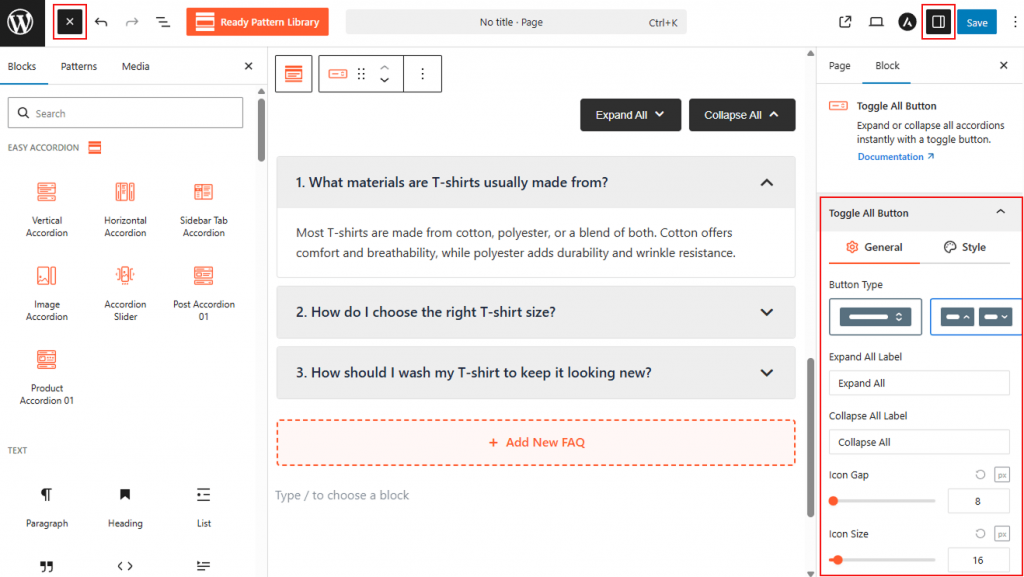
- Go to your WordPress Dashboard.
- Navigate to Pages > Add New, or edit an existing page containing an Easy Accordion block.
- Select the Vertical Accordion (or any FAQs-supported accordion block).
- Open the right-hand Settings Panel.
- Under Accordion Templates, locate the Toggle All Button.
- Click to insert the Toggle All Button block and position it above or below your accordion items for convenient access.
Toggle All Button: General
From this panel, you can define the toggle all button’s layout, labels, and icon placement to create a clear global control for your accordions:
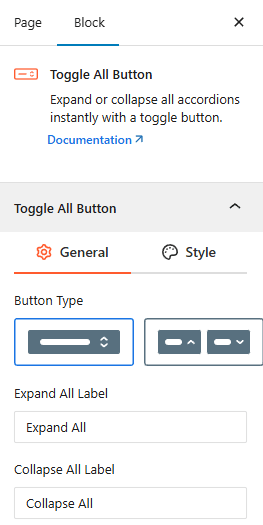
- Button Type: Choose between a single toggle button or a dual-button layout for separate “Expand” and “Collapse” actions.
- Expand All Label: Customize the text shown for the expansion action (e.g., “Expand All”).
- Collapse All Label: Customize the text shown for the collapsing action (e.g., “Collapse All”).
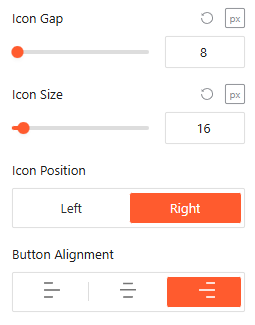
- Icon Gap & Size: Use the sliders to set the precise pixel dimensions of the icon and its distance from the label text.
- Icon Position: Set the toggle icon to appear on the Left or Right side of the button text.
- Button Alignment: Align the button to the Left, Center, or right within its container.
Toggle All Button: Style
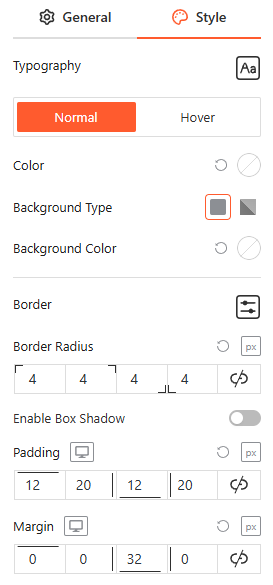
From this panel, you can fully customize the toggle button’s appearance by adjusting the typography, text, and background colors, border settings, border-radius, internal padding, and external margin for a consistent brand look.
Advanced Settings:
The Advanced panel allows you to manage the overall container of the FAQ Search bar, covering visibility and high-level styling.
Visibility:
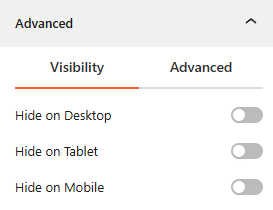
- Device Hiding: Toggle visibility on or off to hide the entire search block on Desktop, Tablet, or Mobile viewports for better responsive control.
Advanced:
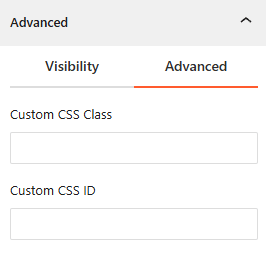
- Custom CSS: Apply a unique Custom CSS Class or Custom CSS ID to the block for deep styling or advanced developer hooks.
Congratulations! Let’s watch a live demo of how the Toggle All Button works.