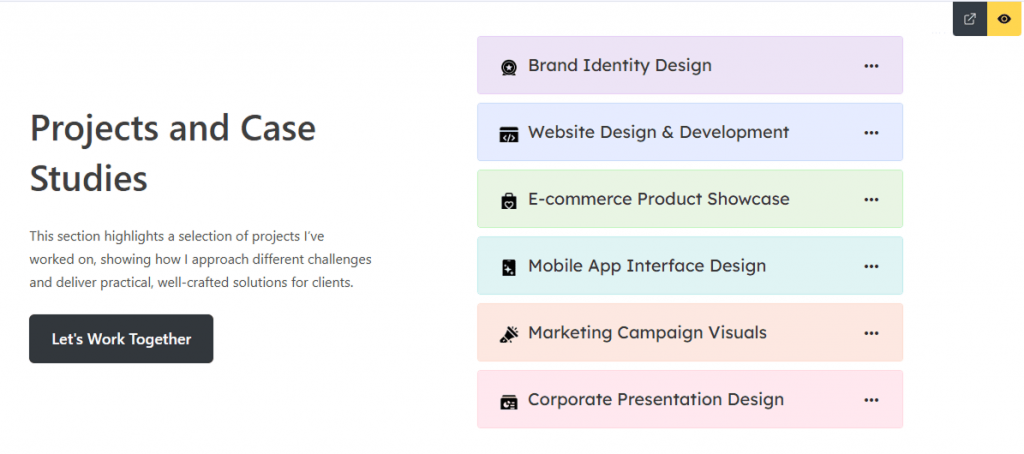
Bricks Builder is a highly popular, modern, and performance-focused visual page builder for WordPress. In this guide, we’ll show you how to use Easy Accordion Blocks and FAQ sections in Bricks Builder using Saved Templates.
Easy Accordion integrates seamlessly with Bricks Builder, allowing you to display FAQs, accordions, knowledge bases, product information sections, and other accordion layouts anywhere on your pages using reusable Saved Templates.
You can complete this in 2 easy steps:
- Step 1: Create a Saved Template using Accordion Blocks or import a ready-made pattern from the Rich Pattern Library.
- Step 2: Add the Accordion Blocks or FAQs sections in Bricks Builder using the Saved Template element.
Step 1: Create a Saved Template
Before using Easy Accordion inside Bricks Builder, you need at least one Saved Template.
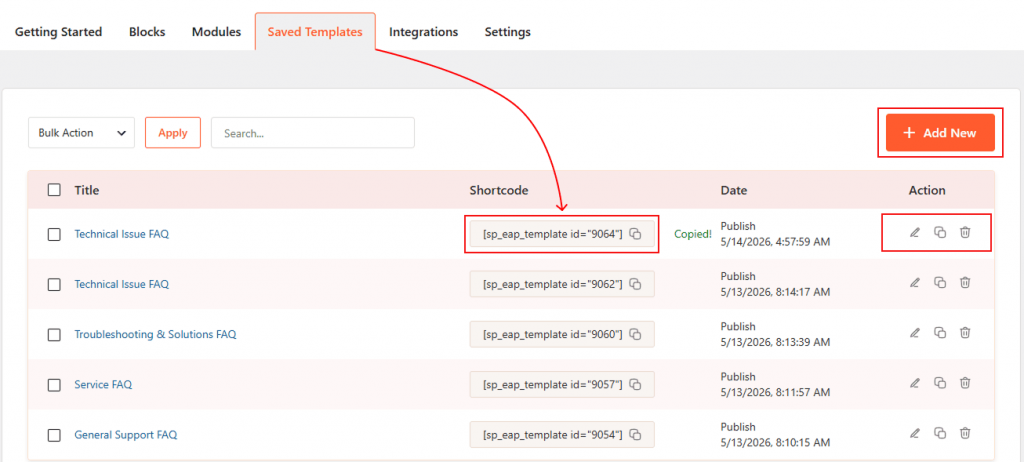
- Navigate to Easy Accordion → Saved Templates and create a new template using Accordion Blocks, or import a professionally designed pattern from the Rich Pattern Library.
- Once your template is ready, it becomes available inside the Saved Template element and can be reused throughout your website.
Step 2: Add the Accordion Blocks or FAQs Sections in Bricks Builder
Follow these 5 steps to display your accordion inside Bricks Builder.
1. Enable the Bricks Builder Addon
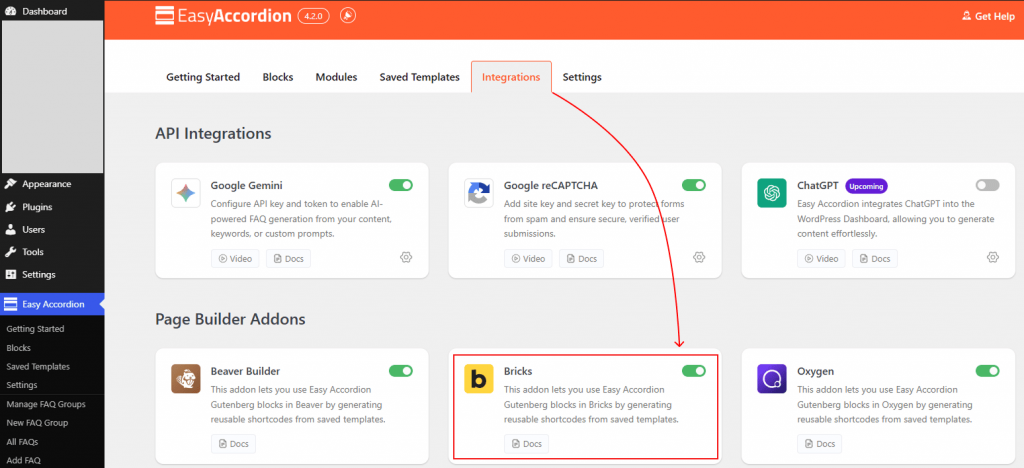
Go to Easy Accordion → Integrations from your WordPress dashboard. Scroll to Page Builder Addons, enable the Bricks Builder toggle, and click Save.
2. Open Bricks Builder
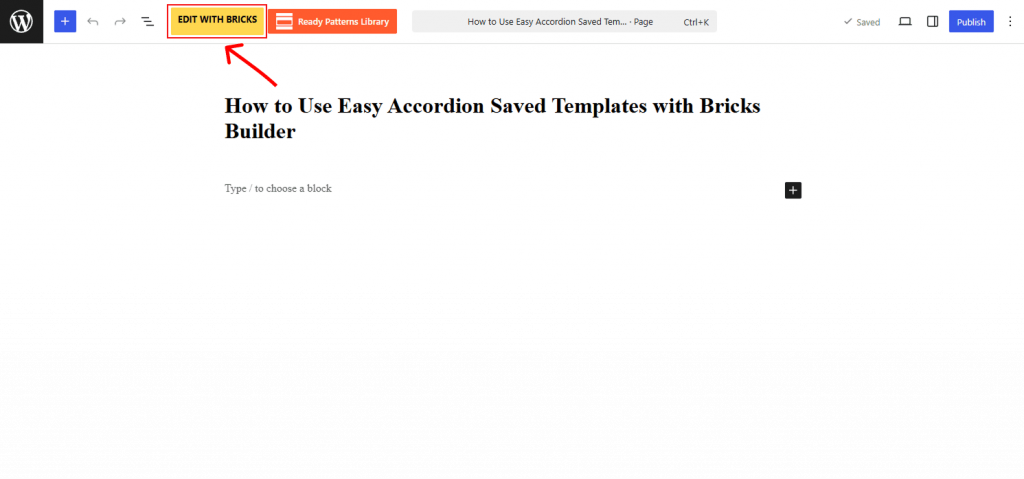
Open the page or template where you want to display your accordion and click Edit with Bricks.
3. Add the Easy Accordion Saved Template Element
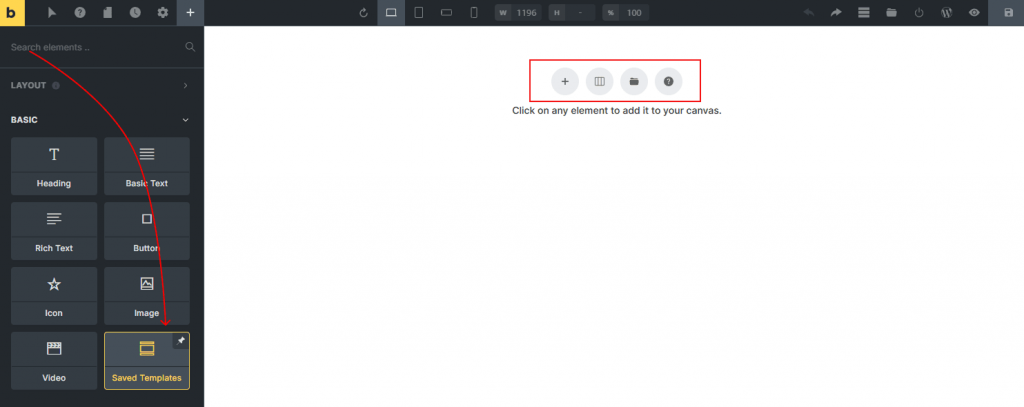
Click the (+) icon to open the elements panel. Search for the Saved Template and add the element to your desired section.
4. Choose Your Template
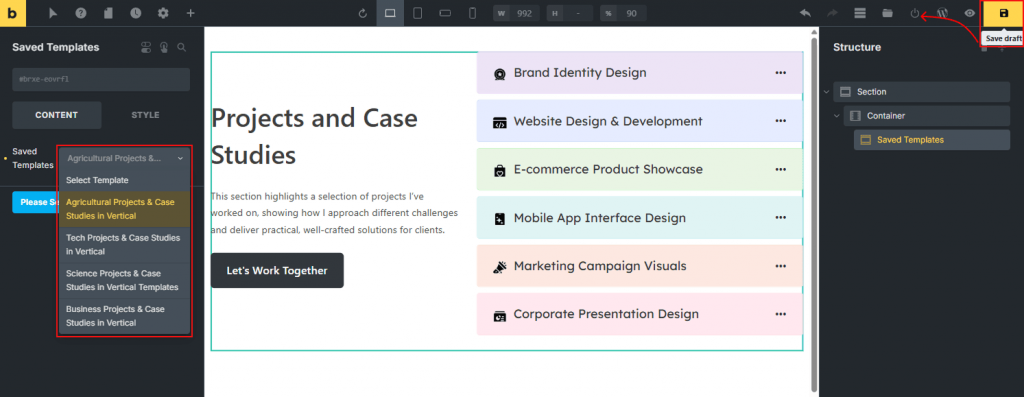
Under the General settings, select your preferred accordion template from the Choose Accordion dropdown.
5. Publish the Page
Click the Save icon at the top-right corner of the screen to publish your changes. Your accordion will instantly appear inside the Bricks Builder editor.
That’s it.
Live Example
Let’s see the live example below of how your Easy Accordion section will appear inside Bricks Builder.