

Add a dedicated FAQ Search Bar above your accordion items to help visitors instantly find the specific answers they need within large accordion-based FAQ sections. It works as a child block, seamlessly integrating into your existing accordion layout to enhance user experience by filtering through content in real-time.
Explore Ready FAQ Search Patterns →
How to Add the FAQ Search (Child) Block:
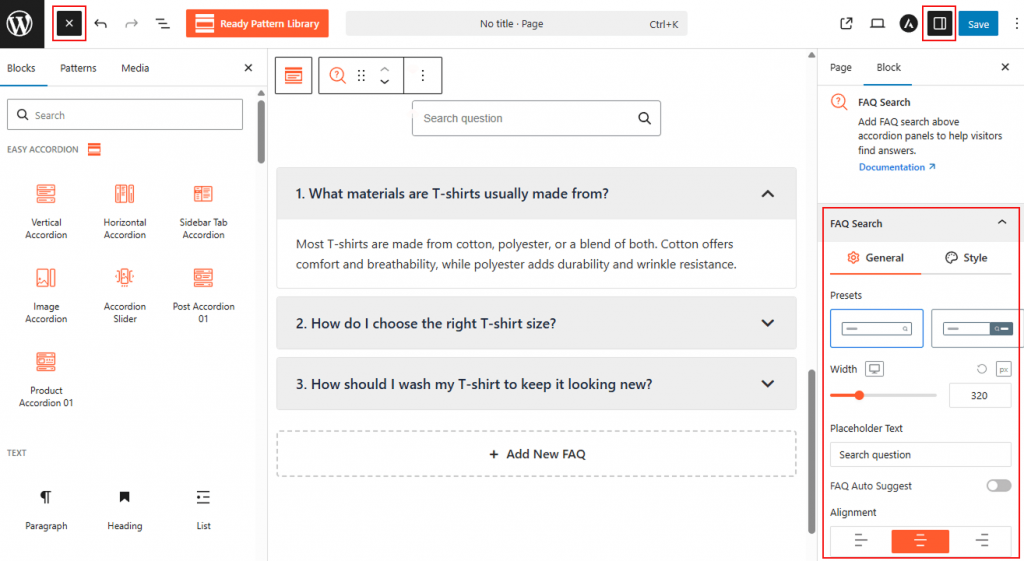
- Go to your WordPress Dashboard.
- Navigate to Pages > Add New, or edit an existing page that contains an Easy Accordion block.
- Select the Vertical or FAQs-supported accordion block.
- Open the right-hand Settings panel.
- Under Accordion Templates, locate FAQ Search.
- Click to insert the search block above the accordion items for better visibility.
Watch this Video Tutorial to add FAQ Search & Filter to Accordions easily:
Now, let’s explore the detailed Settings & Stylings:
FAQ Search: General
From the FAQ Search panel, you can define the layout, width, and alignment while managing placeholder text, auto-suggestions, and button labels for a streamlined search interface.
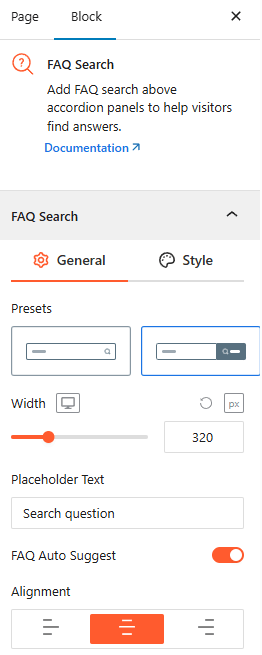
- Presets: Choose between a simple search field or a field with a dedicated button to match your site’s design.
- Width: Set the precise horizontal width of the search bar with responsive controls.
- Placeholder Text: Customize the text displayed inside the search field (e.g., “Search question”).
- FAQ Auto Suggest: Toggle this on to provide instant suggestions as users type.
- Alignment: Justify the search bar to the Left, Center, or right.
FAQ Search: Style
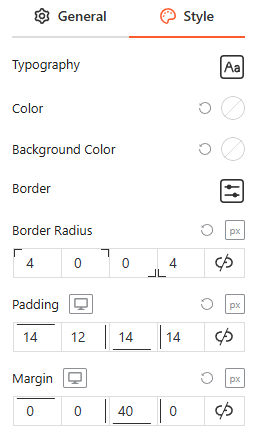
From this panel, you can fully customize the search presets typography, background colors, border settings, border-radius, internal padding, and external margin for a consistent brand look.
Search Button: General
From the Search Button panel, you can configure the search icon source, size, and position while managing the button’s label text and alignment to create a functional and intuitive search interface.
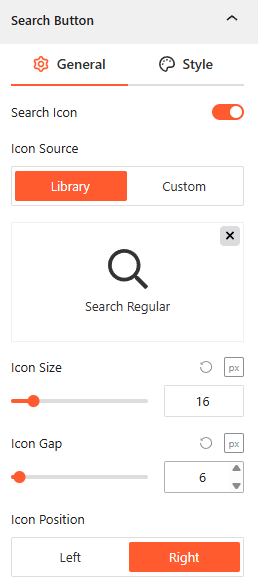
- Search Icon: Toggle the visibility of the search icon and choose your source from the built-in Library or a Custom upload.
- Icon Size & Gap: Adjust the pixel size of the icon and its spacing (Gap) from the search text or button edge.
- Icon Position: Place the search icon on the Left or Right side of the input field.
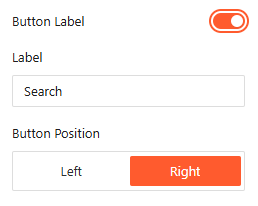
- Show/Hide Button Label: Enable this to show a text label on the search button, customize the text, and set its Position to Left or Right.
Search Button: Style
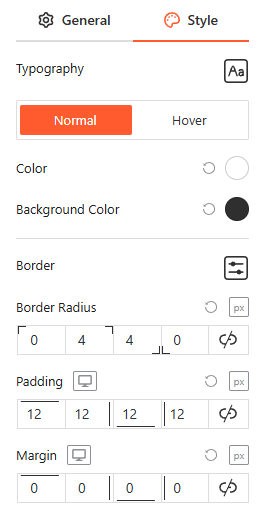
From this panel, you can fully customize the search button typography, button States, background colors, border settings, border-radius, internal padding, and external margin for a consistent brand look.
Advanced Settings:
The Advanced panel allows you to manage the overall container of the FAQ Search bar, covering visibility and high-level styling.
Visibility:
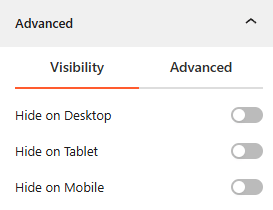
- Device Hiding: Toggle visibility on or off to hide the entire search block on Desktop, Tablet, or Mobile viewports for better responsive control.
Advanced:
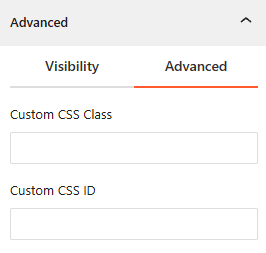
- Custom CSS: Apply a unique Custom CSS Class or Custom CSS ID to the block for deep styling or advanced developer hooks.
Congratulations! Let’s watch a live demo of how the FAQ Search works.