

You can easily modify any existing accordion group at any time. Follow the steps below to update your accordion content or settings.
Note: Since WordPress upgraded from classic to Gutenberg, you can try our newly added drag and drop FAQs & Accordion blocks with a ready-to-use Pattern Library.
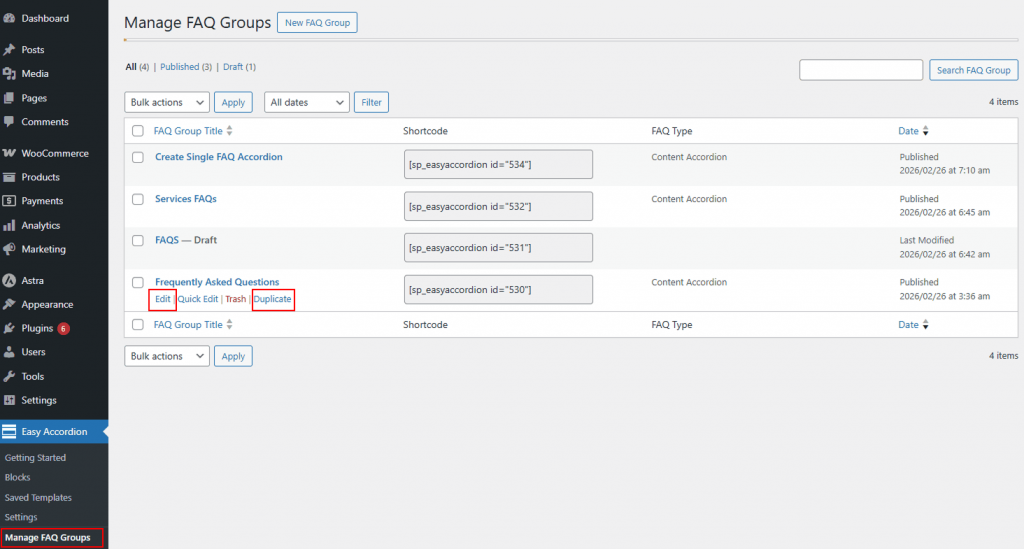
Step 1: Open the Manage FAQ Groups
- Go to your WordPress Dashboard.
- Navigate to Easy Accordion → Manage FAQ Groups.
- You will see a list of all created faq groups.
Step 2: Edit the Accordion
- Choose the FAQ Group you wish to edit.
- Click on the Accordion Title, or
- Hover over the accordion and click Edit. This will open the accordion configuration panel.
Step 3: Make Your Changes
You can modify both content and settings by exploring the available tabs:
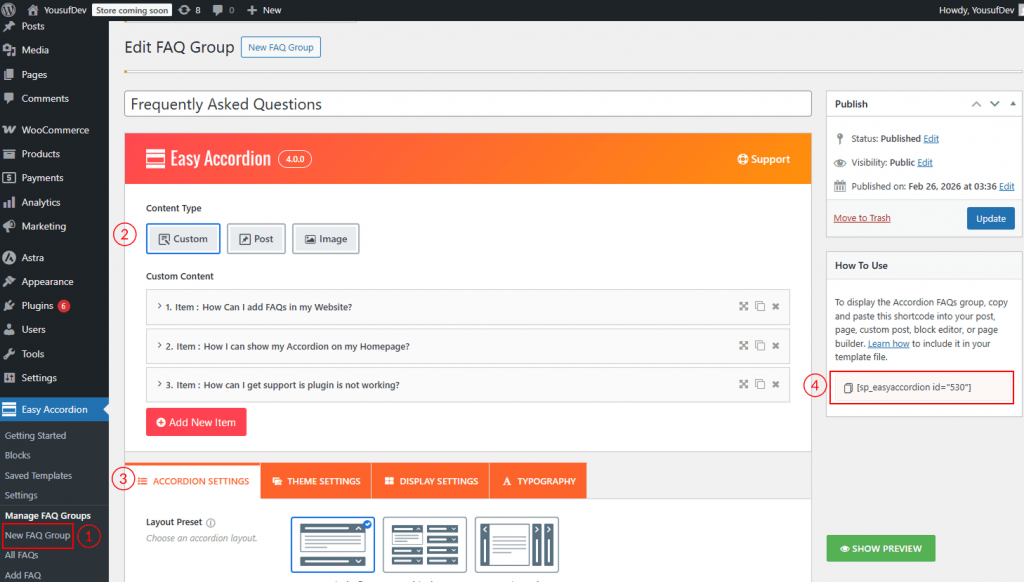
- Accordion Settings: Adjust the core structure and basic configuration of the accordion.
- Choosing Themes: Select from 17 professionally designed theme styles to instantly match the accordion’s appearance to your brand identity.
- Display Settings: Control layout behavior, expand/collapse options, icons, animations, and visibility settings.
- Typography: Customize fonts, sizes, colors, spacing, and other text styling options.
Step 4: Save the Changes
After completing your modifications:
- Click the Publish or Update button on the right-hand side.
Your changes will be applied instantly wherever the accordion is displayed on your website.
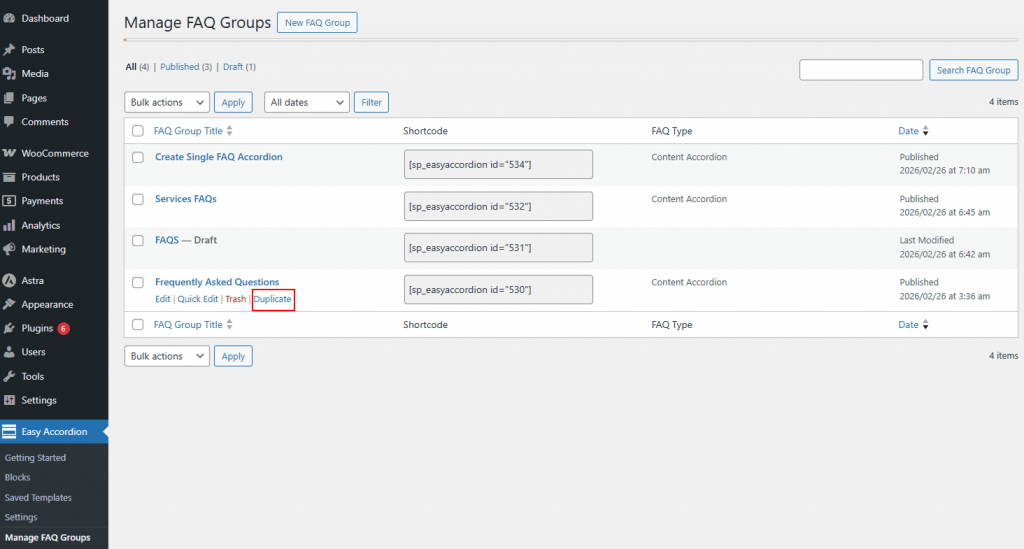
How to Duplicate a FAQ Accordion Group
You can easily duplicate the existing accordions/shortcodes. After you duplicate it, you’ll see it as a draft, and then you’ll need to publish it.
How to Delete a FAQ Accordion Group
If you no longer need an accordion group, you can remove it from your website by following the steps below.
Step 1: Remove the Shortcode (Important)
Before deleting the accordion, make sure to:
Remove the shortcode from any post, page, or builder where it has been inserted. It prevents broken or empty sections from appearing on your site after deletion.
Step 2: Move the Accordion to Trash
- Go to your WordPress Dashboard.
- Navigate to Easy Accordion → Manage FAQ Groups.
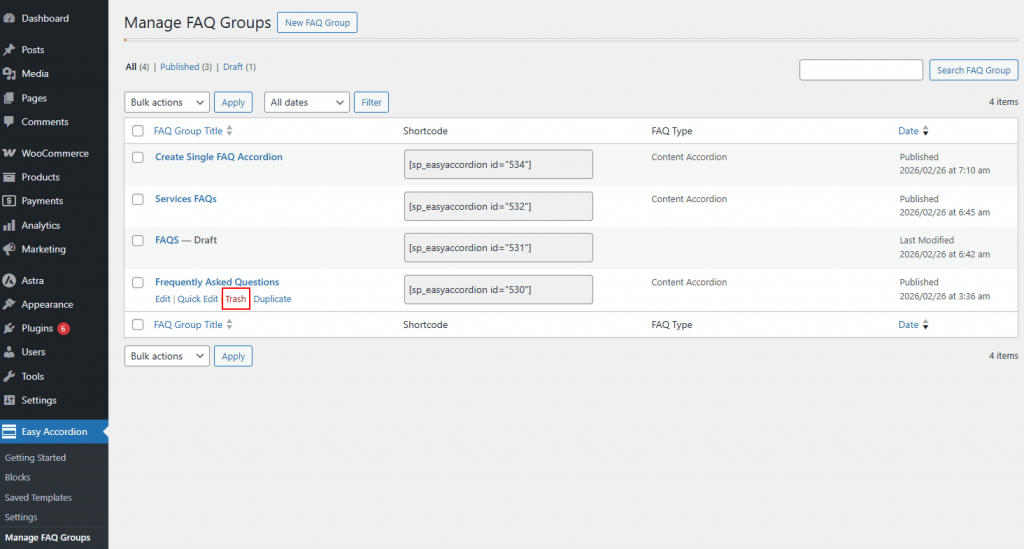
- Hover over the accordion group you want to delete.
- Click Trash.
The accordion will now be moved to the Trash folder. At this stage, it is only deleted temporarily.
Step 3: Permanently Delete (Optional)
To permanently remove the accordion:
- Click on the Trash tab at the top.
- Find the accordion group.
- Click Delete Permanently.
⚠️ Once permanently deleted, the accordion group and its data cannot be recovered.