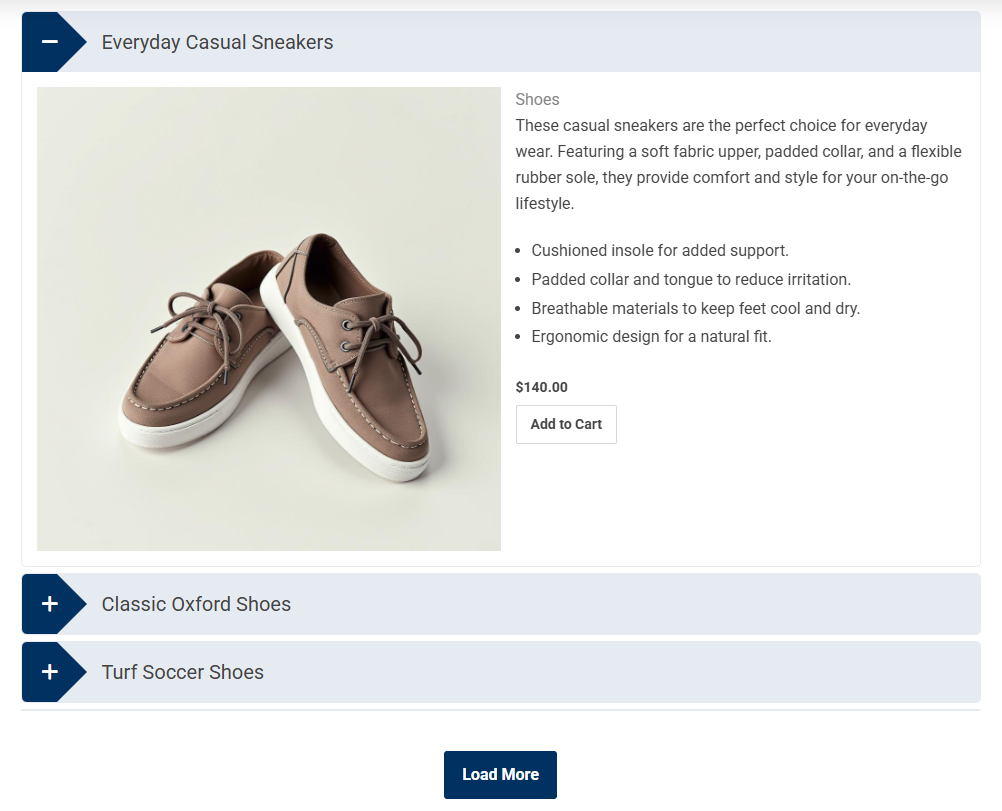
Display your WooCommerce products in an accordion format. It is a great way to organize product-related FAQs, specifications, or additional details in a structured, user-friendly layout without manual repetition.
Note: Since WordPress upgraded from classic to Gutenberg, you can try our newly added drag and drop FAQs & Accordion blocks with a ready-to-use Pattern Library.
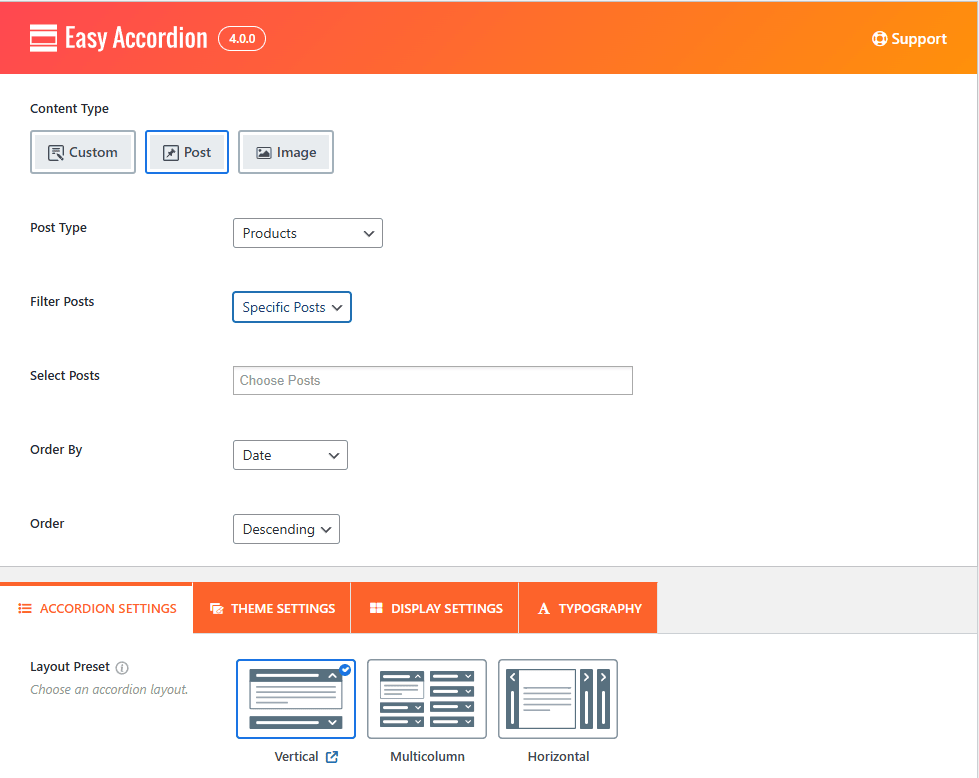
Steps to Create WooCommerce Product FAQ
1. Select Product Type:
Choose the Post content source and set the Post Type to Products to begin pulling your WooCommerce data dynamically into the accordion items.
2. Filter Products:
Choose how products are selected:
- Latest – Display the latest products
- Taxonomy – Filter products by categories or tags
- Specific Products – Show only selected products (a selection field will appear)
3. Select Taxonomy:
If you choose Taxonomy as your filter, pick a taxonomy type such as Product Brand, Type, Tag, Visibility, etc
4. Choose Term(s):
Select one or more terms within the chosen taxonomy to determine which posts appear in the accordion.
5. Set Operator:
Define how terms should be used together:
- IN – Posts with any of the selected terms.
- AND – Posts that match all selected terms.
- NOT IN – Exclude posts with selected terms.
6. Order By:
Control the display sequence of your posts by ID, Date, Random, Title, Modified, Menu Order & Drag-Drop
7. Order:
Choose whether to display posts in ascending or descending order.
8. Total Products to Show:
Set how many products you want to include in the accordion.
Publish the Product FAQ Accordion:
After configuring your WooCommerce Product FAQ accordion:
- Click Publish.
- Copy the generated shortcode.
- Paste the shortcode into any page, post, sidebar, or template where you want the accordion to appear.
Your WooCommerce products will now be displayed as a fully functional FAQ accordion on the frontend.