

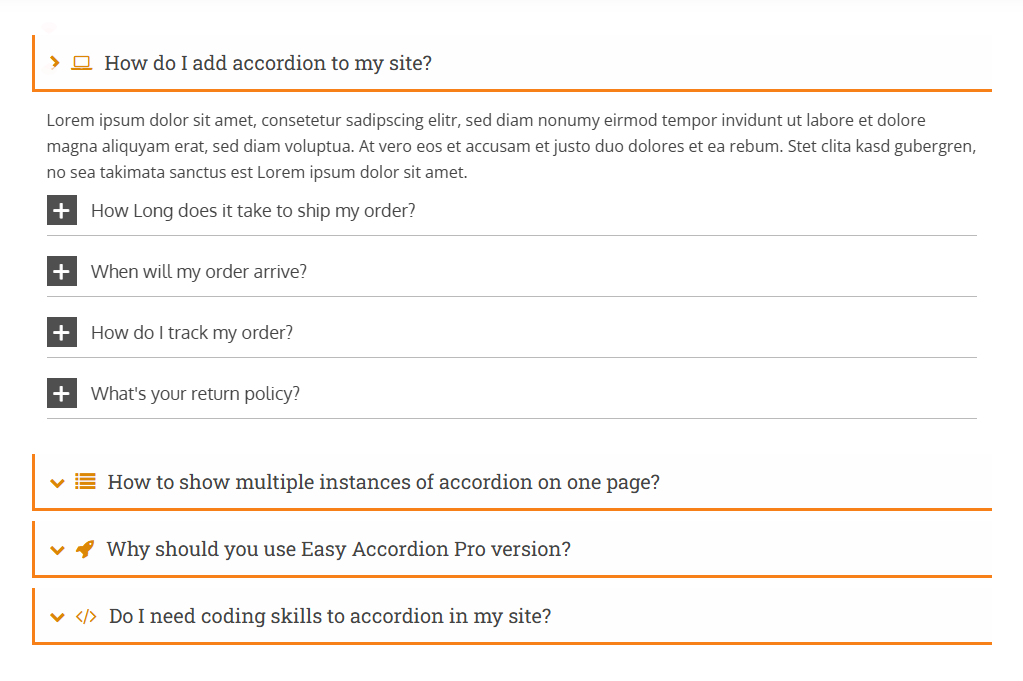
Easy Accordion is an FAQ & Accordion builder plugin for WordPress. It is designed to allow you to create multiple styled FAQ sections & accordions using its ready pattern library. You can also insert one accordion group inside another accordion item’s description to create a Multi-Level or Nested Accordion.
Creating a nested accordion (an accordion inside another accordion) is simple and can be done by following the steps below.
Steps to Create a Multi-Level or Nested Accordion:
- Step 1: Install Easy Accordion
- Step 2: Create New FAQ Groups
- Step 3: Create the Nested Accordion
- Step 4: Add the Final Accordion Group Shortcode
You can also check the live demo of the Nested Accordion to see how it works.
Step 1: Install Easy Accordion Pro
First, install and activate the Easy Accordion plugin on your WordPress site. If needed, follow the installation guidelines.
Step 2: Create Accordion Groups
- Go to Manage FAQ Group from the WordPress dashboard menu.
- Click Add New FAQ Group and create as many accordion groups as you need.
Note: If you need help creating an accordion group, check the Add New Accordion documentation.
- Copy the shortcode of any accordion group you want to nest.
- Click Edit on the accordion group where you want to insert the nested accordion.
Step 3: Create the Multi-Level or Nested Accordion
- Click on the Item where you want to display the nested accordion.
- Go to the Description Content section and paste the copied shortcode.
- You can place multiple shortcodes anywhere inside the description content area.
- You can also add different accordion shortcodes to different items within the same group.
- Click Publish (or Update).
After publishing, copy the generated accordion group shortcode or PHP function shown at the bottom.
Step 4: Add the Final Accordion Group Shortcode
Paste the final accordion group shortcode (or PHP function) into:
- A WordPress page
- A post editor
- Or a custom template file
Your multi-level (nested) accordion will now appear on the frontend.
Important Notes:
- You can create multiple levels if necessary.
- Always publish the child accordion before inserting its shortcode. Avoid excessive nesting to maintain better usability and performance.
You can also watch the video tutorial on how to create a nested accordion: