

Since an accordion’s content is generated via a shortcode and rendered on the frontend, WPML cannot automatically translate it. However, you can easily make your accordion translatable by following the steps below.
Step 1: Make the Accordion Shortcode Translatable
- Install and activate the WPML Multilingual CMS plugin.
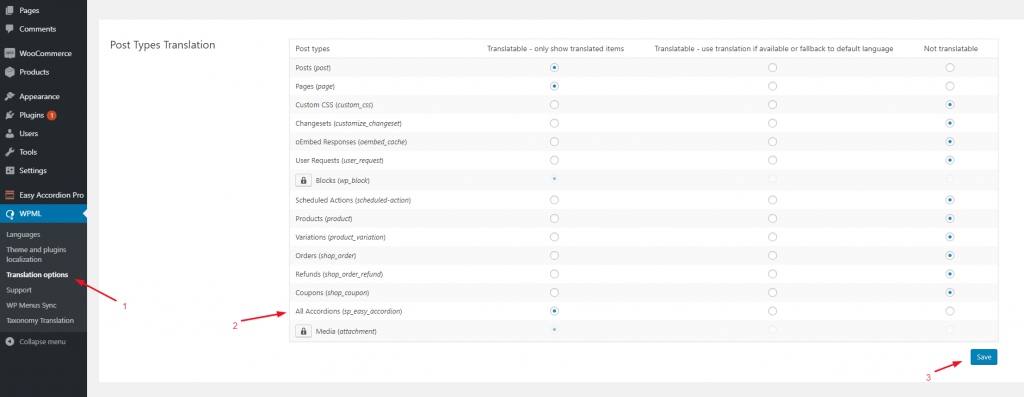
- Go to WPML → Translation Options.
- Check All Accordions (sp_easy_accordion) to make the shortcode translatable.
- Click Save to apply the changes.
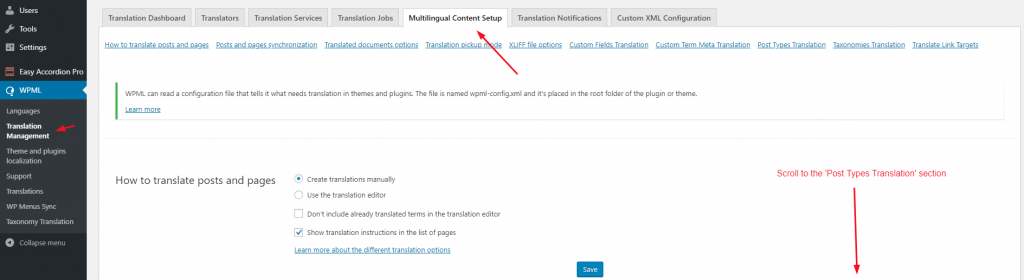
If you are using the WPML Translation Management plugin, you’ll find this option under: Translation Management → Multilingual Content Setup (scroll down to locate it).
Once enabled, a Plus (+) icon will appear, allowing you to translate the shortcode into another language.

Step 2: Create the Translated Shortcode
- Go to All Accordions in your dashboard.
- Click the + icon under the target language column.
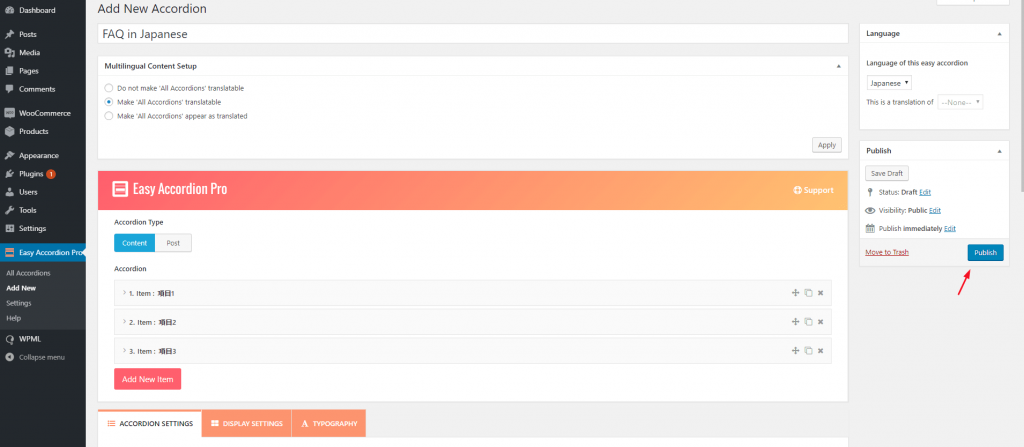
- A new shortcode editor will open.
- Add the translated title, content, and styles as needed.
- Click Publish.

Step 3: Insert the Translated Shortcode
- Go to All Accordions again.
- Select the desired language tab (e.g., Japanese).
- Copy the translated shortcode.
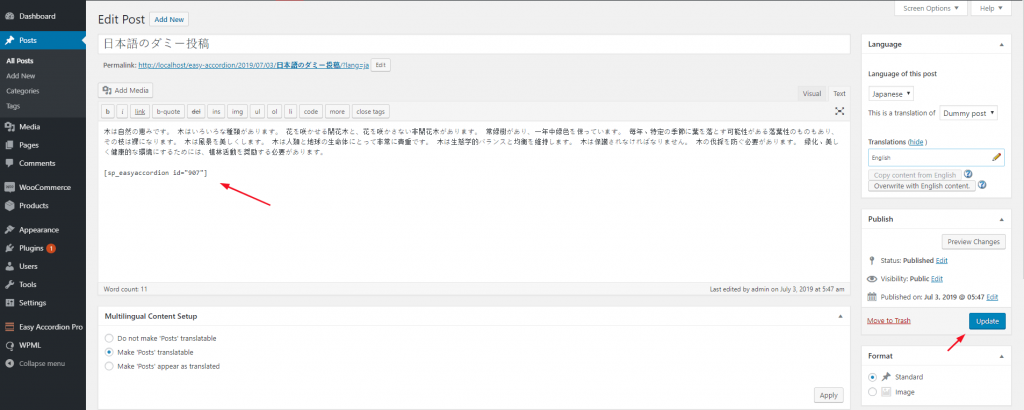
- Open the translated version of your post/page where the original shortcode is placed.
- Replace the original shortcode with the translated one.

Conclusion
After completing these steps, your accordion shortcodes will display correctly in different languages. Visitors can switch languages using the WPML language switcher and view the translated accordion content without issues.