

The Saved Templates module allows you to create an accordion once and reuse it across multiple pages or posts, saving your time. Instead of rebuilding complex accordions from scratch for every new post or page, it gives you the power to create a template once, edit & reuse it across your website.
Moreover, you can add the Accordion Blocks or FAQs sections in the popular page builders using the Saved Template as a Widget.
Let’s watch the Video Tutorial to see how it works.
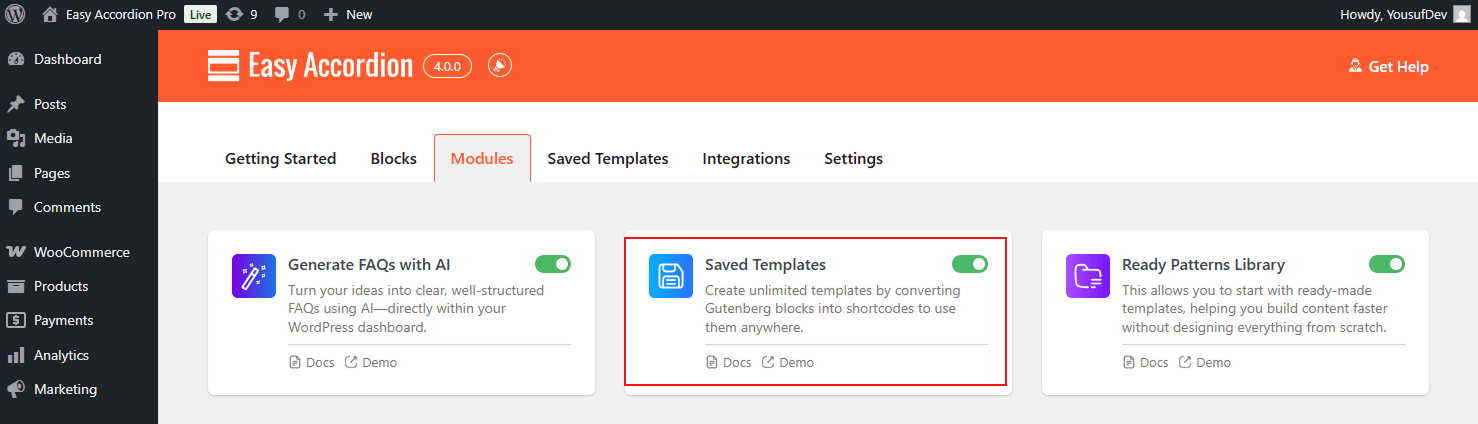
How to Enable the Saved Template Module using Easy Accordion:
To activate this module within the Easy Accordion dashboard, follow these simple steps.
- Navigate to your Easy Accordion menu in the WordPress sidebar.
- Go to the Quick Start or Blocks tab, and move to the Modules.
- Find the Saved Template toggle and switch it to ON.
- After turning it ON, you will find a dedicated panel named Saved Template next to the Modules.
- From this panel, you can “Add New” Template, Edit, Delete, and Duplicate as you want.
How to Create a New Accordion Template:
To start building your reusable Saved Accordion Templates Library, follow the steps below:
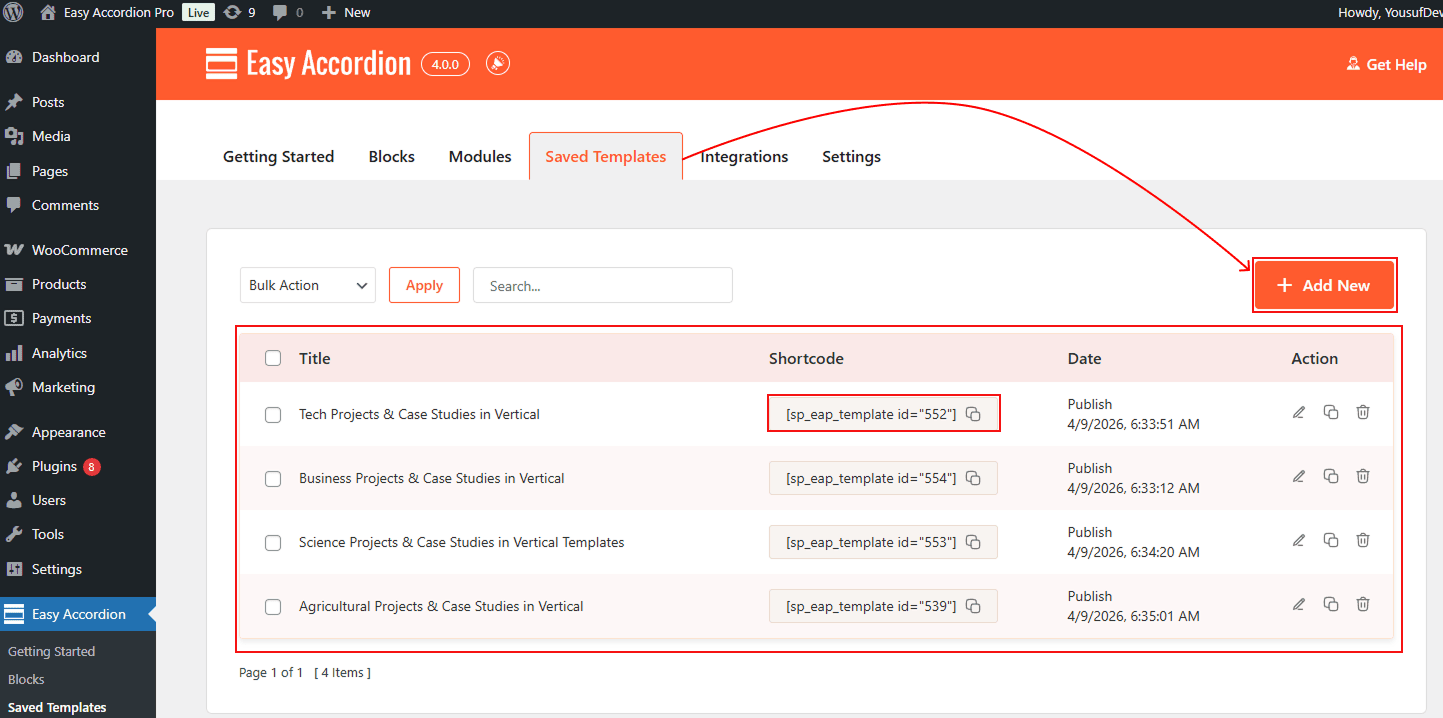
- From your WordPress dashboard, go to the Easy Accordion and select the Saved Template panel.
- Click the Add New button to open the Gutenberg Editor.
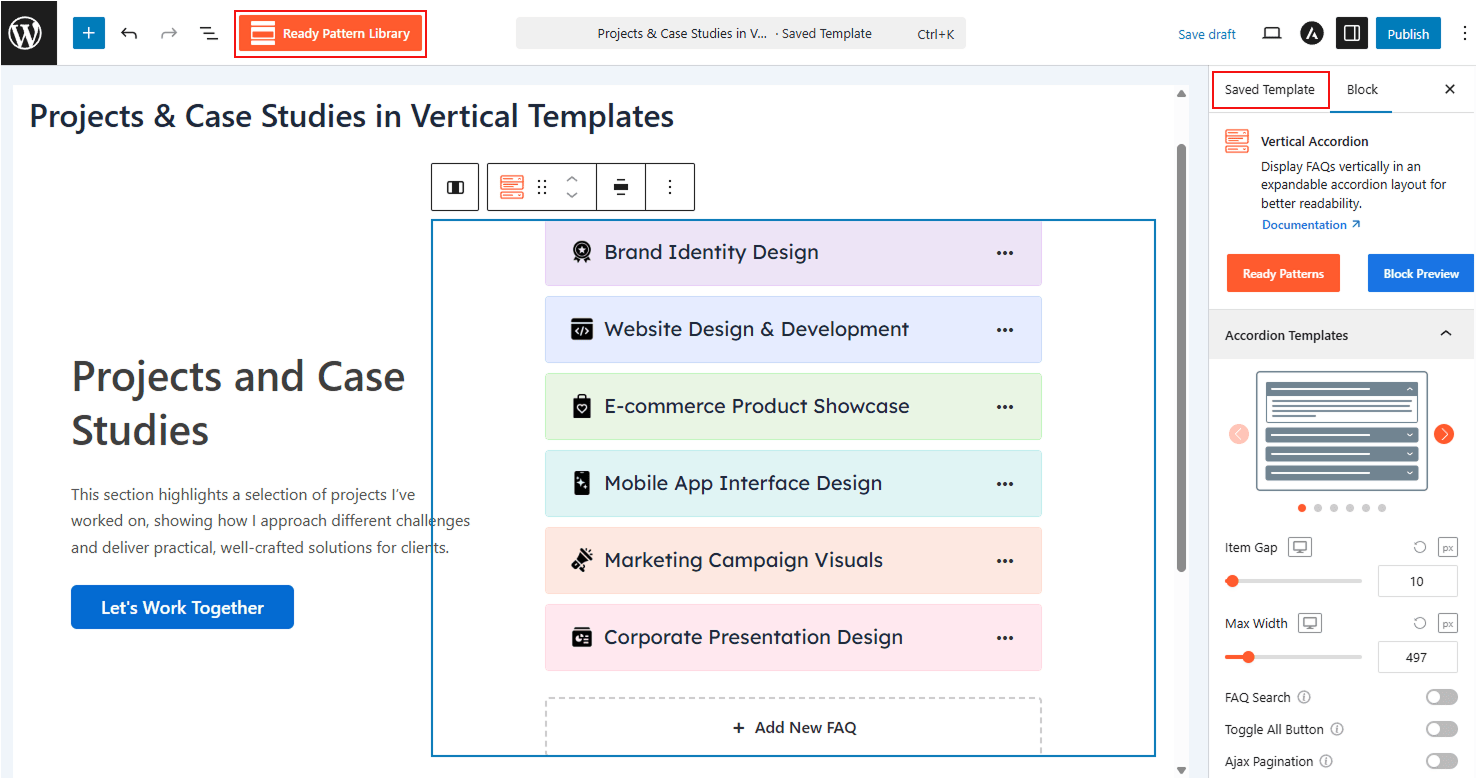
- Use the Ready Patterns Library or choose custom Accordion blocks to build your desired template.
- Edit and customize everything you want.
- Name the Template (e.g., “Product FAQ” or “Support Guide”) so you can find it easily later.
- Once your design is complete, click Publish. Your template is now saved and ready for use.
How to Reuse Your Saved Templates:
Once a template is saved, you can insert it into any post or page:
- From your WordPress Dashboard > Easy Accordion, go to the Saved Templates panel.
- Copy the Shortcode from the ‘Saved Templates’ section of Easy Accordion.
- Create a page by going to Pages > Add New or Open an existing page.
- Search for ‘Shortcode’ in the Gutenberg Editor, and Paste the Shortcode.
- Now, click ‘Publish’ the page/preview the page.