

If you have already installed and activated Easy Accordion, you’re ready to create your first accordion. This guide walks you through installation, license activation, and building your first Accordion Showcase using both Classic Shortcodes and Live Gutenberg Blocks.
1. Plugin Installation
- Go to your WordPress dashboard.
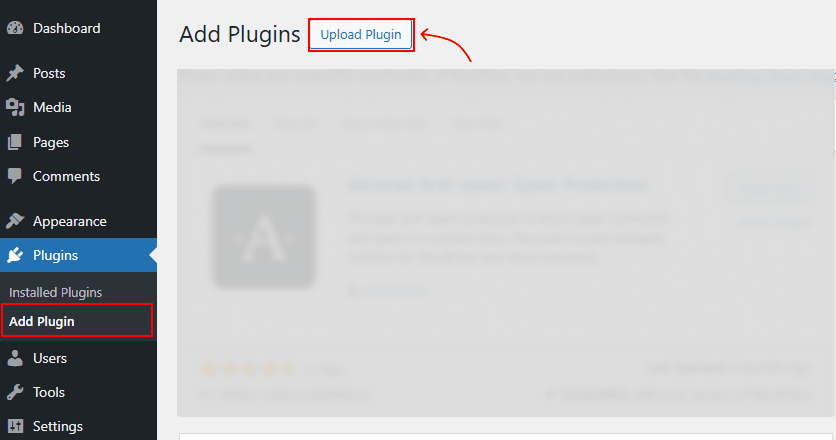
- Navigate to Plugins → Add New → Upload Plugin.
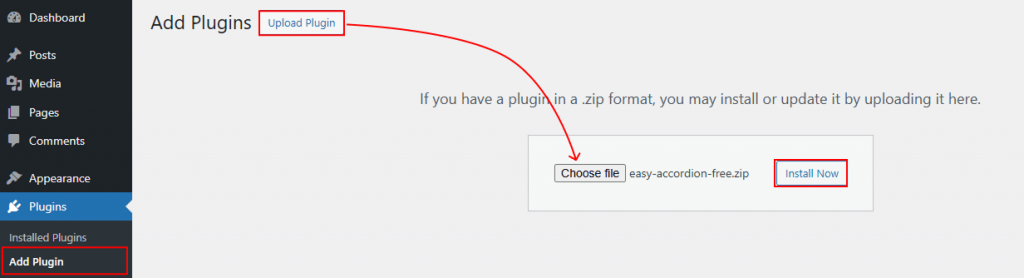
- Click Choose File, select easy-accordion-pro.zip, and click Install Now.
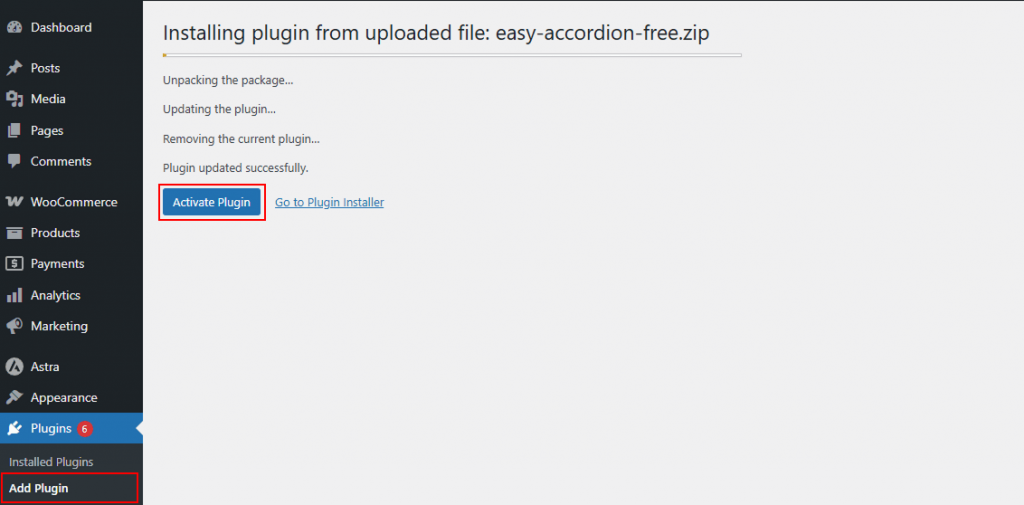
- Once installed, click Activate Plugin.
The plugin is compatible with the latest WordPress, PHP, and MySQL versions.
2. License Key Activation
After activating the plugin, you will be redirected to the License Activation page.
- Get your License Key from your ShapedPlugin account.
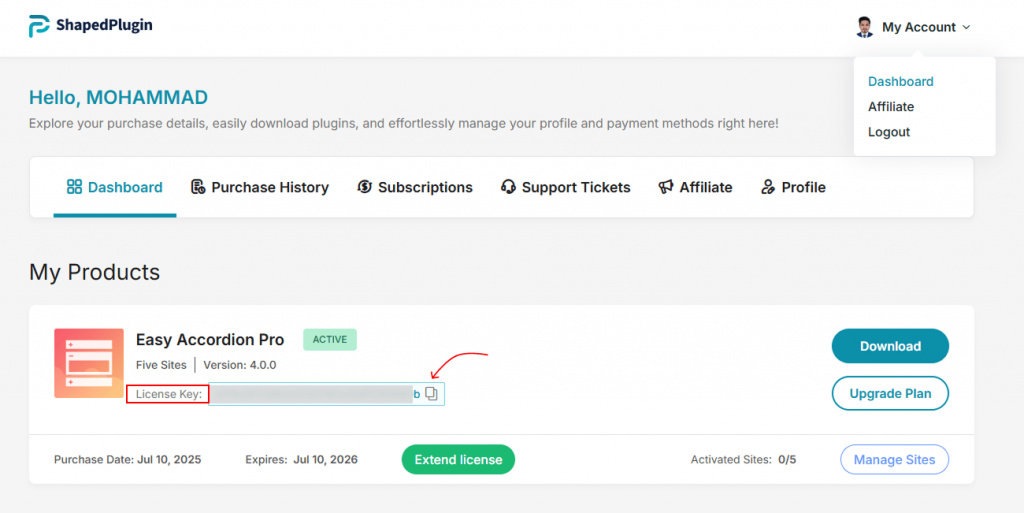
- Paste the key into the License field and click Activate.
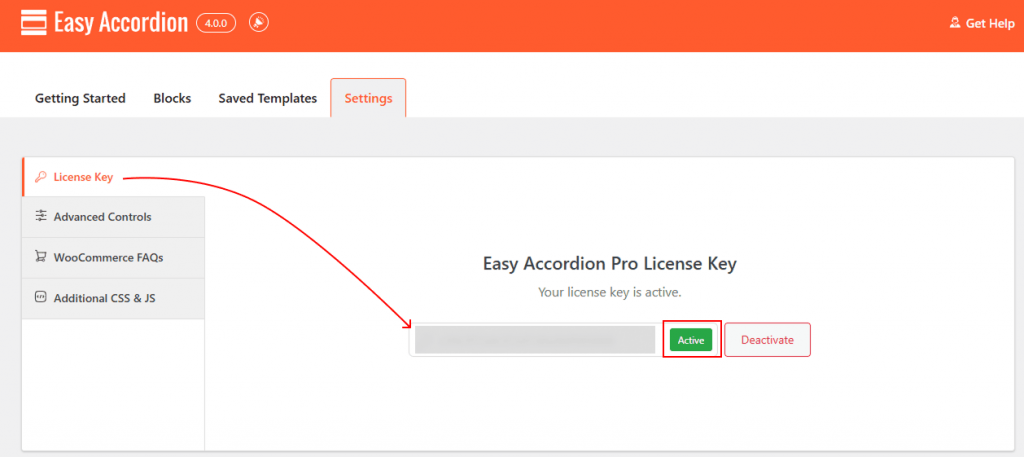
Activating your license unlocks premium features and ensures automatic updates.
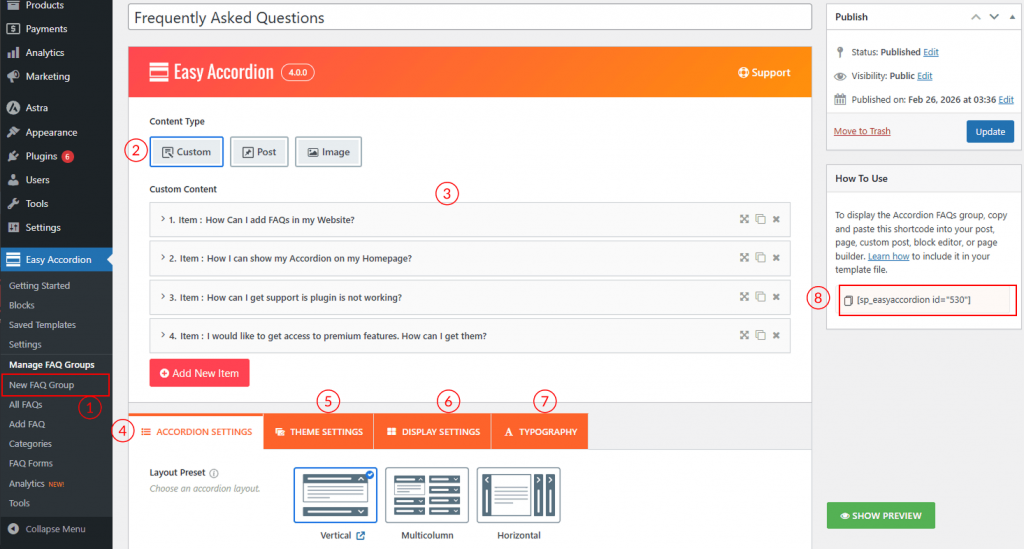
3. Create Your First FAQ Accordion Showcase Using Classic Shortcodes:
- Go to Easy Accordion → Manage FAQ Groups → Click Add New FAQ →And enter a Section Title (optional) for your accordion group.
- Choose Content Source as Content, Post, or Image as needed.
- Enter your accordion Title or subtitle and add content using a powerful editor (supports text, images, shortcodes, iframe, and HTML).
- Add an icon or upload a custom image (optional).
- Click Add New Item to add more items.
- Select a Layout (Vertical, Horizontal, Slider, or Image Accordion).
- Customize Accordion Settings
- Theme Settings
- Display Settings, and
- Typography as needed.
- Now time to Publish & Preview, Copy the ShortCode and Showcase it to any post, page, or builder you wish.
Using Gutenberg Accordion Blocks:
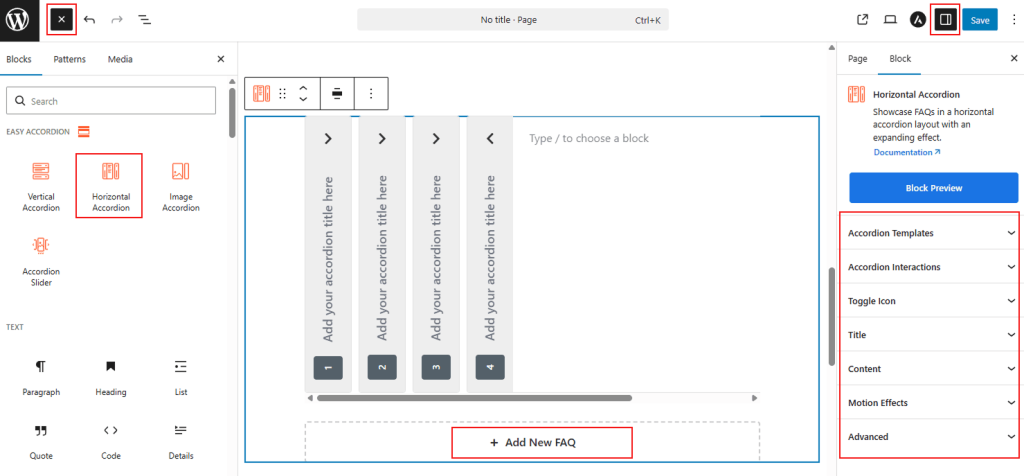
- Open a page or post to add blocks in the Block Editor.
- Click Add Block → Easy Accordion.
- Choose a Pre-built Accordion Blocks Library or choose any of the accordion blocks to design from scratch.
- Add accordion items with Titles, Content, and Icons as needed.
- Customize settings and preview changes in real time.
- Publish the page to make the accordion live.
4. Display the Accordion
- Copy the shortcode from the Accordion Group or Block. You can also use it with ready-made Saved Templates on any popular page builder.
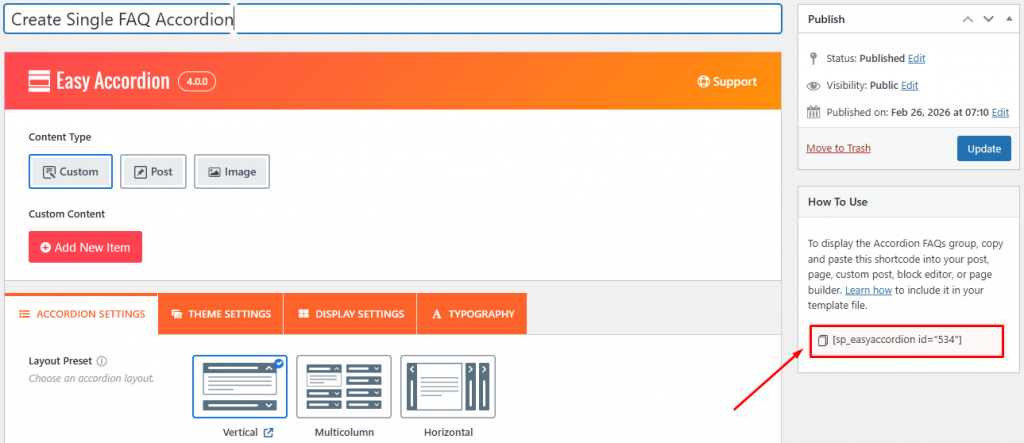
- Paste it into pages, posts, widgets, or any shortcode-supporting area.
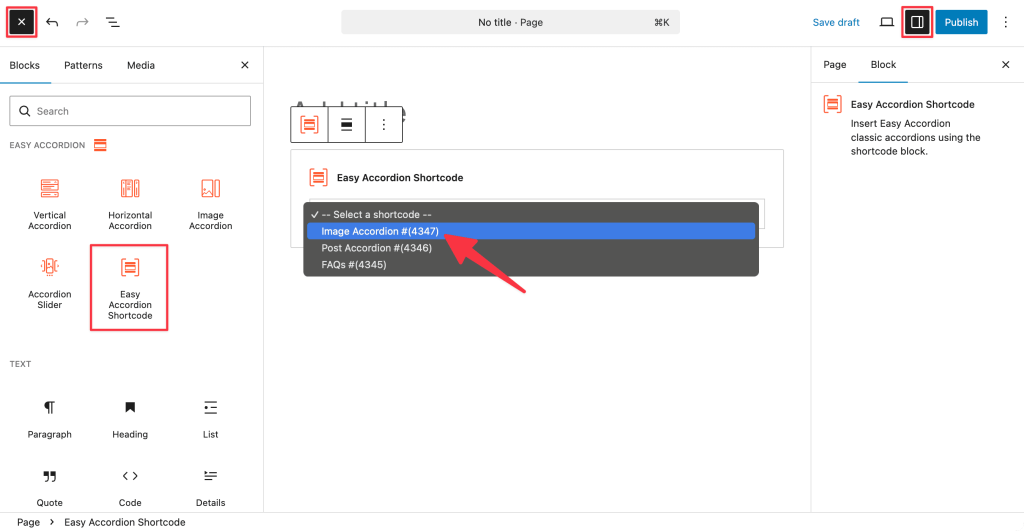
- You can also use the Easy Accordion Gutenberg block for live placement.
Your accordion is fully responsive and works on all devices.
5. Accordion Showcase Demo
Check out live demos and layout ideas to get started: Easy Accordion Showcase
Congratulations!
With Easy Accordion, you can create interactive, responsive, and SEO-friendly FAQs & accordions in minutes.