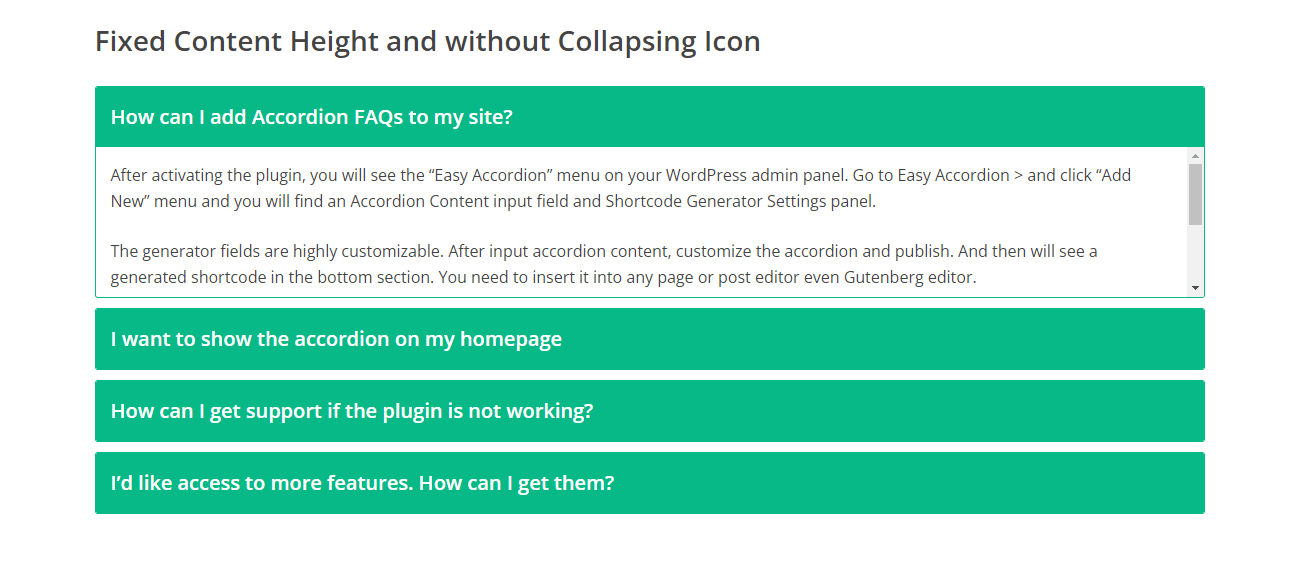
Elementor is one of the most popular WordPress page builders. In this guide, we’ll show you how to use Easy Accordion shortcodes inside Elementor.
You can complete the process in just two simple steps:
Step 1: Install Easy Accordion and Create a Showcase
First, install and activate the Easy Accordion plugin.
Then, create a new Accordion Showcase from the plugin dashboard. If needed, you can follow the getting started guide:
Easy Accordion Pro – Getting Started
Once your showcase is created, the plugin will automatically generate an Accordion Shortcode for you. Copy this shortcode—you’ll need it in the next step.
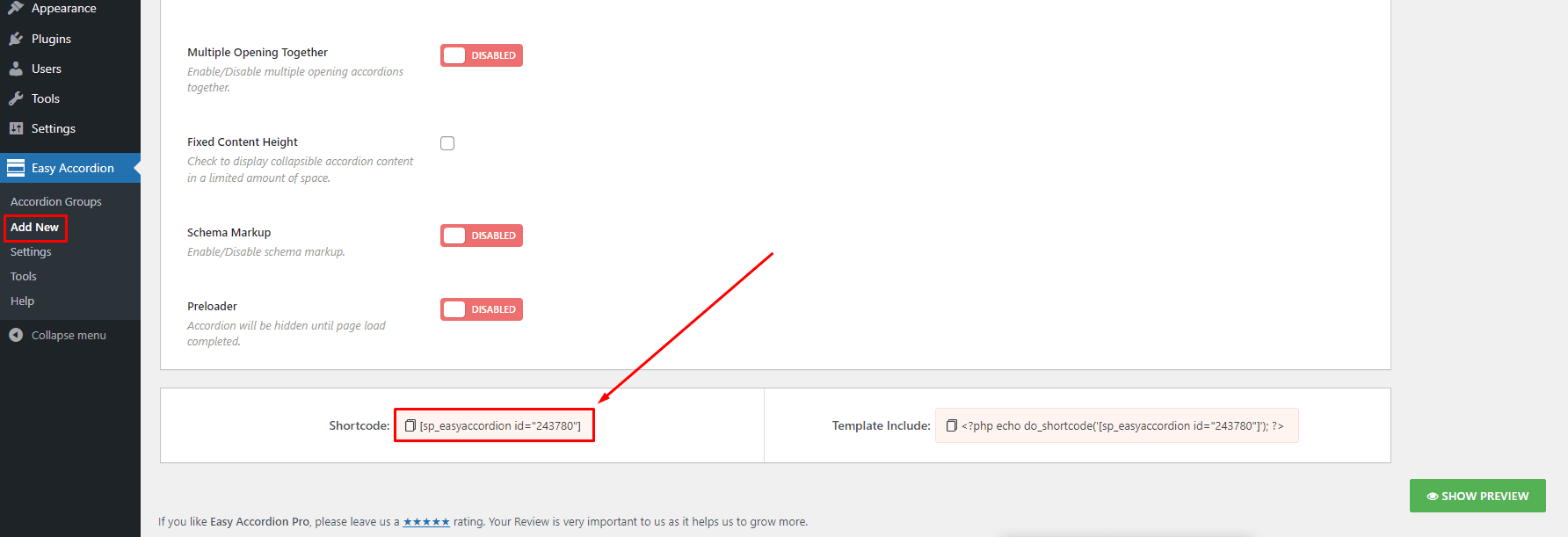
Step 2: Add the Shortcode in Elementor
- Open your page with Elementor Builder.
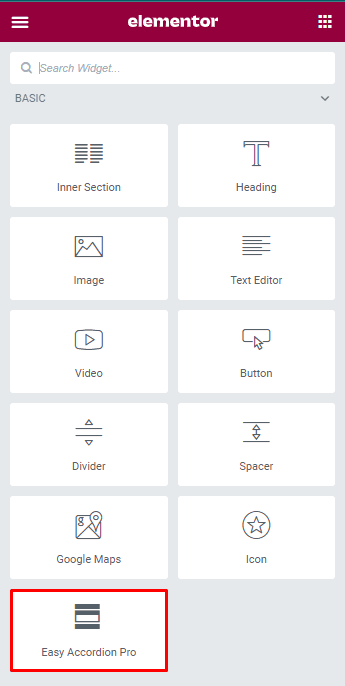
- Drag and drop the Shortcode widget into your desired section.
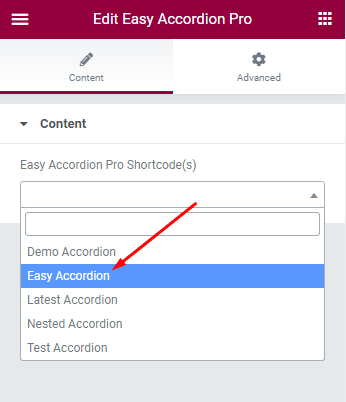
- Paste the Easy Accordion Shortcode into the Shortcode field. Note: You can also add your Accordion Blocks or FAQs sections in page builders using the Saved Template as a Widget.
- Update or publish the page.
Now preview your page, and you’ll see the accordion displayed exactly as configured in your Easy Accordion settings.