

Display your WooCommerce products in an organized, collapsible accordion with the Product Accordion 02 block, where users can reveal the product image, price, and “Add to Cart” button, providing a streamlined shopping experience. Choose from horizontal or vertical layouts, filter products with an advanced Query Builder, and enhance your store with built-in search, FAQ schema, etc, and full customization to match your brand.
Explore Ready Product Accordion Patterns →
How to Add the Product Accordion 02 Block:
To integrate the Post Accordion 02 block into your layout, follow these steps:
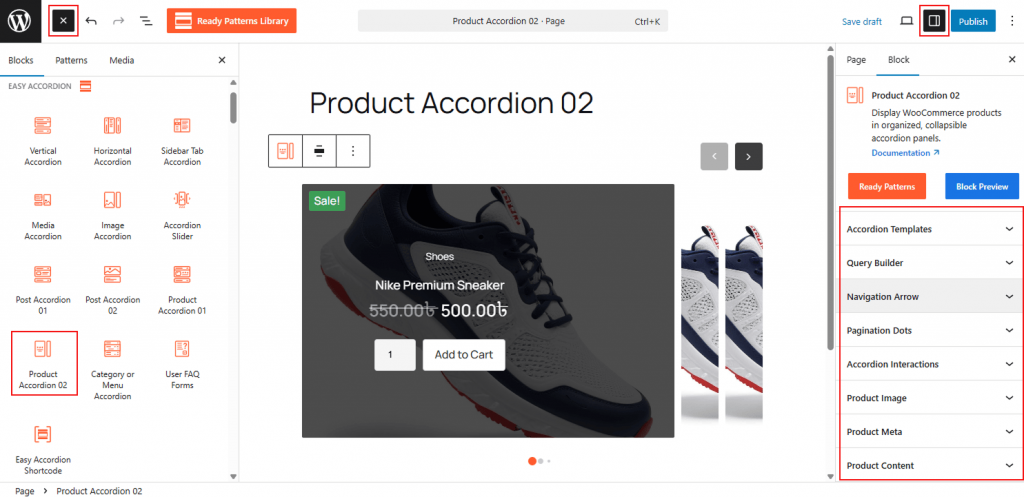
- Go to your WordPress Dashboard.
- Navigate to Pages > Add New (or edit an existing page).
- In the block editor, click the “+” (Add Block) button.
- Search for “Product Accordion 02 ” under the Easy Accordion category.
- Click to insert the block into your page.
How to Customize the Product Accordion 02 Block:
- Modern Templates: Select from various pre-designed layouts specifically designed for e-commerce.
- Advanced Query Builder: Automatically pull products by category, tag, price, or featured status.
- E-commerce Interactivity: Enable triggers like Click or Hover and toggle the display of Price, Ratings, and Add to Cart buttons.
- Full Brand Styling: Tailor the typography, colors, and button styles to create a seamless shopping experience.
Accordion Templates: General
From this panel, you can select the visual structure and layout orientation to define how your product accordions are displayed.
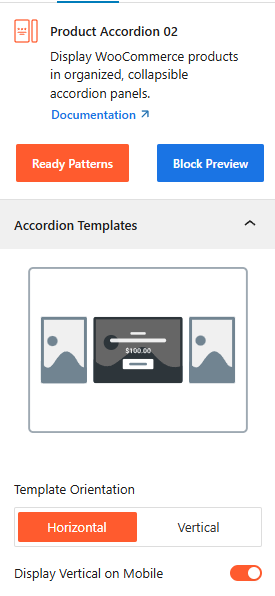
- Template Selection: Choose from the stylish templates to determine the base design of your product accordion.
- Template Orientation: Set the layout to either Horizontal or Vertical to best utilize your page’s space.
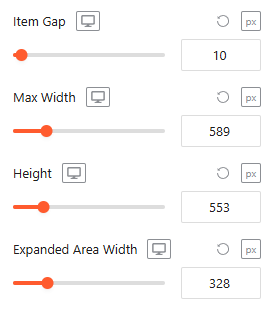
- Item Gap (Accordion): Adjust the vertical or horizontal spacing between individual accordion panels.
- Max Height & Width: Set a maximum height & width for the entire accordion container to ensure it fits perfectly within your page layout.
- Expanded Area Height: Adjust the expanded area height for the expanded accordion item to ensure it fits perfectly within your page layout.
Advanced Utilities:
- Slider Settings: From this panel, you can easily configure the movement and display logic for your product accordion when using a slider layout. For more details, please visit here.
- Navigation Arrow: From this section, you can configure the behavior and placement of your navigation controls to ensure easy browsing. For more details, please visit here.
- Pagination Dots: Configure the visual structure and spacing of the slider’s pagination indicators to improve user navigation. For more details, please visit here.
- FAQ Schema Markup: Automatically apply structured data to your content to improve visibility in search engine results. For more details, please visit here.
- Preloader: Toggle on a smooth loading animation that displays while the block’s content is being fetched.
Query Builder:
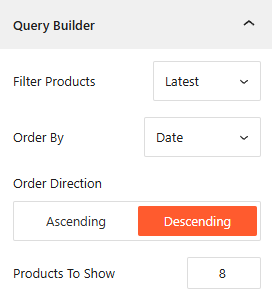
From this panel, you can define the specific logic and criteria used to automatically fetch and display your products within the accordion. For more details, please visit here.
Accordion Interactions:
From the Accordion Interactions panel, you can define how panels trigger, scroll, and link, ensuring a smooth and intuitive browsing experience for your visitors. For more details, please visit here.
Product Image:
From this panel, you can easily configure the product images’ size, scale, and position to create a visually engaging product layout. For more details, please visit here.
Product Meta:
From the Product Meta panel, you can choose which specific details to display alongside your posts to provide better context for your readers. For more details, please visit here.
Product Content:
From this panel, you can control the structural details of your product information to optimize for both SEO and user experience. For more details, please visit here.
Motion Effects:
From the Motion Effects panel, you can add animations and interactive movement to your accordion, making the content feel more dynamic as users scroll or interact. For more details, please visit here.
Advanced Settings:
The Advanced panel allows you to manage the overall container of the accordion, covering visibility, accessibility, and high-level styling. For more details, please visit here.