

Add custom or Featured Icons to your accordion items using the built-in icon library. Choose from a wide range of ready icons or upload your own to visually highlight content, improve scannability, and keep your accordion aligned with your brand identity.
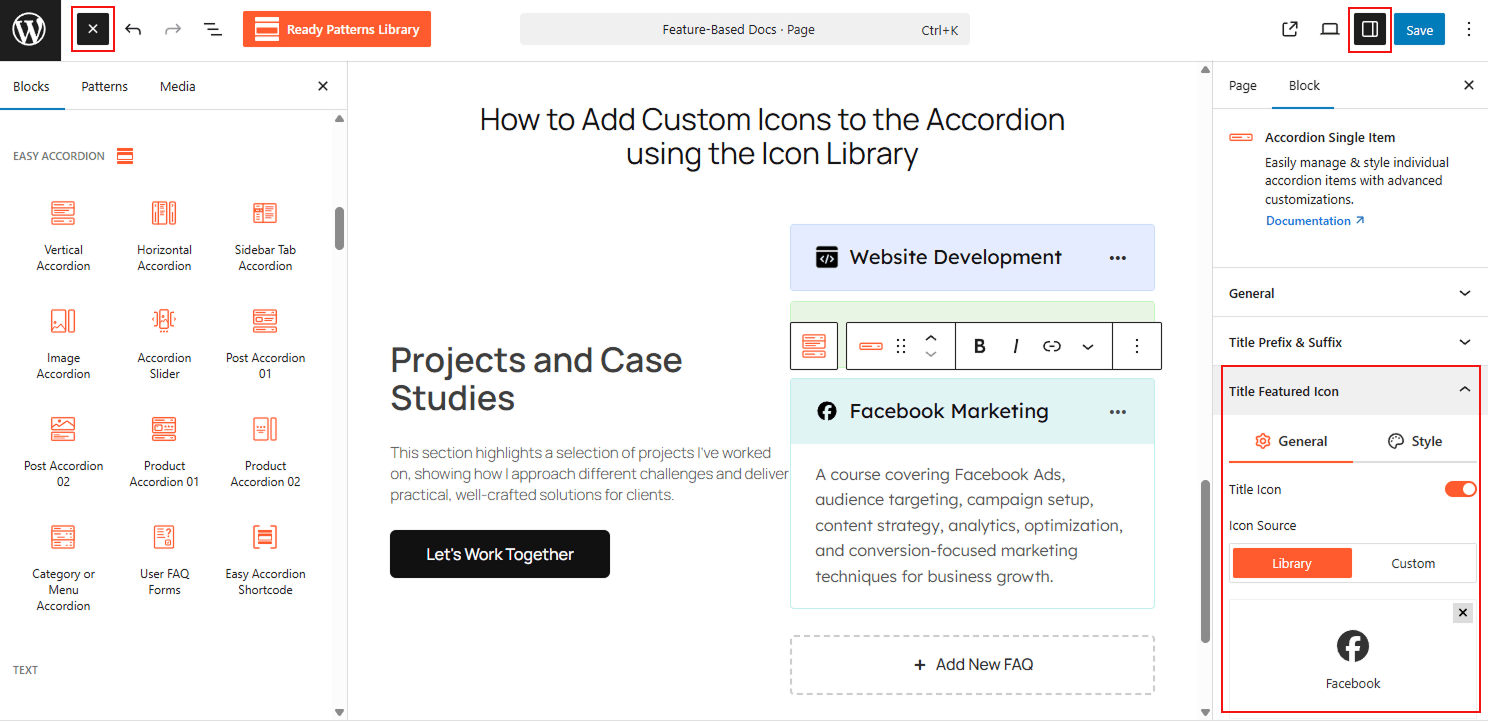
To Add Custom Icons:
- Insert any Accordion Blocks (e.g., “Vertical Accordion“) block to your page.
- Go to the Icon Settings in the sidebar.
- Click to open the Icon Library and search for your desired icon.
- Select the icon to apply it as an expand/collapse trigger or a featured icon.
To know how to configure, please visit the detailed documentation.
Let’s watch the Live Demo of how the Custom Icons will look in Accordions.